Document Portfolio FAQ & Business rules
 What is an InEight Document Portfolio Project?
An InEight Portfolio project is used to handle multiple projects within a single instance of InEight Document.
Companies should consider this if:
-
All projects will use the same data structure / communication templates as all projects will share this data.
-
If the company requires a DMS on multiple smaller scale projects (typically <$20M based on contract complexity).
-
Projects need to be created rapidly by the company.
-
Access from within the company (owner of InEight Document) to different contracts does not need to be split by project.
What do I need to be aware of?
A Portfolio Project uses a controlled field called Contract Number to indicate which project the document / mail / transmittal applies to. This contract number will also be applied to the numbering for project communications such as Mail, which will all be prefixed with the contract number as below:
Standard numbering example:
HCC-RFI-00001
Portfolio numbering example:
CONTRACTA-HCC-RFI-00001
How do I create a new Project in my Portfolio?
An administrator can create a new project by adding a new Contract Number to the configuration tables. Steps outlined below:
-
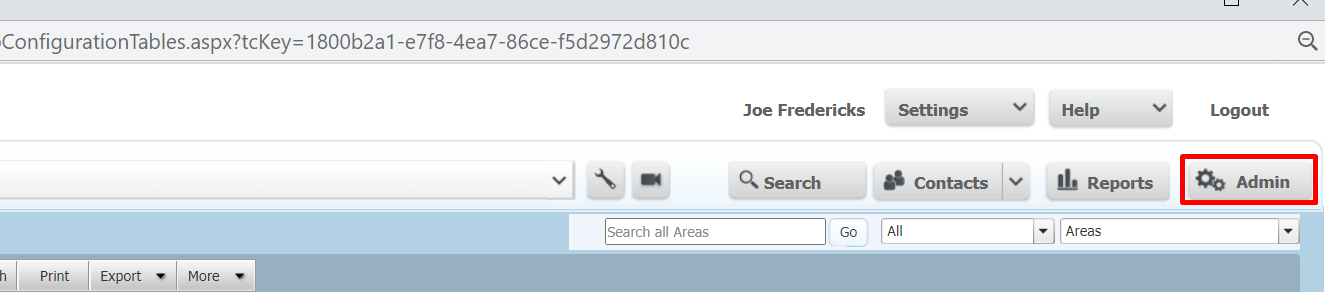
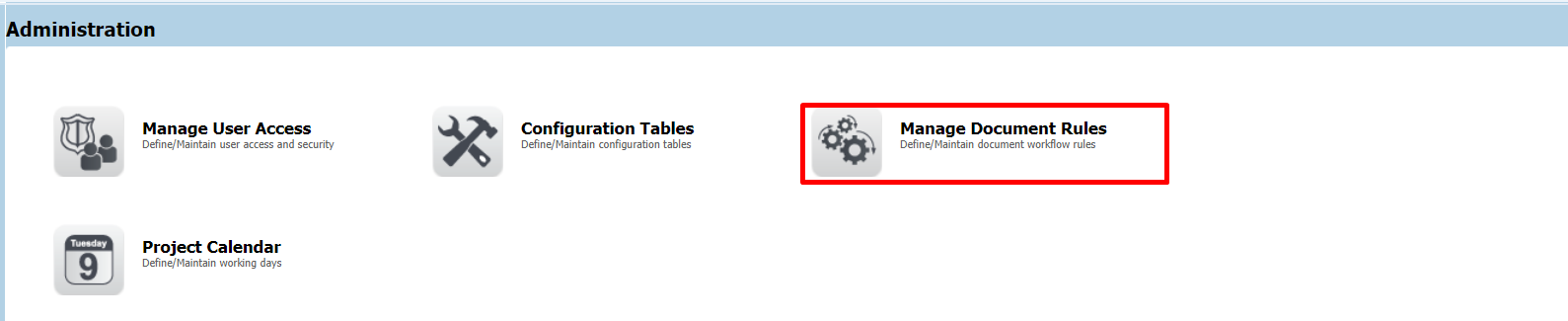
Access Admin.
-
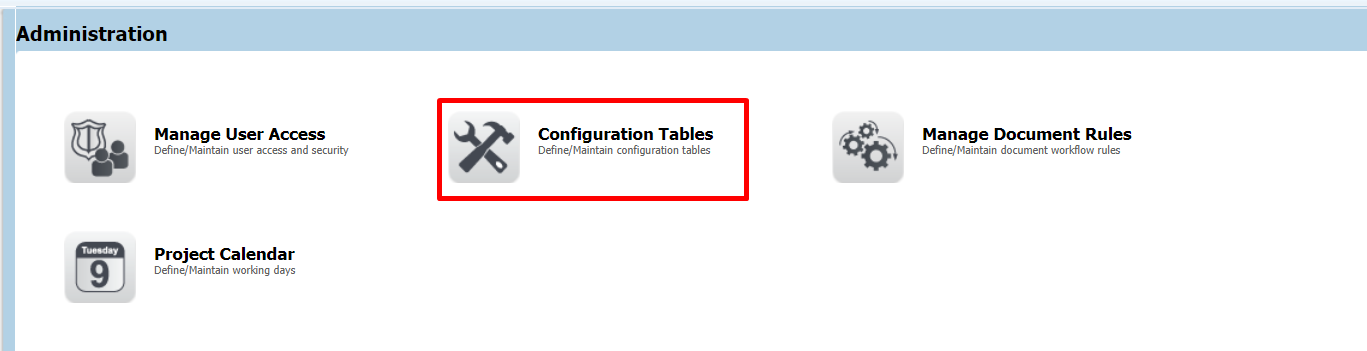
Open Configuration Tables.
-
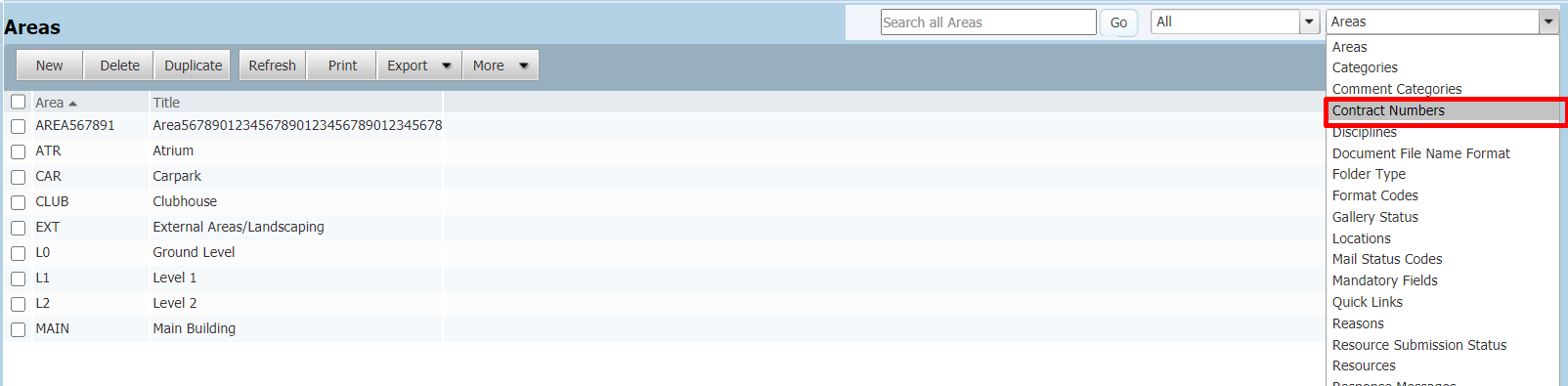
Select Contract Number in the drop down.
-
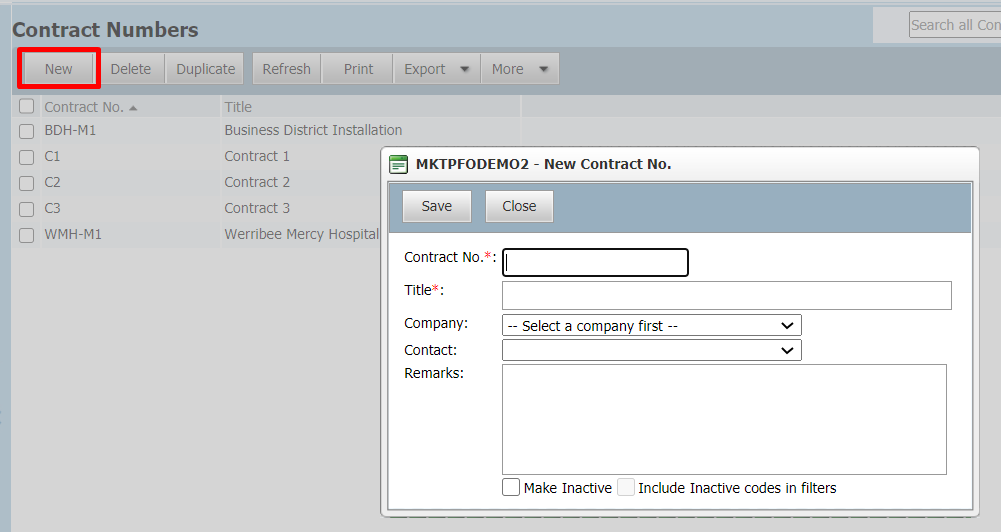
Create new Contract Number.
It is not required to select company or contact for the creation (this does not impact any access).
How do I control who can create items under a Contract Number?
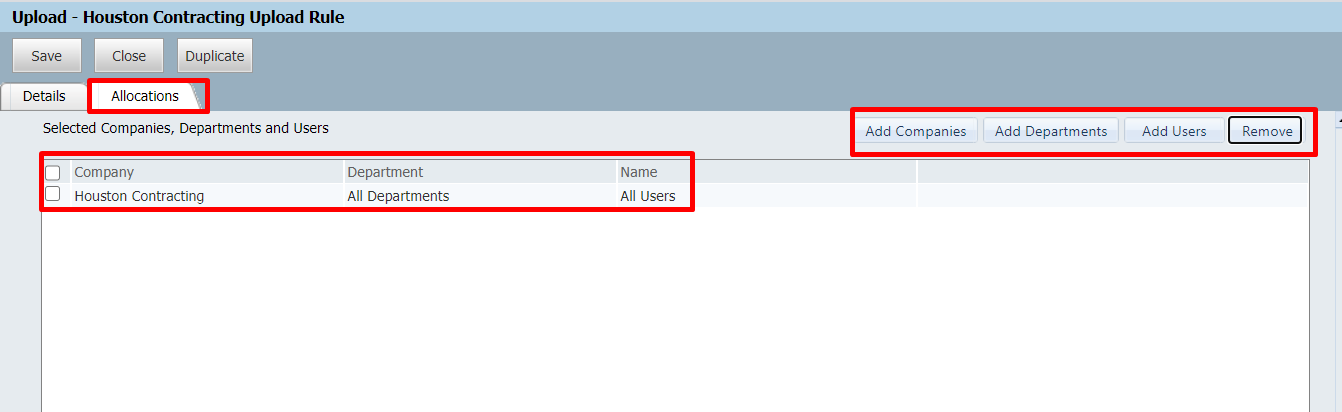
Administrators can control who can create new items under a new Contract Number through application of the Upload rule. Once a user / company is added to the upload rule, they will only be able to select contract numbers that have been added to that upload rule e.g. if Engineering Project Services only has access to Contract A and Contract B in the rule, when creating mail, only Contract A and Contract B will be available.
Steps outlined below:
-
Access Admin.
-
Open Document Rules.
-
Change the Rule to ‘Upload’ (the system will open on this by default).
-
Create new to create a new condition or open an existing rule to update the relevant access.
-
Update the contracts applicable by using the tick box available (multiple contracts can be selected).
-
Update the companies / users that it applies to.
Updates to Business Rules
Contract Number will be added to all Document rules in the system including the following:
-
Upload Rule – this will allow users to be specified that are working on that contract – this will then only allow them to select those contract/s when creating.
-
Mail
-
Documents
-
Transmittals
-
Packages
-
Review Initiator Rule – will allow contract specific SMEs to activate any workflows within the portfolio e.g. a PM for Contract A would only need to handle documents from that Contract.
-
Review Team Rule – will all contract specific reviews to be completed by teams that are related to that contract.
-
Distribution Rule – which will allow automatic access to documents that are uploaded under a specific contract / discipline combination.
Miscellaneous Items
Archiving a Project – a project can be archived by making the configuration value ‘Inactive’ – this will still allow users to search across all information for historical information while preventing the repeated use of that contract number once it is completed.
Use of Folders – to allow easier views of user specific contracts, it is beneficial to set up folders to automatically file items from that contract. These allows users a quick method of viewing all items related to that contract.
Setting up Saved / Default searches – in addition to the folders mentioned, it can be beneficial to set up saved / default searches for the project teams. This allows quick loads of loads of relevant information in the registers