Configure notifications
When working on a project, many Document users rely on notifications to know what tasks are in their court to complete, or to be aware of a document’s status. Examples include notifications that inform a user of the following:
The notification a user receives depends on what notifications are enabled under their user preferences.
Set up default notifications for a project
As a best practice, administrators are encouraged to configure default notification settings for their users in the project settings when setting up a project.
It is highly recommended to set up notifications prior to adding new users, since all new users added after configuring notification user preferences will automatically inherit those preferences, while users that exist on the project before configuring notification preferences will not retroactively inherit those preferences.
Configure notification in project settings
Summary: Configure notifications for all users on a project before adding users. The notifications are automatically added to the user preferences for each user you add.
-
Select the Settings icon, and then select Project settings. The Project settings page opens.
-
On the Project settings page, select User preferences from the left menu.
-
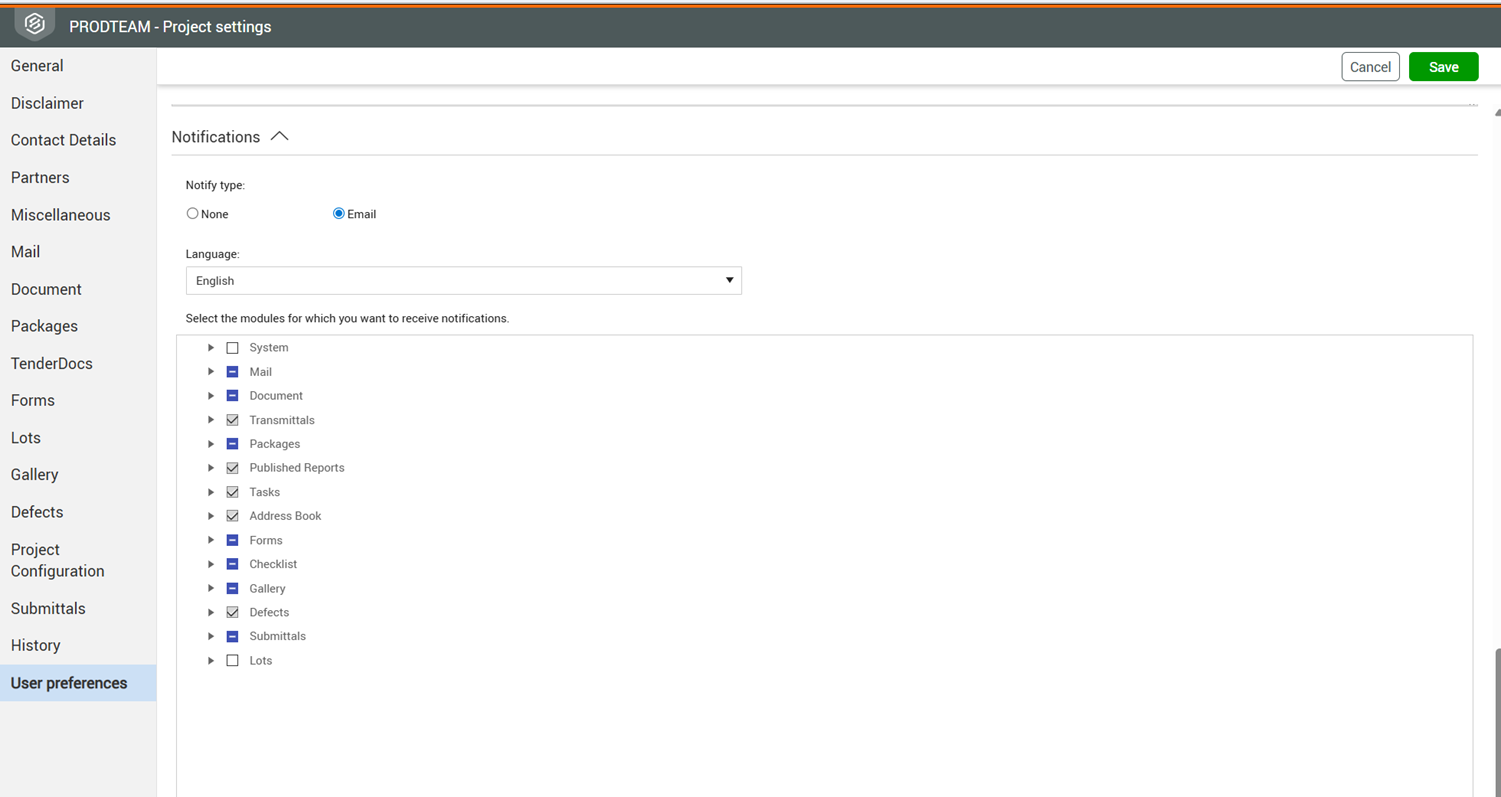
Go to the Notifications section, and then expand the section.
-
Select the notify type. By default, the Notify type Email is selected, indicating notifications will be sent to recipients via email. Selecting None disables the use of all notifications.
-
Select the language of the notification. You can also select whether notifications will be sent in English, Spanish, or French.
-
The remainder of the Notifications section contains a listing of each Document module. You can expand each module to select or deselct the box for each notification to include or exclude, or you can select or deselect the box at the module level to include or exclude all notifications for that module.
Adjust notifications for multiple users
You can also configure notifications under User preferences for contacts from the address book in Document. This option can be helpful when project has already been set up with users or when you want to configure notifications for multiple users.
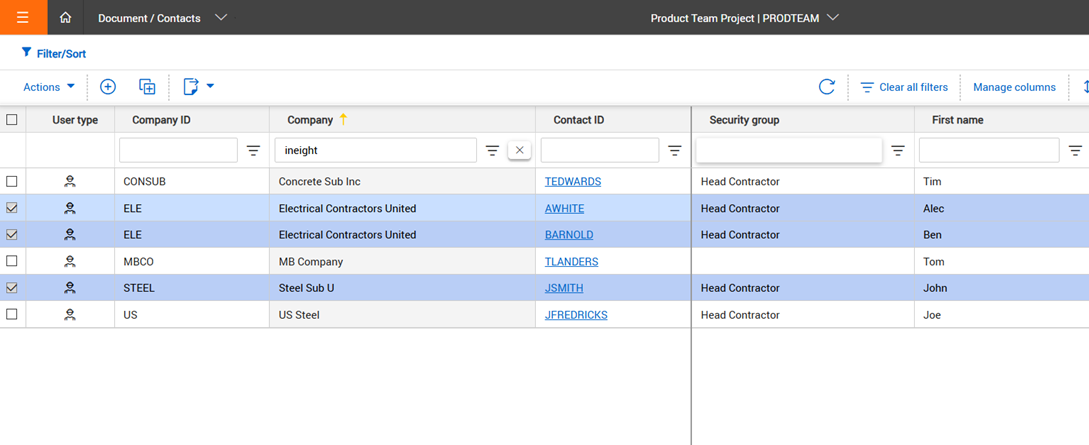
From the Contacts page of the address book, you can select multiple contacts (representing your project team for example) and configure notifications for all of them at once.
Configure notifications in the Address book
-
From the Main menu, select Address book > Contacts.
-
Select the contacts you want to configure.
-
From the Actions menu, select Set user preferences.
-
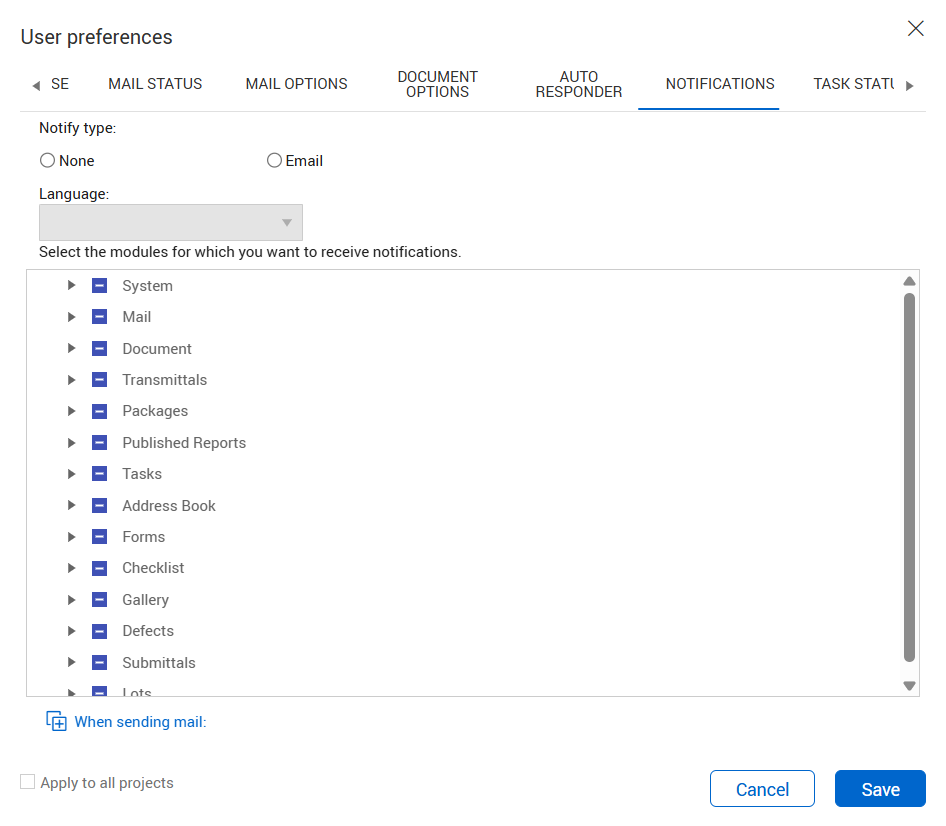
In the User preferences dialog box, scroll to the right and select the Notifications tab .
-
Configure the notification settings by selecting or deselecting the notification settings as needed for each module.
Adjust notifications at the profile level
End users can also adjust their notification preferences from their user.
From the Notifications tab, users can select which notifications to receive for each module.
There is an option to apply the user preferences, including the notifications settings to all projects the user is assigned to.