Document summaries
You can generate a document summary from the Documents register or from the Details page of a document. Document uses AI to gather key information in the file, such as the purpose of the file, important dates, key contacts, contractual terms or special requirements.
Document Summaries are generated by AI and require user review to ensure accuracy.
When a document has multiple files, each file is summarized.
Generate a document summary
Summary: Generate a summary of a document when you want to quickly view key file information.
Considerations: These steps start from the Document register. You can also find the Summarize document action in the Actions menu on the Document summary page.
-
From the documents register, select a document, and then select Actions > Summarize document.
-
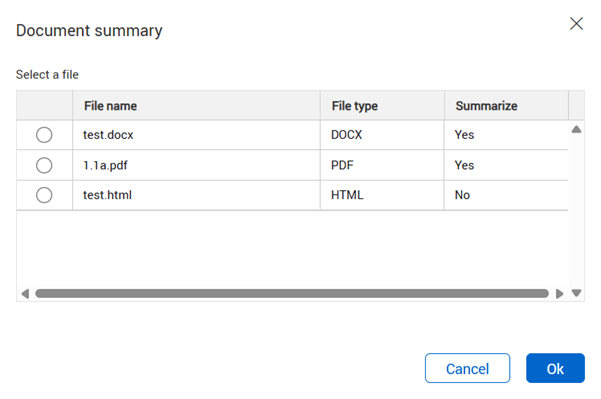
If the document has multiple files, the Document summary dialog box opens. Choose the file you want to view, and then click OK.
Document creates summaries for the files that can be summarized.
-
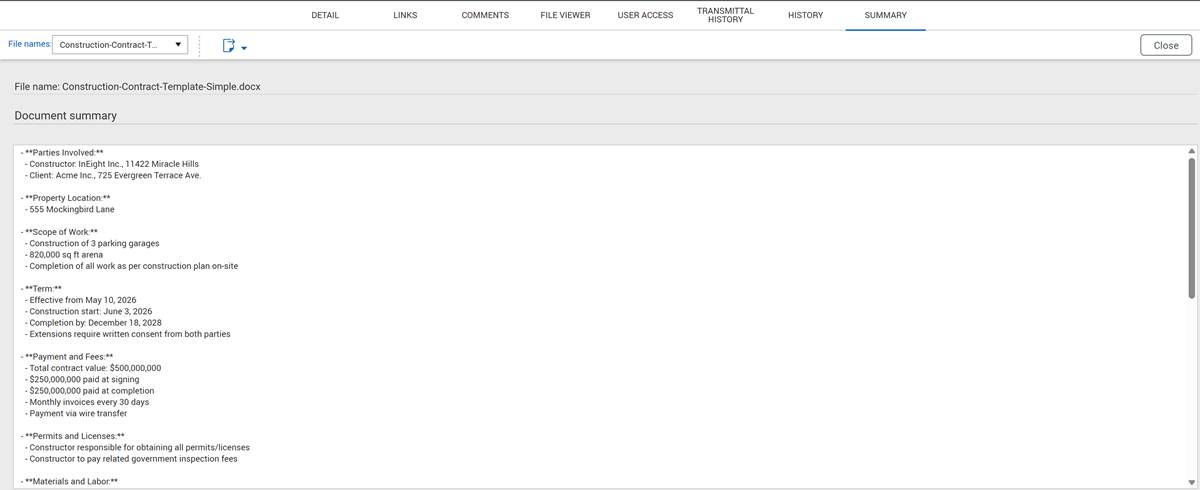
Document opens the summary of the selected file in the Summary tab. You can select a file name to view the summary of that file.