Document Placeholders
Placeholders are used for managing and tracking expected documents throughout a project. The project team can use placeholders to forecast delivery dates and generate reports that highlight potential delays.
When a document is marked as a Placeholder, it is stored in a separate register until it is confirmed as received. While in Placeholder status, the document remains visible, and all associated data is available for project reporting.
To enable placeholders for your project, please contact your InEight representative.
Placeholder Rules
There are two ways to create placeholders in a project. The first is by defining project-specific rules for the placeholder. After the rules are defined, any document uploaded without a view file that meets the criteria is automatically added to the Placeholder register.
If no rules are defined for the project and a view file is not attached, you can manually mark a document as a placeholder during upload by selecting the option on the Details page.
Create a document Placeholder rule
-
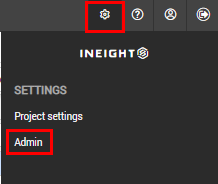
From any menu, click the Settings icon, and then select Admin.
-
Select Manage document rules.
-
In the Rule Type drop-down menu, select Placeholder.
-
Click the Add icon.
-
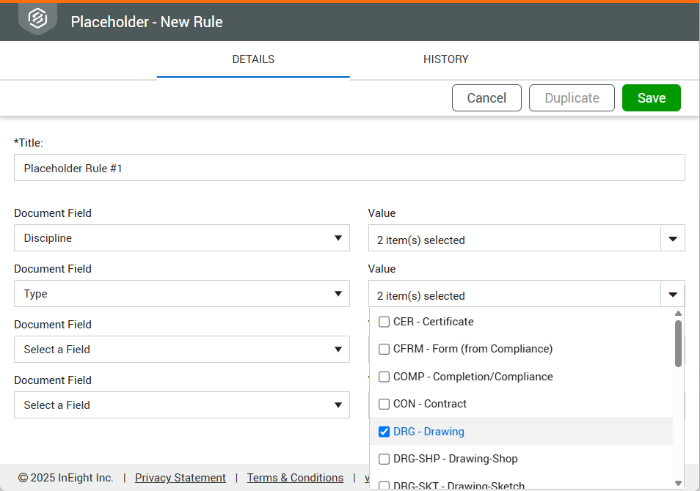
Enter a title and select the fields values for the placeholder. Up to four fields can be used for the definition.
- Click Save.
If a rule has been defined for the placeholder, the option does not show on the Details, Bulk Upload, or XL Upload pages.
Creating placeholders
-
From the Main menu, select Documents > Register.
-
Click the Add icon and select Single item to open a new document upload page.
-
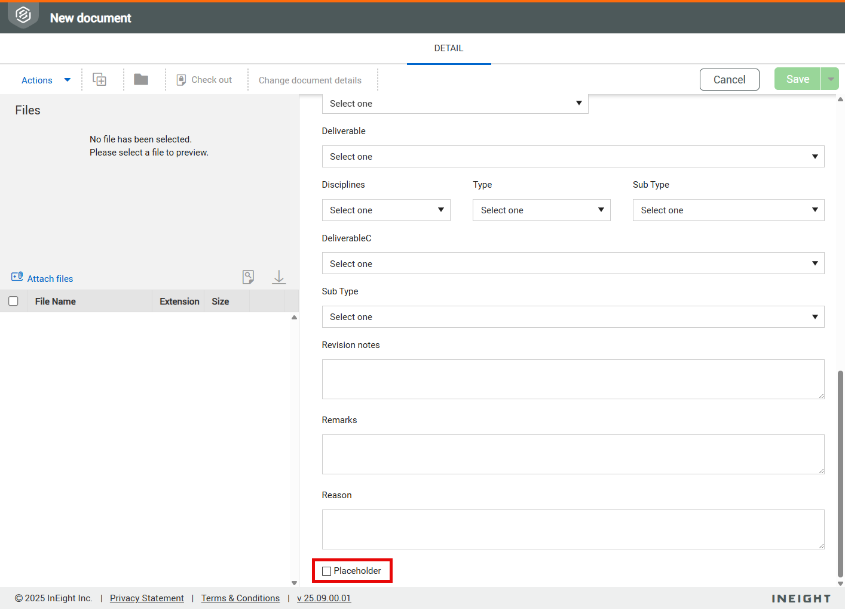
At the bottom of the Detail page, select the Placeholder check box.
-
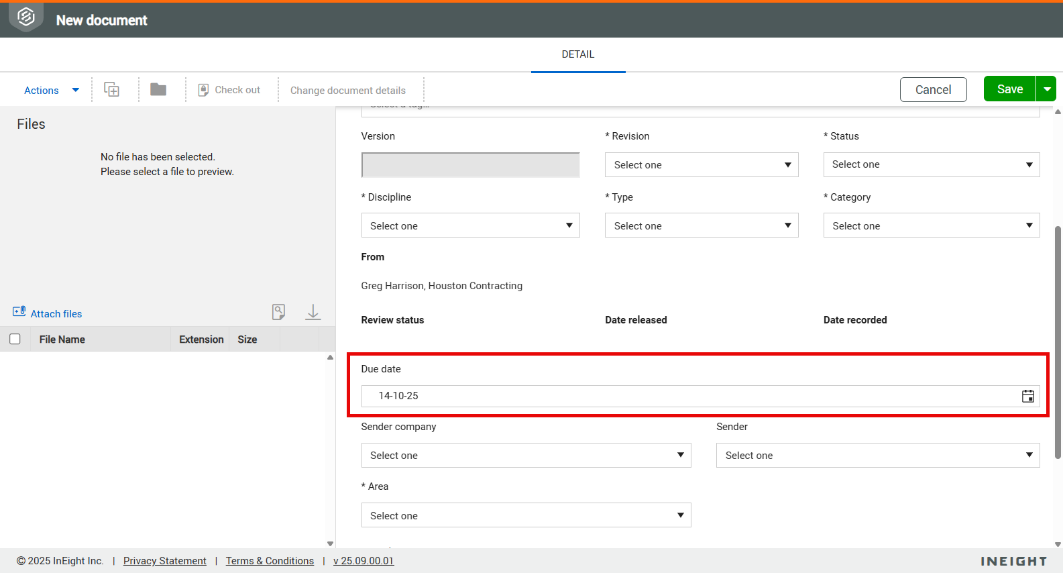
When placeholders are enabled for a project, the Due date field is added to the document Details page, which allows you to track expected delivery timelines more effectively.
-
Click Save, and a confirmation shows that the document has been created as a placeholder.

Placeholder register views
-
From the Main menu, select Documents > Placeholder register.
-
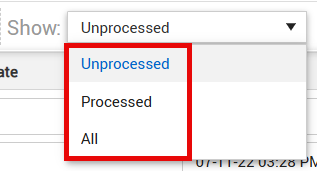
In the Placeholder register, the default view is Unprocessed.
-
After documents are processed, they can be accessed in the Processed view.
-
Both unprocessed and processed documents can be accessed in the All view.
Placeholder register – transmitting placeholder documents
-
Open the Placeholder register.
-
Select the placeholder documents.
-
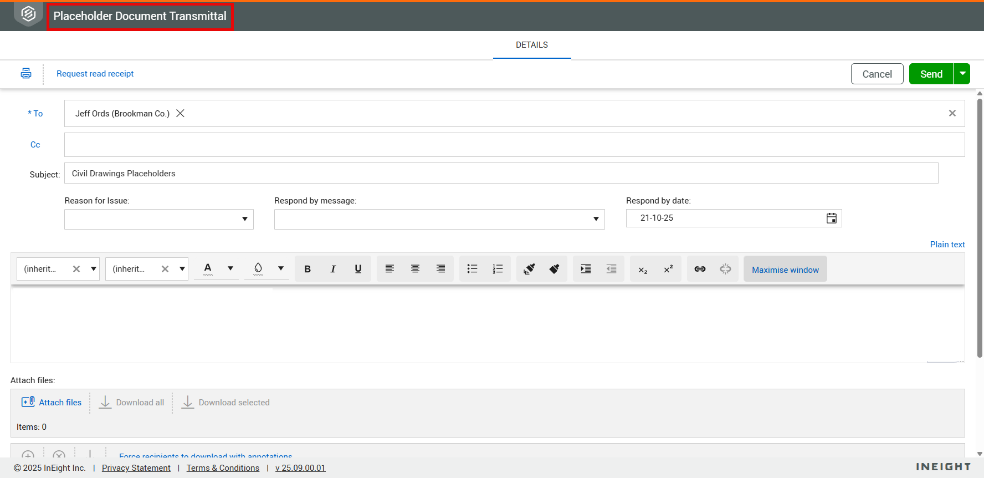
Click Transmit, and then select Create transmittal.
-
Select the recipients for the placeholder document transmittal, and then click Send.
After the transmittal is sent, the selected documents show in the recipients’ Placeholder register.
Access to Placeholder Transmittal type is managed in the Security group settings.
Processing Placeholders Documents - Single
-
Open the Placeholder register.
-
Click the Document No. of the placeholder document that you want to process.
-
Attach a view file to the placeholder document.
-
Click Process.
Processing Placeholders Documents - Bulk
-
Open the Placeholder register.
-
Select the document or documents you want to process.
-
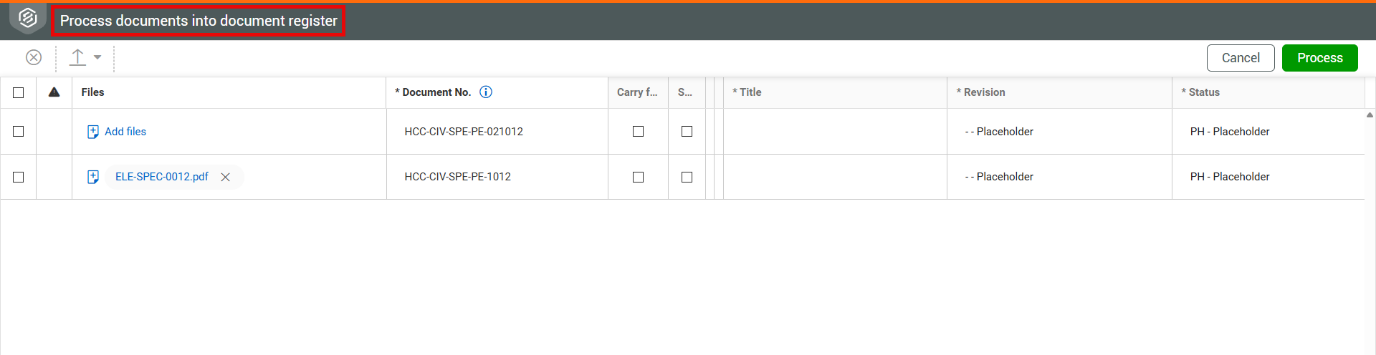
Click Actions, and then select Process Document.
-
Attach a view file to all the placeholder documents.
-
Click Process.
If you are processing a document but only have permission to upload to the Holding Area, a notification shows confirming the document has been uploaded. After receiving confirmation, you are then prompted to create a vendor transmittal if needed.
This is a typical scenario when a vendor or subcontractor submits documents to the head contractor. The document remains in an unprocessed state until it is reviewed and processed from the Holding Area.
-
When a placeholder document is processed, any links associated with it are automatically converted to standard document links.
-
If a document processed from the Holding Area matches the document number of an existing placeholder, that placeholder document is processed accordingly.