Create a form type
A form type is a template that lets you quickly create forms with predefined sections and question types.
Create a new form type
Summary: Create a new form type, so you can have a template to re-create forms with similar items.
Considerations: You can click Save draft at any time to save your work.
-
From the Forms module, expand the Actions menu, and then select Configure form types. The Configure Form Types dialog box opens.
-
Click the Add icon to create a new form type. The Form builder opens.
-
Enter the form type and title.
-
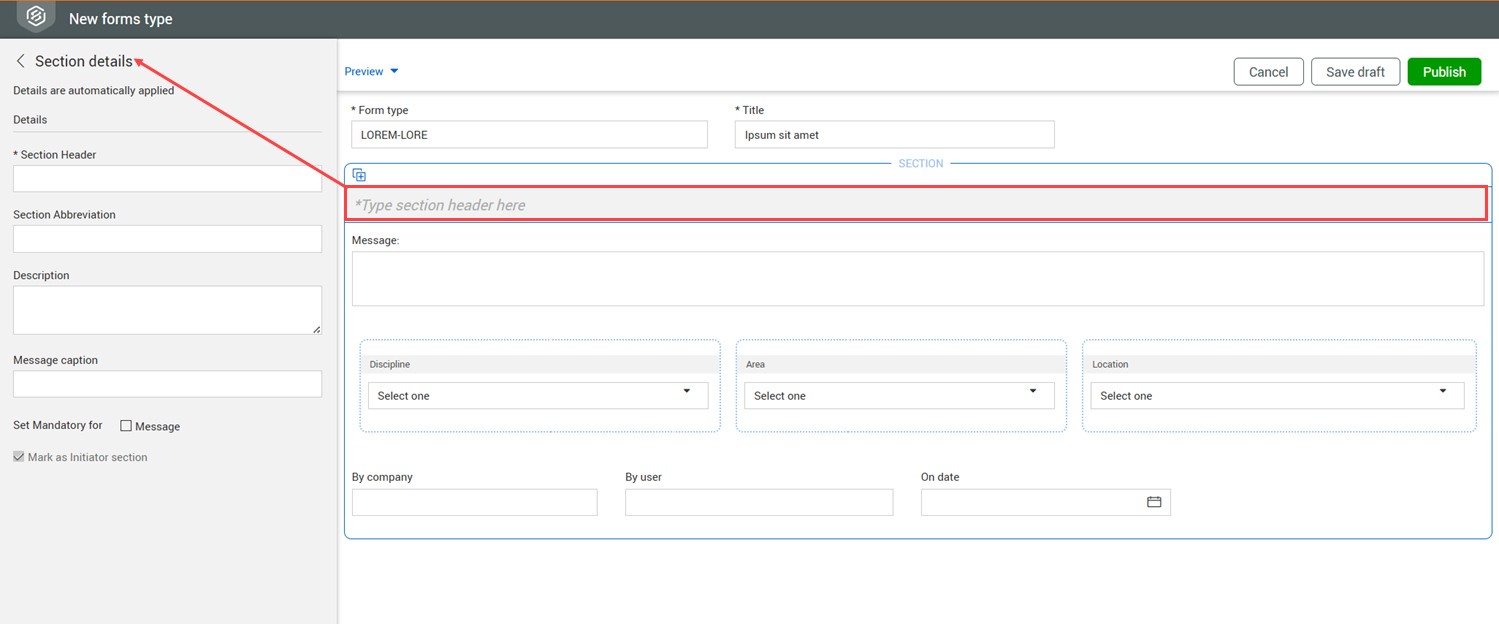
Click in the section header of the section box of the form. The Section details panel opens.
-
In the Section details, enter the section header. Optionally you can enter a section abbreviation, description and message caption. If you want to set the message as mandatory, click the Message check box.
-
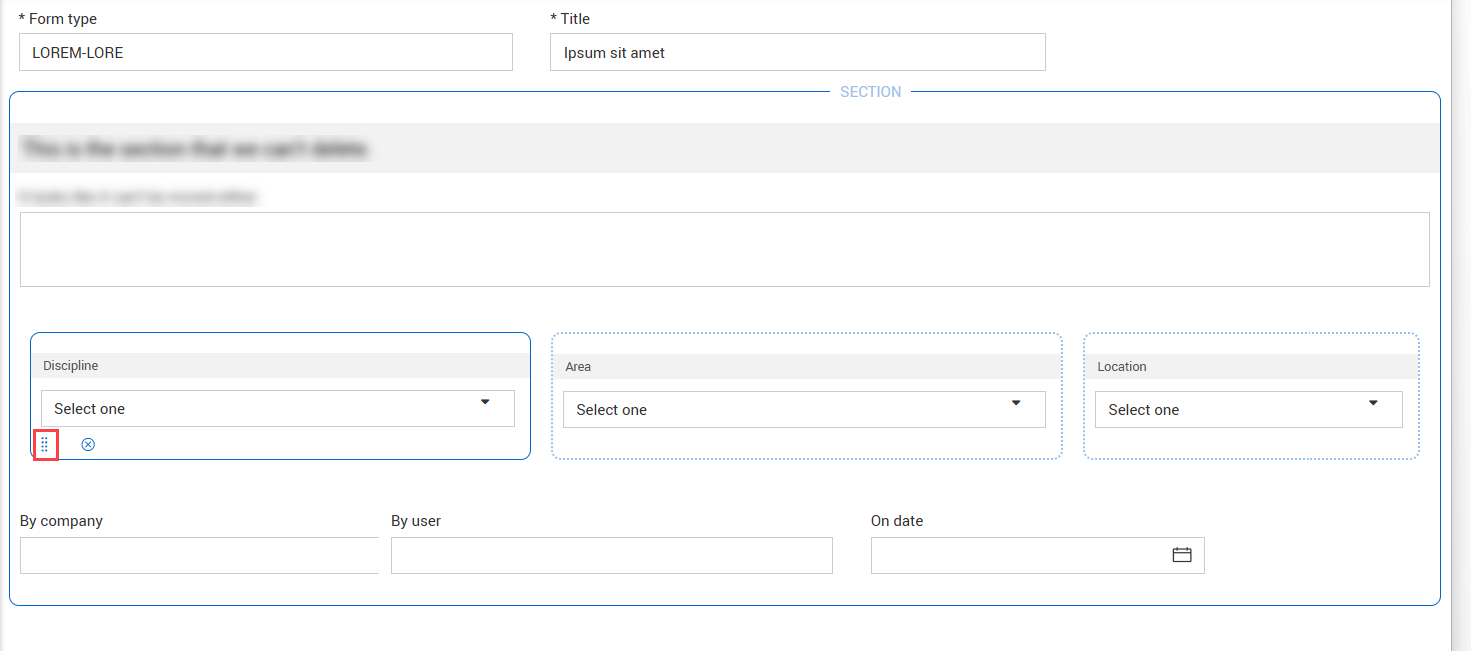
Optionally, you can rearrange the Discipline, Area, and Location tiles. To move the tile, click in the tile and then click the Move icon. You can then drag and drop or delete the tile.
-
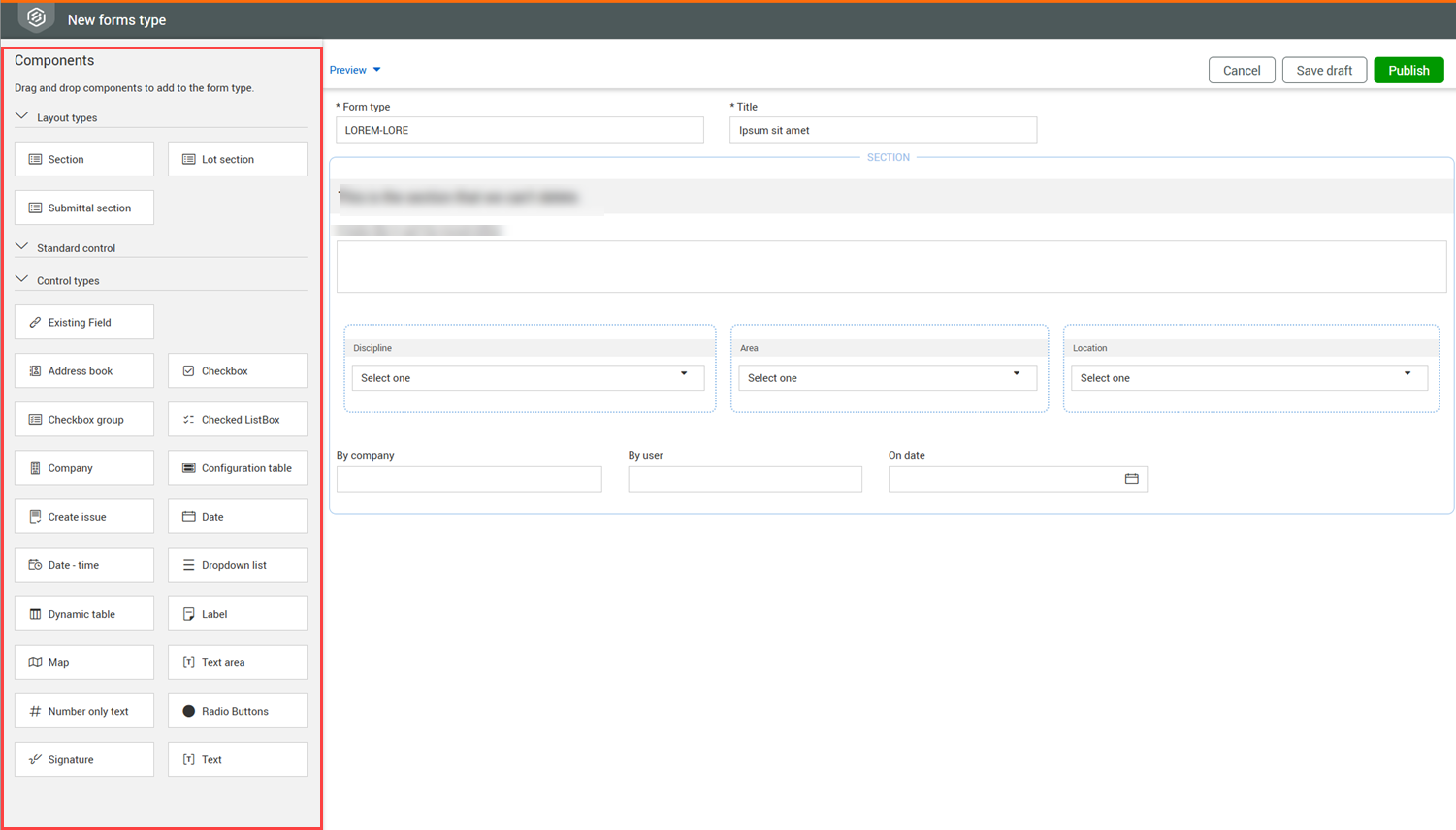
To add additional sections, click in the form builder to open the Components panel.
-
Drag and drop a section Layout type into the form builder.
-
If the section is for a lot, drag and drop the Lot section layout type.
-
If the section is for a submittal, drag and drop the Submittal section layout type.
-
Use the Section layout type for all other sections.
-
Enter the section name.
-
For the Section layout type, click the arrow at the top of the Section details panel to go to the Components panel.
-
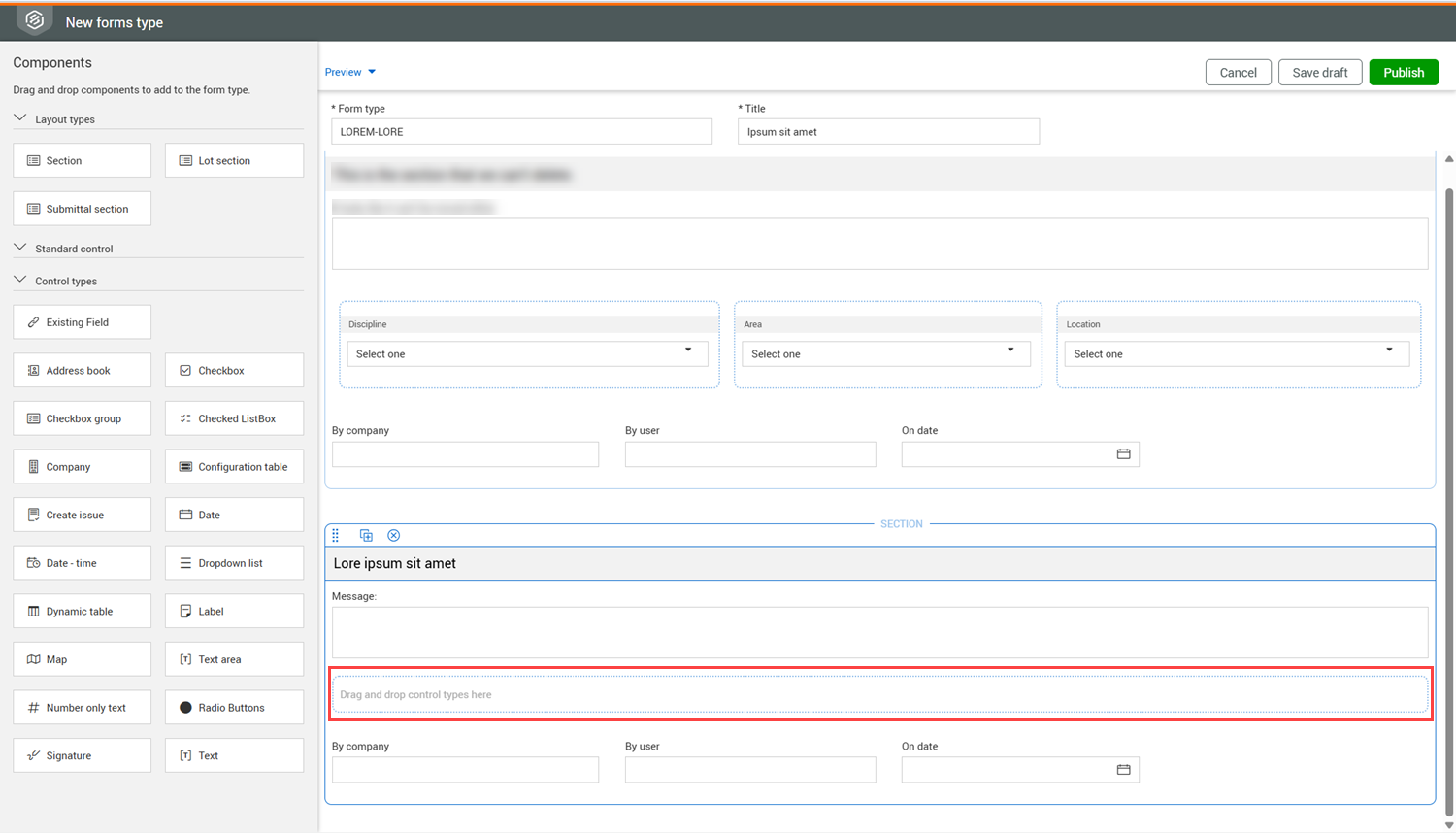
Drag and drop a control type in the designated box in the section.
-
Enter the field details in the Field details panel.
-
If you want to add additional sections to the form, click the arrow at the top of the Field details panel to return to the Components panel, and then drag and drop a layout type into the form. Any number of sections can be added to a form. At least one section item must be specified in each section.
-
Click Publish to save and publish the form.