Using Standard Folders
Folders can be used to help filter and sort files into a format that suits the project requirements. Next to Filter/Sort, click the arrow icon to show the folder structure.
The folder structure lets you drag and drop items from the register into the required folder. When you select the folder, the register only shows the content that has been moved to that folder.
Files are not removed from the original register. Folders help you organize and access existing register content.
Create a new folder
Summary: Create a folder to help sort and filter files.
-
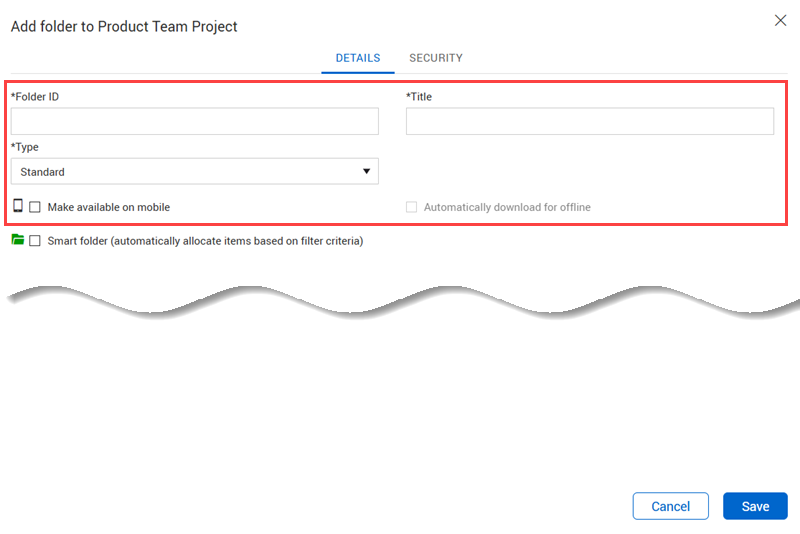
Click the Add folder icon. The Add folder dialog box opens.
-
Enter the identifying information of the folder on the Details tab.
-
Optionally select whether to make the folder available on the mobile app and, if so, to automatically download the folder for offline use.
-
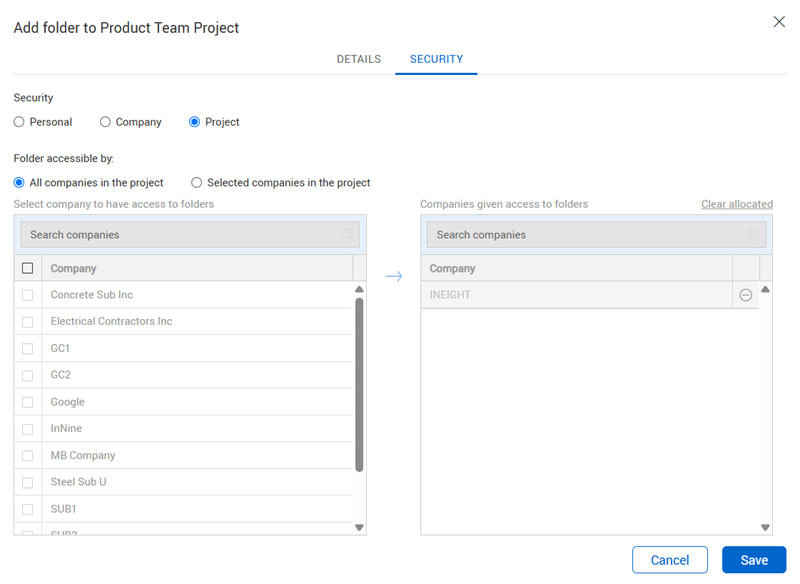
Go to the Security tab, and then select whether the folder security is for personal, company, or project use.
-
If you selected Company or Project security, select the users or companies, respectively, that can access the folder.
-
If you selected Company security, you can select All users in my company to give access to everyone in the company or Selected departments in my company to select the departments you want to have access.
-
If you selected Project security, you can select All companies in the project to give access to all companies or Selected companies in the project to select the companies you want to have access.
-
Click Save.
Smart folders automatically allocate items based on filter criteria.