Installation Steps

Installing Office 365 Integration (Cloud version)

Enable Office 365 Integration

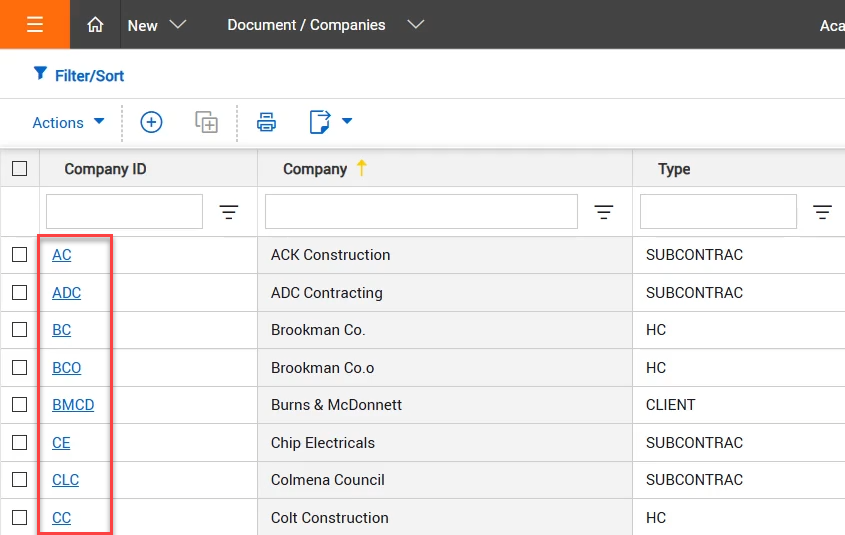
  1. Open the Address Book and then select Companies.

  2. Locate your company and then click it to open the Company Details.

  3. Select the External Integrations tab.

  4. If External Integrations tab is not visible, contact InEight Support or your InEight project representative.
  5. Select the Document Authoring checkbox, and then click Activate Link.

  6. When prompted, sign in using the Microsoft 365 service account created for your organization.

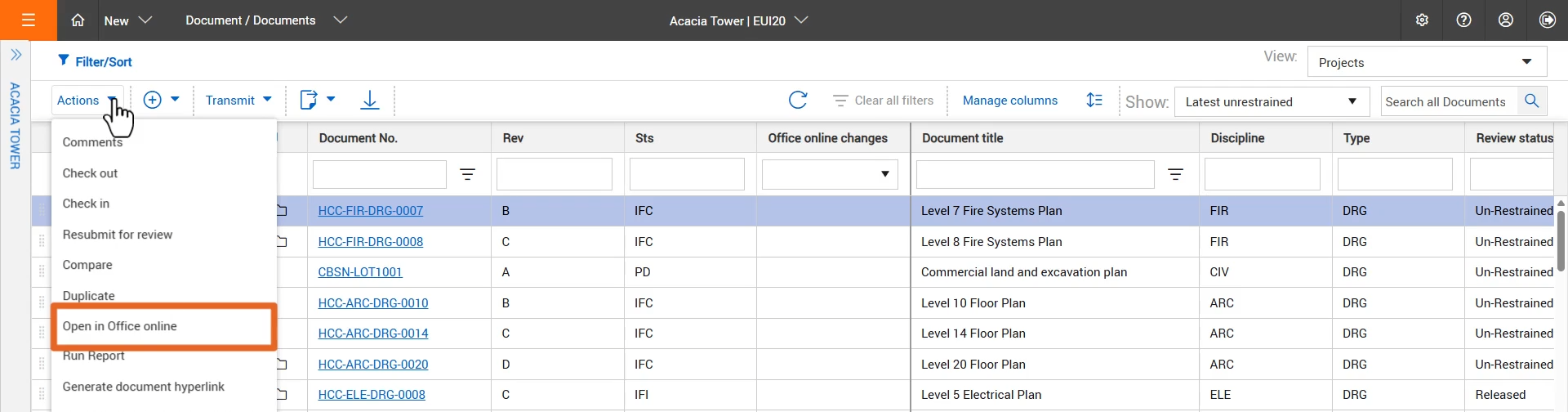
  7. After you are signed in, you can go to the Document Register and author or edit documents using Office 365 Online.

Installing Office Integration for Desktop

  1. Once the download is complete, unzip the zip files.

  1. Double click and run the setup exe from the extracted files.

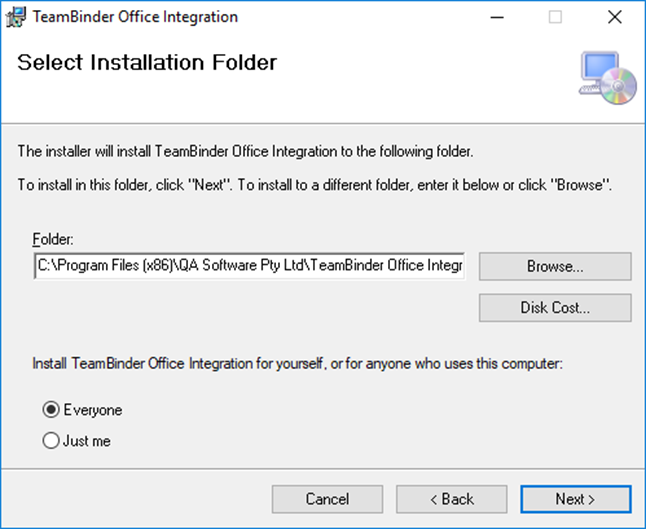
  2. Select a folder location for file installation. Select “Just Me” for yourself or “Everyone” in order to install for all who use the computer.

  3. Click Next.

  4. Click Next once more to begin installation.

The default Installation installs Office Integration with pre-defined settings.  Custom Installation allows you to choose you own settings when installing Office Integration.