Automated submittals from a specification
You can use the Document's enhanced submittal import function to import a specification and automatically generate submittals. When you use the import specification feature, Document uses AI to search for submittals in the specification and creates them automatically..
The submittals are generated by AI and require user review to ensure accuracy
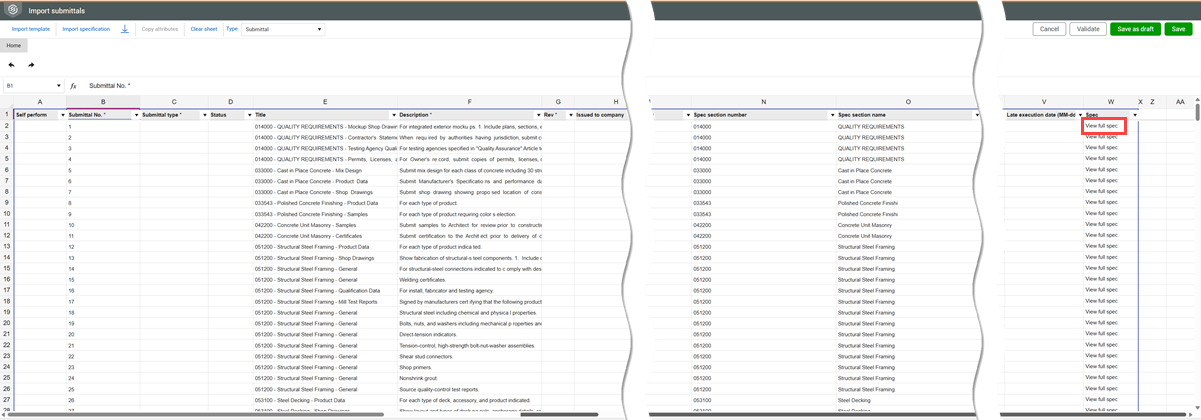
The submittal import function reads the specification and suggests the submittals to be created. The submittals are added to the Import submittals page with the following:
-
A title
-
A description
-
The spec section number and name
-
The category, if the values exist in the configuration table
-
A link to the source in the full specification
You can review the submittals against the specification before adding the submittal number and other identifying information.
Review and validate submittals
Scroll to the far right of the Import submittals page to access the View full spec links. Click a link to open the specification to the corresponding page.
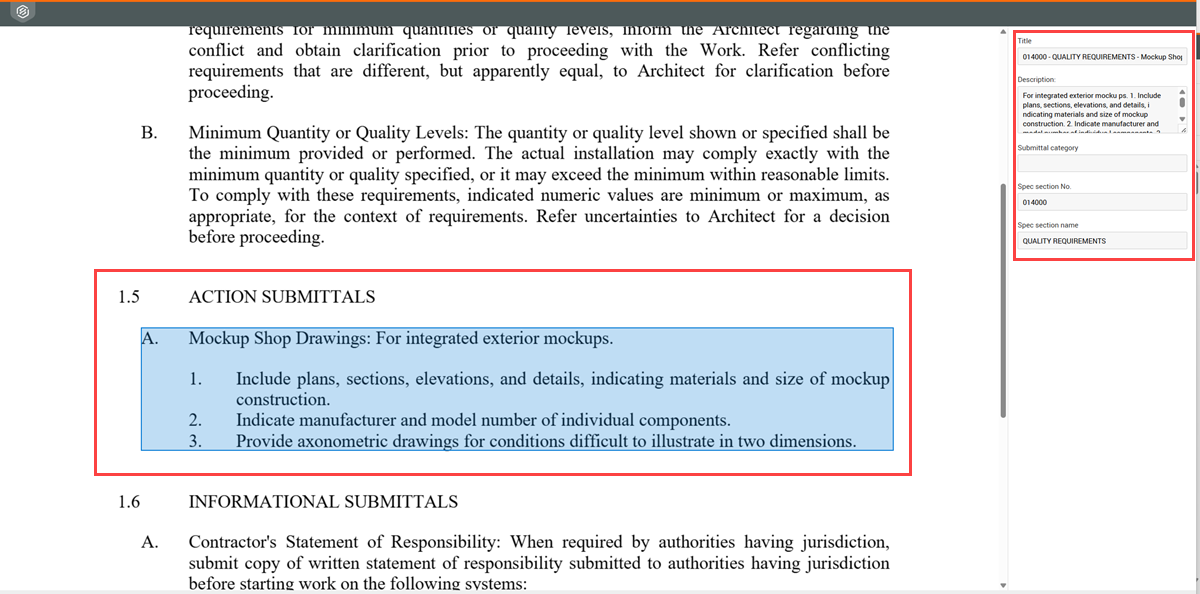
The specification opens to the top of the page of the item referenced in the submittal. The reference is highlighted. A panel shows on the right side with the submittal information, so you can compare the text of the description to the specification.
You can then verify if the submittal is valid and accurate. You can return to the Import submittals page to edit the submittal as needed.
If needed, scroll down on the page to show the highlighted text.
Generate submittals from a specification
Summary: Automatically generate submittals from a specification to take advantage of AI to save time and ensure completeness.
Considerations: The extraction works with CSI formatted specifications including a table of contents.
-
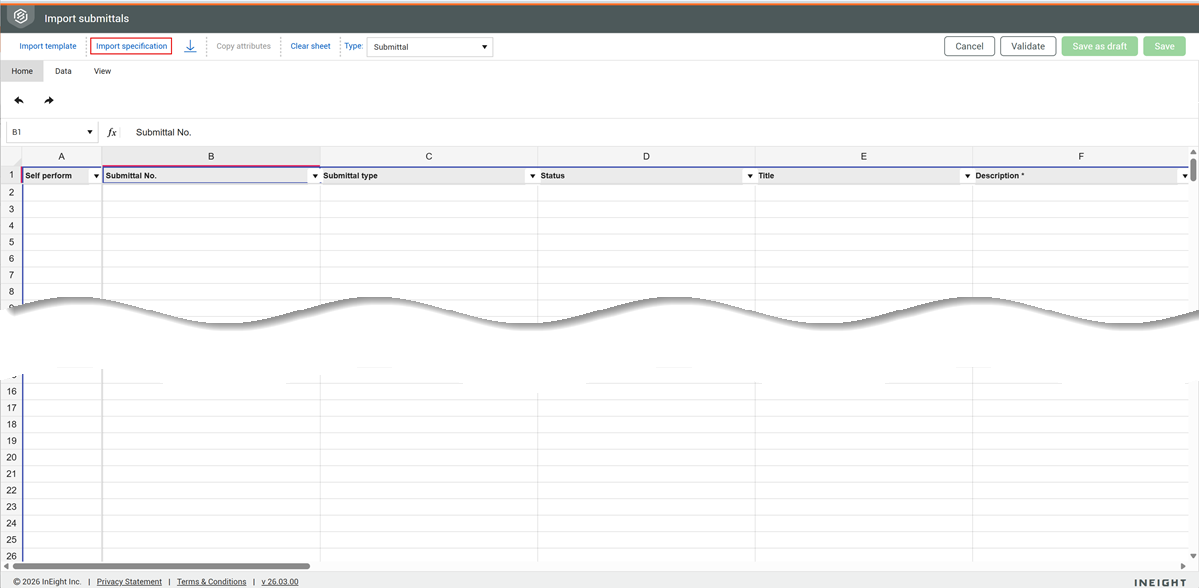
From the Submittals register, select Actions > Import Submittals from Excel. The Import submittals dialog box opens.
-
Click Import Specification. The Select Import Specification dialog box opens.
-
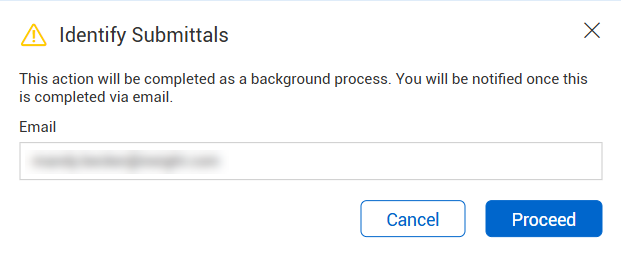
Drag and drop or browse and select a specification, and then click Upload. A message shows stating that the action will run in the background, and you will be notified when it is completed.
-
Enter your email address, and then click Proceed.
-
In the email notification, click the Result link. The Import submittals page opens in a new tab with an entry for each submittal generated from the specification.
-
Review each submittal. To view the specification section referenced in the submittal, click the View full spec link for the submittal entry.
The specification opens to the top of the page of the item referenced in the submittal. You can view submittal information on the right-side panel.
-
Update the submittals as needed. You must enter values for the required fields, including a unique submittal number, on the Import submittals page.
-
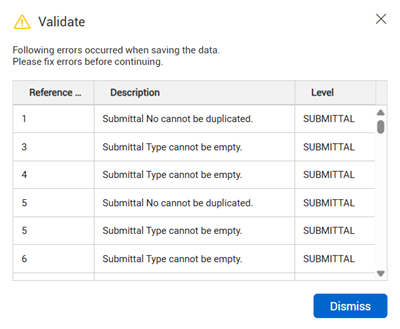
Click the Validate button. If any entries are invalid, the Validate warning message shows.
-
Correct any invalid entries, and then close the warning by clicking the Dismiss button or the Close icon.
-
When all information has been entered and validated, click Save. The submittals are saved to the Submittals register.