Templates
Job Templates provide you the ability to maintain a list of template jobs that can be used to create new jobs. As your company grows and increases the number of projects, the need to standardize the estimating process increases to ensure consistency and reduce the chance of information being overlooked.
In InEight Estimate you can create job folders and store them in a separate register as templates. This allows you to store cost items in master templates separate from the jobs in your Job Register.
You can create templates from scratch or from existing job folders. The following steps walk you through how to create a new template from an existing job folder.
Step by Step — Create a Template
-
Click the File tab on the Estimate landing page.
-
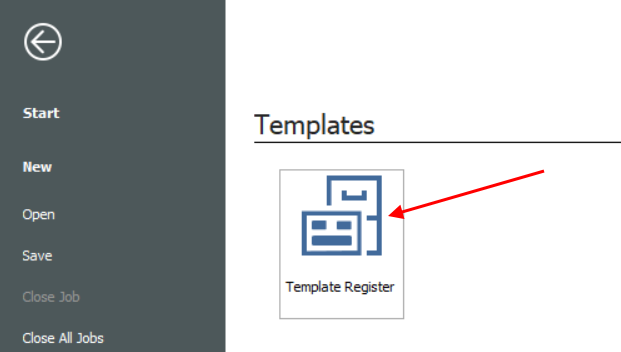
From the left side panel, select Templates.
-
Under Templates, select the Template Register.
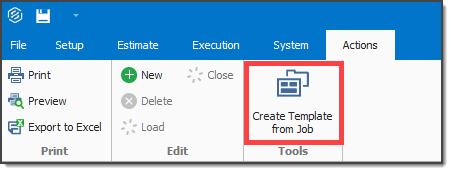
- From the Actions tab, select Create Template from Job.
-
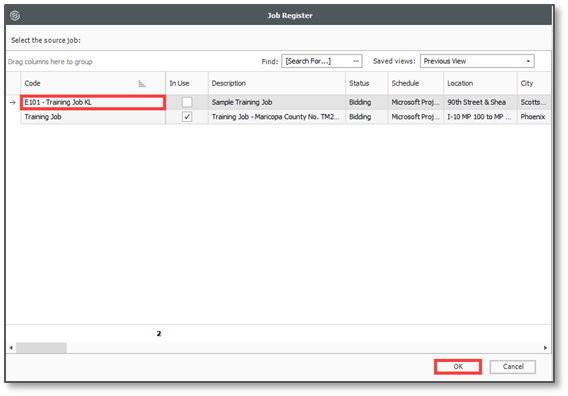
Select the E101 Training Job with your initials, then click OK.
You cannot create templates from jobs that are published to Job Tracking.
-
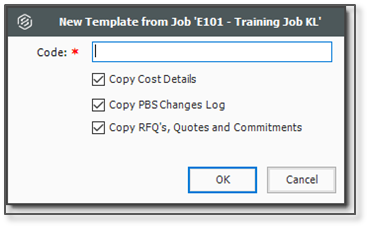
In the Code field, type Small Project Template[your initials].
-
Click OK.
-
The new template is created and opens to the Job Properties form
-
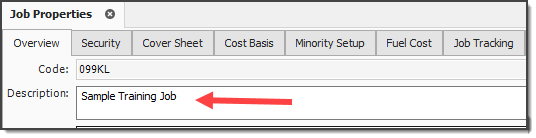
You can add the description in addition to the code for any new job you are creating from a template. This description is later added to the Overview tab of the new job on the Job Properties form
-
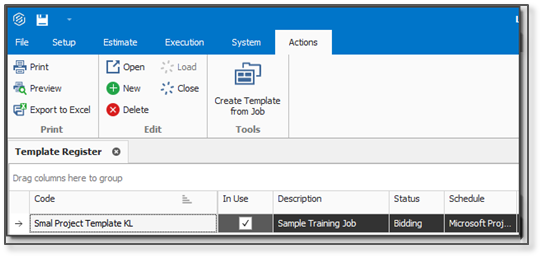
Back in the Templates Register, you can see the new template created
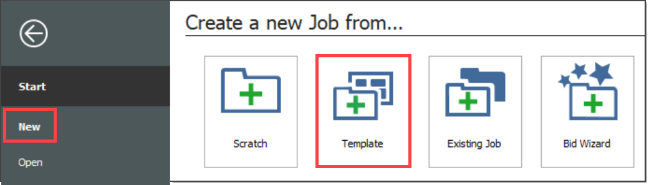
- Similar to copying an existing job, you can create a new job from a template from the New menu in the Backstage View.
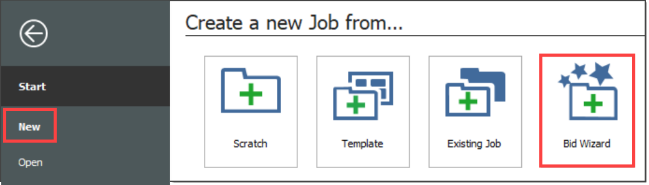
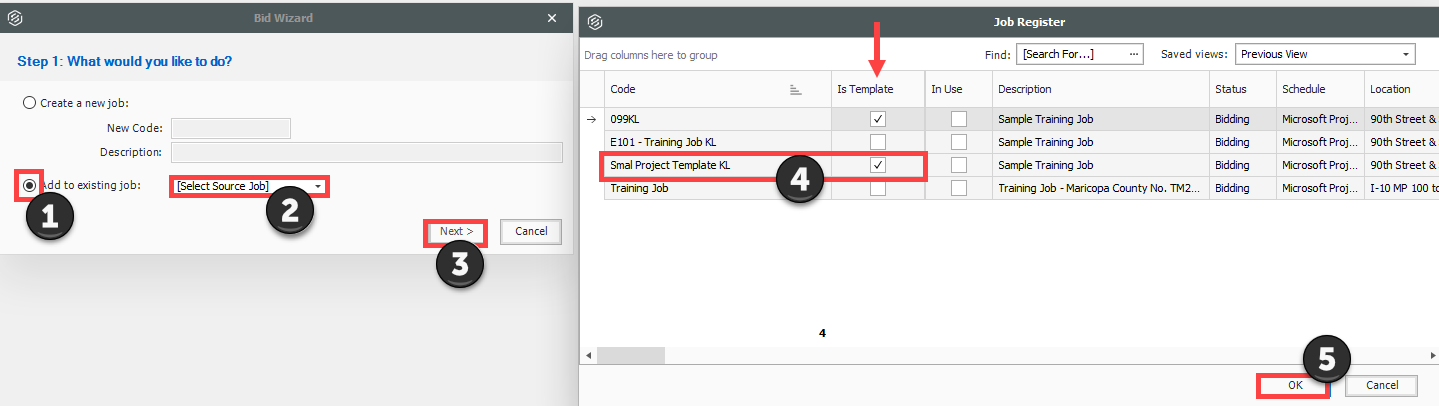
- You can also create a new job from a template from the New menu in the Bid Wizard.
-
Select Add to existing job
-
From Select Source Job, click the dropdown arrow
-
Click Next
-
Select a job that is shown as having a Template
-
Click OK
Archive and Restore Templates
The templates feature gives you the ability to archive and restore templates, enabling templates to become portable. You can move templates between different environments. You can also backup the templates similarly to the Jobs Archive and Restore function.
Step by Step — Archive and Restore a Template
-
Click File to open the Backstage View.
-
Select Archive / Restore.
-
Select Archive Template.
-
Select the Small Project Template [your initials] template you previously made, then click OK.
-
When prompted to include attachments, click Yes.
-
Browse to where you want to save the job, then click Save.
-
Select Restore Template from the Archive / Restore page of the Backstage View to begin restoring the template.
-
Browse to the archived template and select it.
-
Click Open.