Create new material resource
Create a new material resource
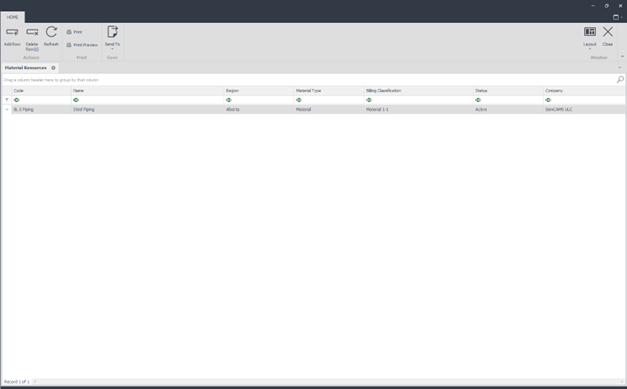
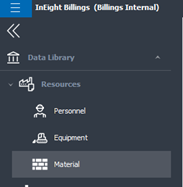
1. To begin creating new material, go to Data Library > Resources > Material.
2. The Material Resources tab appears. click the Add Row icon on the ribbon bar.
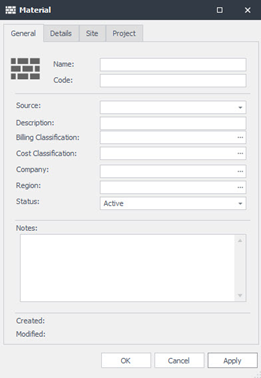
3. The Material window opens. Enter the material Name and Code.
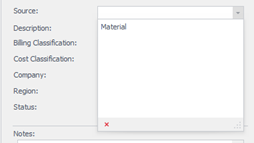
4. Click the drop-down arrow on the field labeled Source. This field lets you label a piece of material using one of the user-defined Material Types.
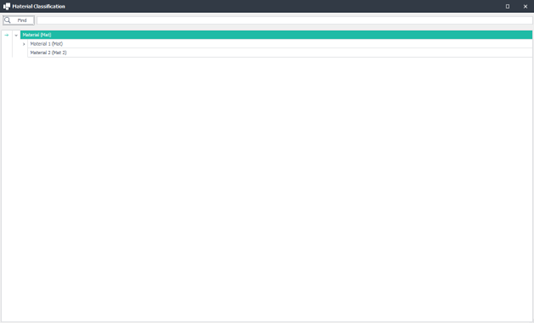
5. Click the ellipses (three dots) icon in the Billing Classification field and the Cost Classification field. A Classification window appears. Select the material’s classification by double clicking on it.
You can use the Search feature at the top of the pop-up to search for the classification using either the name or the code.
6. Click the Details tab. This section is used to capture custom field values. Populate any custom fields per your organization’s requirements.
7. Select Apply or OK at the bottom of the page to save your changes.