Change issues integration
You can associate scope items to issues in Change to mitigate risks in deliverables. Issues can be associated on the Scope Items page, and also when you add a scope item or update a scope item’s quantity. For more information about adding or updating the quantities of a scope item, see Add scope items.
Associate a Change issue
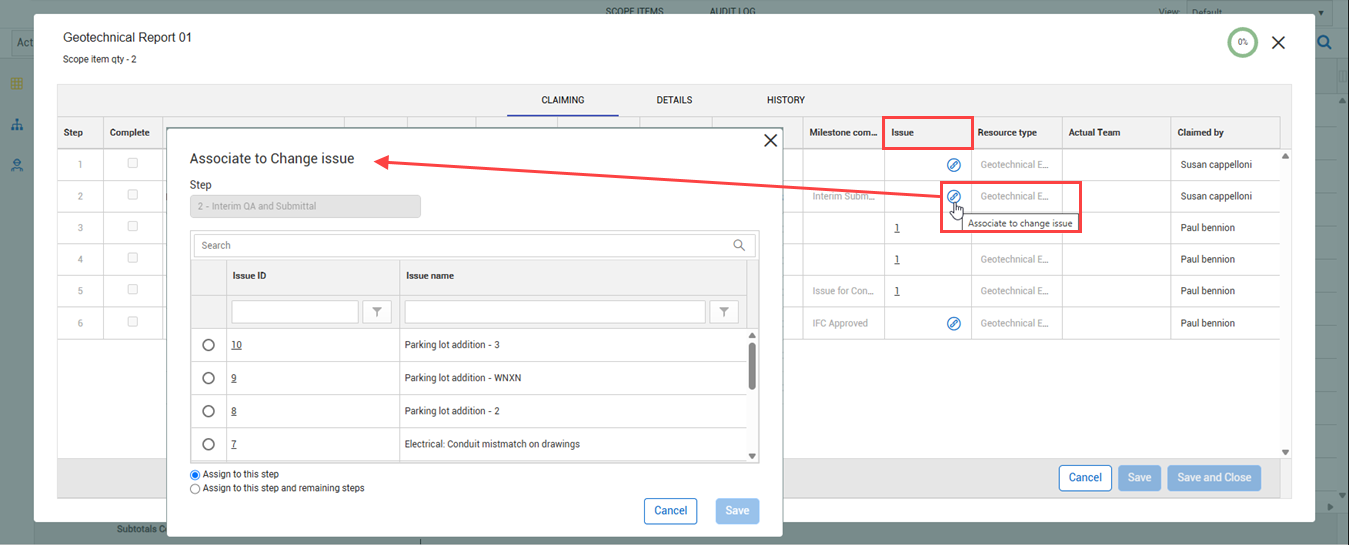
To associate an issue, click the Claiming icon to the left of the scope item, and then in the Issue column click the Associate to Change issue icon. This opens the Associate to Change issue dialog box.
In the Associate to Change issue dialog box, you can select Change issues to assign to the scope item. You can select a single issue at a time and then assign it to the current step or to the current step and the remaining non-completed steps of the scope item.
After your issue selection, select Assign to this step or Assign to this step and remaining steps, and then click Save. Click the number link to view the associated issues. In the dialog box you can remove issues or return to the Associate to Change issue dialog box to manage issues.
View number of assigned issues
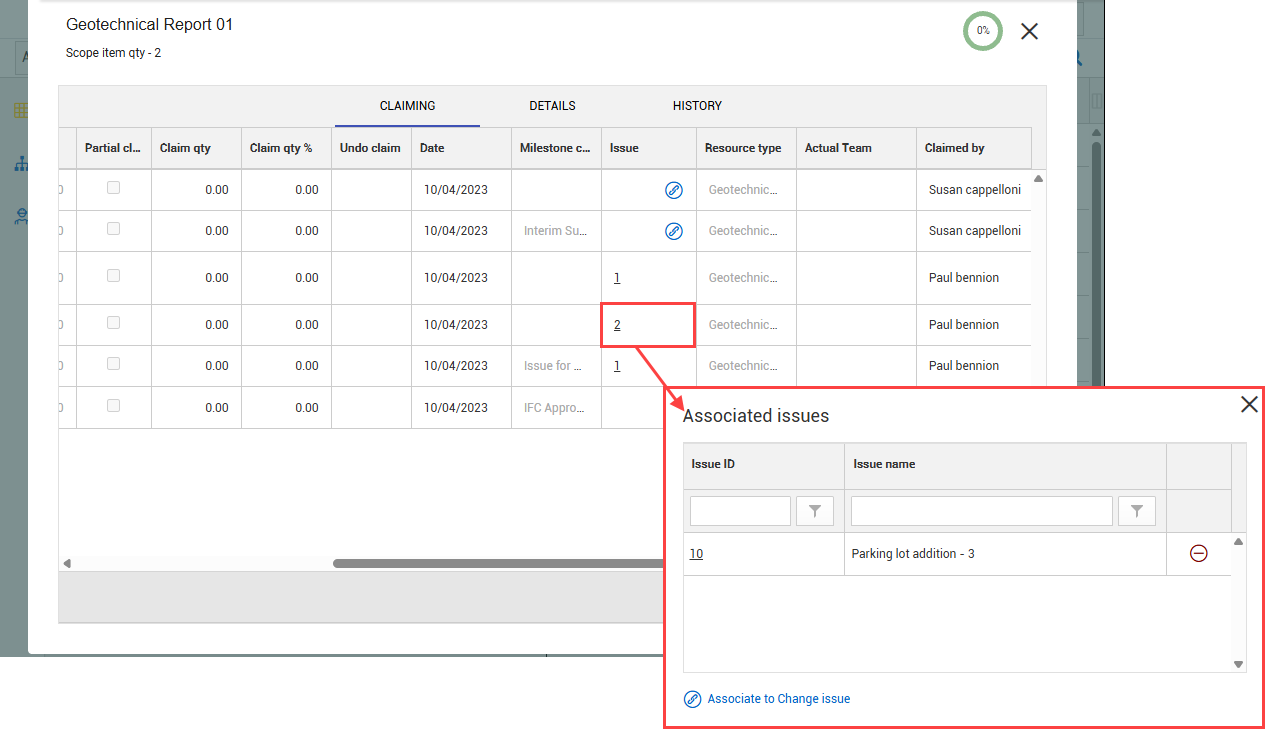
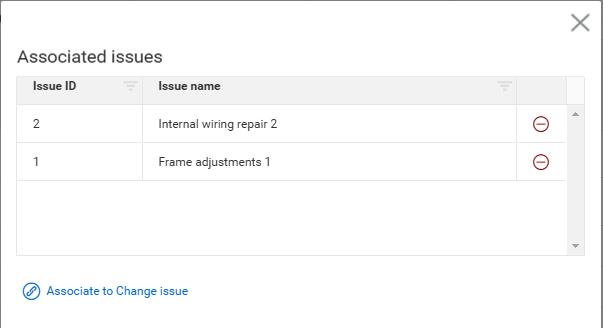
After you associate issues to a scope item, a number count link shows in the Issue column with the number of issues assigned to the scope item. Click the number link to view the associated issues. In the dialog box you can remove issues or return to the Associate to Change issue dialog box to manage issues.
Click the number link to view the associated issues. In the dialog box you can remove issues or return to the Associate to Change issue dialog box to manage issues.
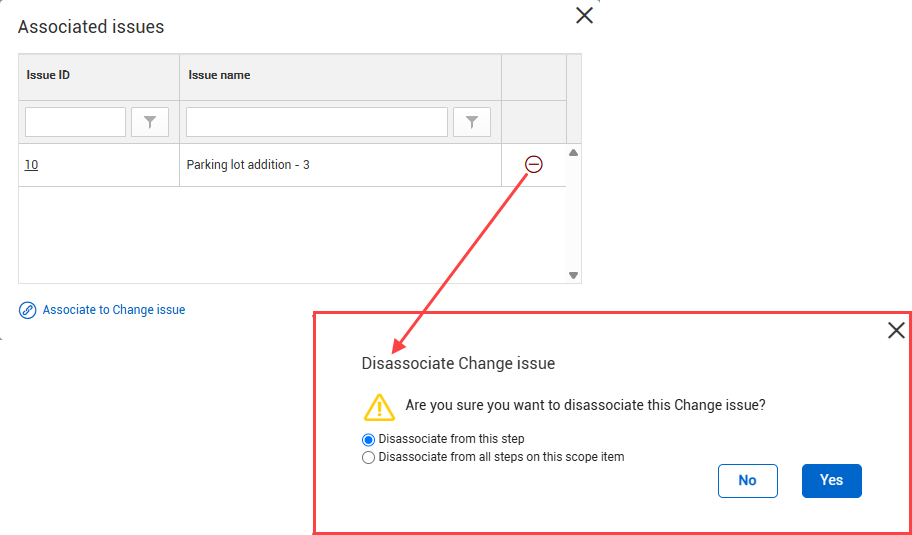
To remove the issues, click the Disassociate Change issue icon, and then select Disassociate from this step or Disassociate from all steps on this scope item.