Document 25.11 Release Notes

This is a preview of the upcoming release. General release is available starting 27-NOV-2025.

*Updated 05-DEC-2025

Web Release Notes

Documents

  • Apply dynamic data in markups – You can now add dynamic data to tool chest items in the PDF viewer, so that information like comment date or user details is automatically populated. ClosedRead more

    The Define automatic attributes section has been added to the Item details dialog box shown when you create tool chest items.

    You can select the dynamic data field, such as Commented by from the Field selection drop-down list and then set the text that shows in the annotation, such as Reviewed by. The Annotation text box shows a preview of the text that will be available in the annotation.

    If you want to add more to the annotation, click the Add icon next to the Field selection to add another field (for example, Commented date). You can then click the Add icon next to the text field to add text for that dynamic data (for example, on). The text is added in the Annotation text box.

  • Create a customized toolbar in the PDF viewer – You can now add frequently used markup tools in a customized toolbar, so you can access them quickly when marking up a document. ClosedRead more

    To add items to the Favorites toolbar, click Manage Favorites. The Manage favorites dialog box opens. You can then select your frequently used tools.

    You can also group different annotation types so that they can be accessed through a drop-down list in Favorites. For example, you could group the different pen markups under a grouping called My pens.

  • Select from standard color options – When you change the color of an annotation, you are now shown a set of standard color options instead of the color scale.

  • Save and close on the enhanced Bulk upload page – You can now save your work on the enhanced Bulk upload page when you have added information but are not yet ready to upload. The saved information is loaded the next time you open the tool. ClosedRead more

    The Save as Draft button has been added to the enhanced Bulk upload page. Click Save as draft when you leave the page but are not ready to upload.

    Later, you can come back to the page, and all your data is retained and shows in the Bulk upload grid.

    After you complete the upload, the information is removed from the grid.

  • Clear sheet item on enhanced Bulk upload page – You can now clear items from the enhanced Bulk upload page when items on the page are no longer needed. ClosedRead more

    The Clear Sheet button has been added to the enhanced Bulk upload page.

    After you click Clear Sheet, a confirmation message shows, warning that all files and data will be removed.

  • Filter based on submittal documents – You can now filter documents based on whether documents are associated to submittals. ClosedRead more

    A new condition, Included in Submittal, has been added to the Column option in the Filter and sort dialog box. When you use the Included in Submittal condition and set the value to Yes, Document returns a list of all documents that are included in a submittal.

  • *Apply Viewer personal default markups across all projects – When you set the properties of a markup as a default in the Viewer, the default now applies across all projects you have access to. Previously, when you set the appearance properties of a markup as the default (that is, when you select the Set comment properties as default check box in the markup’s appearance pane), the default only applied to the current project.

Administration

  • Include form attachments formats in the Download File format in project configuration – You can now configure the format for form attachments in the file format configuration, so that form attachments are easy to identify. ClosedRead more

    The Form Attachment setting has been added to Project settings > Project Configuration > Download file name. You can choose to maintain the original file name for the form attachments or configure a new file name format.

  • New central user management functions – You can now use central user management to create and export security groups and create company types.

Forms

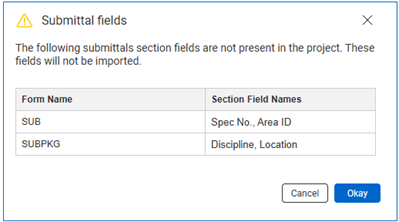
  • Import form types from a project – You can now import form types from other projects into your current project. ClosedRead more

    The Import form types from project option has been added to the Actions > Admin menu on the Forms register. When you select Import form types from project, the Import Form Type dialog box opens, where you can select a project. You can then select from a list of form types.

    You also have the option to copy configuration tables and copy workflows.

    The Import as ID and Import as Title fields are configurable, so you can choose an ID and title that are relevant to your project.

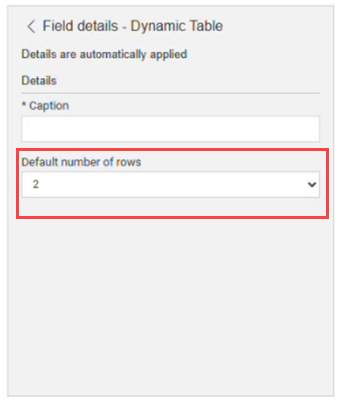
  • Use multi-select fields in dynamic tables – The form builder now supports adding multi-select fields in dynamic tables.

  • Copy attachments and section data when duplicating or revising forms – The Forms module now lets you copy attachments and section data when duplicating or revising forms. Previously, only the Initiator section was copied. ClosedRead more

    Now you have the option to include all sections of the form. When you duplicate or revise a form, you are now prompted to select whether to copy the Initiator section only or all sections.

Transmittals

  • *Enhanced Reply all feature – You can now send a transmittal to multiple recipients as a single item, so all recipients can be included in replies. Previously, each recipient received an email with a unique link, and any responses could only be sent to the sender with no option to reply to all. ClosedRead more

    The setting Send secure transmittals with reply all support has been added to Project settings > Miscellaneous > Other.

    When the setting is selected, you can send a secure transmittal with Reply all support. When you send a transmittal, Document sends a single message with a link that is accessible to all recipients.

    When recipients click the link, they are prompted to enter their email address for validation.

    After entering their email address, internal users are then authenticated with their Document credentials. For external users, Document sends an email with an access code. When the external user comes back to the dialog box, they are prompted to enter the access code from the email.

    If you want to reply to the original email, you have the option to reply all, so that those copied are included in the response.

Lots

  • Disable closing lots if sublots are not closed – The setting Sub lot status to be closed prior to allowing lot to be closed has been added to Project settings > Lots > Lot Status controls. When selected, you must close all sublots before you can close the parent lot.

Checklists

  • Use multi-select fields in dynamic tables – The checklist builder now supports adding multi-select fields in dynamic tables.

Reports

  • Run reports on selected documents – You can now select a group of documents from the register and run a report on them, instead of having to filter them in the Reports module. ClosedRead more

    The Run Report option has been added to the Actions menu on the Documents register. When you select documents and then select Actions > Run Report, the Standard reports dialog box opens. You can then select the Documents module and the report that you want to run.

    The report runs based on the selected documents in the register only.

Folders

  • Export dynamic folders – You can now export dynamic folders. Previously, only standard and smart folders could be exported.

Integrations

  • Microsoft Office 365 editing – When Document is integrated with Office, you can now open a document for editing in Office 365, so you can take advantage of Office’s collaborative editing capabilities. Previously, you could only edit a document in Office on the desktop. ClosedRead more

    The option Open Office online has been added to the Actions menu on the Documents register. When you select this option, the selected document opens in Office 365.

    After you make changes to the document you can publish them in Document. A new column Office online changes has been added to the Documents register. After you make changes to the document, the value of the column is Awaiting Publishing.

    When editing is complete, you can go to the Details page of the document to publish it. The Files section of the Details page shows a warning that changes have been made to the file and who made the most recent changes. You can then publish the document as a new revision or as a new version.

    The Publish changes button has been added to the Details page. To publish changes, click Publish changes, and then select Publish as a new Revision or Publish as a new Version.

Document_Enhanced_UI_Release_Notes_25.11