First time access
Platform’s primary function lets you connect and share data between all Eight applications involved in managing a project. This allows project management workflows to pass between jobsite, field office, and front office seamlessly in a consistent and standardized user interface.
Launch Estimate
-
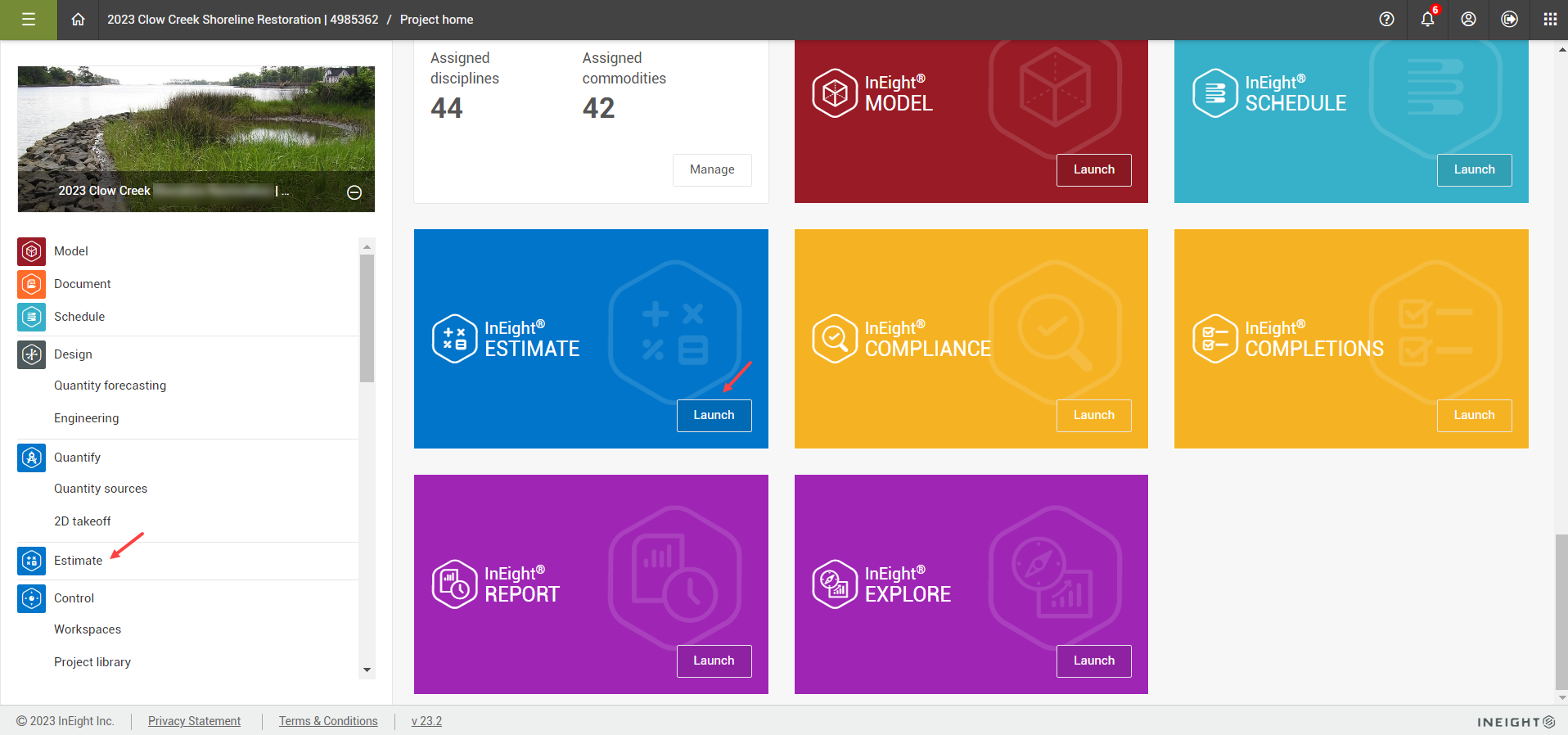
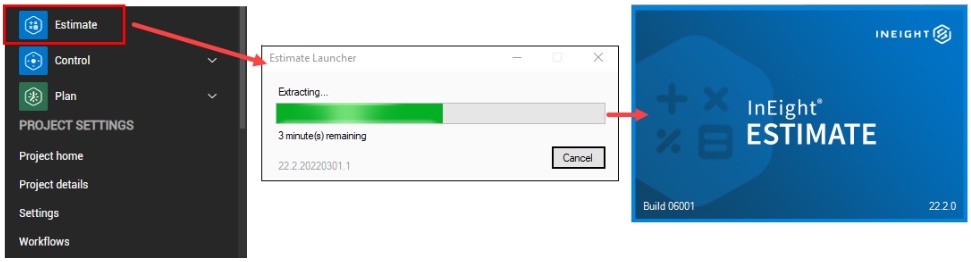
After selecting a project from the home page, you can access Estimate from the Main menu in Platform by selecting Estimate, or by clicking Launch on the Estimate tile.
-
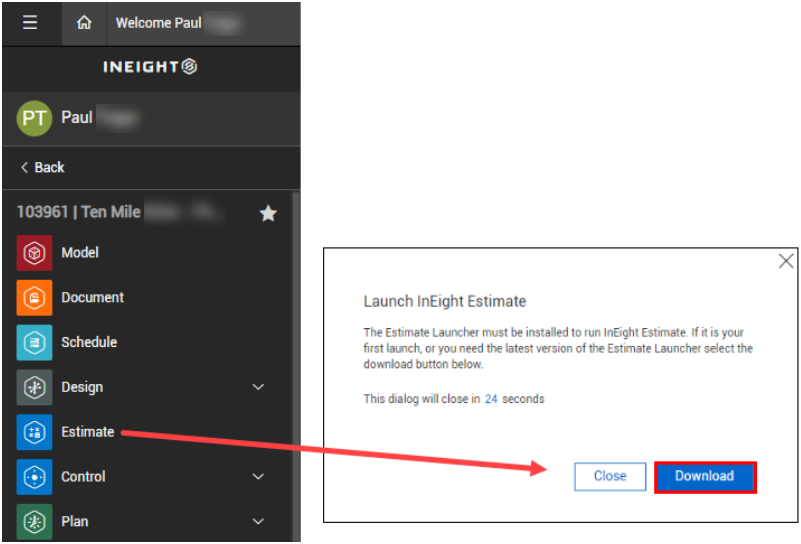
When you select Estimate from the home page for the first time, you must click Download to access the Estimate Launcher file.
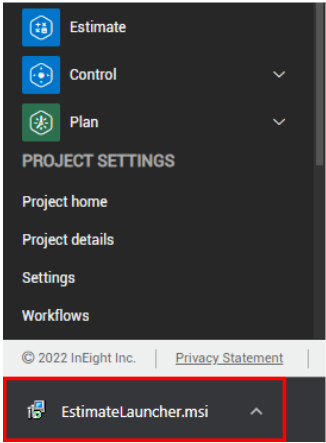
• The EstimateLauncher.msi file downloads to your device.
-
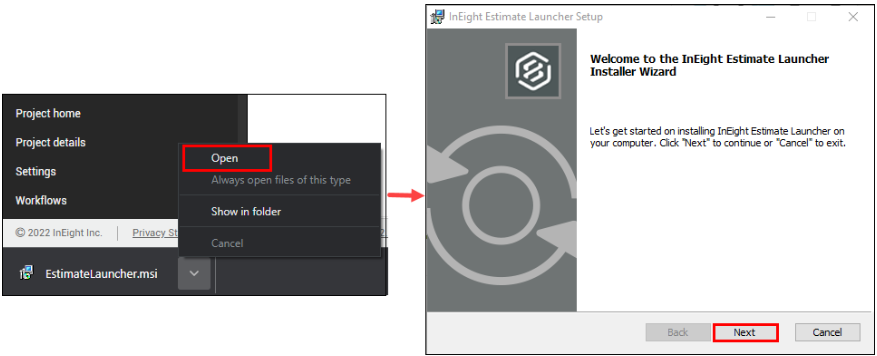
Click the EstimateLauncher.msi file, and then select Open. Click Next to start the one-time Estimate Launcher setup.
-
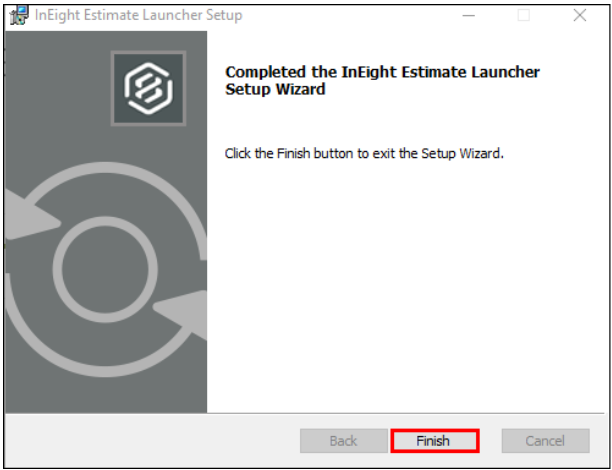
Click Finish to complete the Estimate Launcher Setup installation. You can then open Estimate from the Main menu or the home page.
-
Select Estimate again to start the Estimate Launcher, which extracts the required files to launch the Estimate application.
After setting up your Estimate preferences and installing the Estimate launcher, you can begin using Estimate.
Estimate subsequent use
-
Launch Estimate by selecting Estimate from the Main menu.
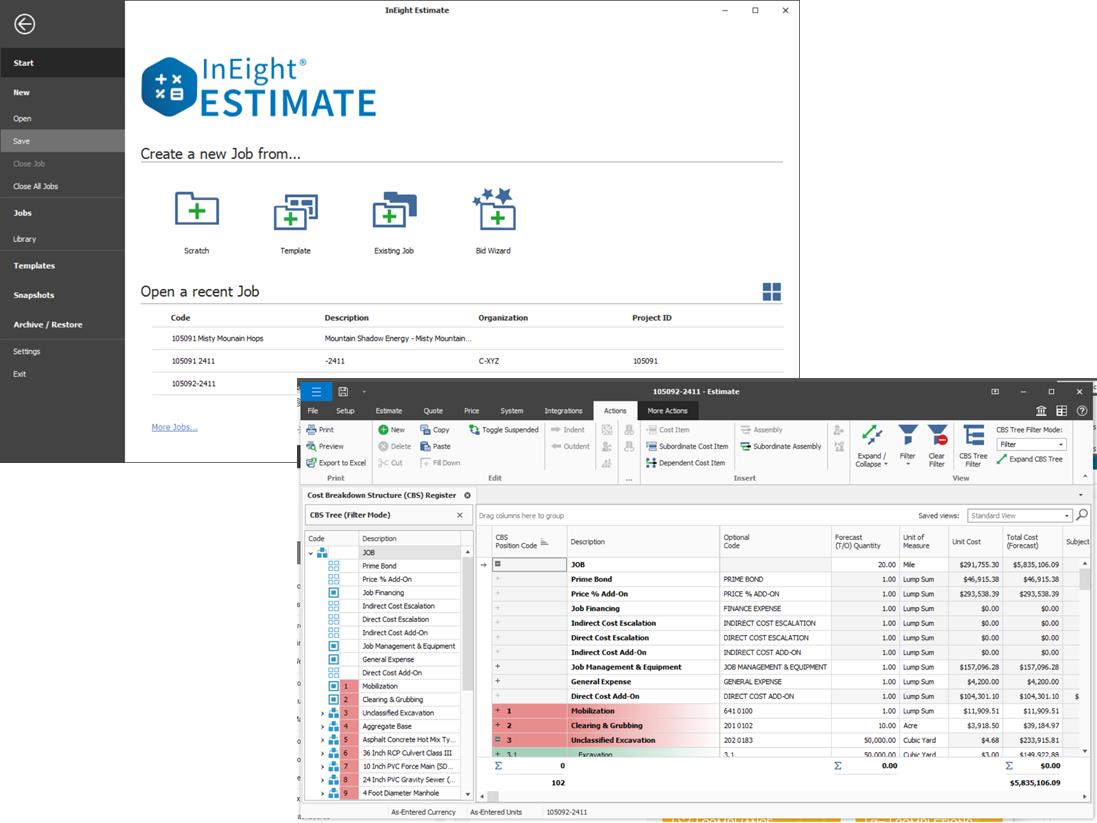
Estimate in the cloud looks and functions much like the Estimate on-premise version. For example, opening a job from the landing page brings you to the Cost Breakdown Structure register, or the register designated as the start page in the application settings.
Release notes summary
On your first launch of Estimate, a Release Notes dialog box shows to quickly view a summary of the release notes. In the release notes summary dialog box, you can click the View full release notes link to view the Release Notes page in the Knowledge Library.