Claiming Scheme Management
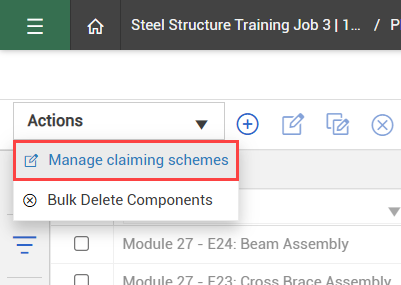
From the Disciplines and claiming schemes page, you can create, assign, update, import, and export claiming schemes for construction activities and commodities. To open the Manage claiming schemes page, click Actions > Manage claiming schemes.
Create a claiming scheme
Claiming schemes can be created for both discipline and commodity construction activities, which are organized separately on the same page. New claiming schemes are created under a parent discipline or commodity to form a parent-child structure.
By default, a new claiming scheme starts with one step. You can add more steps and define how progress should be claimed across the sequence of work.
Create a claiming scheme
-
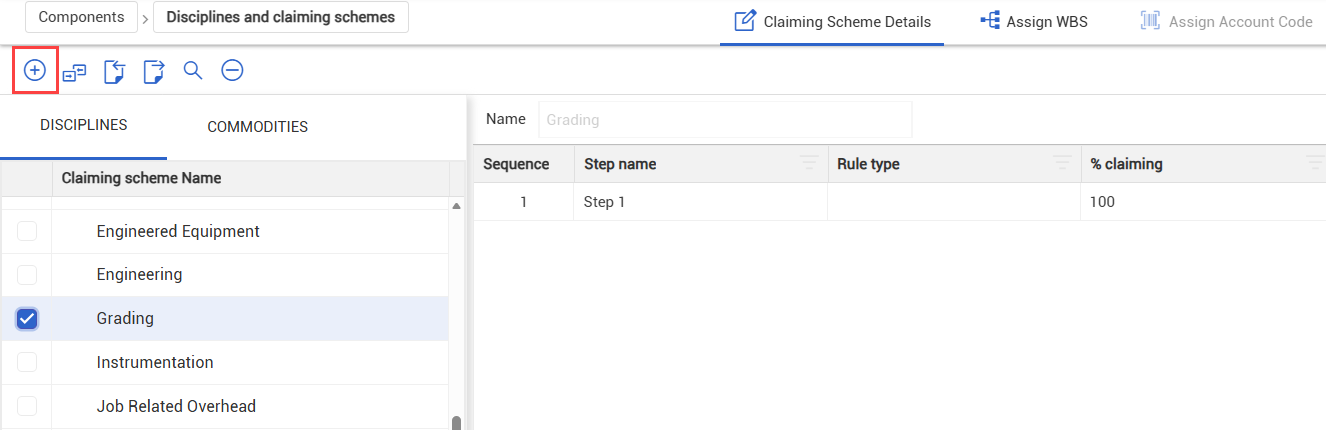
From the Disciplines and claiming schemes page, choose either the Disciplines or Commodities tab on the side panel.
-
Select the check box of the parent category for this claiming scheme. Make sure that only the parent discipline or commodity is selected.
-
Click the Add icon.
-
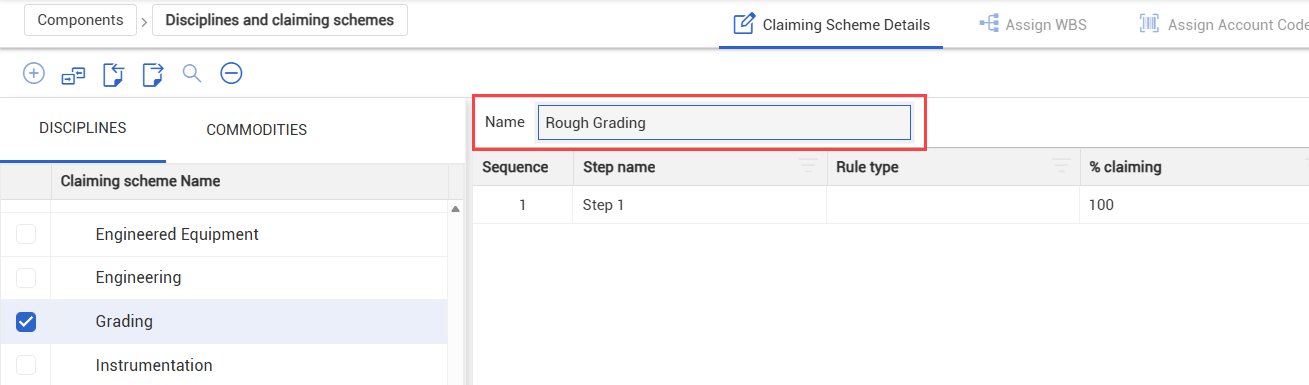
In the Name field, enter a name for the new claiming scheme.
-
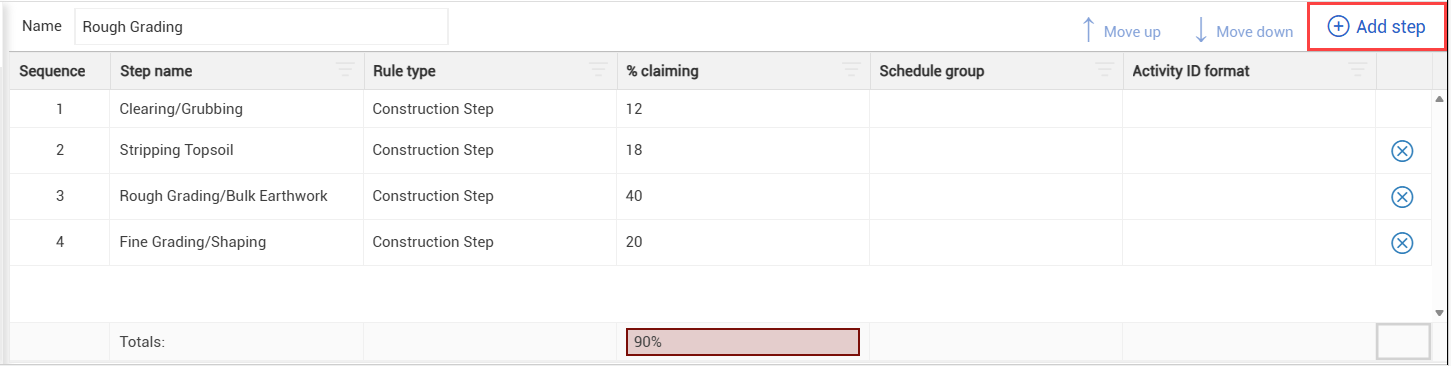
Select Add steps to insert additional steps. For each step, enter the required information, such as the step name, rule type, and claiming percentage.
The total claiming percentage across all steps must equal 100%. If the total does not equal 100%, an error indicator shows and the claiming scheme cannot be saved.
-
When the required information is completed, click Save.
Assign claiming schemes
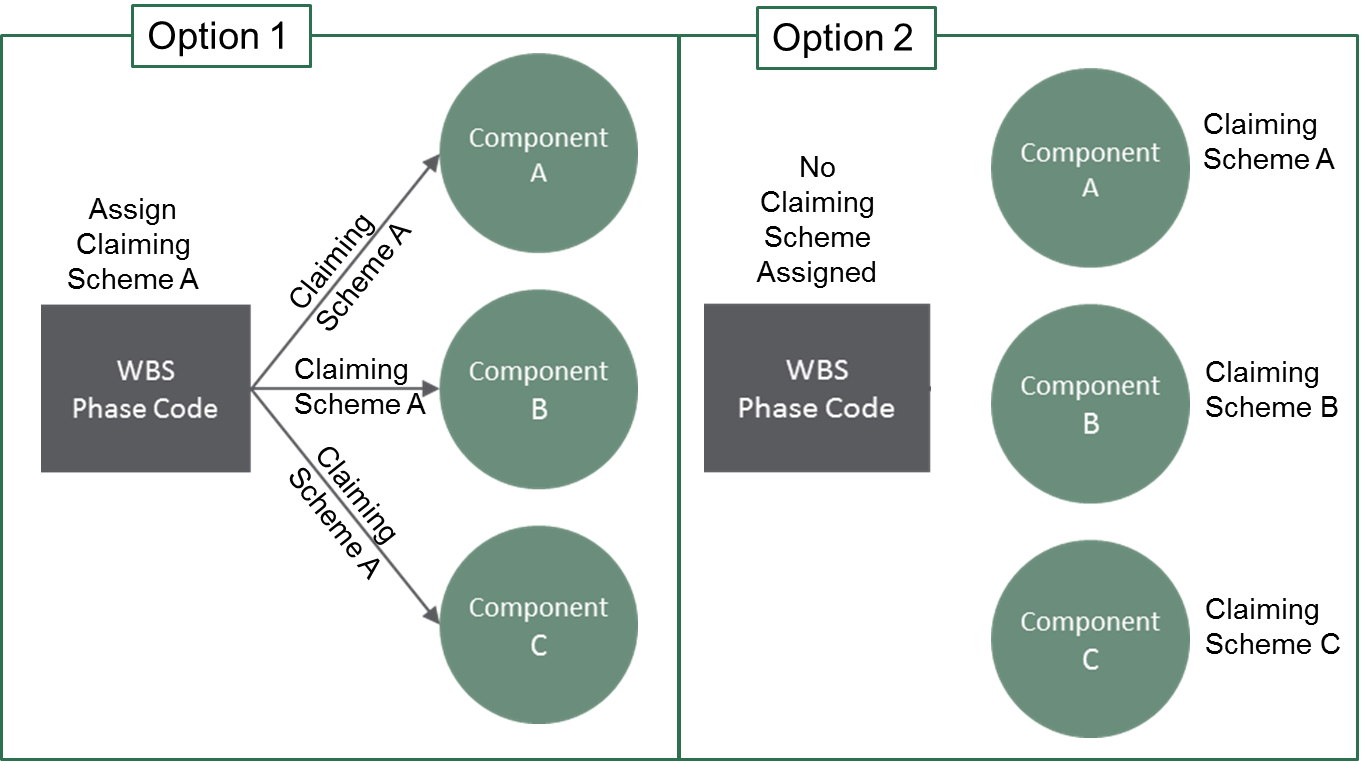
After you create a claiming scheme and it is ready to be used, the next step is to assign that claiming scheme. You can assign claiming schemes two different ways:
To assign claiming schemes at the component level, you must assign them to each component individually. If you assign a claiming scheme at the WBS level, then every component assigned to that WBS will inherit the same claiming scheme.
Assign to a component
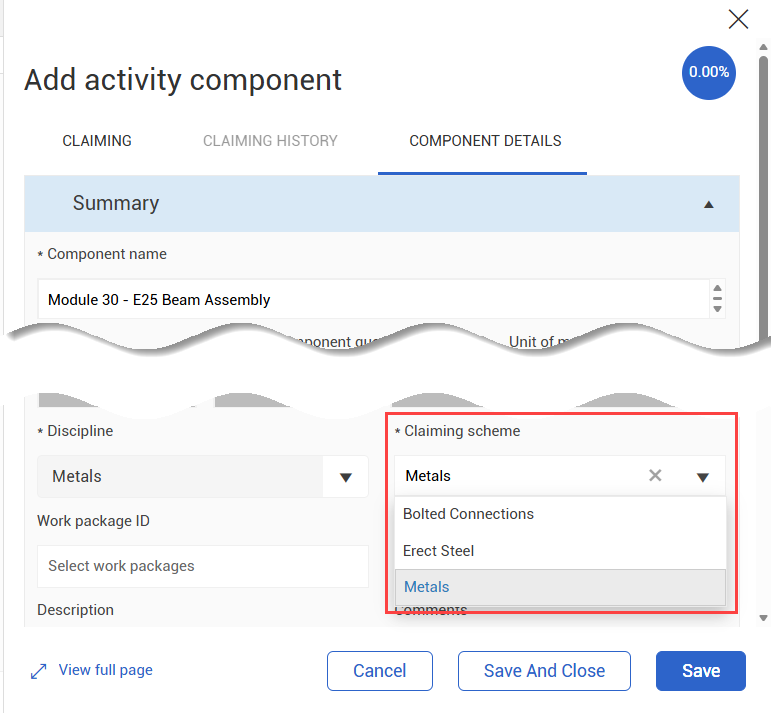
Claiming schemes are a required field for components. When creating a new component, select a discipline and claiming scheme on the Component Details tab.
You can also edit an existing claiming scheme assignment for a component.
You cannot change the claiming scheme assignment on a component that has a quantity claimed against it.
Assign to a WBS phase code
When a claiming scheme is assigned to a WBS phase code, every component assigned to that WBS inherits the same claiming scheme.
As a best practice, WBS assignments should be set up prior to adding components. Any changes to WBS assignments do not override existing claiming scheme associations on components.
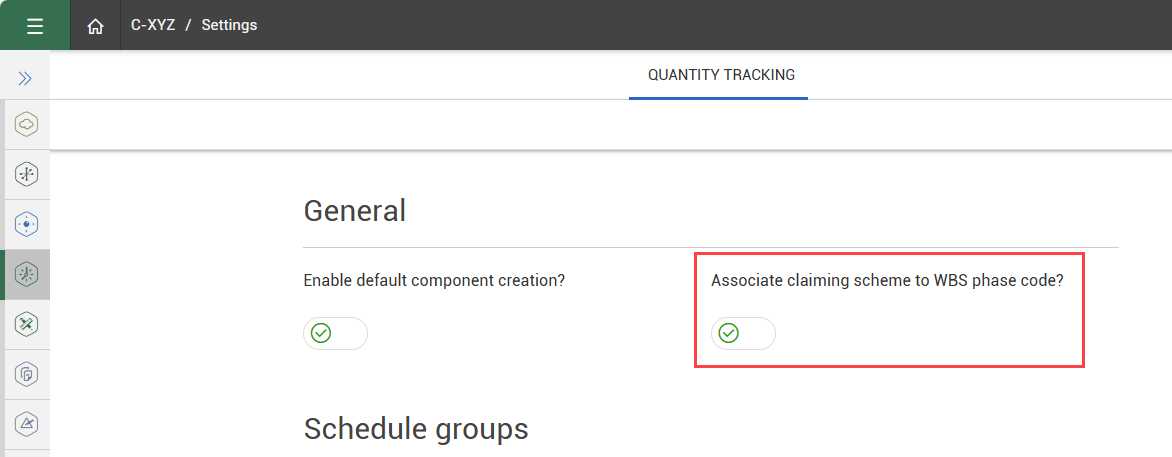
To enable the option to assign claiming schemes at the WBS level, make sure the toggle Associate claiming scheme to WBS phase code is set to Yes in organization or project settings.
In order to assign a WBS to a claiming scheme, the Allow As-Built setting for that WBS cost item in Control must either be set to either All or Quantities, which makes that WBS available in Plan.
Assign a WBS to a claiming scheme
-
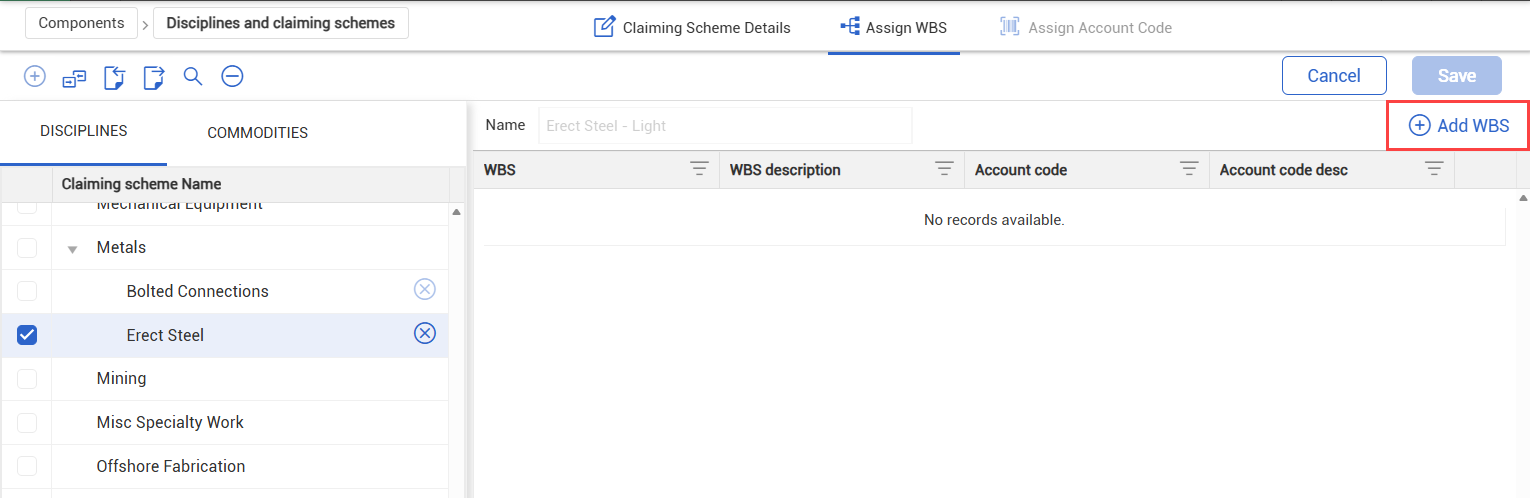
From the Disciplines and claiming schemes page, Select a claiming scheme from the side panel.
You cannot assign a WBS or account code to the Contract discipline.
-
Open the Assign WBS tab.
-
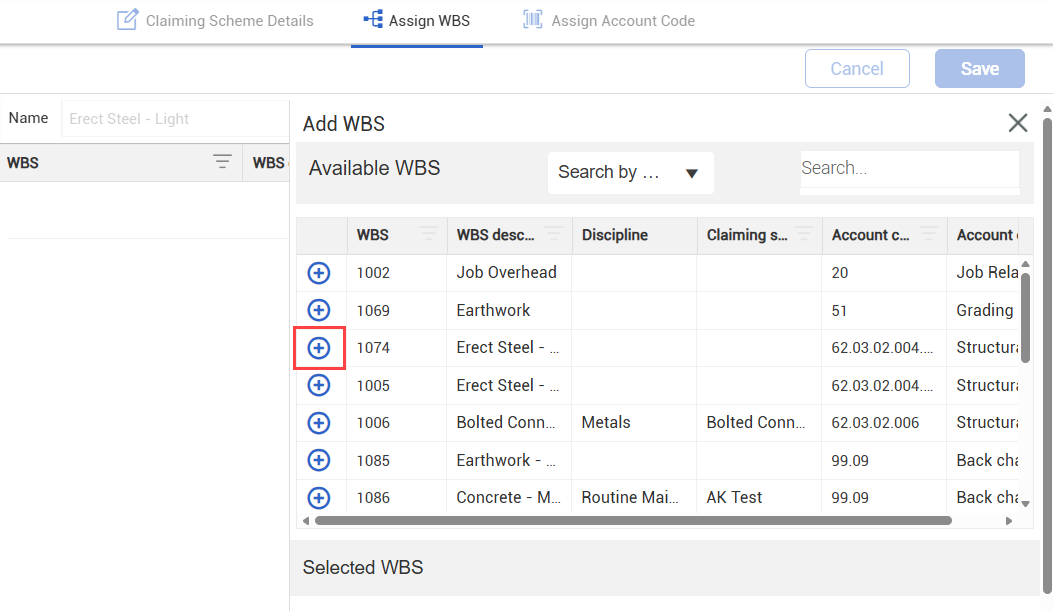
Click Add WBS.
-
On the Add WBS slide-out panel, select the WBS phase code, and then click the Add icon. Use the search box as needed. You can select multiple WBS phase codes to add.
Review the selected WBS phase codes under Selected WBS.
-
When you are finished, click Done.
Map claiming schemes by account code
In Control, WBS phase codes are linked through mapping to account codes. Account code mapping in Plan allows you to use this relationship to assign WBS codes to claiming schemes in bulk. This option saves time when account codes are already associated to claiming schemes. This also helps improve consistency, particularly when account codes are standardized across projects.
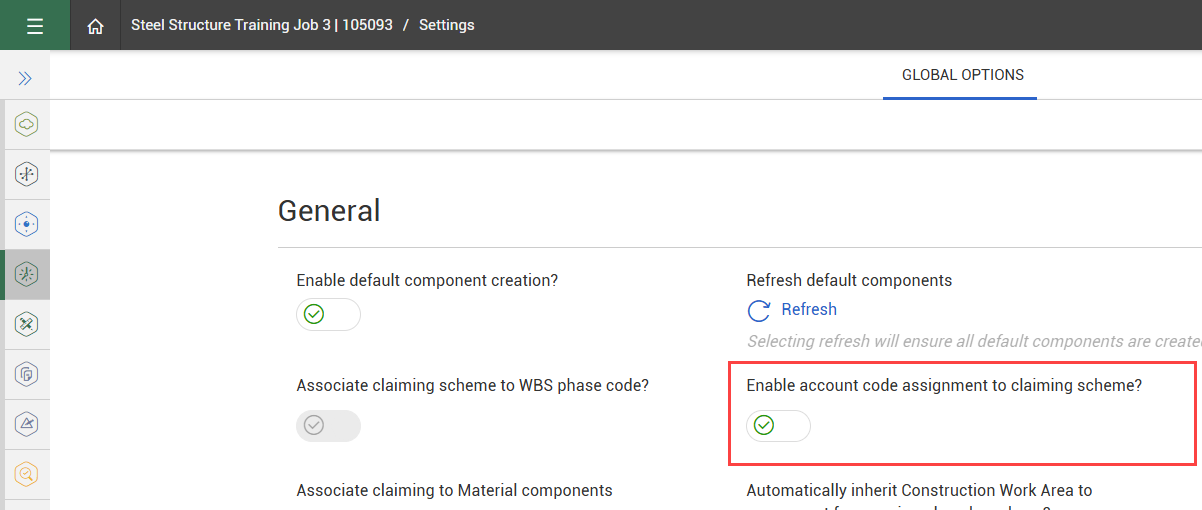
To use this feature, you must have the Enable account code assignment to claiming scheme set to On in project settings.
Manage account code assignments
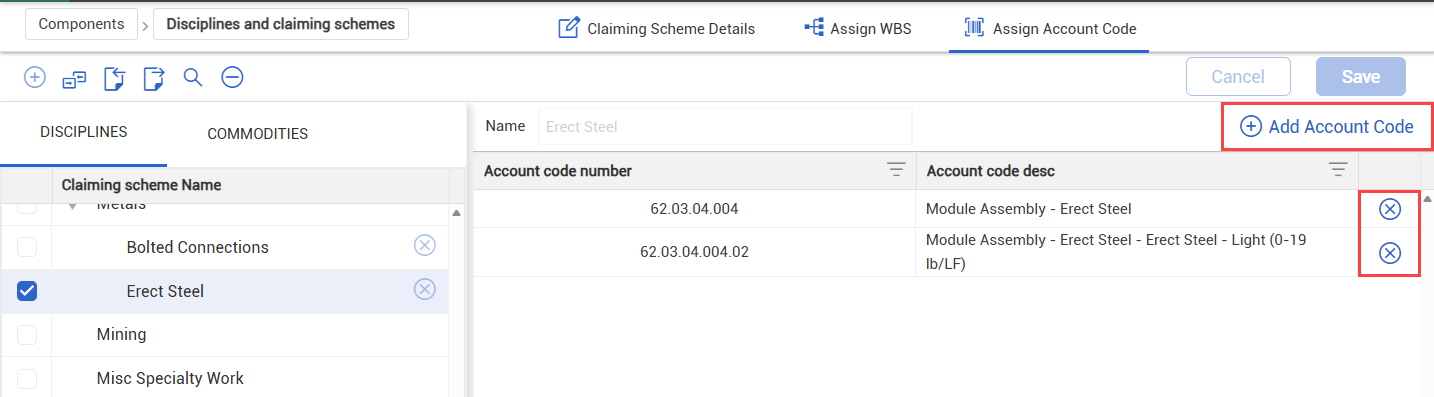
To make changes to account code assignments, select a claiming scheme, and then open the Assign Account Code tab.
Click Add Account Code to assign account codes to the claiming scheme. Click Remove to delete an account code assignment.
Map claiming schemes by account code
-
On the Disciplines and claiming schemes page, select one or more claiming schemes.
-
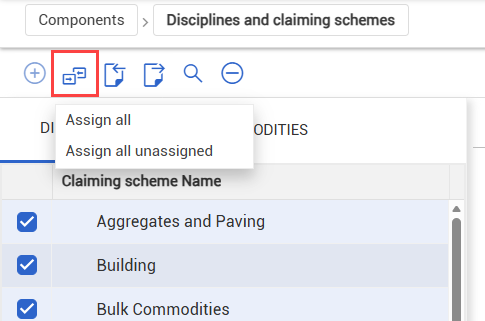
2. Click the Map account code to WBS icon.
-
Select Assign all to assign all WBS codes associated with account codes, which replaces any existing assignments.
-
Select Assign all unassigned to assign only WBS codes that are not currently linked to another claiming scheme.
A notification shows when the operation is complete.
Edit a claiming scheme
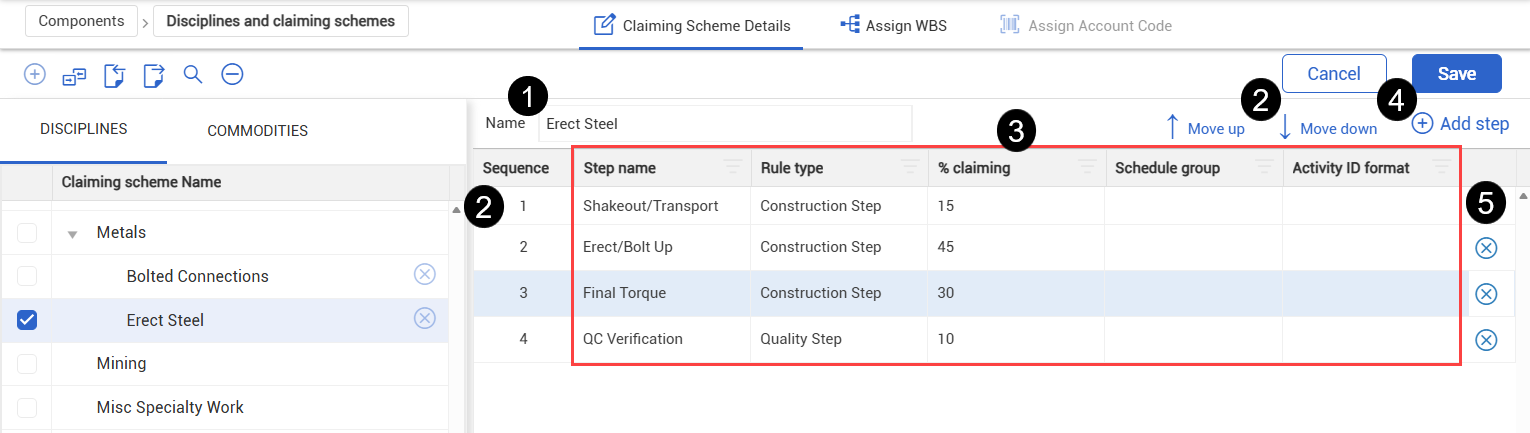
Existing claiming schemes can be updated from the Disciplines and claiming schemes page. To edit a claiming scheme, select it from the left panel. The image and table below show details on making edits to a claiming scheme.
|
Title
|
Description
|
|
1
|
Name field
|
Update the name of the claiming scheme.
|
|
2
|
Sequence
|
Change the order of the claiming scheme steps by updating the number in the sequence column. Alternatively, select a step and click Move up or Move down to update the order. After claim activity exists, you cannot reorder or delete steps. |
|
3
|
Step details
|
Click within the cells to make changes to the name, rule type, claiming percent, schedule group, or activity ID format.
|
|
4
|
Add step
|
Add additional claiming scheme steps.
|
|
5
|
Delete
|
Delete a claiming scheme step.
|