Billings Configuration
Application Configuration
The Billings application is configured to meet your specific business requirements, which is typically accomplished when Billings is initially configured by the implementation specialist. However, multiple options still exist for the system administrator to adjust the application as business needs change over time.
Configuration and system maintenance include any of the following functions:
• Drop-down value lists
• Custom field definitions
• System integration schedules
• Billings mobile application rendering configuration
The term maintaining in this context means adding new values, editing existing values, or removing no longer needed values.
Utilizing the System Configuration
Go to Suite Administration > System Configuration.
Only System Administrators will have access to configure the application.
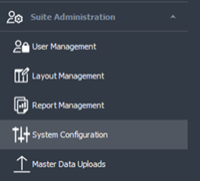
The System Configuration page opens as a new tab with the Field Setup sub-tab selected. This Field Setup tab lets the Administrator create custom fields for any entity which contains a Details tab. Custom fields are primarily created for master data-related entities, found in the Data Library menu, but can also be used for the Projects and Timesheets.
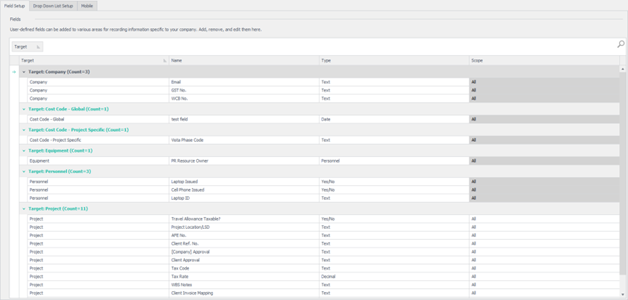
To add a new custom field, click the Add Row ribbon bar button. The following entities support custom fields:
• Cost Code – Global
• Personnel
• Cost Code – Project Specific
• Project and WBS items
• Personnel Classification
• Material
• Equipment
• Material Classification
• Equipment Classification
• Region
• Division
• Time Sheet
• Company
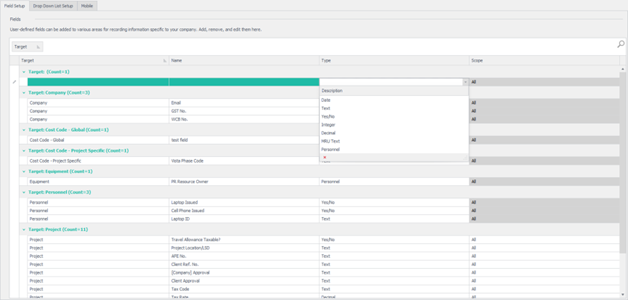
Using the drop-down list, you can select which of the Billings entities to add a custom field to and then type in the name for the new custom field in the Name column.
You can click the drop-down list for the Type column and then select how you want the data displayed (such as, Date, Text, MRU Text, Personnel, Yes/No, Integer, or Decimal).
For certain entities, such as Project, you can also configure the “Scope”, that is, whether the custom field applies to the entire project entity, to the Project only, or to the WBS items contained within the project.
To delete any of the custom fields, you can highlight the item and click the Delete Row(s) button from the home ribbon menu.
When complete, you can click the Apply button, or to exit the dialog box, you can either click the OK button along the bottom right-hand side to save your changes and exit or click Cancel to exit without saving changes.