Calendars and Holidays
Calendars define statutory holidays that apply during a project's life cycle. These holidays directly affect time bumping calculations, especially weekly straight-time thresholds if the stat weekly thresholds are defined. Stat holidays can reduce the number of straight-time (ST) hours allowed in a week. For example, Standard weekly ST threshold being 40 hours compared to a stat holiday week with only 32 hours.
The calendar you assign determines when these reduced thresholds apply.
You must set up the calendar before configuring time bumping.
Default Calendar
A default Canada calendar is available which gives you access to the following:
-
Use it as-is for Canadian projects
-
Copy and modify it for locations with different statutory holiday dates
-
Create entirely new calendars for other countries
Calendar Fields
When creating or editing a calendar, you must define the following fields:
-
Code - A unique identifier for the calendar.
-
Description - A clear explanation to describe the calendar.
-
Country - The country the calendar applies to.
-
Holiday Rows - The list of statutory holidays.
-
Holiday Dates - The specific dates those holidays occur.
Create a calendar
-
Go to Data Library > Classifications > Calendars
-
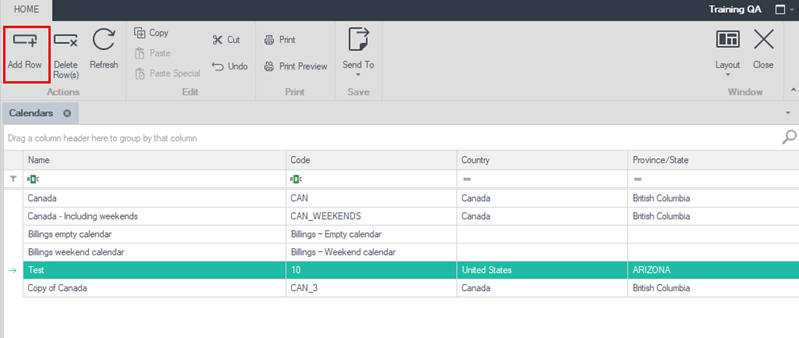
In the menu, select Add Row.
-
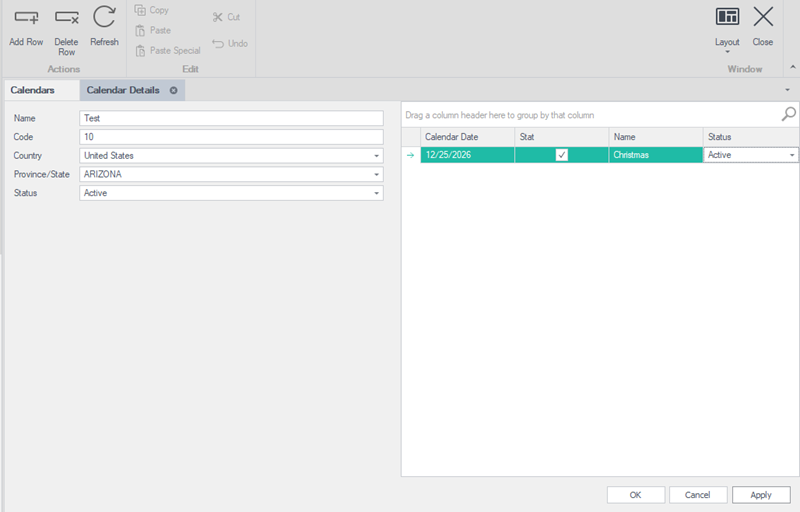
Complete the fields for the calendar. Enter a name, code, country, state and status.
-
To add a holiday, select Add Row.
-
Enter the date and holiday name
-
Select Add Row as needed to add more holidays.
-
Click Apply to save your changes or click OK to save your changes and close the dialog box.
Copy an existing calendar
Instead of creating a new calendar, you can copy an existing calendar that is similar and make changes to it.
-
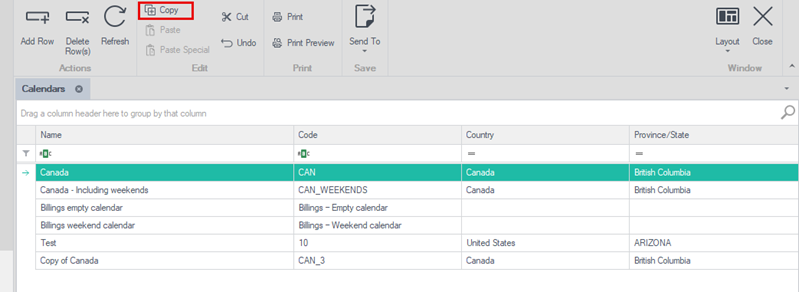
From the main calendar screen, select the calendar you want to copy.
-
Select the Copy option from the menu options.
-
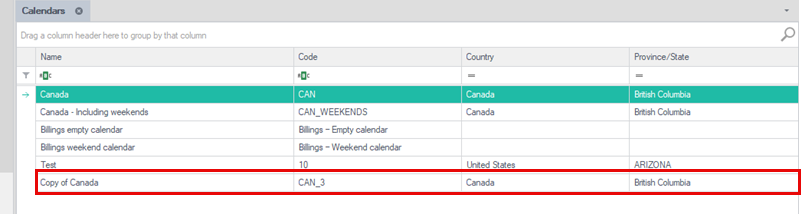
A copy of the calendar is shown in the list. Double-click in the row for the calendar to open it and make changes.
-
Click Apply to save your changes or click OK to save your changes and close the dialog box.