Create new Company (Client or Supplier)
Project related vendors are integrated from the Assigned Vendors in Platform. If additional companies need to be added that have not been automatically created from the Assigned Vendors in Platform, a new company (client, supplier or vendor) can be created with the following steps.
Create new Company (Client or Supplier)
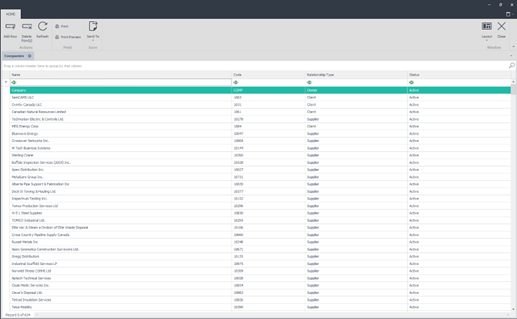
1. Go to Data Library > Company.
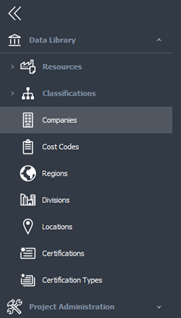
2. The Companies tab appears. Click Add Row on the ribbon bar or press the Insert key.
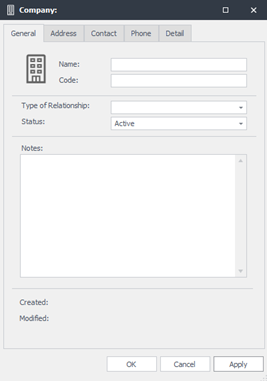
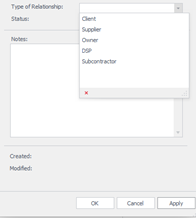
3. Enter the company name in the Name field. Enter the applicable code in the Code field. Click the drop-down box in the Type of Relationship field. Select whether the company is a Client, Supplier or other description previously specified by your system administrator.
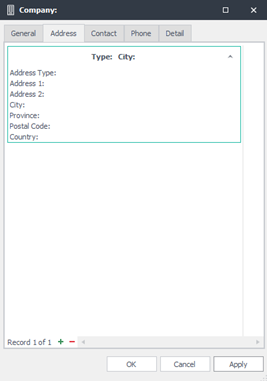
4. The Status field will automatically default to Active. Enter any notes pertinent to the company in the Notes section and then click the Address tab. Enter the necessary information for the primary address as listed. You can use the arrow keys or Tab key on your keyboard to move between fields.
5. Click the Details tab. This section is used to capture custom field values. Populate any custom fields per your organization's requirements.
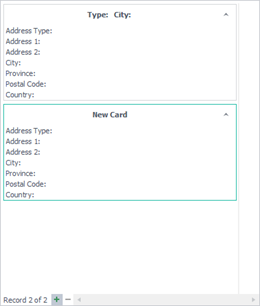
6. Click the Append icon at the bottom, left of the page to add another address. If you need to remove an address card, select the one to be removed, then click the Delete icon.
7. Continue the same steps to enter details in the Contact, Phone and Details tabs. When ready, click Apply or OK at the bottom of the page to save your changes.