Filter Functionality
When opening a page within Billings which contains a grid, an auto-filter feature is available. This feature is available with pages containing the following data:
• Timesheet
• LEM
• Invoice
• Project
• Rate Table
• Company
• Cost Code
• Equipment
• Personnel
• Region
• Division
Each of these pages includes a row directly under the column header row dedicated to filtering. In this row, you can narrow the list by entering in specific criteria (e.g.., T/S Number, LEM number, Project Name, etc.). A filter icon appears in each column header when the mouse is placed over the column. If a filter is activated, the icon is highlighted. If the filter icon is clicked, the filter can be automatically adjusted by selecting from the options of Custom, Blanks, or Non-blanks.
Edit Filters
In the bottom right corner of the page, you can select the Edit Filter button to adjust the default filter settings.
1. Select Edit Filter.

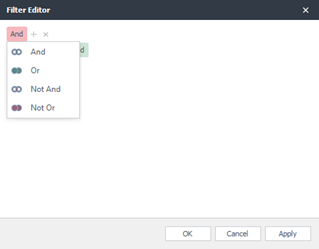
2. Click the And button to select any of the following options:
• And
• Or
• Not And
• Not Or
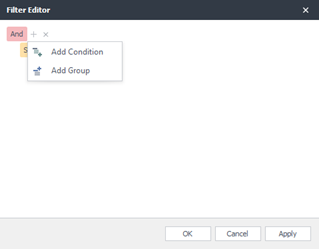
3. Click the Plus button beside the And button to select one of these options:
• Add Condition
• Add Group
Within this row, each character can be edited.
Another option when retrieving data is the Quick-Type feature. This lets a user open an existing list and begin typing in the first characters of the word. Billings will automatically begin to filter the list by these characters. The example below is searching LEM Numbers by the letter s. Billings will display all LEMs beginning with this character.