Managing a Site
Sites are automatically created when a Project is created during synchronization with Platform. The project’s name and code are used for the Site Name and Code fields. The purpose of sites is to maintain project specific resources for use in Billings. The labor and equipment named resources, as well as vendors, assigned to the Project in Platform, are reflected in the Personnel, Equipment and Companies tabs.
To view the list of all sites that have been set up, go to Project Administration > Sites. The available columns on the Sites tab are as follows:
• Name
• Code
• Region
• Status
Personnel Tab
The Personnel tab shows the current resource assignments and is split into two sections, Assign People and Create Crews.
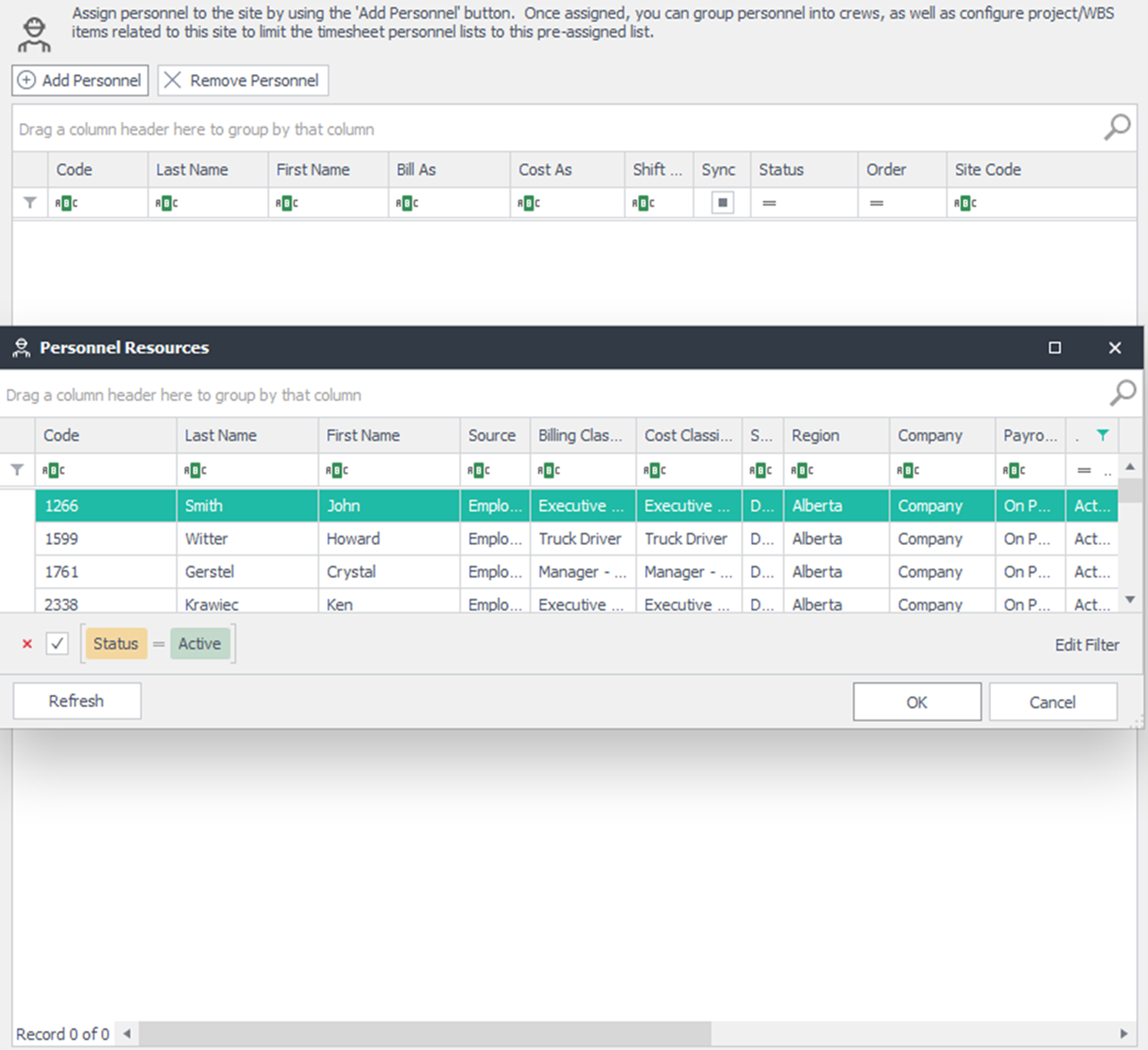
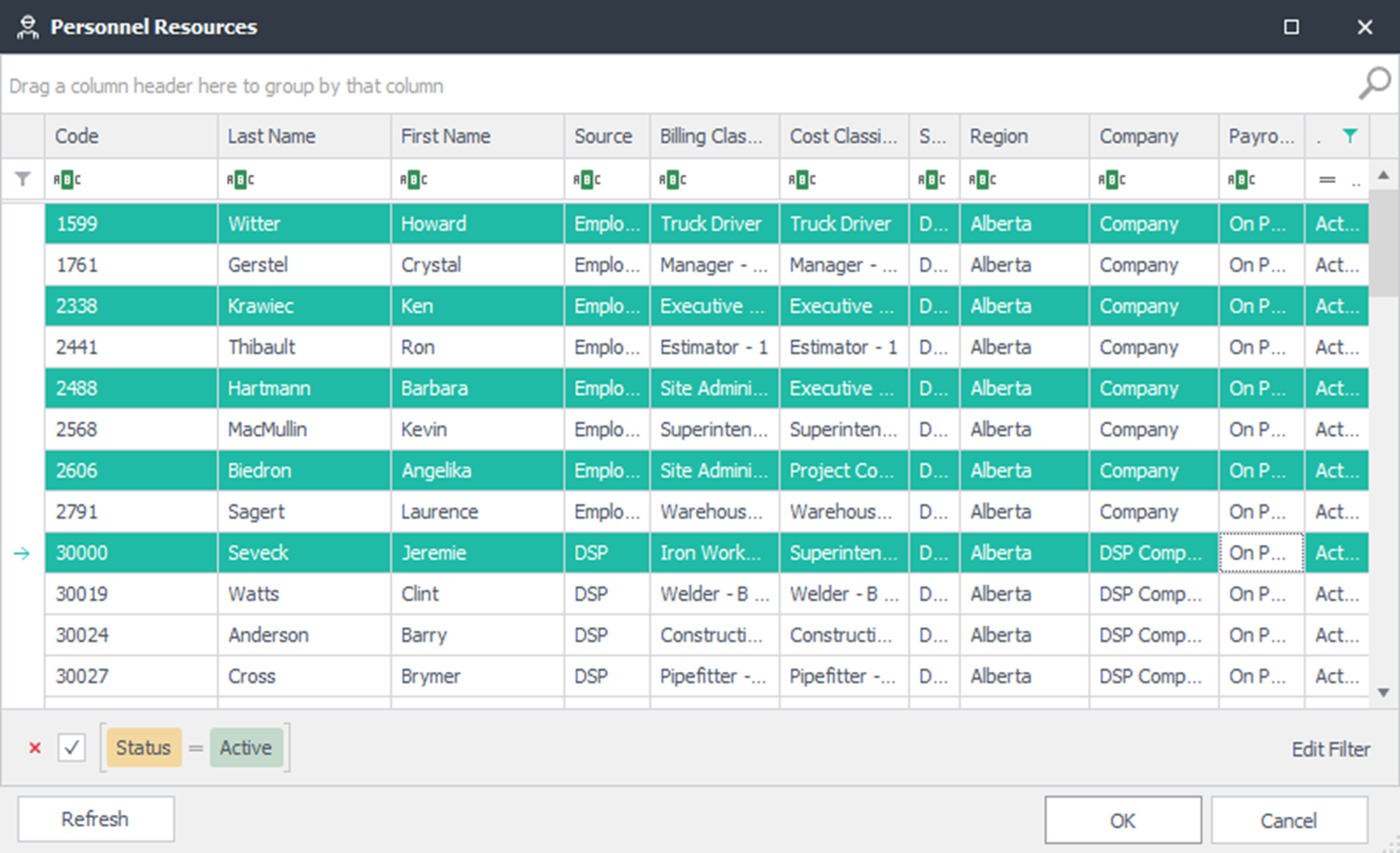
If there are missing resource assignments that are required for billing purposes, and they cannot be added to the project operational resources in InEight Progress , you can click Add Personnel to add additional resource assignments. A window shows with the names of available people. Double-click on each individual resource, or single select (highlight) all resources required and click OK. Once all required resources have been added to the Personnel tab, click Apply to save the updates.
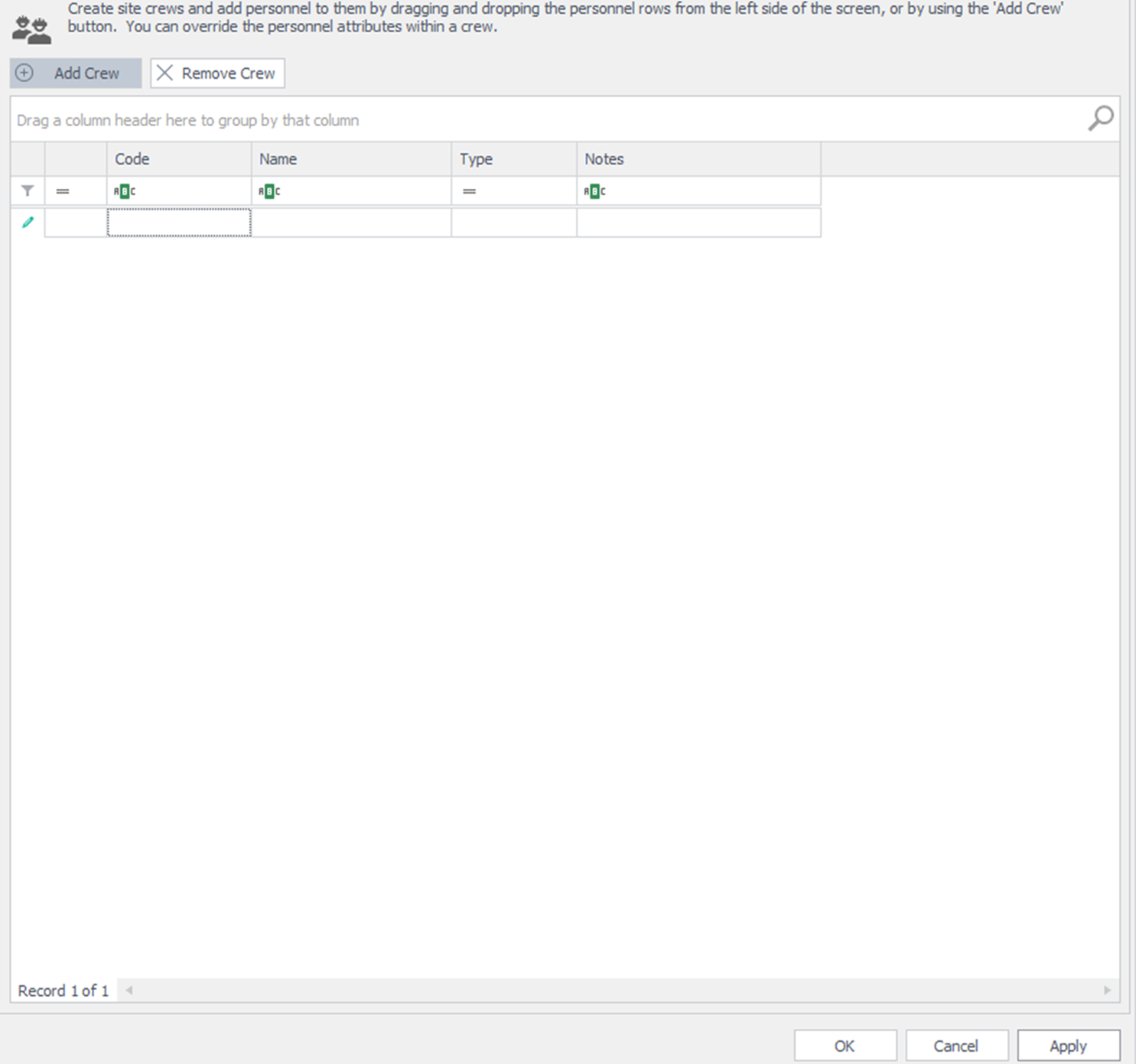
On the right side, you can further restrict who can work on any one project by creating site crews and assigning personnel to each specific crew they are associated to.
Click the Add personnel button located above the Personnel tab to launch the Personnel List dialog box. You can select multiple records using the mouse and holding the Ctrl key to select each applicable record, or select a range of records by selecting the first record, holding the Shift key, and then selecting the last applicable record. Click OK to bring the selected records to the page.
After an individual is assigned to the site, additional details can be entered, such as timesheet entry display Order, Site Code (usually customer driven), Shift Rotation, Start Date, End Date, and User Def 1-4. The Shift Rotation is populated from the Personnel tab by default (if assigned on the global resource record) but can be overridden. Shift Rotation selections are defined in the Options menu under the Drop-Down List Setup, Shift Rotation Type.
You can override a worker’s default Bill and Cost Classifications while they are part of the crew, by changing the Bill As and Cost As fields for the individual. These changes will be the new default for time sheets when using these resources on a project, where the project has the crew option enabled (Project Administration Project Crew Filter by selected crews).
Use the right side of the page to create crew definitions for the site. Create crews by using the Add Crew button, located at the top of the page. Enter the crew’s name and assign the crew a code, then click Apply.
An individual can be part of multiple crew definitions at the same time. To view the crew list, expand the crew definition by using the + button next to the crew code.
Equipment tab
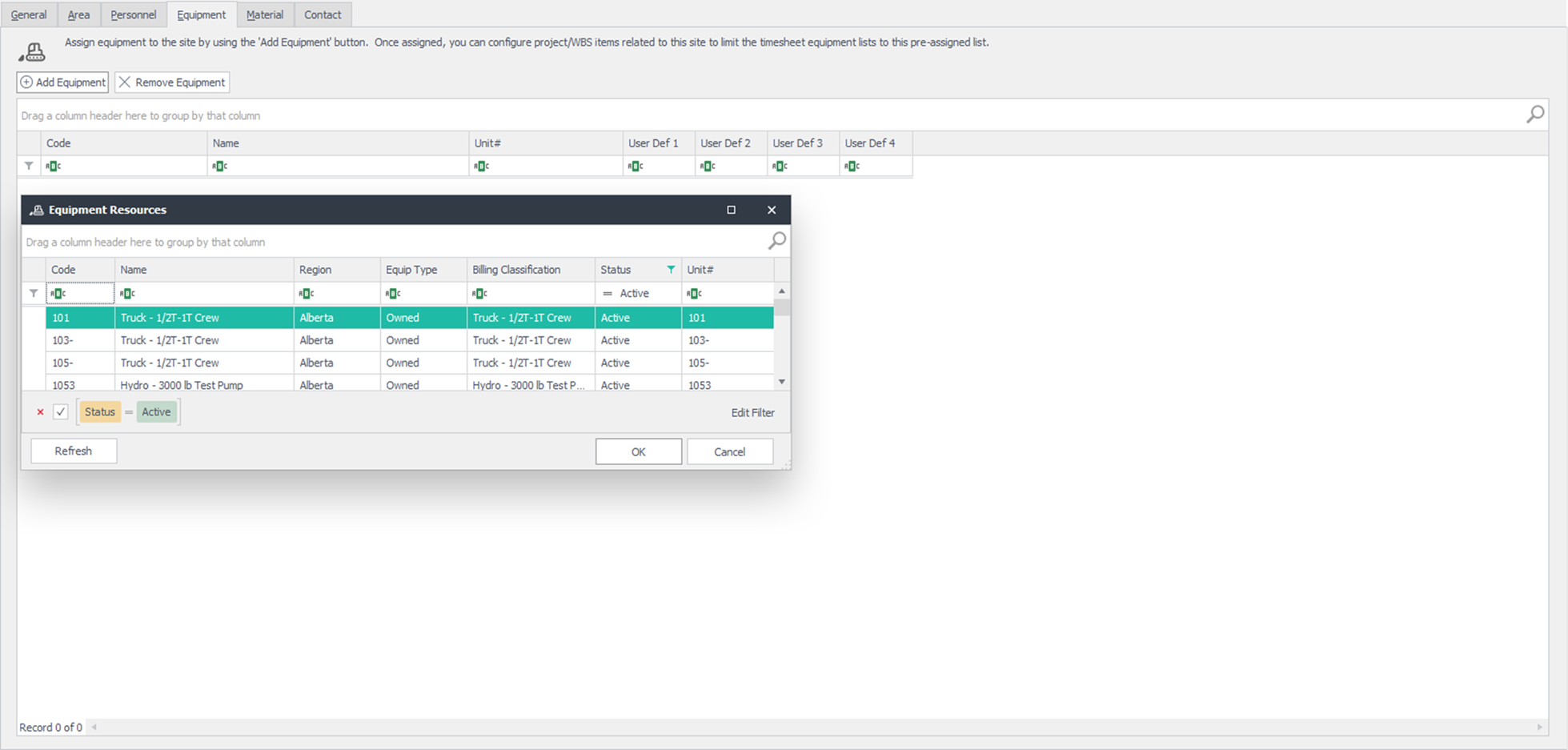
The Equipment tab lets you view and maintain a list of equipment attached and assigned to the site. User Def 1-4 can be set in the Site List. Select the Add Equipment button, located at the top of the page to show the Equipment List dialog box. You can select multiple records using the mouse and holding the Ctrl key to select each applicable record or select a range of records by selecting the first record, holding the Shift key, and then selecting the last applicable record. Click OK to bring the selected records to the page.
Materials tab
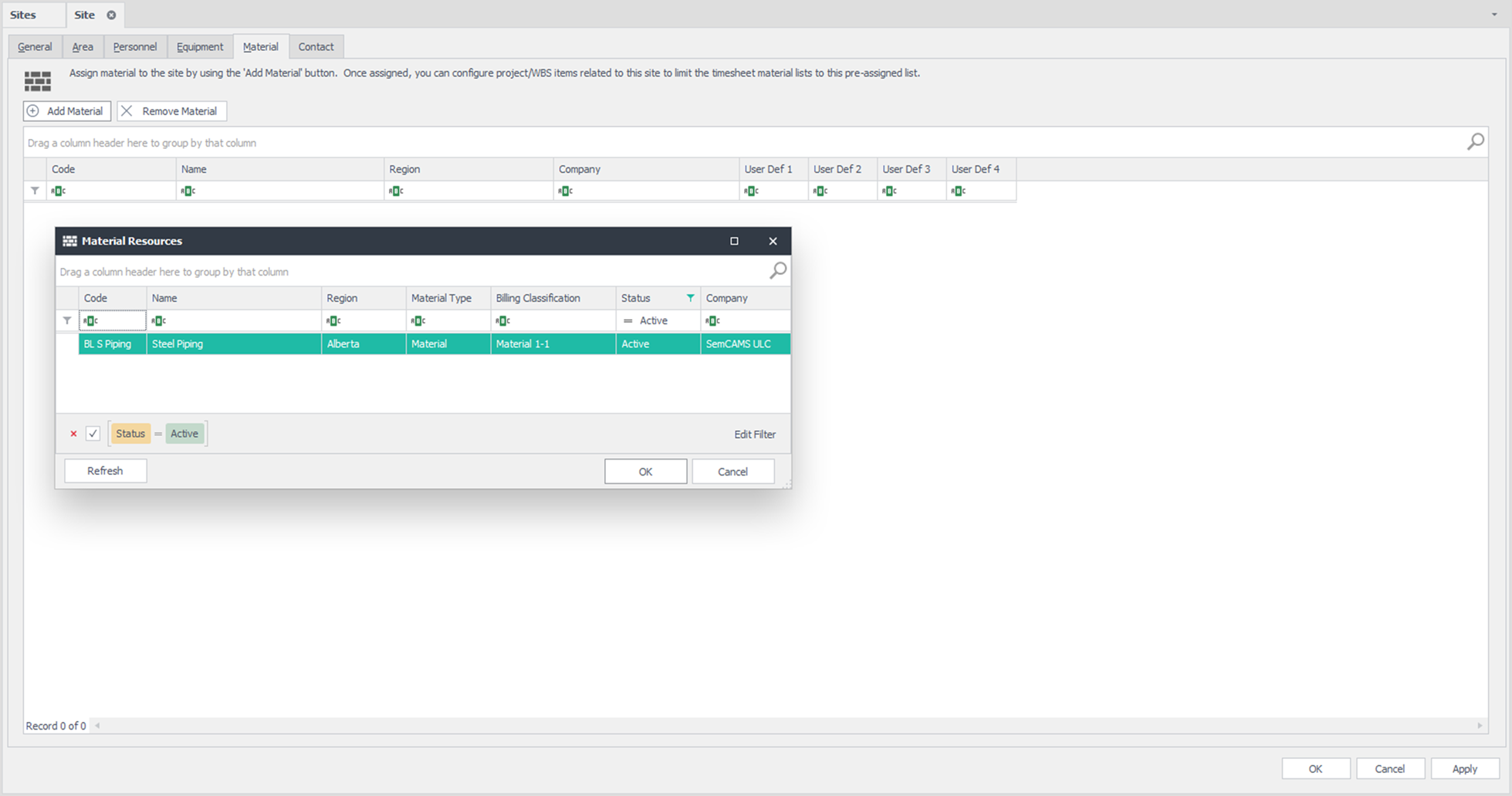
The Materials tab lets you view and maintain a list of material attached and assigned to this site. User Def 1-4 can be set in the Site List. Click the Add Material button, located at the top of the page, to bring up the Material List dialog box. You can select multiple records using the mouse and holding the ctrl key to select each applicable record, or select a range of records by selecting the first record, holding the shift key, and then selecting the last applicable record. Press OK to bring the selected records to the page.
Companies Tab
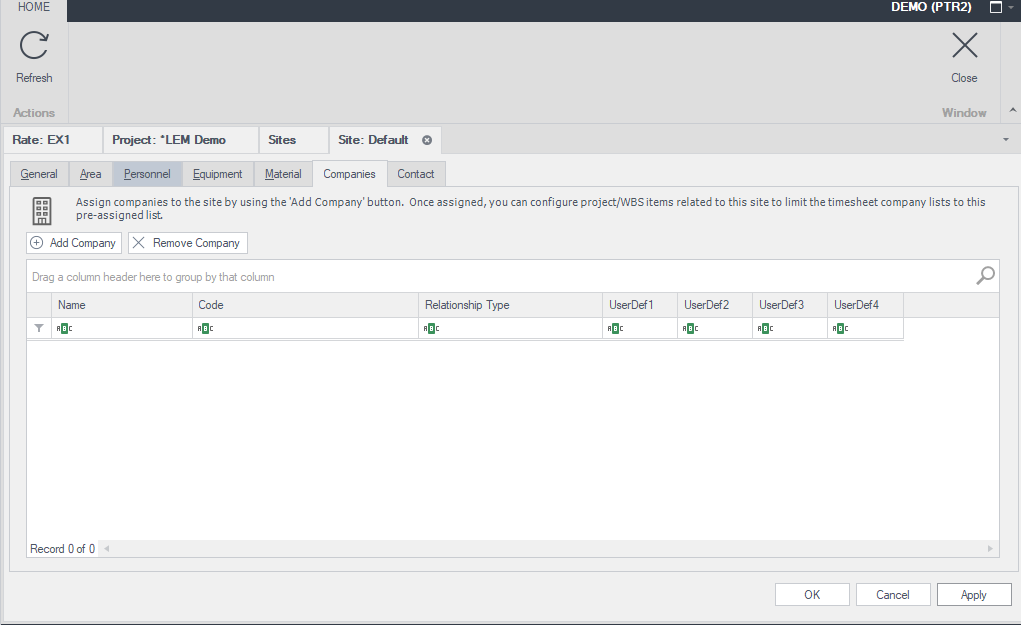
The Companies tab is used to assign companies to the site by using the Add Company button. When assigned, you can configure project or WBS items related to this site to limit the timesheet company lists to the pre-assigned list.
Contacts tab
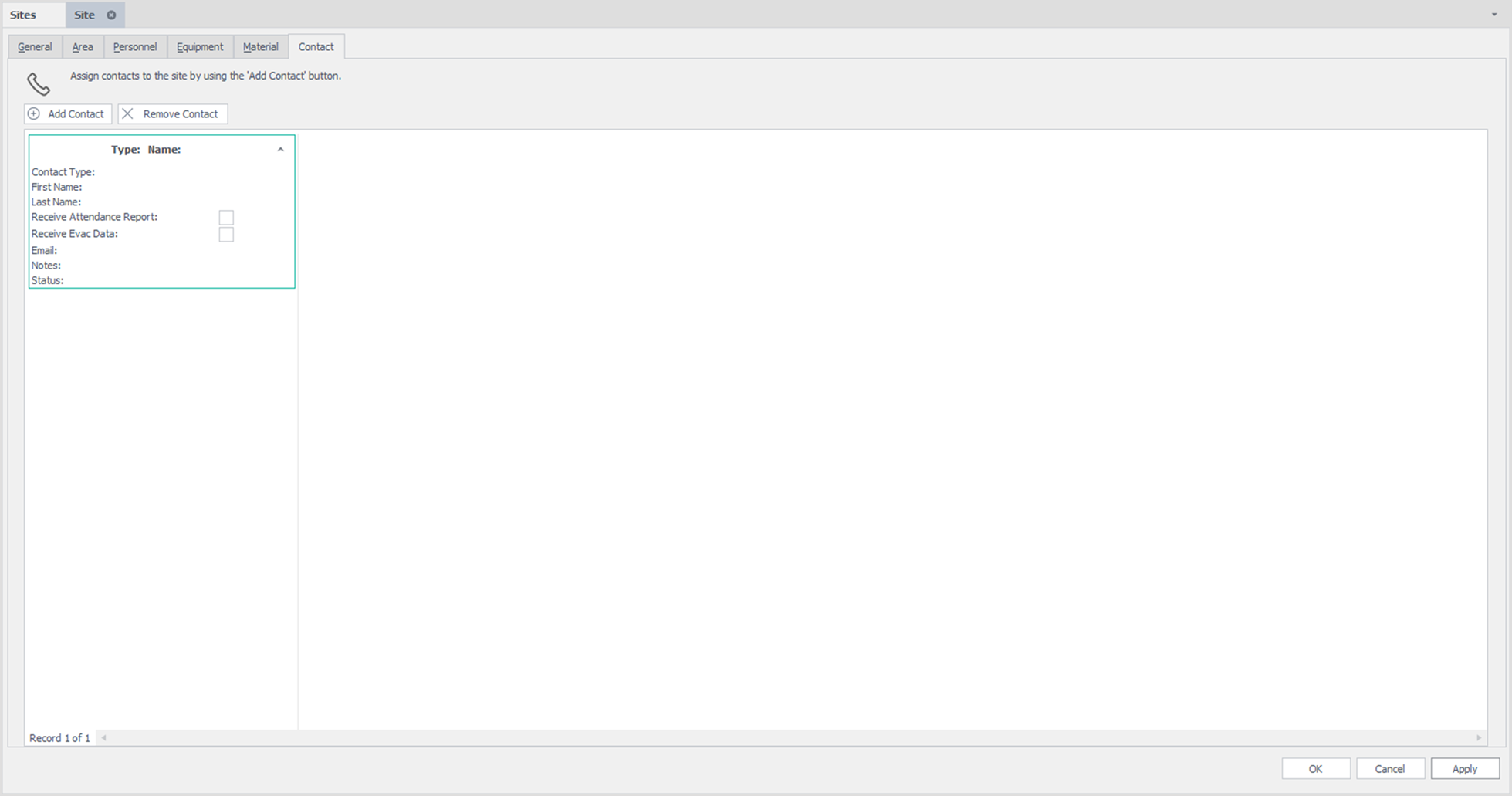
The Contacts tab lets you view and maintain a list of contacts associated with this site. Click the Add Contact button located at the top of the page, to add additional contacts to this list.