Utilizing Mass Edit with a Rate Table
The Mass Edit feature is available to users to simultaneously adjust multiple rates within a rate table. This function frees you from needing to adjust each rate individually. Although this functionality is beneficial, you must be cautious when applying it, as multiple rate records are affected simultaneously. The mass edit feature can also be used to clean up a rate table after it has been updated using the Rate Import Wizard (for example, to remove any new rates that did not actually change from prior effective date).
mass edit Rate Tables
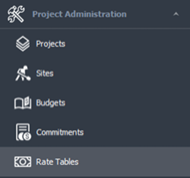
1. Go to Project Administration > Rate Tables.
2. Select the required rate table from the list by double-clicking on it.
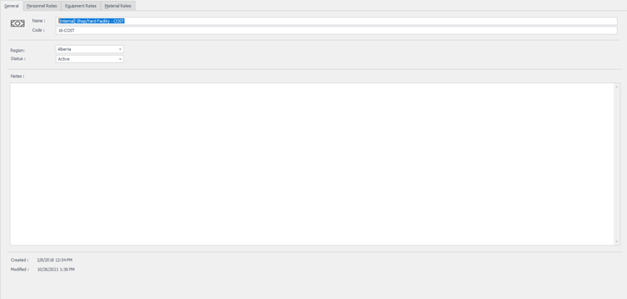
3. The rate table opens in a new tab, with the General tab active below it.
4.Review the Personnel, Equipment and Material Rates tabs to confirm your selection is correct for making mass edits. From the ribbon bar, select Mass Edit.
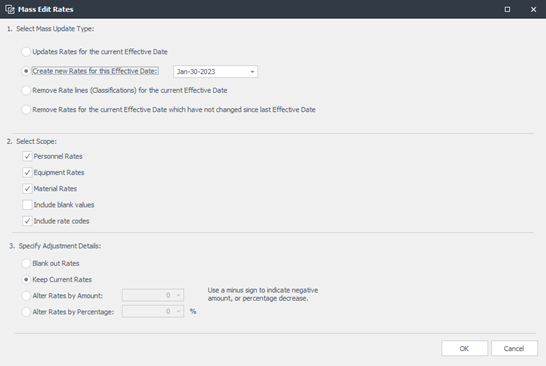
5. In section 1, select the type of mass update:
• Update Rates for the current Effective Date.
• Create new Rates for this Effective Date.
• Remove Rate lines (Classifications) for the current Effective Date.
• Remove Rates for the current Effective Date which have not changed since last Effective Date.
6. In section 2, determine precisely what scope of the rate table will be edited (either Personnel, Equipment, Material, Line Items, or all four sets of rates).
7. In section 3, specify the adjustment details (gives the choice of blanking out the rates, keeping the current rates, or altering the rates by either an amount or percentage).
8. After the modifications have been made, click OK to adjust the rate table based on the parameters you specified. The adjusted rate table will automatically refresh with the effective date and rates altered accordingly.
9. When complete, click the Apply button or to save the changes and exit the window, click OK located at the bottom of the page.