Automapping with Attributes
Auto mapping using attributes lets you easily create attributes and map values to connect project structure and components with templates. You first need to assign map values in InEight Platform and Plan spaces to ensure consistency across the project set up.
To create an attribute value, you must go to the Master data library > Attributes. Components or project structure must be enabled in Module settings > Project settings and you must have published templates with expected headers already set up. To automap components, they must already be configured in InEight Plan
Administrator Module Settings
Access a project in Compliance or Completions, select a module, and then go to Settings > Roles.
Level 3 admins can access these abilities as well.
Open the project-level role that will manage the automapping process at the project level.
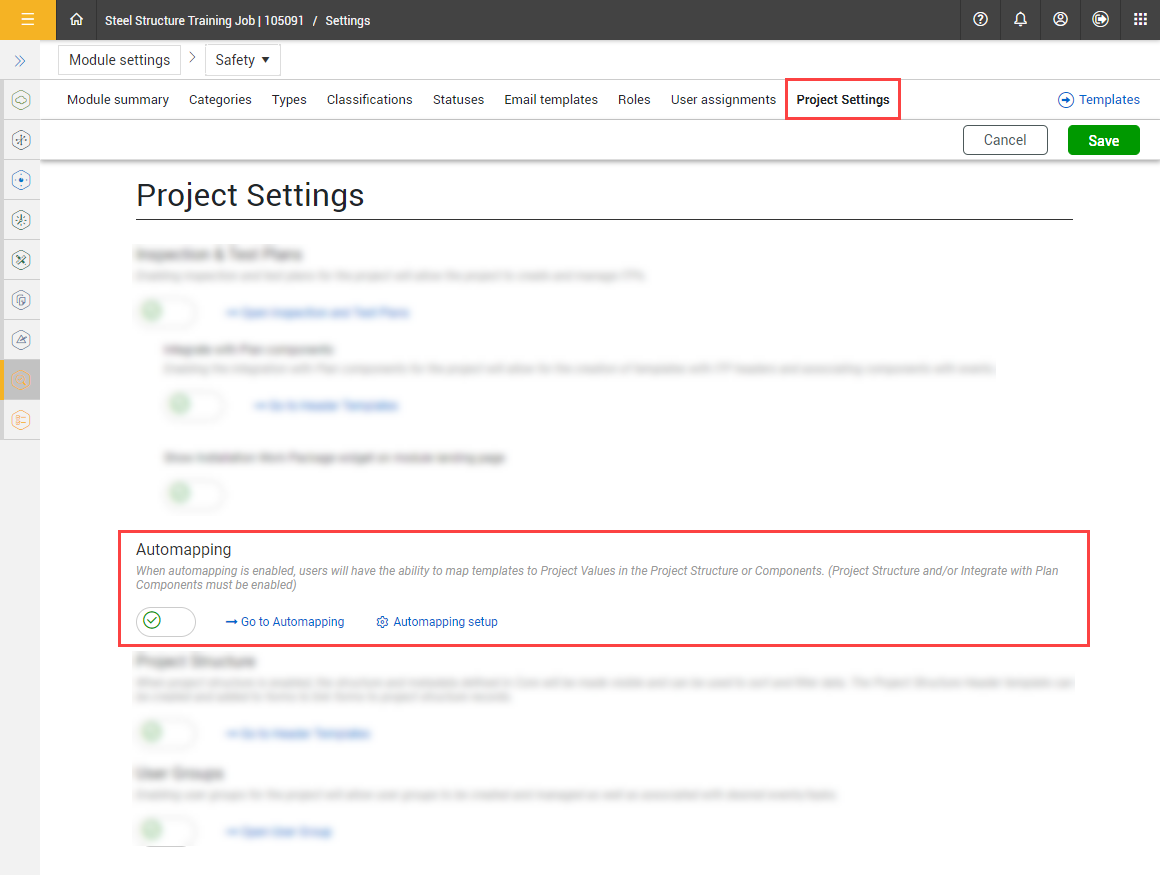
Make sure the Automapping toggle is enabled on the Project Settings tab .
Automap with Attributes
-
Select the Go to Automapping with Attributes option in Project Settings.

-
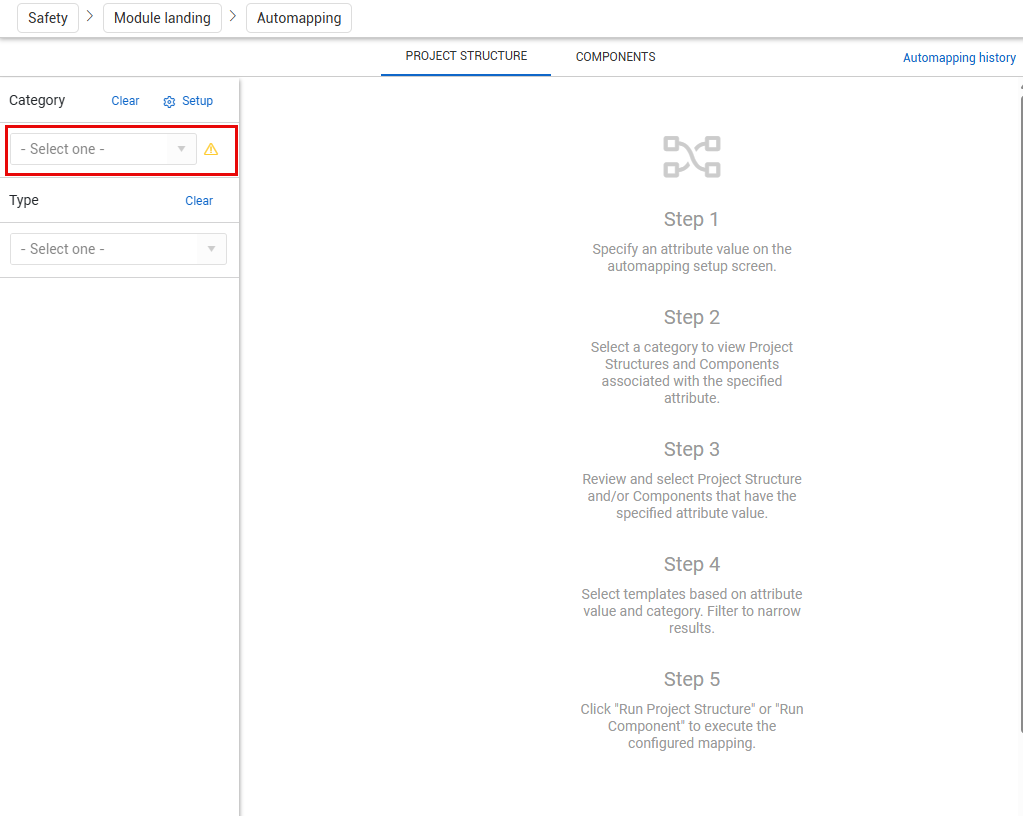
Select the Project Structure or Components tab.
-
Select a Category.
-
Check the boxes for the desired Project Structure or Component values.
-
Select the check box next to the Template name to add the template.
-
Select templates based on attribute value and category. Filter to narrow results.
-
Click the Run Project Structure or Component button to execute the configured mapping.