Document claiming
You can manage document claiming in the Claiming tab of the Documents page. Claiming allows the scope managed in Design to earn automated claiming based on the associated document’s status from the document repository in InEight Document.
To enable claiming, you must do the following:
-
Set up the project in InEight Platform > Suite Administration > Application integrations.
-
Set the Enable Document integration and Enable Document claiming toggles to On in the project’s Settings > Engineering > Documents tab.
When the Enable Document claiming setting is selected, Design syncs the document statuses from the project in Document mapped in InEight Platform and the following occurs:
-
A Document status column shows on the claiming scheme.
-
A Claiming tab shows on the Documents page.
-
Design compares the claimed document status on a scope item’s claiming scheme to the associated document’s status to systematically track and progress earned value.
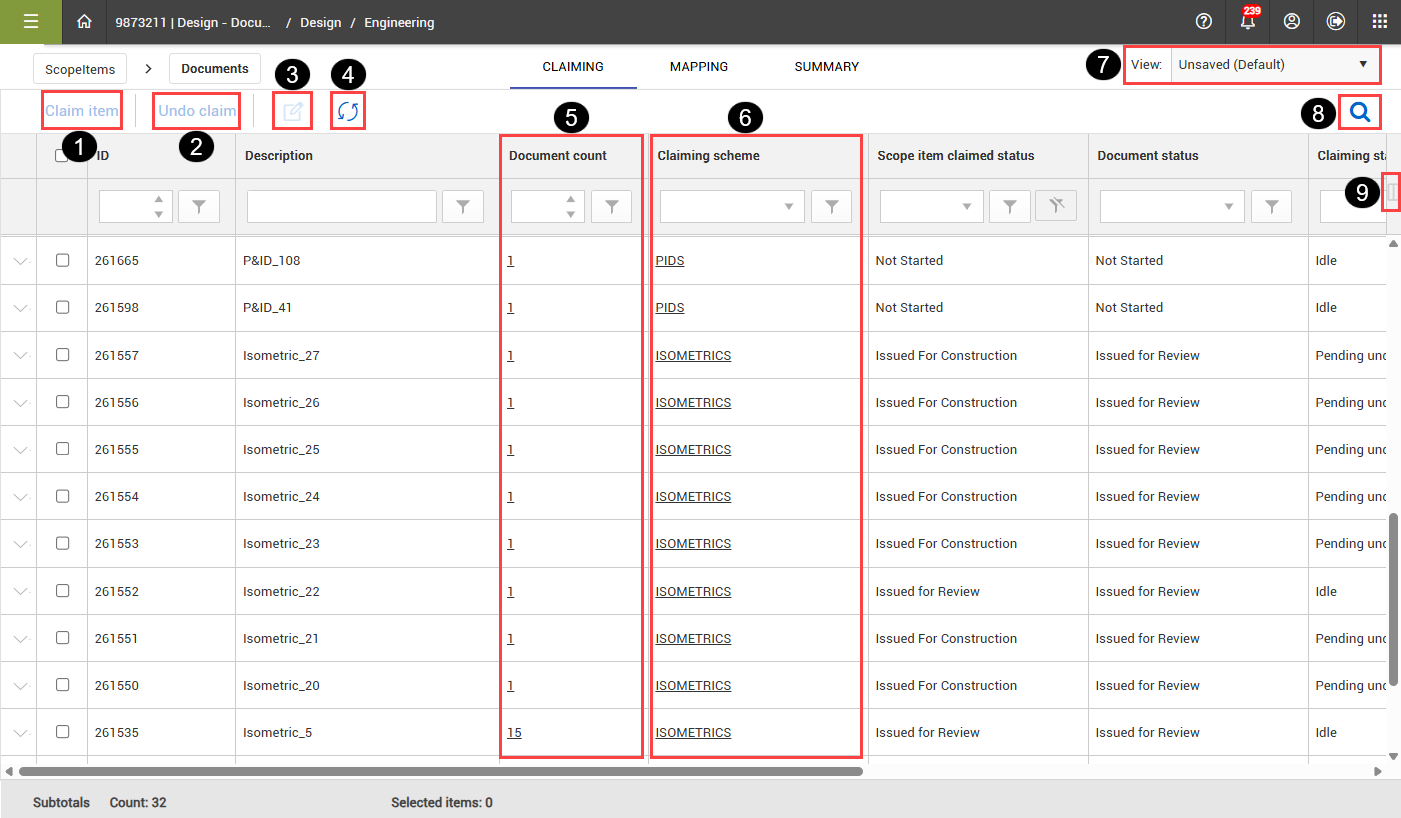
The image and table below show an overview of the Claiming tab:
| |
Option |
Description |
| 1 |
Claim item |
Opens the Ready to be claimed wizard to begin the claiming process. |
| 2 |
Undo claim |
Opens the Undo claiming wizard to begin the process to reverse claiming. |
| 3 |
Edit scope item |
Open the Edit scope item panel where you can edit scope item details. |
| 4 |
Document sync |
Sync claiming data with InEight Document. |
| 5 |
Document count |
Click the document count hyperlink to open a submenu to show the scope item’s associated documents. |
| 6 |
Claiming scheme |
Click the claiming scheme hyperlink to open the claiming scheme in a new tab. |
| 7 |
View |
You can select saved and default views and save, rename, or delete views. |
| 8 |
Search |
Use to search data in the claiming register. |
| 9 |
Column options |
Opens the Column options dialog box to add and remove columns from your view. |