Claiming overview
You can manage document claiming in the Claiming tab of the Documents page. Claiming allows the scope managed in Design to earn automated claiming based on the associated document’s status from the document repository in InEight Document. A new Document claiming permission has been added for Engineering to specifically control access to the Claim Item and Undo Claim Item actions. You must have the permission Document claiming to claim a document or undo a document claim.
To enable claiming, you must do the following:
-
Set up the project in InEight Platform > Suite Administration > Application integrations.
-
Set the Enable Document integration and Enable Document claiming toggles to On in the project’s Settings > Engineering > Documents tab.
When the Enable Document claiming setting is selected, Design syncs the document statuses from the project in Document mapped in InEight Platform and the following occurs:
-
A Document status column shows on the claiming scheme.
-
A Claiming tab shows on the Documents page.
-
Design compares the claimed document status on a scope item’s claiming scheme to the associated document’s status to systematically track and progress earned value.
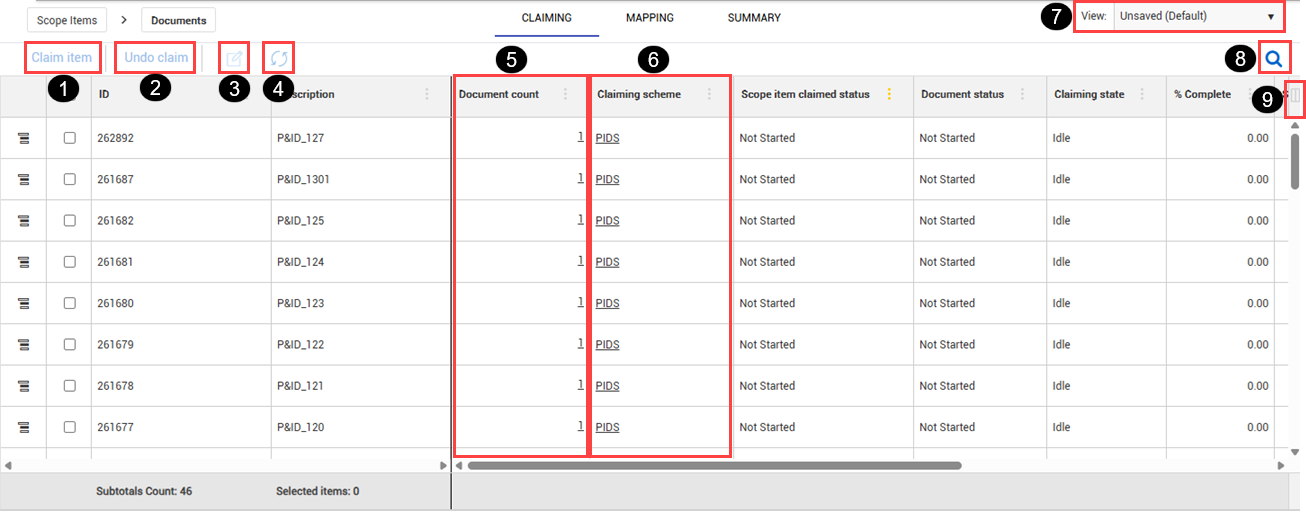
The image and table below show an overview of the Claiming tab:
| |
Option |
Description |
| 1 |
Claim item |
Opens the Ready to be claimed wizard to begin the claiming process. |
| 2 |
Undo claim |
Opens the Undo claiming wizard to begin the process to reverse claiming. |
| 3 |
Edit scope item |
Open the Edit scope item panel where you can edit scope item details. |
| 4 |
Document sync |
Sync claiming data with InEight Document. |
| 5 |
Document count |
Click the document count hyperlink to open a submenu to show the scope item’s associated documents. |
| 6 |
Claiming scheme |
Click the claiming scheme hyperlink to open the claiming scheme in a new tab. |
| 7 |
View |
You can select saved and default views and save, rename, or delete views. |
| 8 |
Search |
Use to search data in the claiming register. |
| 9 |
Column options |
Opens the Column options dialog box to add and remove columns from your view. |
Claiming tab columns
You can use the Column options icon at the top right of the scroll bar to customize the view of the Claiming tab. After customizing the view, you can save your view by clicking the View drop-down and then selecting the Save view as option.
The following are key columns in the Claiming tab:
-
Scope item status — Shows the completed claimed status that correlates with the status set in Document.
-
Document status — Shows the current set status from Document. The status may match the scope item status or the next status set in Document you can claim items to.
The Document status column syncs the statuses from Document and show in the Claiming tab and in the claiming scheme slide-out panel. This allows claiming scheme steps to be directly correlated to your business process workflow for document management.
A document status can only be associated to one step.
-
Claiming state — There are four Design claiming states:
-
Pending review — The document status has progressed further than the scope item’s claimed status and is eligible to have progress earned.
-
Pending undo review — The document status has regressed to a state before the scope item’s claimed status and is eligible to have progress undone.
-
Idle — The document status matches the scope item’s claimed status.
-
Error — There is an error with the document statuses, the document to scope item association, or the scope item has a compliance issue preventing claiming from occurring.
-
Document count — Shows the number of documents associated with the scope item. You can click the number link to open the Document tab within the scope item to view details of the associated documents.
Lock columns
You can lock columns to view key information when reviewing large amounts of data. You can lock one to multiple columns at one time. Locking columns allows you to scroll horizontally while keeping the column or columns locked in place on the left side of the page.
To lock a column in place, click the Column Menu icon next to a column, and then select Lock from the drop-down menu. To unlock a locked column, select Unlock from the drop-down menu.
Column filter menus
You can use the column filter menus to better view and filter data. Click the Column Menu icon, and then select from the following:
-
Sort Ascending
-
Sort Descending
-
Lock or Unlock
-
Filter