Documents overview
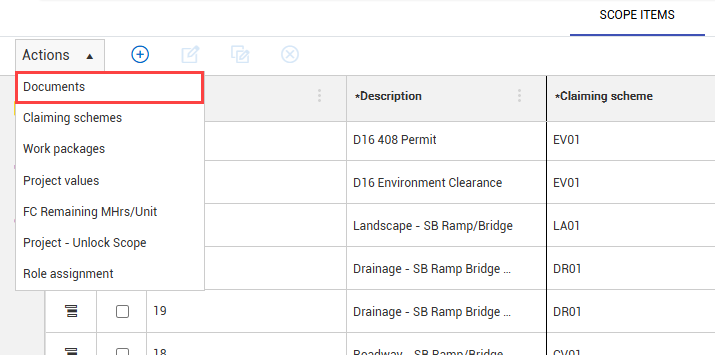
You can associate scope items and documents from InEight Document to support status and progress reporting on deliverables. Go to project > Engineering > Scope Items > Actions, and then click Documents to open the Documents page.
In the Associate documents page, you can view and manage the Claiming, Mapping, and Summary tabs.
-
Claiming tab — You can progress earned value based on document status.
-
Mapping tab— You can view and associate documents to scope items.
-
Summary tab— You can view a document summary of hours, percent complete, and dates.
Column filters
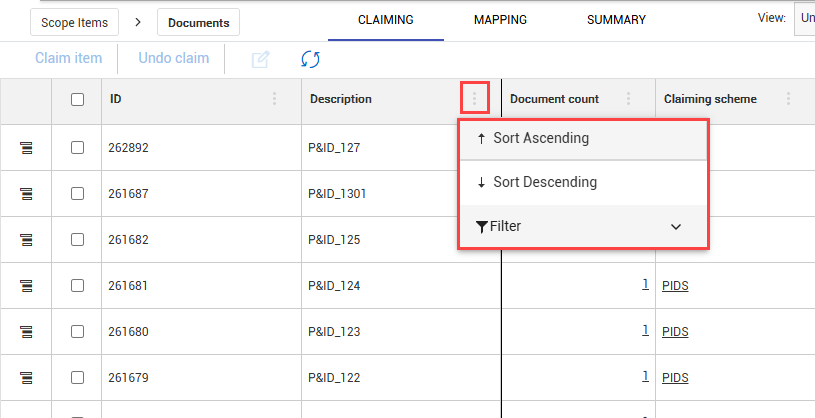
You can use the column filter menus in the Claiming and Mappings tabs to better view and filter data. Click the Filter icon, and then select from the following:
-
Sort Ascending
-
Sort Descending
-
Lock or Unlock
-
Filter
Lock and unlock columns
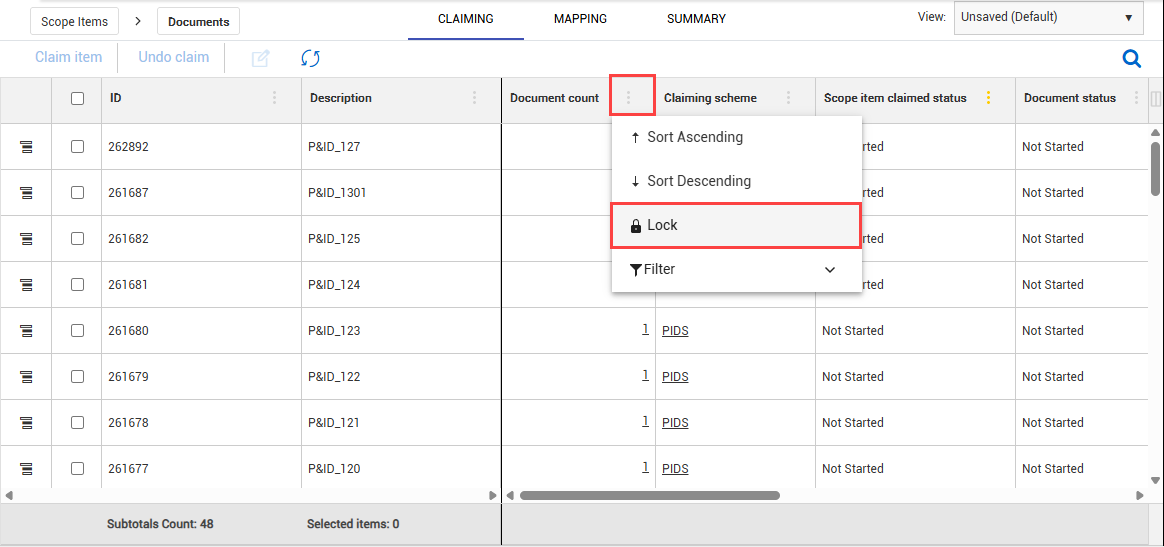
You can lock columns in the Claiming and Mappings tabs to view key information when reviewing large amounts of data. You can lock one to multiple columns at one time. Locking columns allows you to scroll horizontally while keeping the column or columns locked in place on the left side of the page.
To lock a column in place, click the Filter icon next to a column name, and then select Lock from the drop-down menu. To unlock a locked column, select Unlock from the drop-down menu.
Considerations
-
To enable Document integration, you must first set up the project in InEight Platform > Suite Administration > Application integrations.
-
To access the Associate documents feature you must select the Enable Document integration setting for your project in the Engineering Documents tab.
-
To view the Claiming tab, you must select the Enable Document claiming setting for your project in the Engineering Documents tab.