Scope items overview
The Scope items page is the main page of the Engineering module. All individual engineering deliverables are created and tracked as scope items in the grid on this page. You must have the permission View scope items.
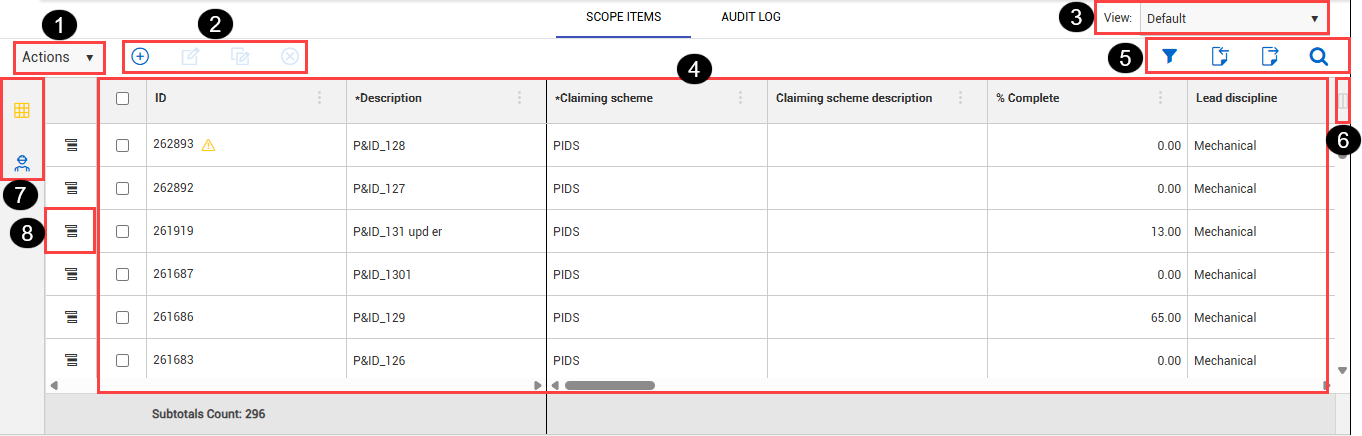
The following image and table provide an overview of each section of the Scope items page.
Overview - Scope items page
| Title |
Description |
| 1 |
Actions menu
|
Do any of the following:
|
| 2 |
Scope item buttons
|
Add, edit, and delete scope items. |
| 3 |
View
|
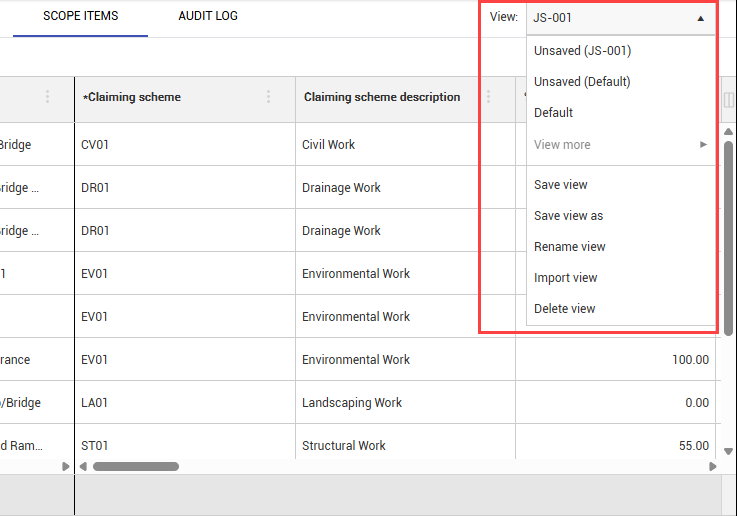
Manage project-specific views by saving, renaming, importing, and deleting views. For more infomration, see the Project views section below. |
| 4 |
Scope items
|
Grid showing scope items and related information organized by columns. |
| 5 |
Upper-right toolbar
|
-
Create query filter – Opens the query builder
-
Import and Export – Import and export sets of data
-
Find – Search scope items
|
| 6 |
Column chooser
|
Select which columns are shown or hidden. |
| 7 |
Show/Hide claiming steps
|
Shows claiming scheme steps, details, and history. It also lets you claim completion for each scope item. |
| 8 |
Additional views
|
Select from the following views:
-
All Scope Items
-
WBS rollup
-
Assigned to Me.
|
Project views
You can add, remove, and filter columns to customize your view on the Scope Items page. You can save the customized view in your project for future use. When you save a custom view, the view is saved and stored in the project and is not automatically available in other projects.
After you customize your view, click the View drop-down menu, and then select Save view as to save it as a new project view. When you update an existing custom view, you have the option to save the updated custom view by selecting Save view, or save it as a new view by selecting Save view as.
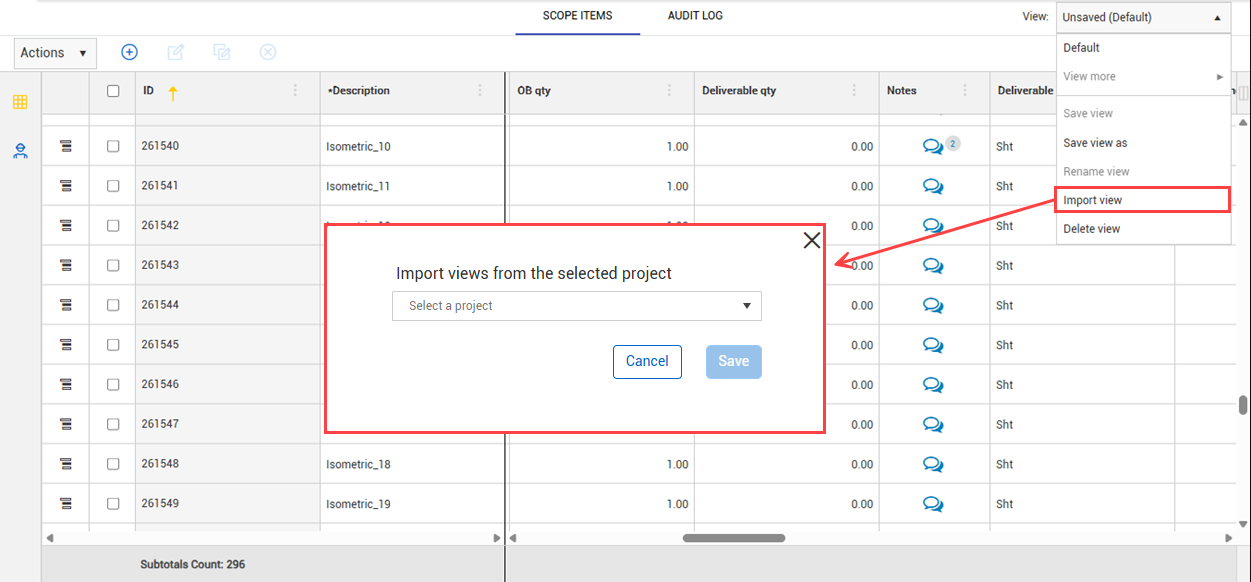
You can import saved views to your project by clicking View > Import View, and then select a project to import its views.
When you import a project, the project imports with all its saved views.
Column filter menus
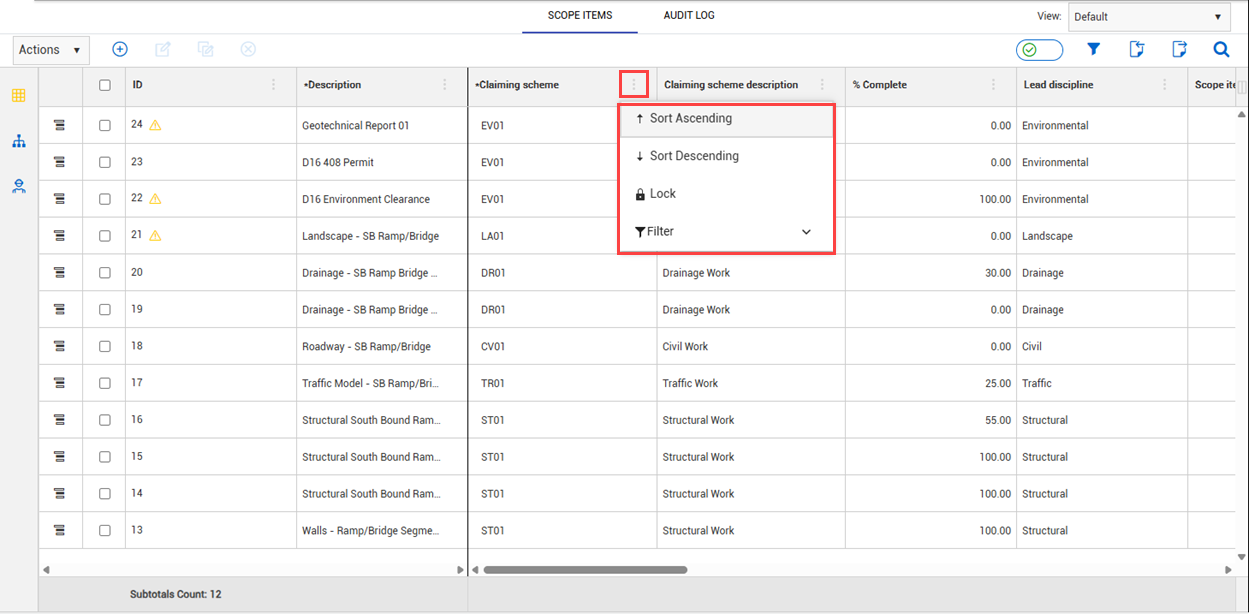
You can use the column filter menus to better view and filter data. Click the Column Menu icon, and then select from the following:
-
Sort Ascending
-
Sort Descending
-
Lock or Unlock
-
Filter
Lock columns
You can lock columns to view key information when reviewing large amounts of data. You can lock one to multiple columns at one time. Locking columns allows you to scroll horizontally while keeping the column or columns locked in place on the left side of the page.
To lock a column in place, click the Column Menu icon next to a column, and then select Lock from the drop-down menu. To unlock a locked column, select Unlock from the drop-down menu.
Scope Item page audit columns
You can view the following columns which provide direct access to audit-related data without requiring you to review auto-log entries or open individual records.
-
Created by
-
Created date
-
Modified by
-
Modified date
-
Document count
-
Issue count