Products
Solutions
Resources
9977 N 90th Street, Suite 250 Scottsdale, AZ 85258 | 1-800-637-7496
© 2026 InEight, Inc. All Rights Reserved | Privacy Statement | Terms of Service | Cookie Policy | Do not sell/share my information
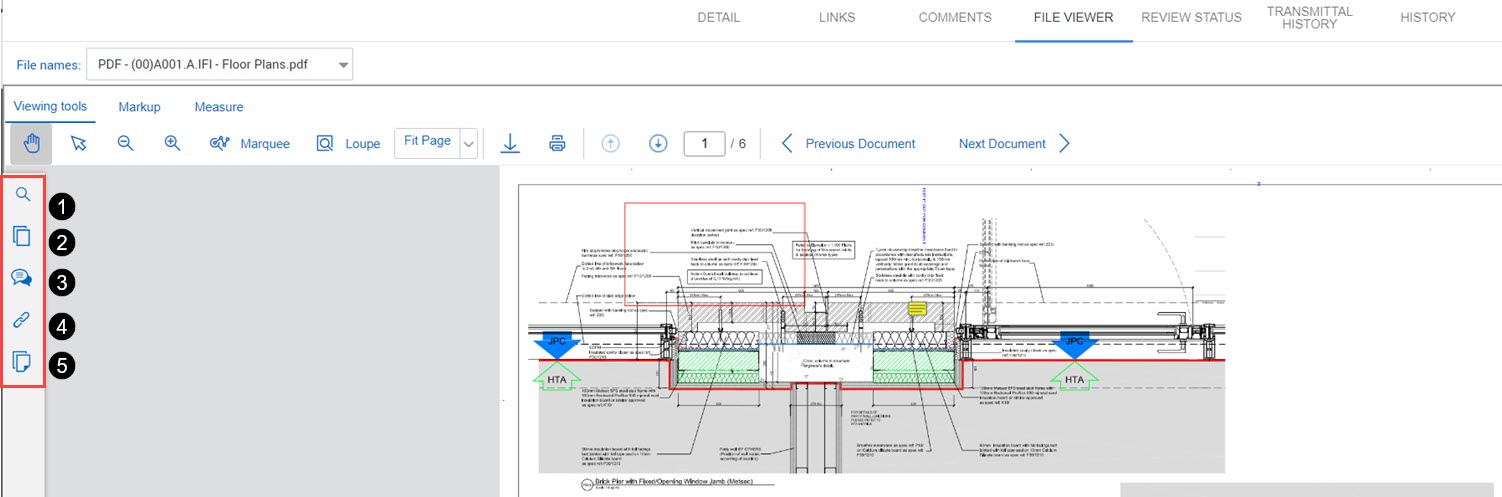
The left side toolbar gives you tools to help you keep track of the annotations, comments, and links. You can also search for text or view thumbnails of the PDF. The toolbar is shown on all tabs of the PDF viewer.
| Item number | Name | Use |
|---|---|---|
| 1 | Search tool | Search for text in the document. Use this tool for documents with searchable text. Click the search result to see the text highlighted in the document. |
| 2 | Thumbnail | View a thumbnail of each page of the document. You can scroll through the thumbnails and click to go directly to that page. |
| 3 | Comments |
View comments and annotations, such as notes, shapes, pencil lines, and stamps, associated with the document. You can also create new comments or respond to existing comments. The annotations include the user name, company, date created, and the page number. Click an annotation in the list to see the location of the annotation on the page. For more information about adding comments and annotations, see Adding Comments to Documents. |
| 4 | Links | View a list of links associated with the document. You can click a link to open the specified item. |
| 5 | Documents | View a table of contents of all documents in the register. You can select a document from the list and open it in the current window instead of going back to the Documents register to open it. |
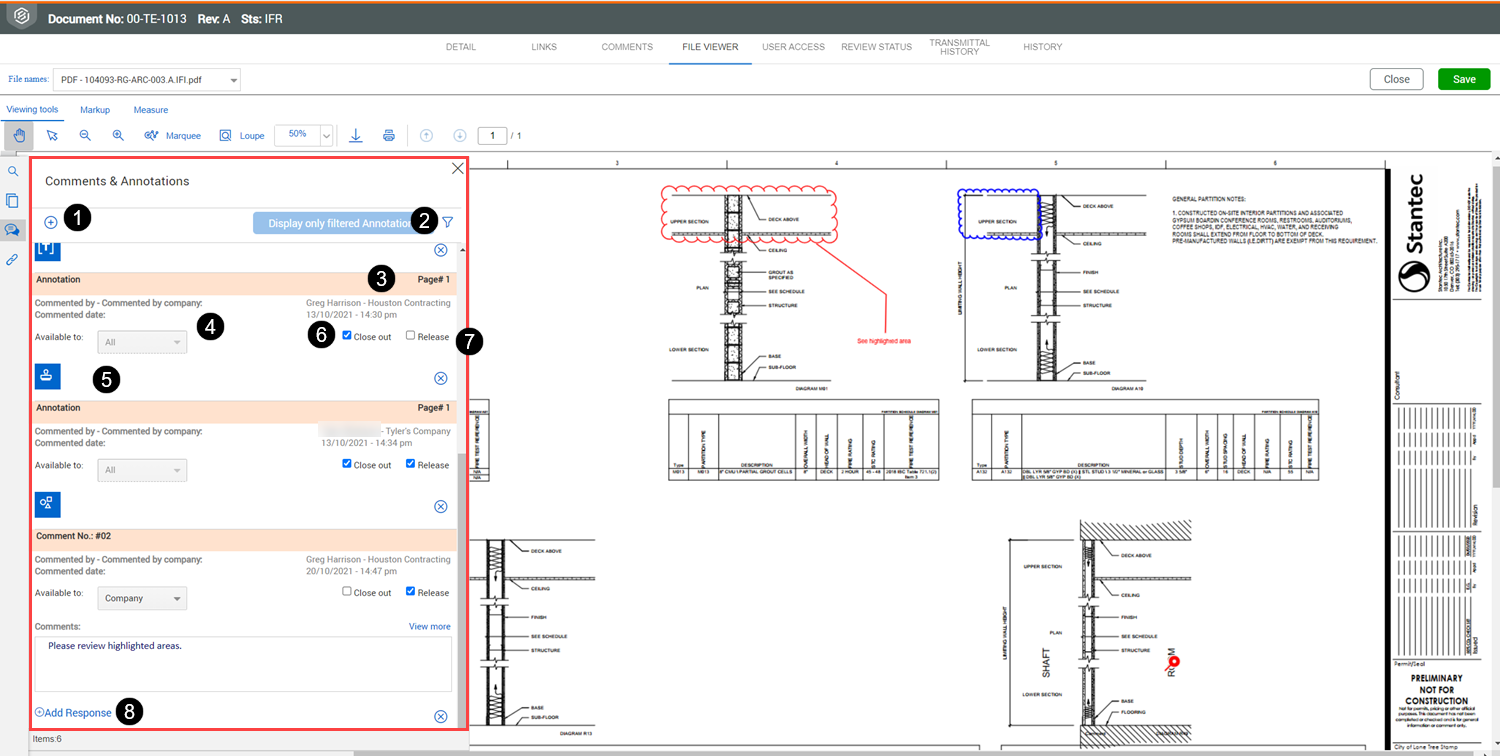
The Comments & Annotations pane lets you see all comments and annotations that were added to the document.
| Item number | Name | Use |
|---|---|---|
| 1 | New Comment | Lets you add a new comment to the document. |
| 2 | Filter | Lets you filter and sort comments and annotations in the list. You can filter by module, such as Mail or Transmittals, and some high-level data in the module. When you filter annotations, the filtering is also applied to the markups in the viewer. Only the annotations that meet the filter criteria are shown in the viewer. |
| 3 | Page number | The page where the annotation can be found. |
| 4 | Comment information | Lets you see the name of the commenter, their company, the commented date, and the available to option. |
| 5 | Annotation indicator | The icon shows you the type of annotation. Click the annotation to see it highlighted in the document. |
| 6 | Close out | Lets you close out the comment or annotation. |
| 7 | Release | If you are the review coordinator, this check box is shown. Check this box to release the comment or annotation. |
| 8 | Add response | Lets you add a response to a comment. |
When you click an annotation in the pane, the annotation in the file is highlighted. You can also click an annotation in the file, and it is highlighted in the annotation pane.
Additional Information
9977 N 90th Street, Suite 250 Scottsdale, AZ 85258 | 1-800-637-7496
© 2026 InEight, Inc. All Rights Reserved | Privacy Statement | Terms of Service | Cookie Policy | Do not sell/share my information