Login FAQ
Find answers to common login questions for InEight Document.
Forgot your password?
-
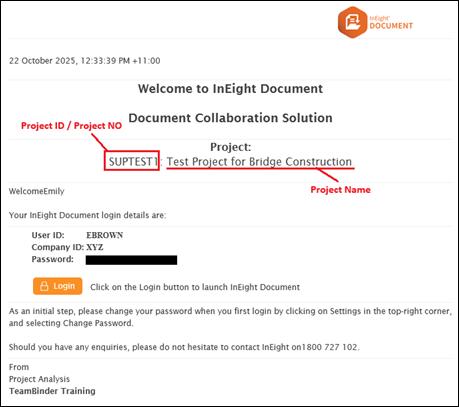
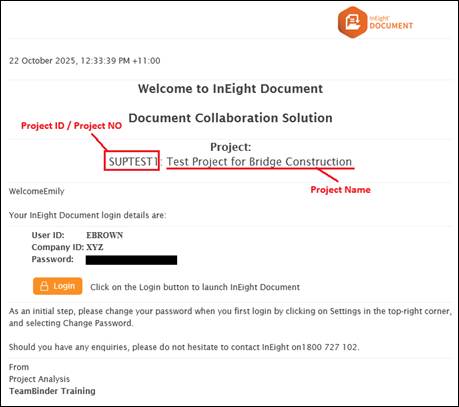
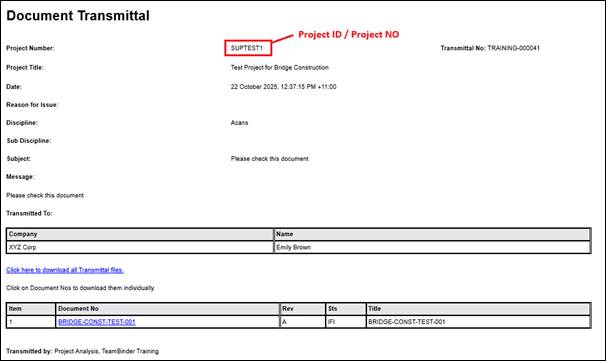
In Outlook, search for the email titled Welcome to InEight Document from system@teambinder.com. If you have multiple projects, confirm the correct Project ID and Project Name are shown in the email:
-
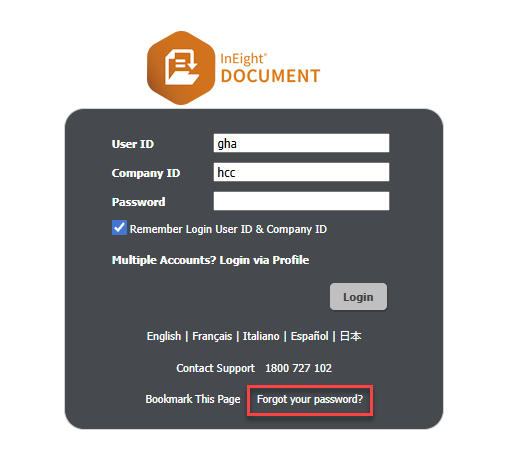
In the email, click Login. This opens the correct login page for that project.
-
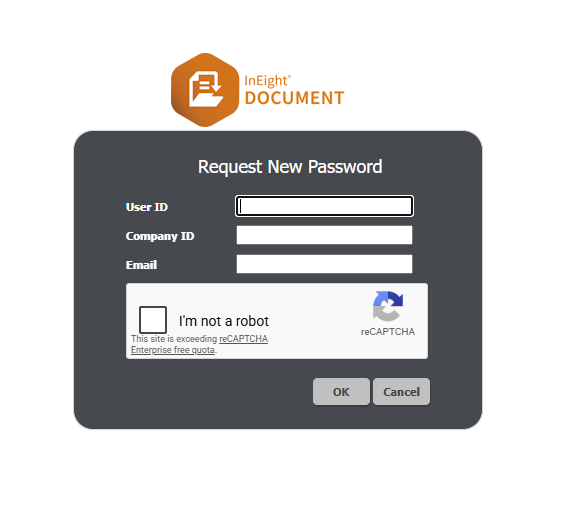
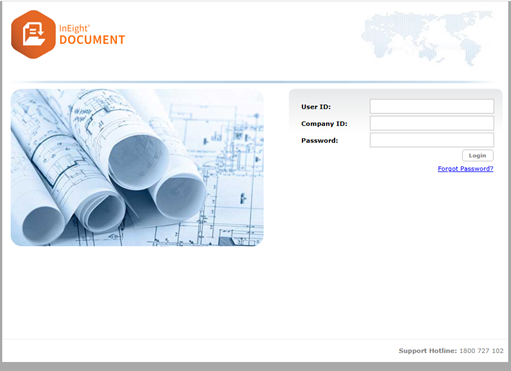
On the login page, select Forgot your password?
-
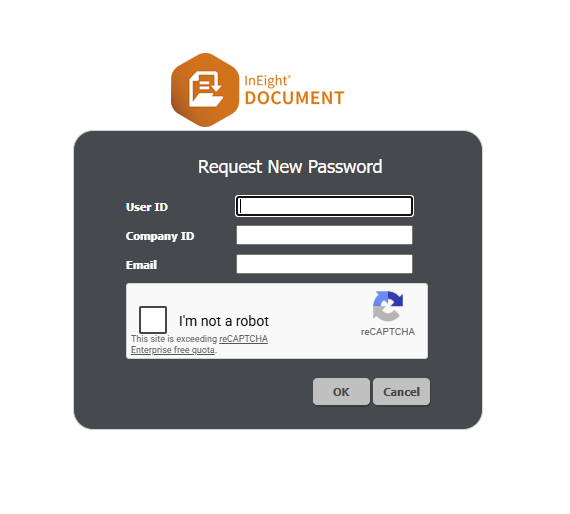
Enter your details (User ID, Company ID, and Email). Select the reCAPTCHA checkbox, then click OK.
-
You will receive a password reset email. Follow the instructions in the email.
Forgot your login details?
-
In Outlook, search for the email titled Welcome to InEight Document from system@teambinder.com. If you have multiple projects, confirm the correct Project ID and Project Name are shown in the email:
-
In the email, click Login. This opens the correct login page for that project.
-
When the login page opens, enter your User ID, Company ID, and Password, then click Login.
-
If this is your first time logging in, use the temporary password in the email. You will then be prompted to create a new password.
-
If you have logged in before, enter your current password.
-
If you do not remember your password, follow the steps in Forgot your password?
Password reset email not received?
Possible reasons include:
-
You are using the wrong URL. The login URL can vary by project. Use the Login button in your Welcome to InEight Document email to open the correct page. If needed, follow the steps in Forgot your login details?
-
The User ID, Company ID, or email address entered is incorrect.
-
Check if the email was delivered to your Junk/Spam folder.
-
Your organization's email filtering has blocked the message. Contact your IT team.
Forgot your Project ID or Project Name?
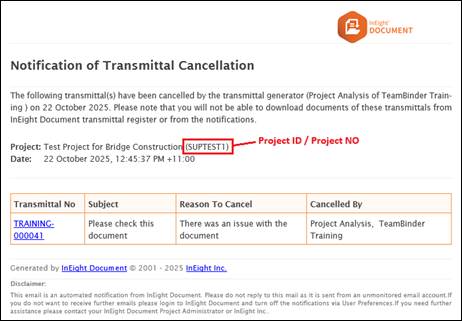
You can find your Project ID and Project Name using one of the following options:
Unable to reset your password?
Password requirements vary by project. The most common requirements are:
-
Minimum 8 characters
-
At least one uppercase letter
-
At least one lowercase letter
-
At least one number
-
At least one special character from @ # $ % ^ & + = ("!" is not allowed)
New project not showing in your project list?
To show all projects in a single consolidated list, the projects must use the same values for:
-
User ID
-
Company ID
-
Email
-
Project server URL
-
Password
If any of these values are different, the project will not show in the same list as your other projects.
Troubleshooting:
-
Reset your password:
-
Go to the login page and select Forgot your password.
-
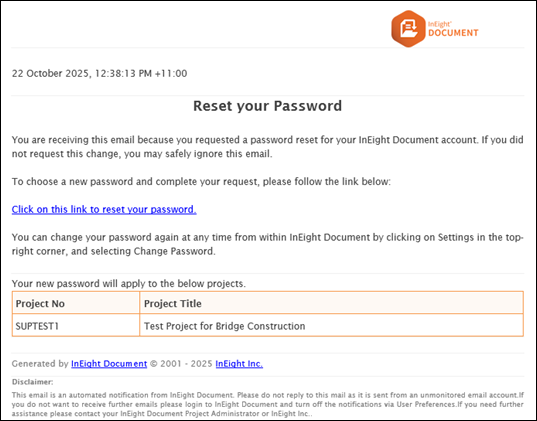
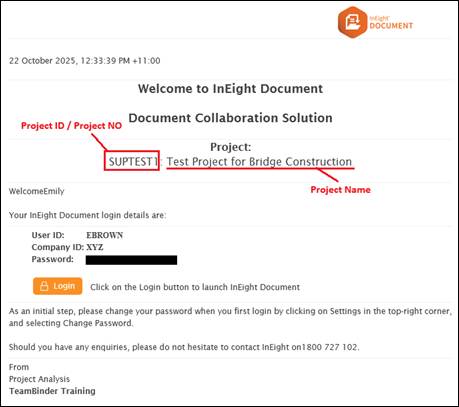
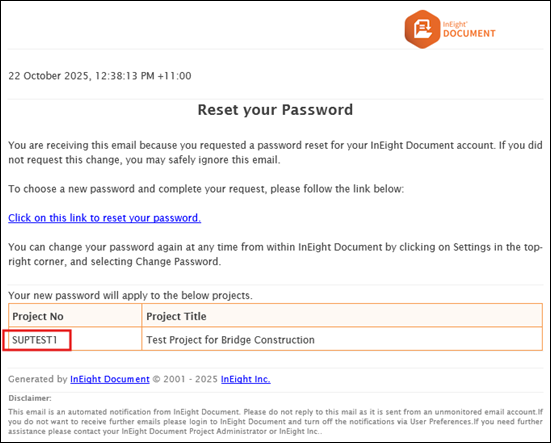
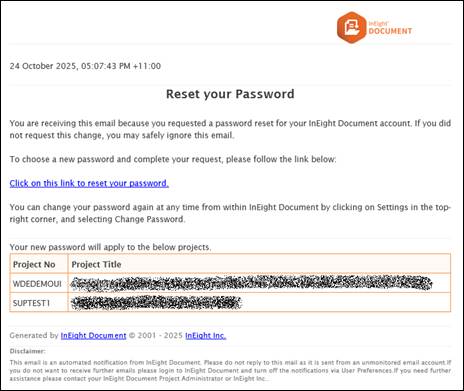
If you reset your password using the correct User ID, Company ID, and email address, you will receive an email like the example below:
The email provides the list of projects that you have access to and confirms that these projects are the ones that have been set up on the same server, same user ID, same company ID, same email and same password.
-
Click the link in the email and reset your password.
-
Still not seeing the project? Check that the project uses the same values below (confirm in the welcome email):
-
User ID (this is in the welcome email)
-
Company ID (in the welcome email)
-
Email (this is the email address that receives the welcome email)
-
Server URL (this is the URL that opens when the Login button is clicked in the welcome email)
If the User ID, Company ID, or Email differ, contact your Project Administrator to confirm whether your credentials can be aligned across projects.
If the Server URL differs, the project is hosted on a different server and cannot be combined in the same list. Set up a login profile instead. Refer to the topic Setting Up Your Login Profile.
Unable to log in with Single Sign-On (SSO)?
Confirm you are on your organization's network (for example, signed in to your company-managed PC).
If you still cannot log in with SSO, your account may not be set up correctly. Contact your Project Administrator and refer to the topic Connecting to Single Sign On.
Are you a tenderer?
For TenderDocs, the login page looks like this:
-
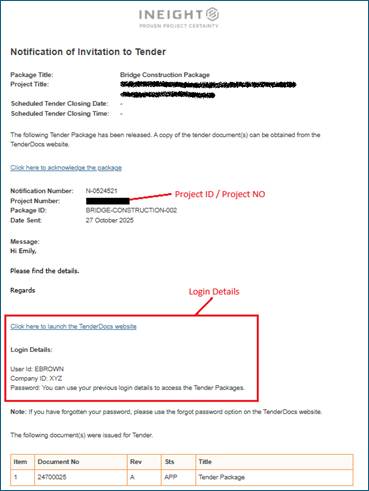
To find your User ID and Company ID, search for the email titled Notification of Invitation to Tender from system@teambinder.com:
-
Select the link in the email to open the TenderDocs website.
-
Enter your User ID, Company ID, and password, then click Login.
-
If this is your first time logging in, use the temporary password provided in the email.
-
If you have logged in before, enter your current password.
-
If you forgot your password, select Forgot Password?
If you still cannot log in with the correct details, the tender may have closed and your access may have been revoked. Contact the tender owner (tender package originator) or your Project Administrator to confirm whether the tender is still active. If you do not have their contact details, please contact InEight Support.
Need more help?
Contact InEight Support.