Transmittal notifications
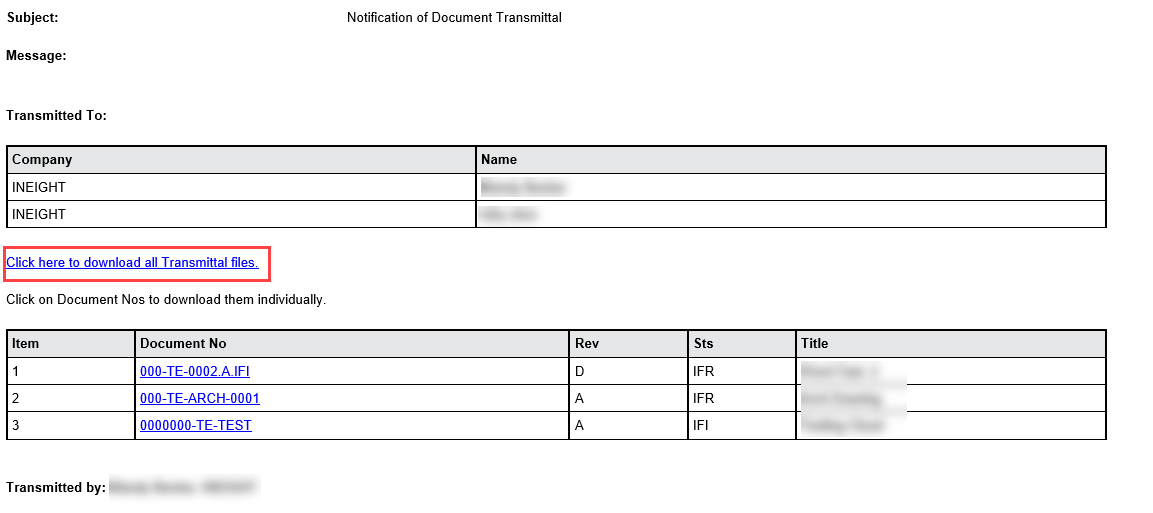
Transmittal notifications are delivered to your email address. You can access the transmittal directly from the notification or from the Transmittals register. The following procedures describe how to access the transmittal from the notification in standard and secure transmittals. For information about responding to a transmittal notification from the Transmittals register, see Responding to and Forwarding Transmittals.
Download transmittal documents – standard
Summary: Access and download a transmitted document that was sent in a standard transmittal directly from the notification to save time.
Considerations: The project setting Send secure transmittals with reply all support (Project settings > Miscellaneous > Other) is disabled. This procedure uses the link that downloads all documents. You also have the option to click individual links for documents.
-
From the notification, click the link to download all transmittal files or a link for an individual document.
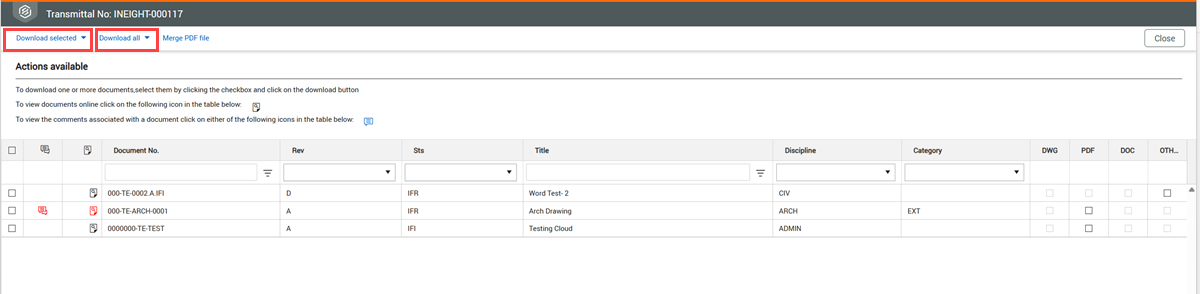
The Transmittal page opens.
-
Optionally, click the View icon to view the document before you download it.
-
Download the transmittal documents.
-
To download all documents, click Download all, and then select either With annotations or Without annotations.
-
To download selected documents, select one or more documents, and then click Download Selected. You can then choose whether to download the documents with or without annotations.
Download transmitted documents – secure transmittal
Summary: Access and download a transmitted document that was sent in a secure transmittal directly from the notification to save time. The notification contains secure links to transmittal documents.
Considerations: The project setting Send secure transmittals with reply all support (Project settings > Miscellaneous > Other) must be enabled. This procedure uses the link that downloads all documents. You also have the option to click individual links for documents.
-
From the notification, click the link to download all transmittal files or a link for an individual document.
A prompt asking you to validate your email address shows
-
Enter your email address, and then click Validate.
-
If you are a Document user and you have SSO, the Download page opens, and you can continue with step 4.
-
If you are a Document user and you do not have SSO, the Document Sign-in page opens. Sign in using your credentials. After you have signed in successfully, the Download page opens, and you can continue with ste4.
-
If you are an external user, a one-time code is issued to the email addressed used, which provides an additional layer of validation. Enter the code when prompted. After you have successfully entered the code, the Download page opens.
-
Enter your Document credentials or the code sent to your email. The transmittal page opens.
-
View the documents or comments before you download.
-
Download the transmittal documents.
-
To download all documents, click Download all, and then select With annotations or Without annotations.
-
To download selected documents, select one or more documents, and then click Download Selected. You can then choose whether to download the documents with or without annotations.
What's next: You can respond to the original email with a Reply or Reply all action. When you reply to all, those copied are included in the response.