Component Audit Log
This topic describes the Component audit log and how to use it.
Summary
The Component audit log lets you track changes made to components and in which systems the changes are made. The Audit log also lets you review Import and export history. To open the audit log from the Components list, select the Audit Log tab.
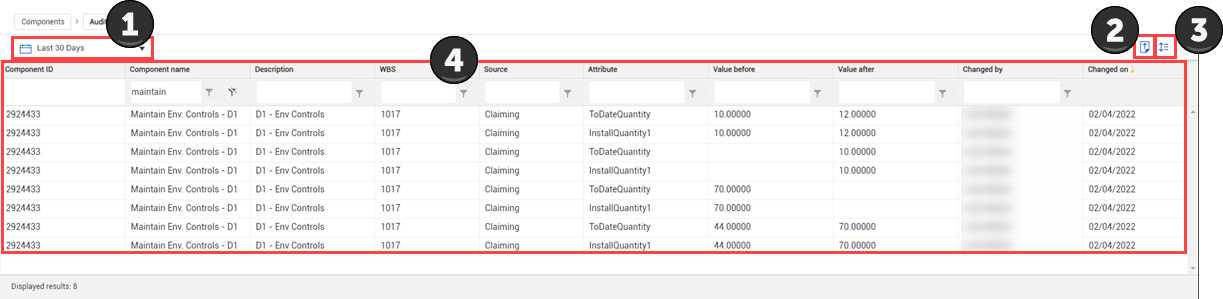
The following table describes the different parts of the audit log.
Overview – Component Audit Log
| Title |
Description |
| 1 |
Date range |
Adjust the date range of data to be shown. You can choose from standard ranges or a custom range. |
| 2 |
Export |
Export a filtered view of the audit log. |
| 3 |
Row density |
Adjust how close together rows are shown. |
| 4 |
Grid |
Shows each change organized by columns, which can be filtered and sorted. |
Component Export History
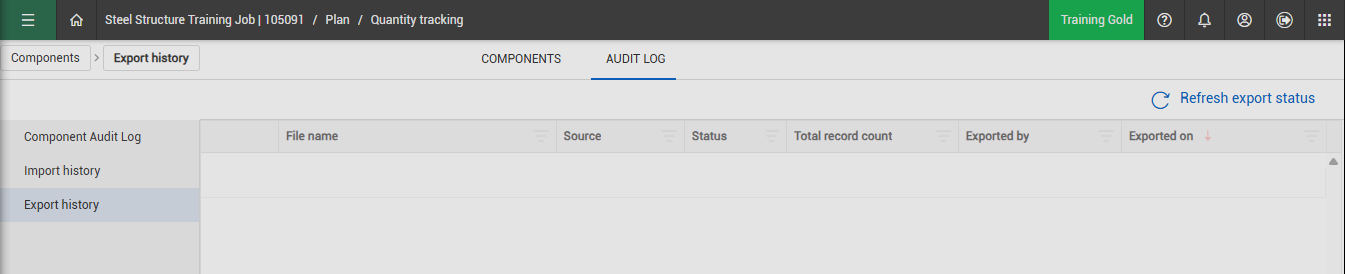
The Export history log in Quantity Tracking lets you track the component export history.
To view the Export history in the audit log, select Export history from the left navigation menu.
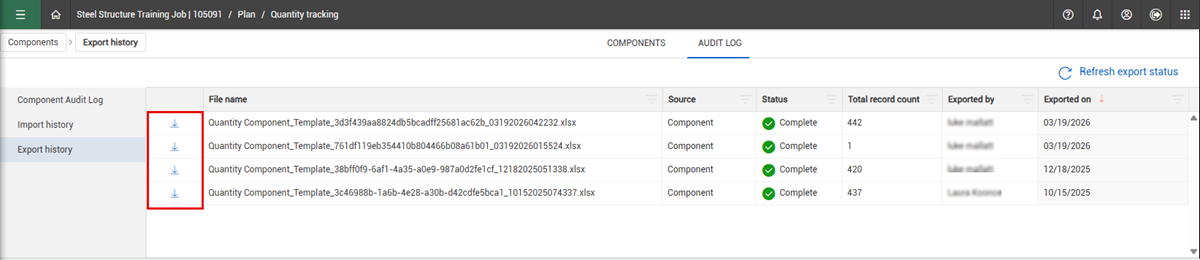
You can download previous component history logs and see who exported them.
To download, click the Download icon,
The export is a Microsoft Excel file with an unlimited component export count.
Longer record counts will result in a longer download time but, this is unlimited.
When exporting previous version history from yourself or other users, you can also undo changes.
Considerations
-
By default, the audit log shows the last 24 hours of changes made to components.
-
Changes shown in the log depend on your permissions.