Markets
Markets master data is used in project details and by the InEight Contract and InEight Change applications.
Markets master data provides standardized data that can be shared and used across multiple InEight applications. In general, markets can be categorized into different types based on varying factors such as geographic location, industry type, product type, customer segment, in addition to the different stages of the construction process.
Considerations
With the applicable permissions, you can select the icon to add, edit, or delete master data general ledger accounts. Permissions are configured in Roles and permissions > Master data libraries > Markets.
| Permission Name |
Description |
Level |
| View markets |
Allows the user to view the list of available markets in master data. |
Base user |
| Add markets |
Allows the user to create and add markets to master data. |
Account Admin |
| Edit markets |
Allows the user to modify an existing market in master data. |
Account Admin |
| Delete markets |
Allows the user to delete existing markets in master data.
A market cannot be deleted if it is associated with any projects.
|
Account Admin |
Markets master data
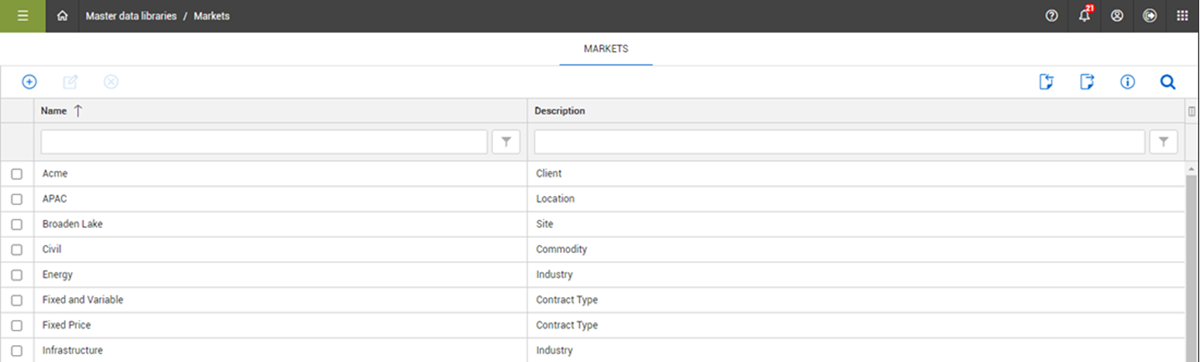
To access Markets master data, from the Main menu go to Master data libraries > Markets. The Markets master data page shows a standardized list of user-defined markets your company can use for various business functions in InEight cloud platform applications and associated with projects.
| Field |
Description |
| Name |
The unique identifier for the market. |
| Incoterms description |
Brief description to further identify the market. |
Use Markets for Contract and Change templates
Markets can be assigned to templates in Contract and Change, as well as to projects which controls what templates are available in each project.
Assign markets to templates
Both Contract and Change include the ability to create and store templates for generating documentation related to contracts and change orders. These templates can be stored at the organization and project level in Settings. Templates created at the organization level are available to all projects in the organization and maintain their attributes.
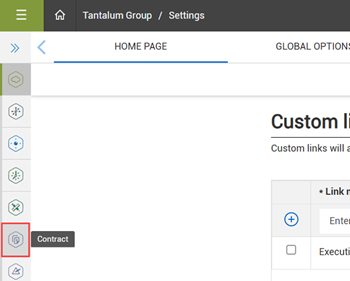
To access the templates for Contract at the organization level, select organization > Settings, and then select Contract from the Settings menu on the left.
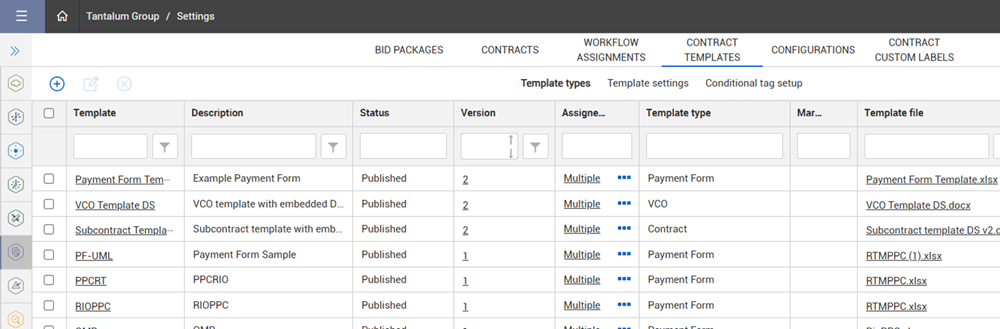
From the Contract settings, select the Contract Templates tab. The Contract Templates tab shows a list of all the templates that have been created and stored for the organization.
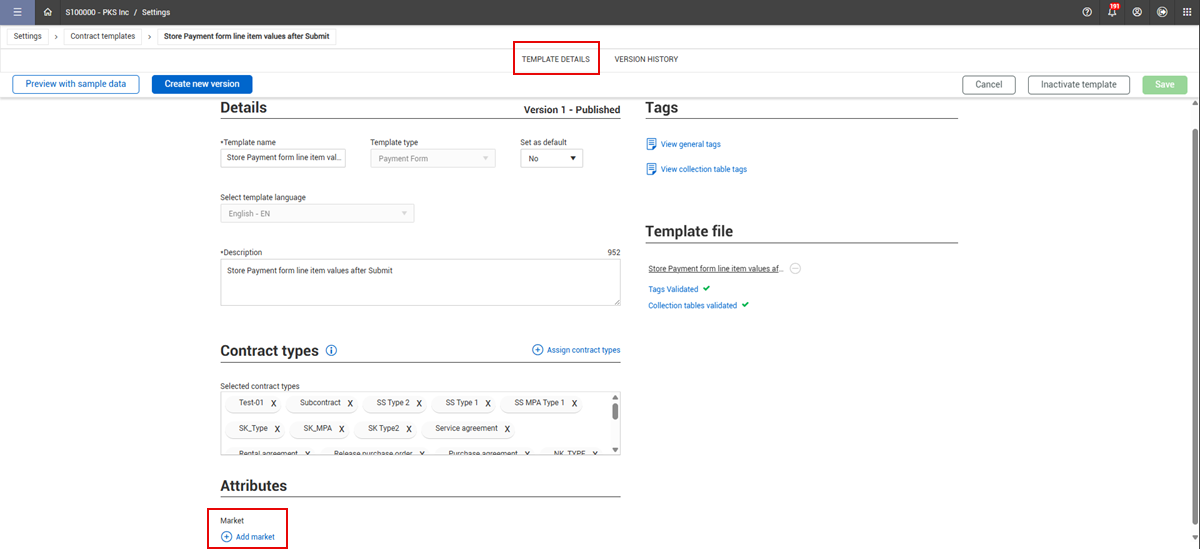
Select a template from the list, and then select the Template Details tab. On the page, you can view and edit the details, including adding Market attributes. Click Add market to select a market attribute from the drop down list. You can add multiple markets for the template attributes.
Projects can also be assigned a market attribute. By assigning markets to the template, you can control which projects can access the template. Select and add markets from the list. Only projects assigned to one of the same market attributes will be able to use that template.
Assign a market to a project
Both the project and the template must be assigned the same market attribute to make the template available to use in Contract for the project.
Go to project > Project details > Details. In the Markets section, select and add a market from the drop down list. You can add multiple market attributes to the project.