Landing page
When you sign in to the InEight cloud platform, the view opens to a user-specific landing page. Initially, the page opens to a predefined view (Owner, Contractor, Subcontractor, Vendor) depending on your assigned role. Landing pages can be customized to focus on your day-to-day tasks and areas specific to your role on projects. You can modify a view or create your own view based on available widgets for those applications you permission to access. There are standard default widgets available across InEight applications that can be filtered to include all your projects or several specific projects. The purpose of these widgets show as tiles in the view that is to give you visibility to high level information and in some instances they can be expanded in the application to show for more details.
Views list
Landing page views are a collection of tiles with widgets that are organized on the page. The landing page can have one or more views depending on your roles or the customizations you make. Click the View list drop-down to select from the available views. From the View list, you can select a different view or change the default view. To change your default view from the View list, hover over a view and then click Set as default to select the view as your new default.
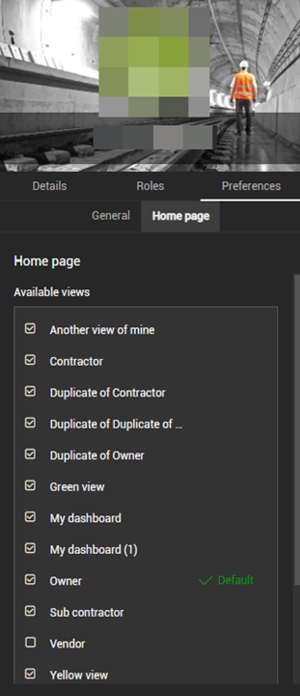
Open your user profile to select the landing page views that you want to show in the View list. Click the User Profile icon in the top navigation bar, and then click Preferences > Home page. The list shows all your available views for the landing page. You can save up to a maximum of 50 views in your user profile list and all available views will show here. However, to keep the landing page View list manageable, you can have a maximum of 15 views that show in the Views list. If you have more than 15 views in your user profile, you must select the views that you want to show in the View list.
You can change your default view from the Home page tab. In Available views, hover over a view, and then click Set as default. Click Save to select the view as your new default.
If you make changes to your user profile list, you must refresh the landing page to see the changes in the View list.
View types
There are three types of views available on the landing page, system, default, and custom.
-
The Owner, Contractor, Subcontractor and Vendor views are system views included out-of-the-box from InEight. System views provide examples of some suggested widgets and functionality for each of these views, so you can create your own views based on these system views. System views can be duplicated but cannot be modified or deleted.
-
A default view is always loaded when you sign into your account or when you click the Home icon. The default view can be selected for your profile by using the global default setting, from the View list on the landing page, or in your user profile.
An administrator sets the global default and selects one of the system views that is the initial default view for all users on their landing page. This option is set at the account level in Organization > Settings > General > Global Options > Landing page default view. By default, the view is set to the Owner view. Access to this setting requires that you to have a role assigned at the Root Org level with the permission View general settings. To update the default view for all users requires the permission View general settings and Edit general settings.
-
You can create custom views, which are saved in your user profile and available for you to use. There are two options you can choose from to create views, Duplicate view and New view.
-
A duplicate view is created using an existing view as a template. A duplicate view starts with the configuration of a selected view that you can modify the contents of into another view by adding and removing widgets, rearranging tiles, and then giving the view a new name.
-
A new view starts as a blank view that you can add any widgets and arrange tiles from scratch. A new view should be created when the view you want to use does not conform to any existing views. You will have the option of giving this view a name when complete.
Assign views to a role
To assign views to a user role, a new section, View assignments, in roles and permissions has been added to allow up to five system views to be assigned to a single user role. Users inherit any system view that has been assigned to their role.
To view or configure (add, edit) the system views assigned to a role, go to Suite Administration > Roles and permissions. Select either Add role or Edit role. This requires the permissions View roles and permissions, Add roles and permissions, or Edit roles and permissions (respectively).
In View assignments, you can assign or unassign system views to that role. Every user assigned to that role will have access to the system views associated with that role.