Employee rate inheritance
To explain how employee rates are inherited, it is necessary to define additional terms.
| Term |
Definition |
|
Rate Codes
|
Accessible at the project level, rate codes exist as a 1:1 ratio to the master data crafts and are traditionally used when a project employee is assigned a role or craft on a specific project, which differs from their normal master data craft assignment. For example, if a contracted rate has been negotiated for a project that differs from the employees’ standard master data craft rate.
|
|
Project Employee
|
Accessible at the project level, a project employee is a master data employee that has been assigned as a resource for a specific project. In addition to specified project start and end dates, the employee initially inherits the pay rates from the assigned master data craft.
|
Rate inheritance use cases
There are five available options for rate inheritance, depending on your business process and use cases. Refer to the diagram for each use case to see how rates flow and are inherited between levels in the master data library and projects.
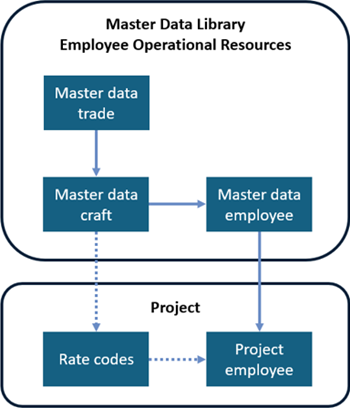
Option 1: Full inheritance no overrides
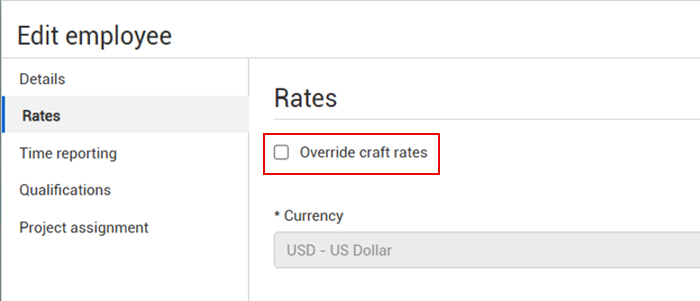
This model can be used when the project employee pay rate agreement for a project follows the employee’s standard company rate. The employee record automatically inherits the craft rate, with the Override craft rates option not selected by default.
The advantage of this model is that any changes to the values of the master data employee records is automatically inherited down to the assigned project employees.
The project employee’s rates are inherited from the associated master data employee rates for that employee, which are themselves inherited from the associated master data craft. The rate data flow is master data craft > master data employee > project employee, in which the project employee inherits the rate of master data craft.
Option 2: Master data employee override
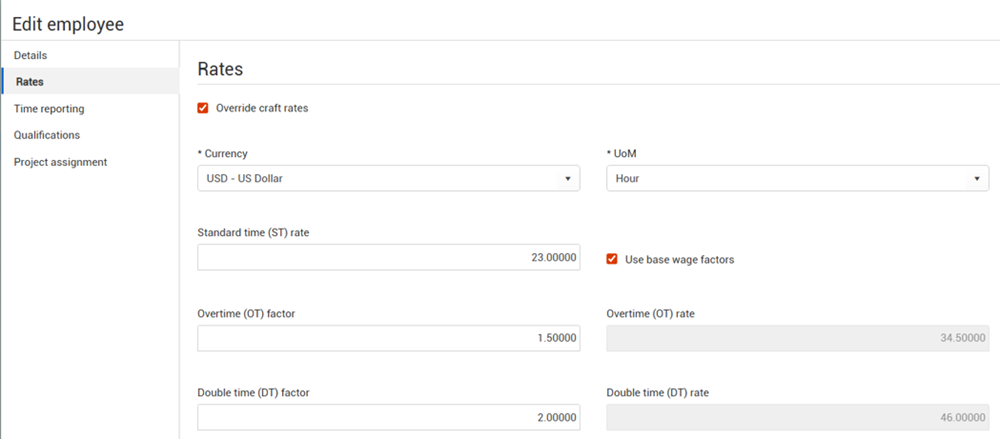
This model can be used when the normal standard rates for an employee initially differ or change from those of the associated master data craft. In this example, the Override craft rates check box is selected and the Standard time (ST) rate field has been changed to $23/hour.
Like the full inheritance option, any changes to the master data employee rate is automatically inherited down to the project employee.
Because the master data employee record has been overridden, any changes made to the associated master data craft is not inherited by the master data employee, and therefore the rates for the project employee does not change.
The rate data flow is master data employee > project employee, which means the project employee has the override rate of master data employee.
Option 3: Project rate code assigned no overrides
This option can be used when the normal standard rates for a project employee differ from the employee’s normal master data employee rates, or the employee will be performing craft duties outside their standard normal associated master data craft on the project.
The advantage of this option is that a rate code can be selected for the specific project employee, and it only influences the pay rates for the employee on the specific project.
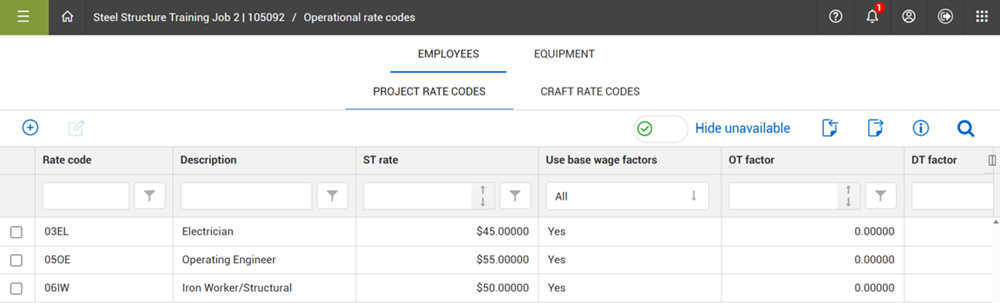
You can manage rate codes for a project and access them from the Project home page. From the left menu under Project home, select Operational rate codes. The Operational rate codes page opens, where you can view, add, and edit rate codes. The operational rate codes are organized into different tabs.
-
Project Rate Codes: You can add rate codes that might not already exist as craft rates in the system, such as for prevailing wage rates. The primary use case for this option is in the instance where there could be several employees on the same project performing the same type of work for the duration of the project that is outside of their main crafts.
-
Craft Rate Codes: You can select crafts from the master data craft list to use as rate codes on the project. This can be useful for situations where an employee is performing work on the project for an existing craft that is outside of their main craft.
After rate codes are defined for the project, they are available to assign to operational resources on the project.
Note that there is also a tab with project operational rate codes for equipment.
To assign a rate code to an operational resource on the project, from the left menu under Project home, select Assigned operational resources. The Assigned operational resources page opens, where you can select from the drop-down list in the Rate code column for the applicable employee.
After the rate code has been assigned, going forward the project employee’s rate uses the assigned rate code even if there has been a change to the employee’s associated master data employee rate.
The rate data flow is rate code > project employee for rate codes defined on the Project Rate Codes tab and master data craft > rate code > project employee for rate codes defined on the Craft Rate Codes tab. The employee will have that rate code as the rate through their project assignment.
Option 4: Rate code override
This option can be used when an employee needs to do work for a craft outside of their regular work, and the rate for the craft needs to be different than the craft’s rate in the master data library.
To override a craft rate on a project, go to the Operational rate codes > Craft Rate Codes tab for the project. Select the applicable rate code, and then click the Edit icon. The Craft details dialog box opens, where in the Rate section you can select the Override craft rates check box to input the new rate information.
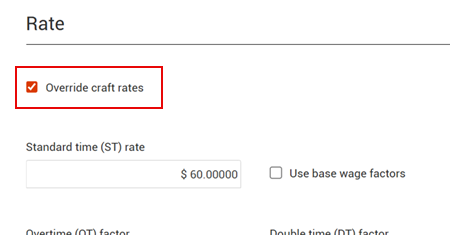
When saved, the craft rate code has a value of Yes in the Override craft rates column. This rate code can be assigned to any of the assigned operational resources on the project.
The rate data flow is rate code with override rate > project employee project employee has the override rate of project craft.
Option 5: Project employee override
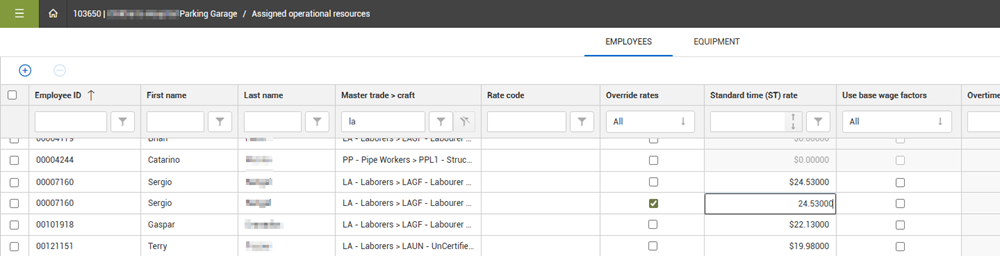
This option can be used when all other standard rates for a specific project employee differ from the specific agreed upon project rate. You can override rates at the project employee level by navigating to Project home > Assigned operational resources.
Override rate on a project employee
-
In the left menu on the Project home page, select Assigned operational resources.
-
The Assigned resources page opens and shows the Employees tab. Select the Override rates check box for the project employee that you want to edit.
-
Click in the ST rate field for the project employee to change the Standard Time rate.
Because the project employee rate has been overridden, any changes to any associated master data craft, master data employee, or rate code is not inherited to the project employee.
The primary use case for this terminal level override example is a specific project contract agreement pay rate for the specific project employee which could be a one-time only rate. The rate data flow is only at project employee; the project employee has the override rate entered at project employee level.
One of the integral pieces of the override logic is that when an override is in place, changes which occur above the override are not inherited. Therefore, for example, if you override a rate at the project employee level, a rate change above at the master data craft or master data employee level does not affect the already overridden project employee rate.