Advanced work packaging
When you use the Advanced Work Packaging (AWP) project delivery method, you can use InEight Schedule to create work packages and plan which scheduling activities to associate with those packages as part of the planning process.
While the primary source for work package management is InEight Plan, your company’s business process may involve work package planning within a scheduling context, where someone in a Scheduler/Planner role is involved in the planning process.
Plan–Schedule integration
Work packages you create and view in Schedule, along with their associated dates, integrate with Plan, so the package and date information updates into Plan automatically.
The availability of AWP data from Plan is determined by the Advanced work and scheduling features toggle in InEight Platform > project > Settings > General > Global Options. The toggle must be set to ON for projects that want to use the AWP feature in Schedule.
Manage Advanced Work Packaging in Schedule
In Schedule Plan view, click the Advanced Work Packaging icon to manage work packages.
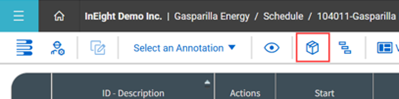
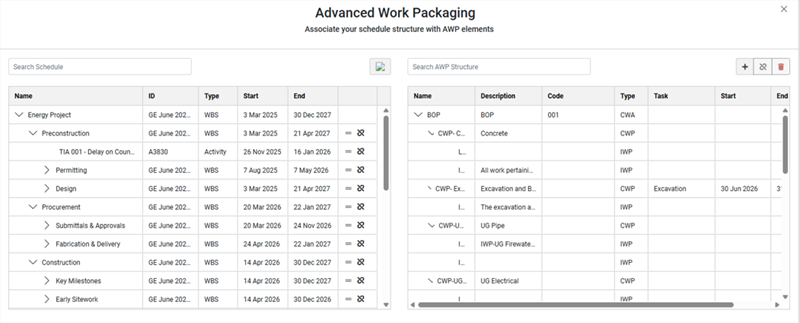
This opens the Advanced Work Packaging window, where you can associate your schedule structure with AWP elements. From this window you can:
-
View the relationship between your schedule and work packages.
-
Add new work areas and packages.
-
Associate WBS elements and activities with work areas and packages.
View Relationship between schedule and work packages
The Advanced Work Packaging window in Schedule contains a listing of the schedule’s WBS elements and activities on the left and the project’s hierarchy of work areas and packages on the right.
You can view the following for each schedule element or activity:
With the Plan-Schedule integration enabled, the AWP structure listed includes any work areas and packages (AWPs, CWPs, and IWPs) that already exist in Plan. You can view basic details about each work area or package including:
Create new work areas and packages
To create a work area, make sure nothing in the AWP structure is selected, and then click the Add New icon.
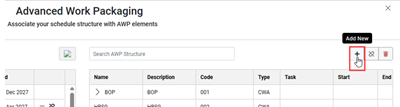
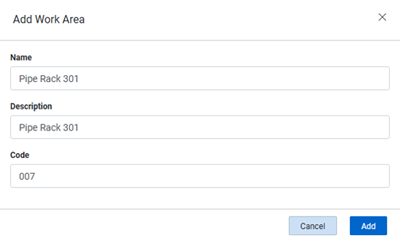
The Add Work Area dialog box opens, where you can enter the name, description and code for the new area.
After the new work area is added, it shows on both the (Plan > Work packaging) Work Packages page and the project’s Project values page.
To create a new Construction Work Package (CWP) from the Schedule Advanced Work Packaging window, select a work area from the listed AWP structure, and then click the Add new icon. Complete the details, and then click Add.
To create a new Installation Work Package (IWP), follow the same procedure, but with a CWP selected on the AWP structure.
All areas and packages added to the structure in Schedule are automatically added to the work packages structure in Plan, with the same hierarchy.
Associate WBS elements and activities with work areas and packages
To help with the work planning process, you can associate schedule WBS elements and activities with the applicable work package.
Linking WBS elements and activities
-
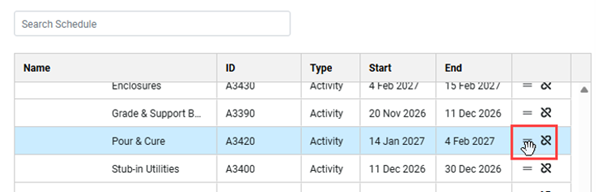
Hover over the linking field for the WBS element, milestone, or activity you want to associate until the cursor changes to a hand icon.
-
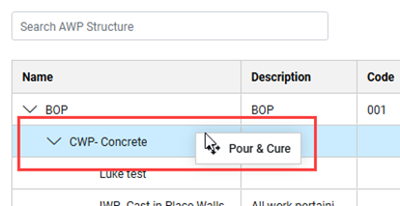
Drag the item to the area or package (CWP or IWP) in the AWP structure that you want to associate it with.
-
Drop the item in the area or package.
The task (schedule element/milestone/activity), and the scheduled start and end dates for that task are now associated with that package.
The integration between Schedule and Plan is a one-way integration. All associations made on the Advanced Work Packaging window in Schedule update automatically in Plan, however, changes made to schedule information in Plan do not update in Schedule.
Unlink from schedule element
You can unlink an area or package from the associated schedule element or activity by selecting the area/package and clicking the Unlink From Schedule Element icon.
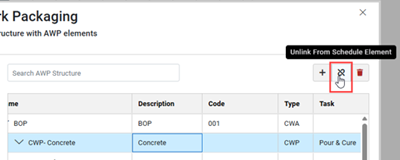
This option shows disabled if you select an area or package that does not have a schedule element assigned.
Delete
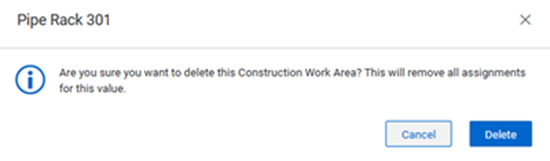
You can delete areas and packages from the AWP structure by selecting the structure item and selecting the Delete button.
Deleting the area or package from the Advanced Work Packaging window in Schedule deletes it from all applications where it exists, such as Plan and Platform.