Scope items
In the Scope items page, you can manage scope items by performing actions such as adding and editing scope items.
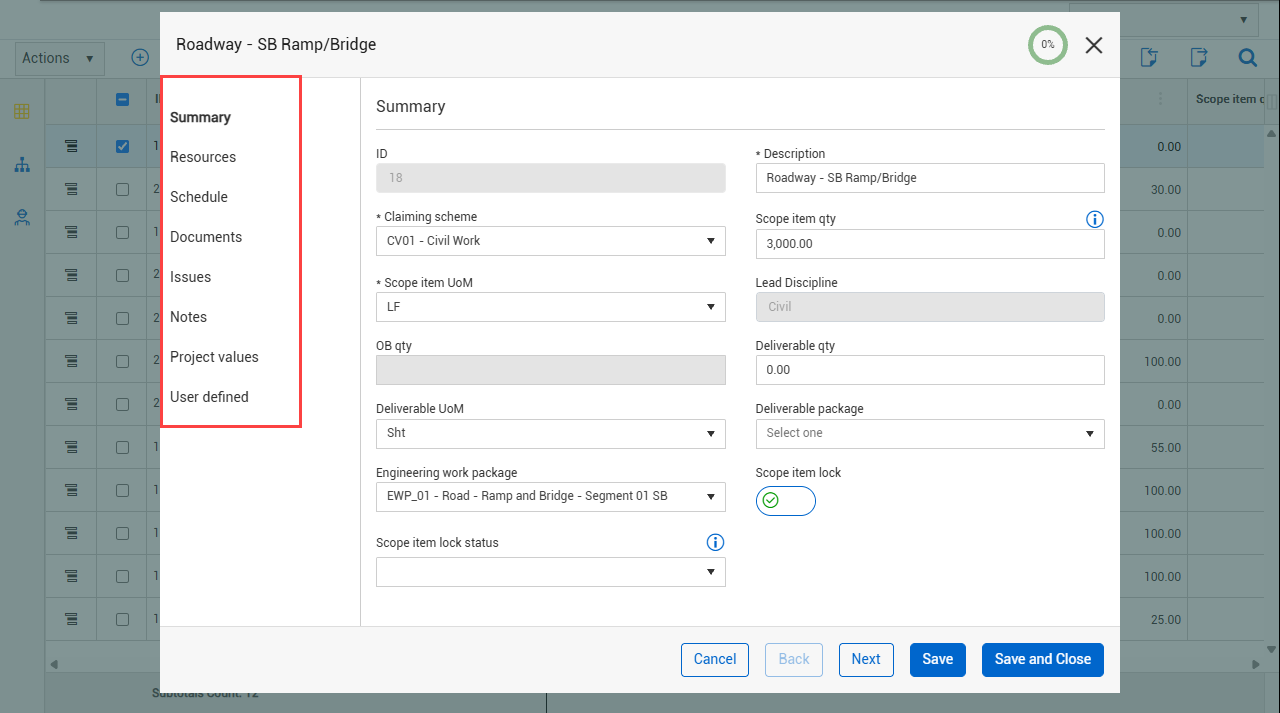
When you add or edit a scope item, a dialog box shows where you can enter data for the following sections shown in the image and table depending on your settings.
| Section |
Description |
| Summary |
Shows details of the scope item, including ID, description, claiming scheme, and scope item quantity and UoM. For more information, see the Summary section below.
|
| Resources |
Shows the resources assigned to the selected claiming scheme so you can know what percentage of scope needs to be done by each resource. For more information, see Scope item resources. |
| Schedule |
View Baseline, Current, and Actual schedule dates. To view the Schedule section, you must set one of the following Schedule setting to On:
|
| Documents |
When integrated with InEight Document, the Documents section shows documents associated with the scope item. For more information, see Documents overview. |
| Issues |
Shows a distinct list of issues associated to the scope item. For more information, see Change issues integration. |
| Notes |
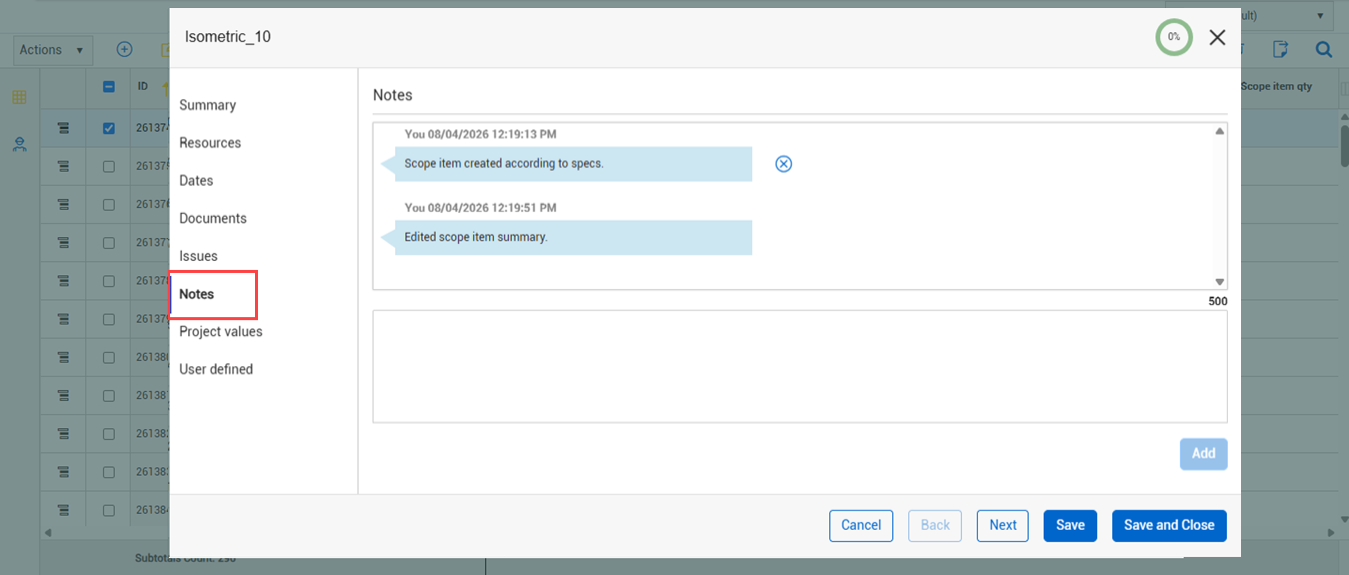
Add notes to communicate scope item related information. The Notes section shows only when you edit a scope item. For more information, see the Notes section below. |
| Project values |
Add and edit standardized project values configured in InEight Platform. |
| User defined |
These are free-form text fields with a maximum of 250 characters each. |
Summary section
The following fields show on the Summary section:
-
ID - This field is automatically populated.
-
Description - Must be unique.
-
Claiming scheme - Must be set up on the Configure claiming schemes page.
-
Scope item qty and UoM - If an account code set in enabled for the project, the UoM must match the UoM of the resource type’s associated account code in the Resources tab, which is automatically populated after you select a claiming scheme. Scope item UoM must also match WBS phase code UoM to claim progress.
-
Lead Discipline - This field is automatically populated based on the claiming scheme.
-
OB qty - This field is initially populated by the Scope Item qty field when the budget is locked. It is not editable but is shown for tracking purposes. If you edit the scope item qty, you must enter a reason to explain the difference. See Update scope item quantity for more information.
-
Deliverable qty and UoM - The quantities and units of the design deliverables, such as sheets. Deliverable package – You can use this field to group your scope of work.
-
Engineering work package - This field can be used to group your scope of work separately from deliverable packages. For example, you might group multiple deliverable packages under one engineering work package.
-
Scope item lock - You can lock the scope item and prevent further claiming. A yellow warning icon shows that claiming is disabled because the scope item is locked. You can lock or unlock a scope item at any time during the process.
-
Scope item lock status - Associate a lock status value when you enable Scope item lock. Additional context is provided explaining why the scope item is locked. Lock statuses are optional and not required when locking a scope item. You can select from the following statuses:
-
Not started
-
On hold
-
Removed
-
Completed
The Forecast Remaining MHrs/Unit rate is automatically set to 0 when a lock status of Removed or Completed is selected. As a result, the scope item no longer shows remaining forecasted hours. The scope item lock statuses can be included in import and export functions. During import, lock status values are only processed when the scope item locked flag is enabled.
-
Project values - Project values are standardized data configured in InEight Platform. For more information, see Project values in scope items.
Notes section
When you edit a scope item, you can add notes in the Notes tab to communicate any information related to the scope item. The notes show in a conversation-style format. Notes show in chronological order and consist of the following information:
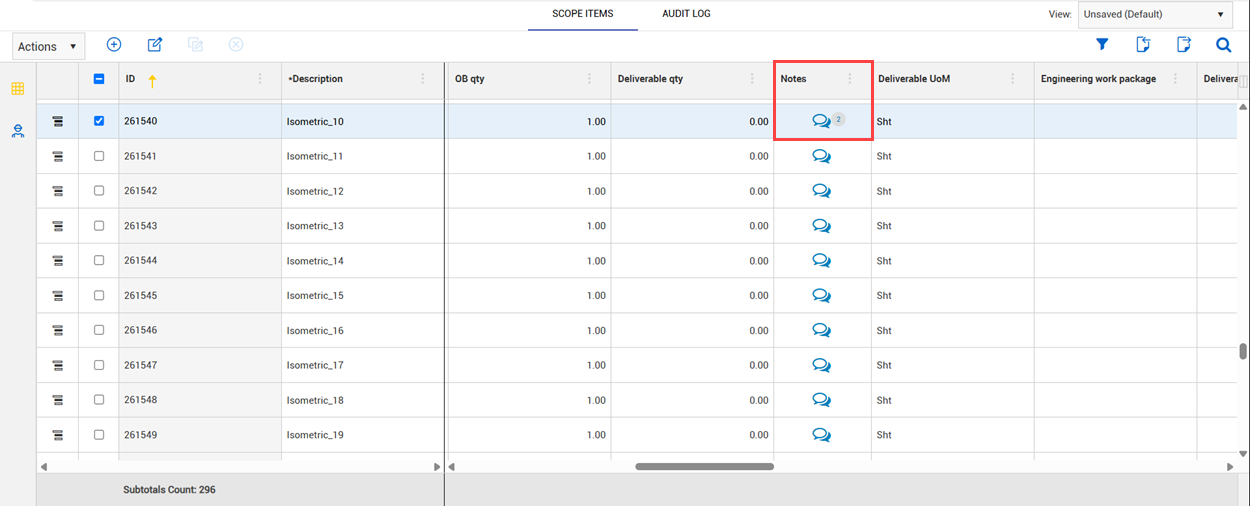
You can access notes from the Notes tab in the scope item dialog box and from the Notes icon shown on the Scope Items page.
Users with the View scope items permission can add notes even when they do not have permission to edit the scope item.