Update scope item quantities
You can update a scope item quantity to adjust the claiming on any previously claimed steps to reflect the new scope item quantity. You can update quantities manually or by importing them. You must have the permission Edit scope items.
Update scope item quantities with no claiming
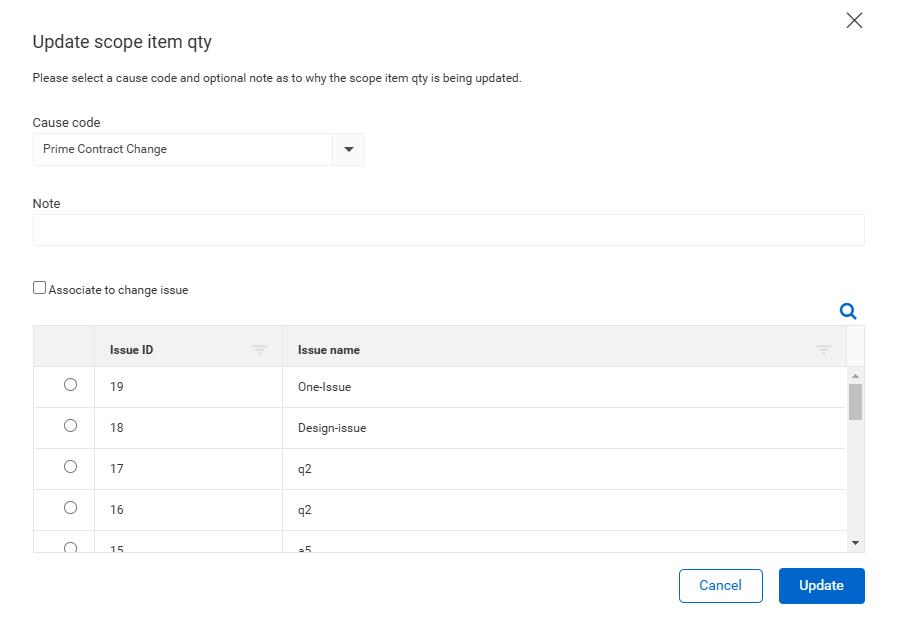
The Update scope item qty dialog box guides you through the process when you update the scope item quantity for an item that has no claiming.
In the Update scope item qty dialog box, you must select a Cause code and optionally enter a note as to why the scope item quantity is being updated.
InEight Change integration
When you integrate with Change, you have the option to select the Associate to change issue check box to associate the quantity change to an issue in Change. You must select an issue from the grid to update the scope item.
Update scope item quantities with claiming
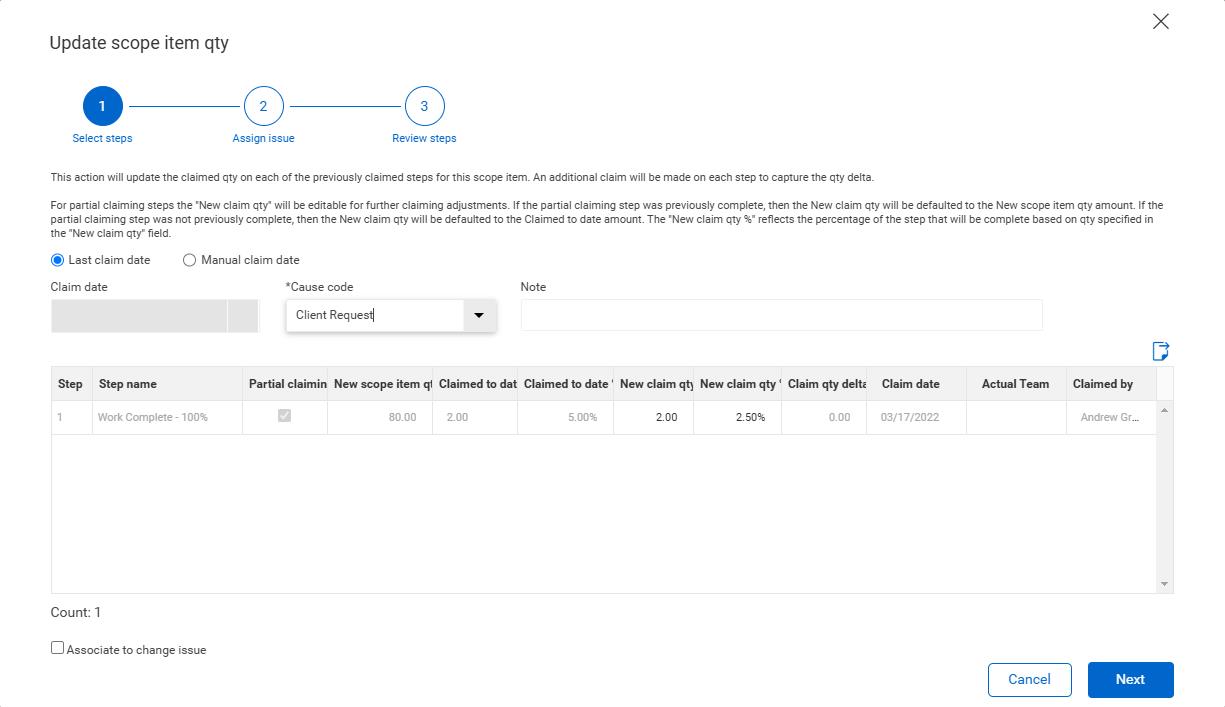
When you edit a scope item that has claiming and update the claimed quantities, the Update scope item qty wizard guides you through adjusting the claiming.
The Update scope item qty wizard shows a grid of all steps with claiming history. The earned value is automatically adjusted to the new quantity value for complete steps. You can export all claimed steps for additional review by clicking the Export icon in the upper right of the grid.
InEight Change integration
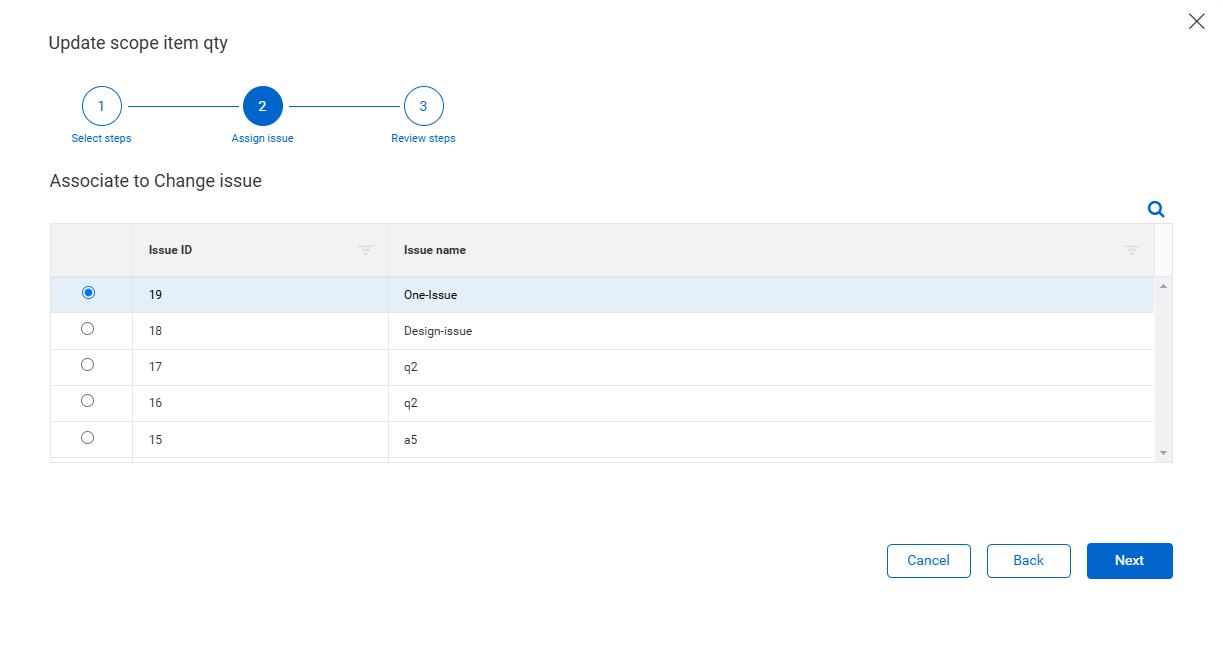
When you integrate with Change and update the scope item quantity, you have the option to select the Associate to change issue check box to associate the quantity change to an issue in Change. In Assign issue (step 2), select an issue from the grid.
After the Update scope item qty wizard is completed, the issue is associated to the remaining steps of the scope item.
Updating scope item quantity
-
Select the check box to the left of one scope item and then click the Edit scope item icon in the upper left. The Edit scope item slide-out panel opens.
-
Change the value in the Scope item qty field, and then click Save or Save and Close. The Update scope item qty wizard dialog box opens.
-
Select Last claim date or Manual claim date.
The Last claim date option lets you attribute the updated claims to the date the last claims were made on each step, reflecting more accurately in your reporting. Manual claim date is selected to today’s date by default. The claim date selected is reflected for all steps.
-
Select a cause code from the Cause code drop-down list, and then optionally add a note.
-
Edit the New claim qty, New claim qty percentage, or Actual Team when applicable.
When integrated with InEight Change, you can select the Associate to change issue check box to associate the quantity change to a Change issue.
-
Click Next.
When associated to a change issue, select the Change issue in Assign issue (step 2).
-
Review the changes (step 3), and then click Update.
Administrators can configure cause codes at the organization level. For more information, see Cause codes (Engineering).
Update scope item quantities by import
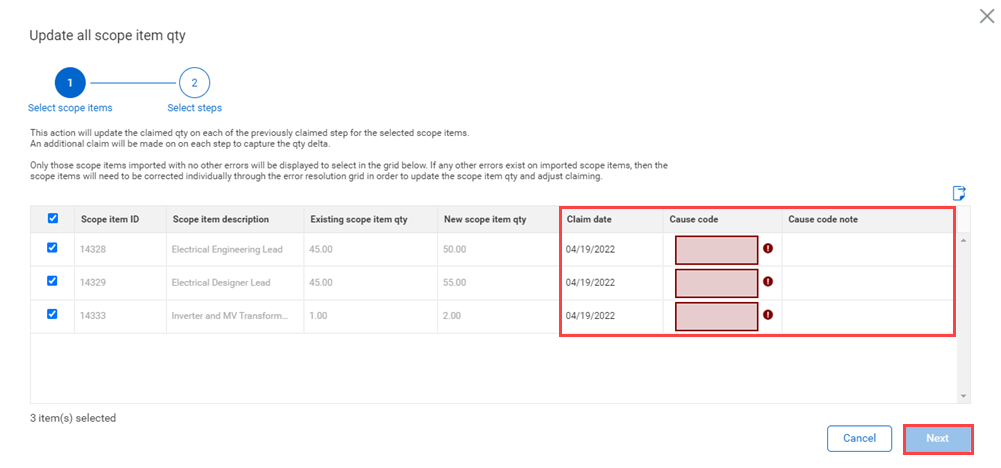
When you update the Scope item qty field of multiple scope items through the import process after claims have been made, the Update all scope item qty dialog box guides you through adjusting the claiming on any previously claimed steps to reflect the new scope item quantities.
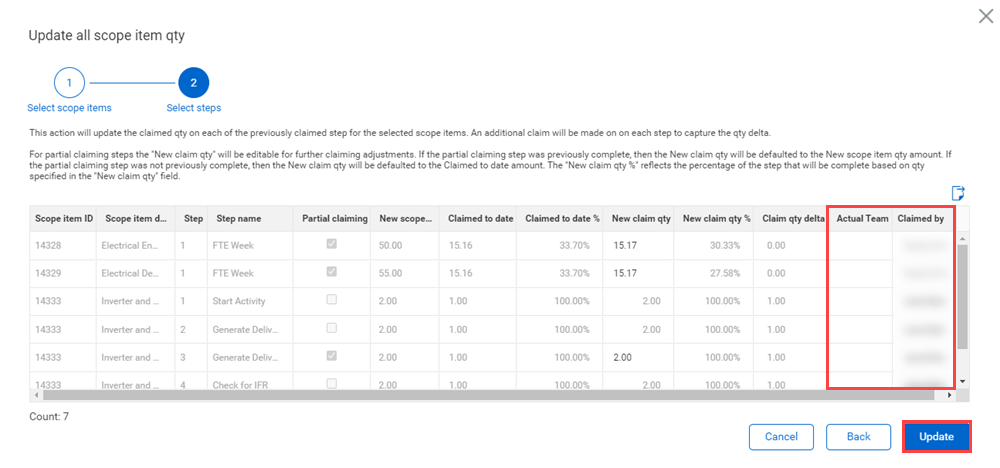
The Update all scope item qty dialog box shows grids of all selected scope items and steps with claiming history. You can export all scope items and claimed steps for additional review by clicking the Export icon in the upper right of the grid.
Updating scope item quantity by import
-
Import a file with changes to the quantities for more than one scope item. The import process results in an error.
-
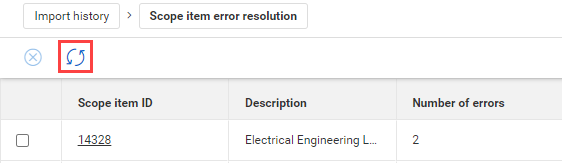
In Import history > Scope item error resolution, click the Update all scope item qty icon at the top of the grid. The Update all scope item qty dialog box opens.
-
Select the scope items whose claiming you want to adjust.
-
Select a cause code. Optionally, add a note.
-
Optionally, edit the Claim date. By default, it is set to today's date. This claim date is reflected for all steps.
-
Click Next. The Select steps page opens.
-
Optionally, edit the Actual Team and Claimed by fields in the grid. By default, these fields are set to the team and user specified on the last claim.
-
Review the changes, and then click Update.
Scope item quantity history
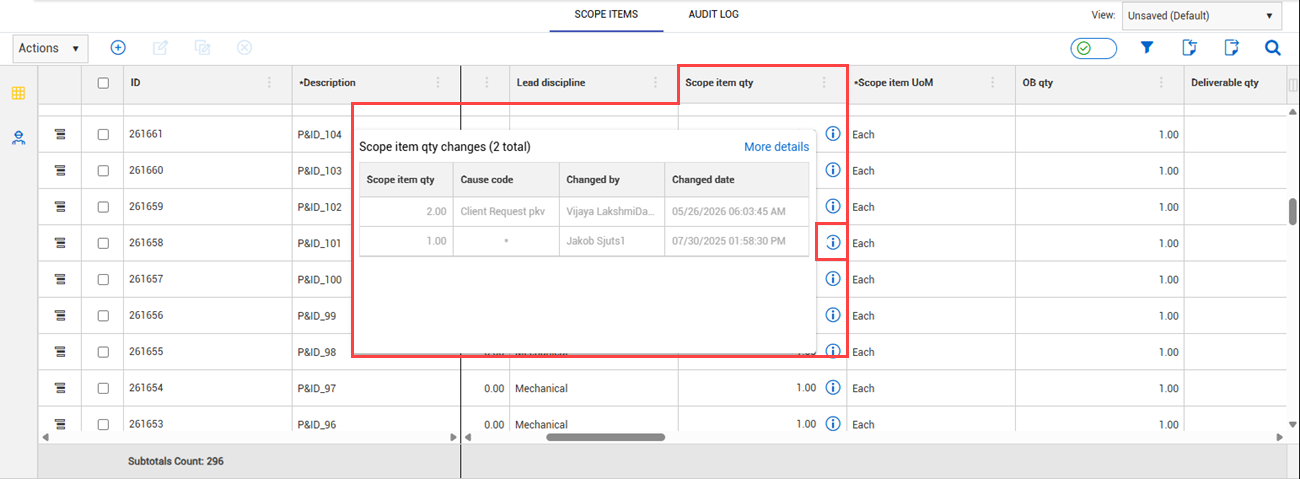
You can view previous scope item quantity changes in the Scope Items page by hovering over the Information icon in the Scope item qty column. Click More details to view the Scope item quantity history in the Audit Log tab.