Quantity items
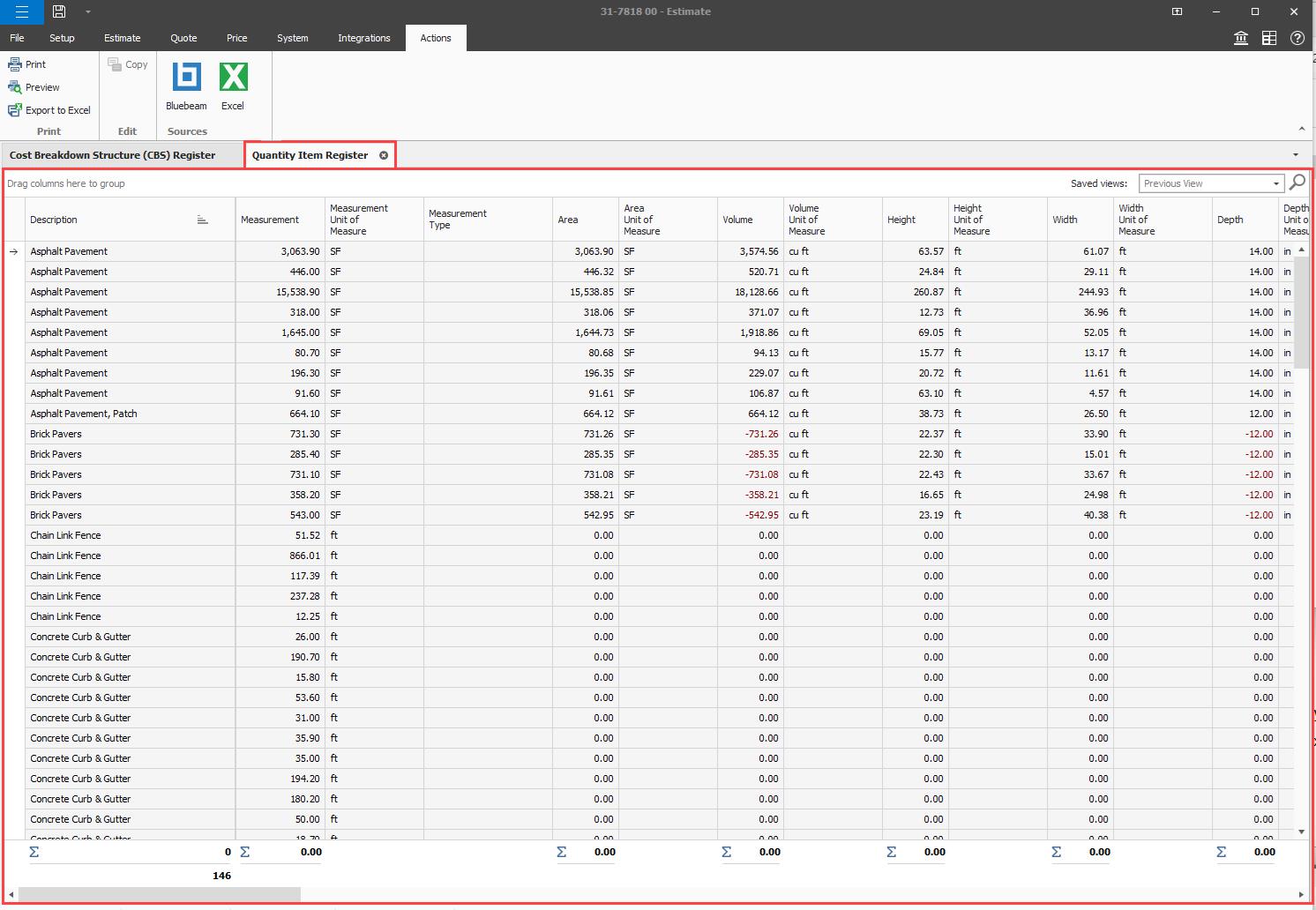
In the Quantity Items Register, you can view the list of quantity items imported from your source document. After the import is complete, you can apply quantity items to cost items in the Cost Item Record’s Quantity Items tab.
The quantity items can be copied to be used in other compatible registers in Estimate.
Quantity Item Register columns
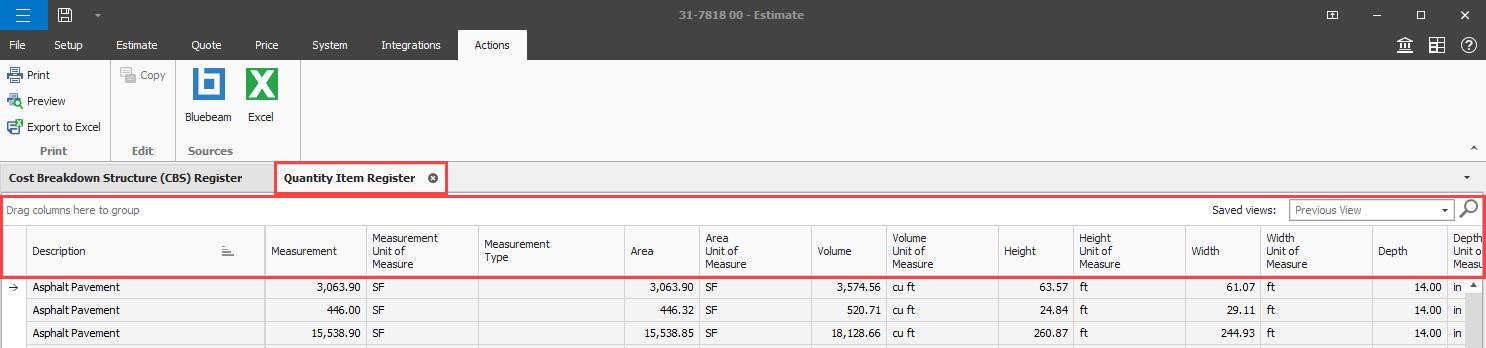
The Quantity Item Register columns provide quantity item details brought over from Bluebeam’s take-off data, including crucial information to assure that your estimate is accurate and up-to-date. Information brought over includes Page Label, Data Source, Reference Number, Quantity Item Author, Last Updated, Last Updated By. You can manage quantity items by filtering and grouping columns.
Cost Item Record Quantity Items tab
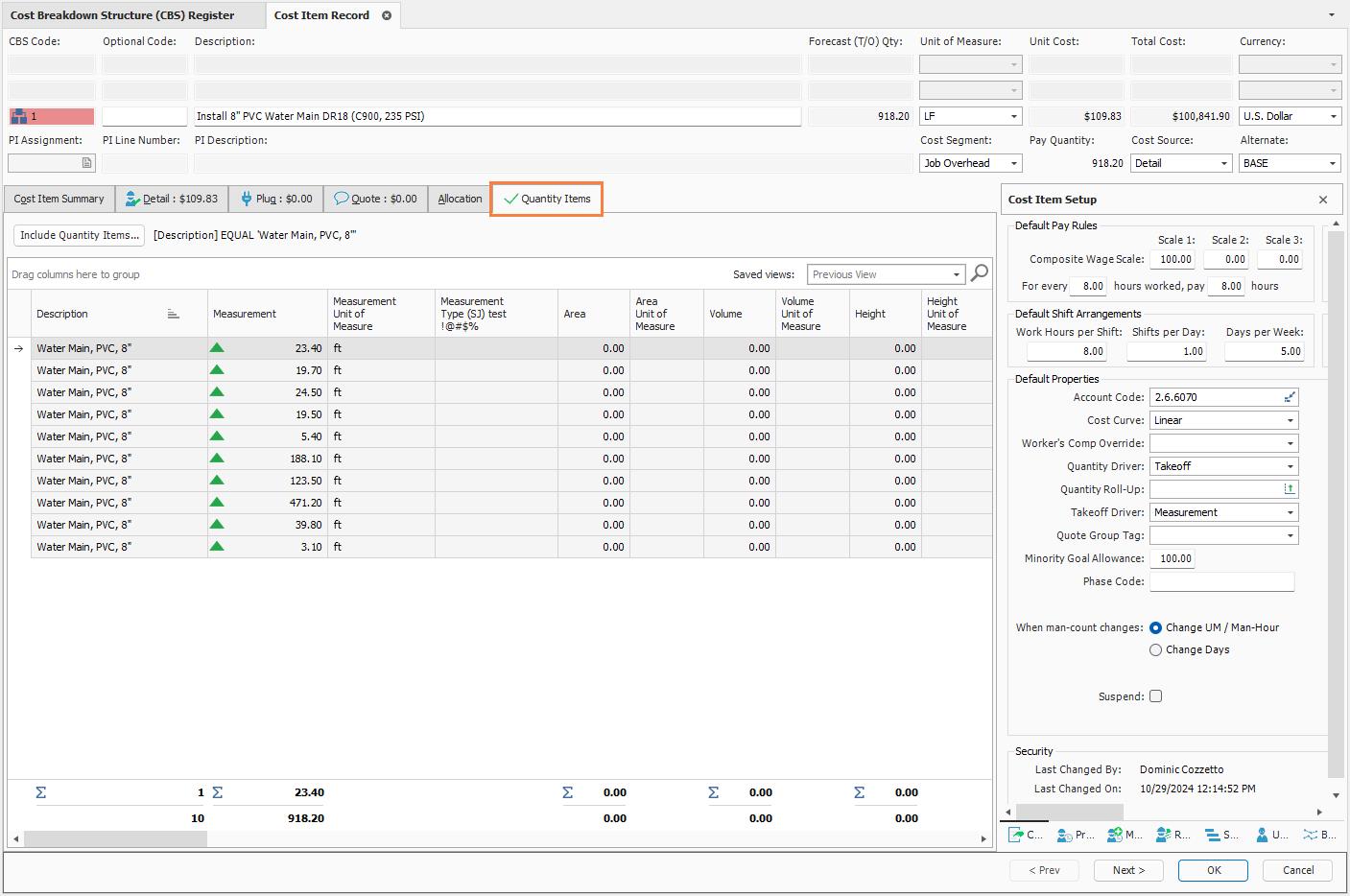
You can apply your source takeoff quantity items to a cost item in the Quantity Items tab. You can use filters or manually associate quantity items by dragging and dropping or inserting them directly into the Cost Item Record.
The manual options allow you to quickly associate a quantity item without having to modify existing filters or create new ones. Quantity items that are added using the filter option are added without duplicating the existing items.
Include Quantity Items filter editor
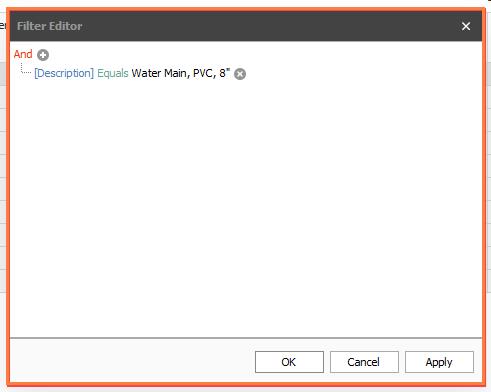
You can use filters to find items that you want to apply to a cost item. To set a filter, click the Include Quantity Items button, and then set up your filters. For example, you can configure a filter in the Install 8” PVC Water Main DR18 cost item to bring in items that contain Water Main, PVC, 8” in the description.
After you configure your filter, click Apply.
Drag and drop
In the Quantity Item Register, you can select quantity items and then drag and drop them into the cost item record Quantity Items grid. Open the Quantity Items Register and align it next to the Cost Item Record. In the Quantity Items Register, select one or many quantity items, and then drag them into the Cost Item Record.
Insert Quantity Item option
You can associate quantity items by using the right-click context menu in the Cost Item Record. In the Quantity Items tab, right-click in the quantity items grid, and then select Insert Quantity Item from the context menu. In the Quantity Item Register, select the quantity items you want to insert, and then click OK.
You can also delete or copy the quantity items associated, using the right-click context menu.
Add additional cost items using Bid Wizard
When there is consistency in your jobs, you can easily import additional cost items to your estimate from another template job folder using the Bid Wizard’s functionality. The Bid wizard’s functionality can be used to import additional cost items from another job folder into your estimate to automatically employ the same filter configuration used in your source job and automatically spreads quantity items to cost items using the same criteria. You can scale the predefined cost items and include the subordinate items and their applicable ratios.
Included columns
There are two columns available in the Quantity Items tab that indicate whether the quantity item was added via the filter or manually.
-
Included (Filter) — The quantity items have been added using the filter option and can only be removed by modifying the filter.
-
Included (Manual) — Quantity items have been added using the manual options and can be deleted using the right-click context menu or the delete key.
Quantity drivers
The Quantity Driver field set to Takeoff and the Takeoff Driver field let the quantity items you apply to a cost item drive the cost item quantity. By default, Takeoff is used in the Quantity Driver field and Measurement is used in the Takeoff Driver field for the takeoff quantity. You can select any other quantity column with the Takeoff Driver to drive the cost item quantity, but the unit of measure type of that quantity column must align with the cost item unit of measure.
The Quantity Driver and Takeoff Driver fields must be set for quantities to roll up from the quantity items to the cost item quantity.
Aggregate total
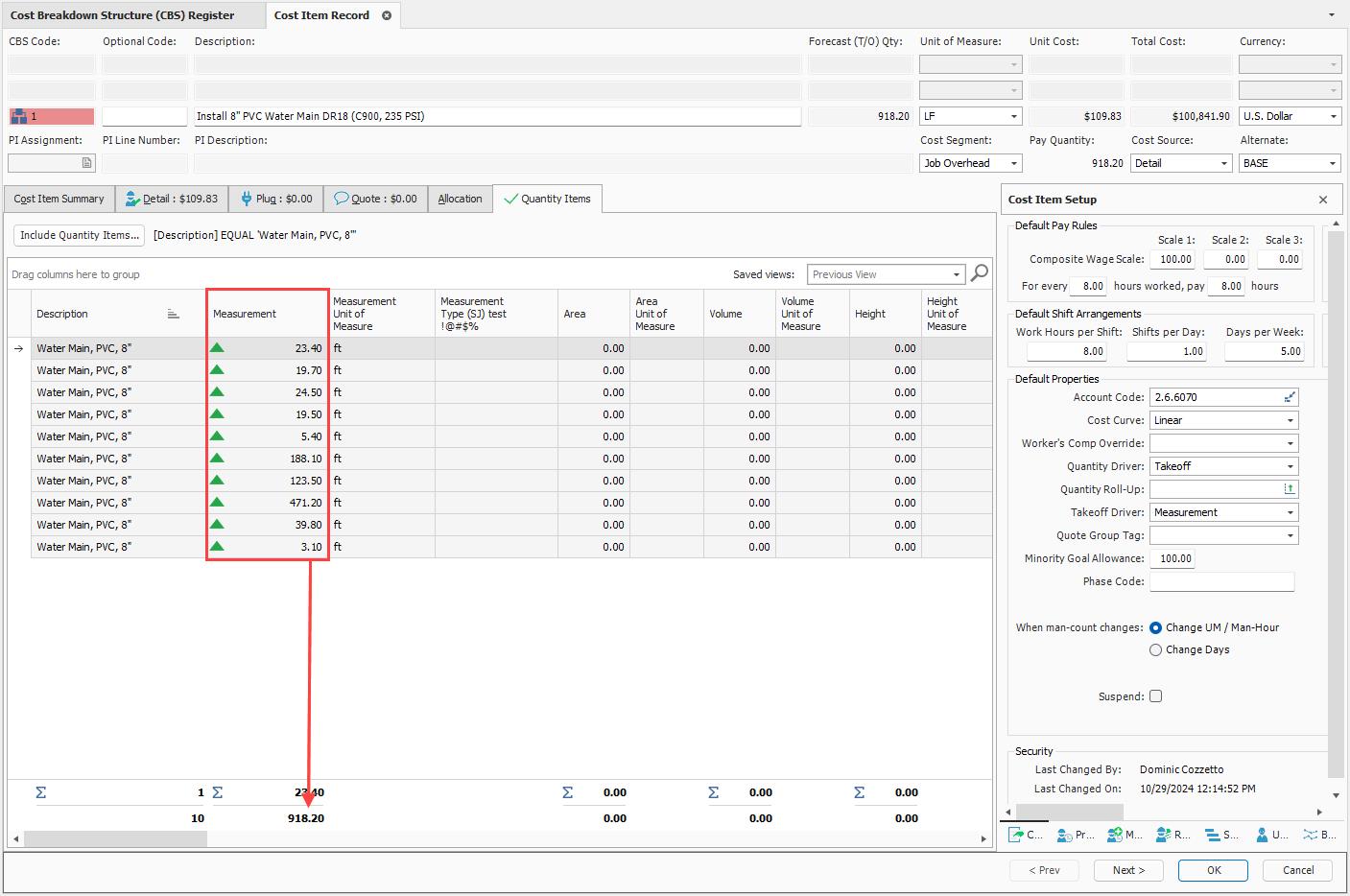
In the Cost Item Record, the Quantity Items tab shows you the individual measurements that might be contributing to the cost item quantity. You can view the aggregate total of the cost item quantity.
In the image below, the Install 8” PVC Water Main DR18 cost item shows the total of 918.20 ft, and you can also see all the markup items that make up the total.
The measurement total of your quantity items becomes the Forecast T/O quantity when the quantity driver is set to Takeoff. The quantity driver of Takeoff drives the quantity for each line item, summing the total to match Forecast T/O quantity.