Page Navigation
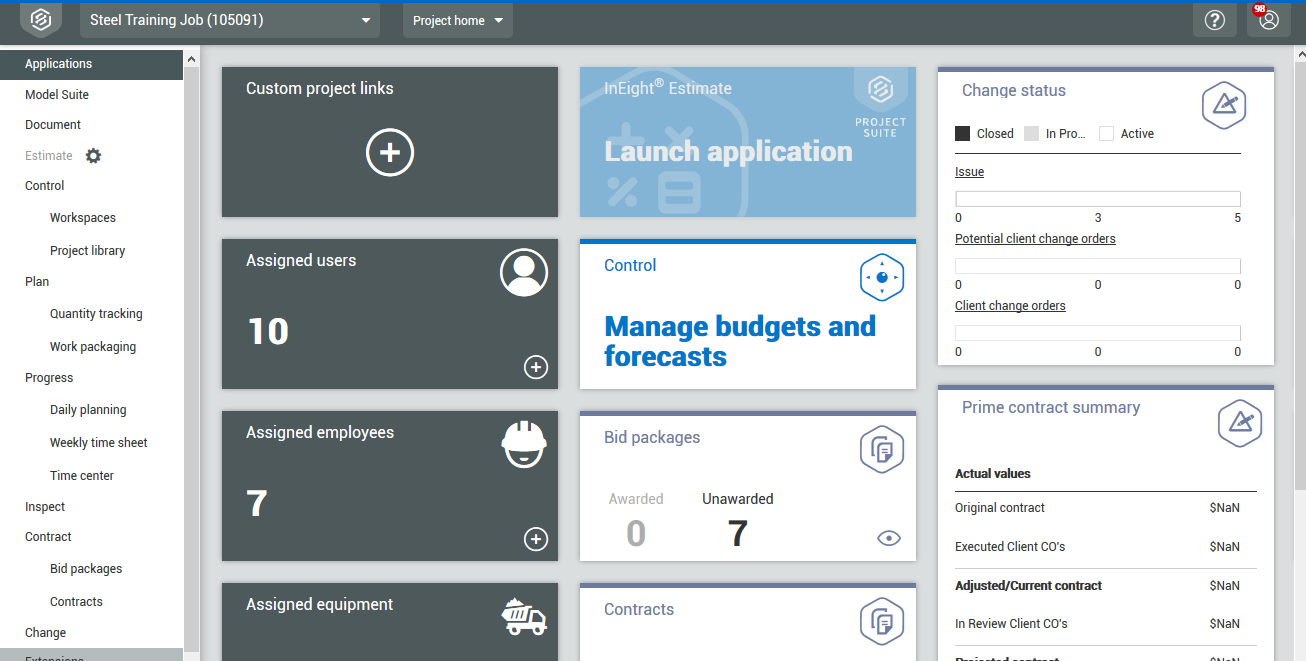
In the following lesson, you will open the InEight cloud platform to explore the layout and start to navigate around the application. You will access the platform through your web browser, using the link provided by your manager or facilitator.
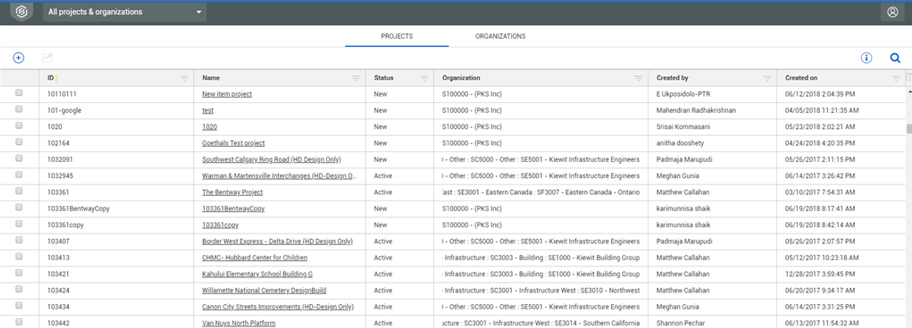
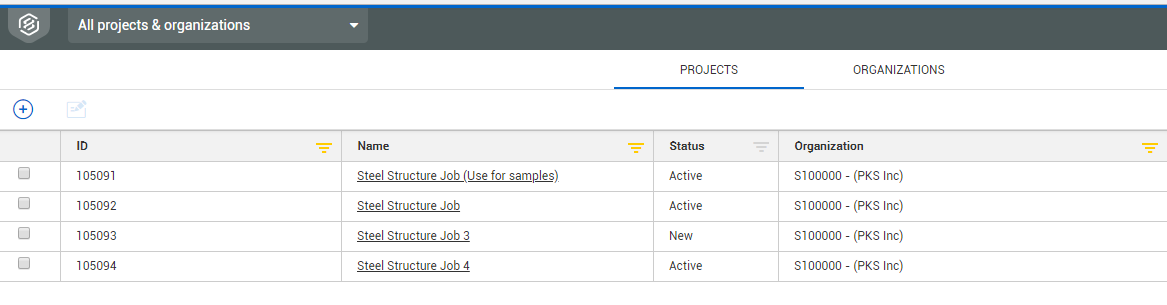
This takes you to the All projects & organizations page, where you can select any project you are associated with.
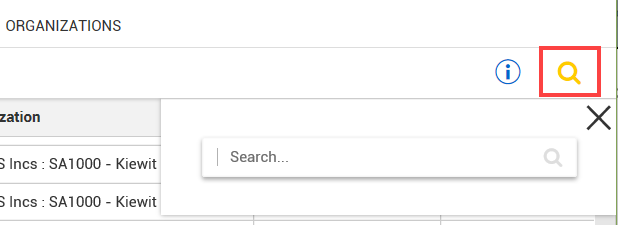
If your project is not displayed on the initial screen, you can search by selecting the magnifying glass icon in the top right corner. This search function will search all terms in all columns.
Step by Step — Navigate to InEight Contract
-
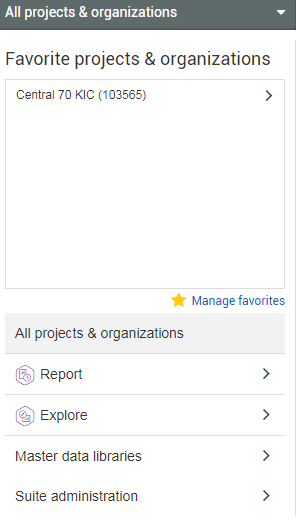
From within the InEight cloud platform, click on the 1st Level Menu located at the top left of the page. Then Select All projects & Organizations.
-
Select your project.
-
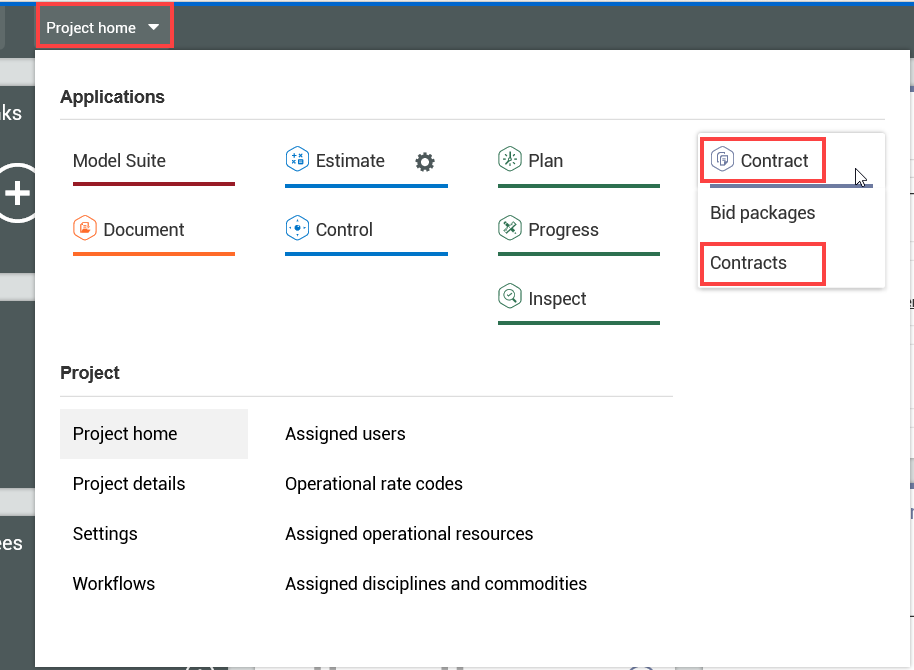
Navigate to the InEight Contract application by selecting the 2nd level menu.
-
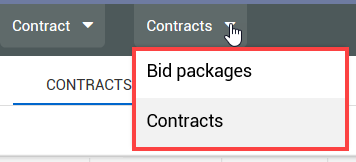
Select Contract > Contracts from the 2nd level menu.
-
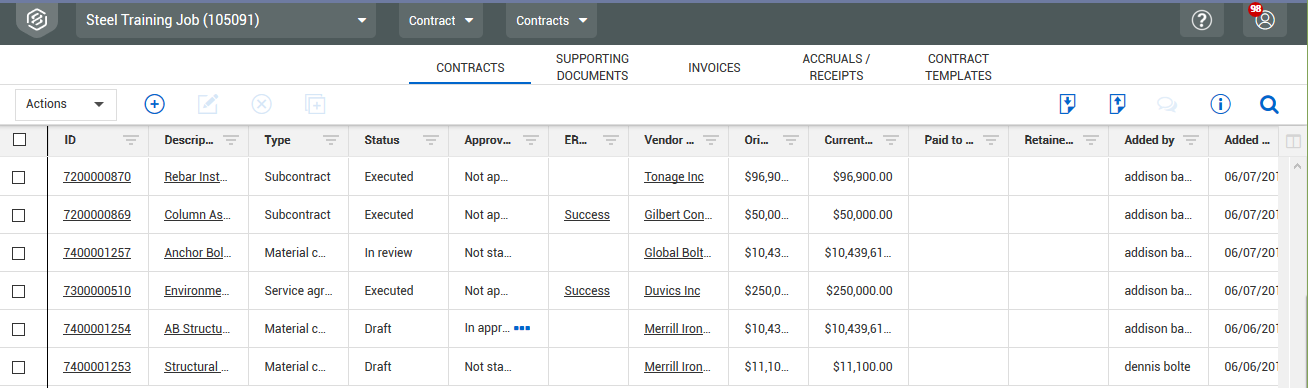
The Contracts page of the Contract application appears
Once on a page within InEight Contract, you can use the 3rd level menu to toggle between Contract modules (Bid package and Contracts).
Project Home Tiles
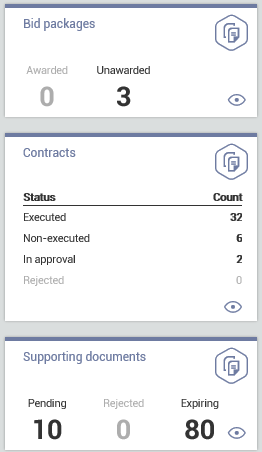
The Project home landing page contains Contract-specific shortcut tiles you can click on to navigate to the appropriate Contract page. These tiles include:
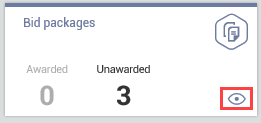
- Bid packages
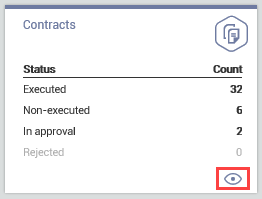
- Contracts
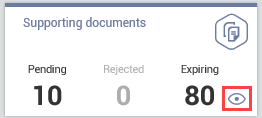
- Supporting documents
While the project is underway you see the status of all Bid packages, Contracts and Supporting documents which support your project.
Bid Packages Tile
The Bid packages tile contains two key indicators:
- Awarded – Any bid package already associated to a vendor, and is ready to be or already has been converted into a contract
- Unawarded – Scopes of work you are still processing
The View icon takes you to the Bid packages page to view all your bid packages.
Contracts Tile
The Contracts tile contains key indicators:
- Executed – Both Parties have signed the contract
- Non-executed – Contract is out for signature or the contract is still being drafted
- In approval – Waiting for signatures on all documents
- Rejected – Contract is rejected (need to expand
The View icon takes you to the Contracts tab of the Contracts page to view all your contracts.
Supporting Documents Tile
The Supporting documents tile contains three key indicators, reflecting the status of your supporting documents:
- Pending
- Rejected
- Expiring
The View icon takes you to the Supporting Documents tab of the Contracts page, where you can view all your supporting documentation.
Register Pages
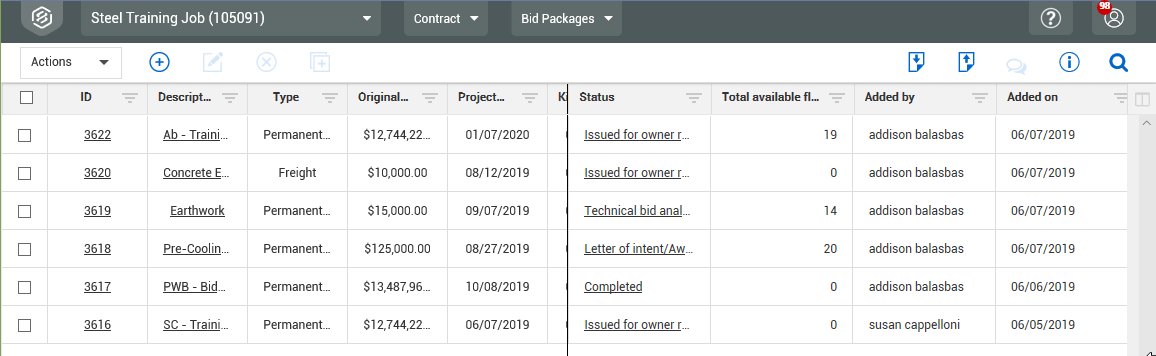
As discussed in Lesson 1 – InEight Contract Overview, there are two modules of InEight Contract, each with their own page. Each of these main pages are considered register pages, meaning they consist of rows and columns like a spreadsheet, to list out several lines of information at once.
Bid Package Page
Contracts Page
Contract Tools and Navigation
Each register page in InEight Contract contains menus and tools to help you navigate and perform key functions on the page.
Overview – Contract Register Page Tools and Navigation
|
|
Title
|
Description
|
|
1
|
Navigation Bar
|
Contains Home, 1st, 2nd, and 3rd level menus.
|
|
2
|
Profile
|
View Notifications and Logout.
|
|
3
|
Tabs
|
Depending on the page (e.g., Contracts page), you will have tabs you can click on to access pertinent information.
|
|
4
|
Actions Menu
|
Contains key functions you can perform, specific to the page you are on such as, view import history, run a report, run a query, open an email log, or launch the InEight Explore Contract dashboard.
|
|
5
|
Toolbar
|
Contains functions for the register page you are currently viewing, with specific editing options on the left (e.g., add, edit, delete, copy), and options that involve the entire page on the right, including clear all filters, search, import and export options, notes, and contract information. The Contract register includes the Download purchase order icon on the right side, which is enabled when you select a contract.
|
Actions Menu
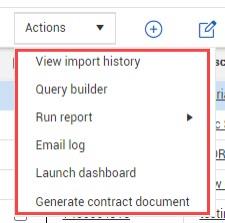
The Contracts’ Actions menu offers tasks that can be executed at the Contracts page level. They are:
- View import history
- Query builder
- Run report
- Email log
- Launch dashboard
- Generate contract document (on Contracts and VCO registers only)
View import history
Allows you to see the import history activities for documents which came into Contract. The history includes the File name, location, status, total number of records, any errors and dates for modification.
Query builder
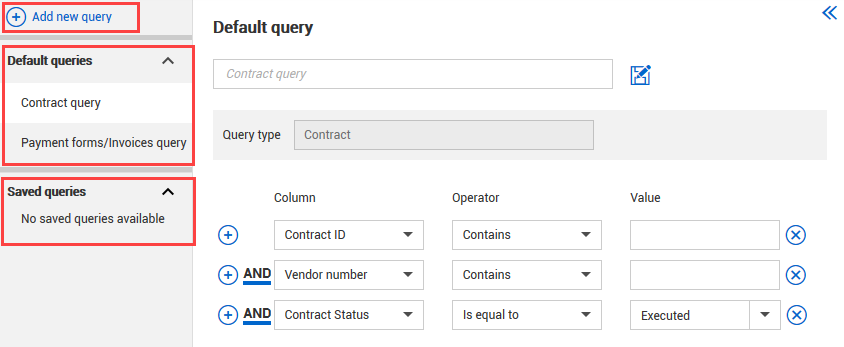
When selected, a new window will open where you can create queries. You can choose from the Default queries list for Contract or Payment forms/invoices or select Add new query to build a new one. You can also access your previous queries which have been saved.
Run report
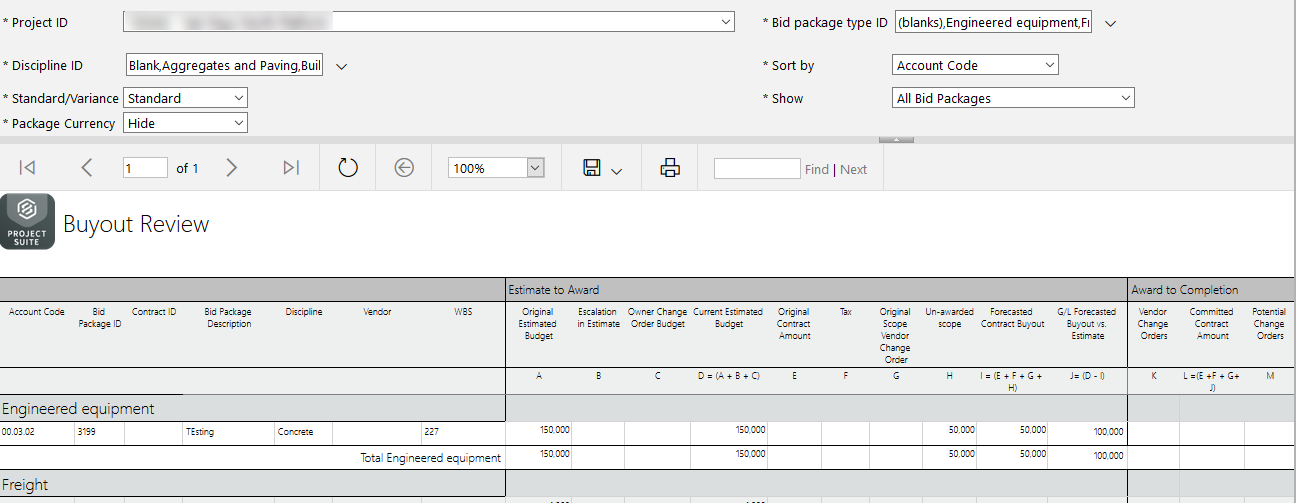
Allows you to run canned reports for Buyout review, Procurement status and Payment form status. When a report is selected, it will open in a new tab as shown below.
Email log
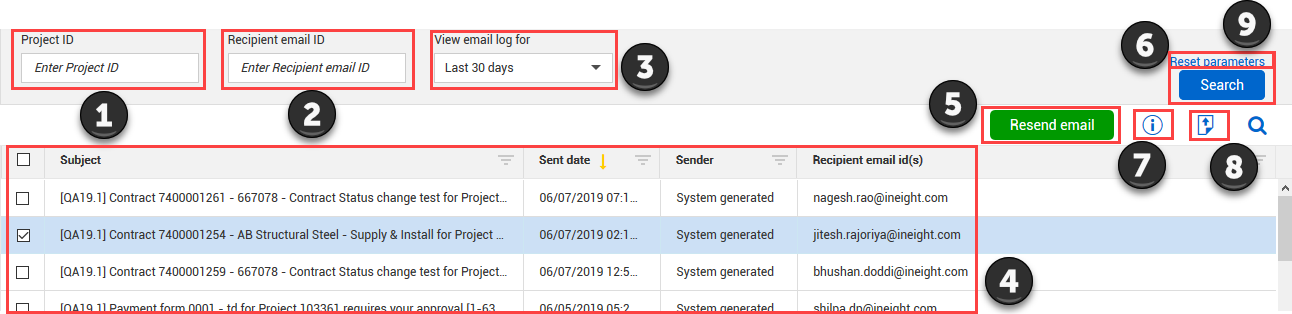
From any project you have access to the Email log from the Action menu. When selected, the email log will open then the support team will search and resend your email. The Email log is at the Organization level and is meant for your shared services team to find emails which were thought deleted or lost. Resending the emails, when found, does not restart the workflow. It is a way to find lost, deleted or misplaced emails.
Launch dashboard
You can launch the InEight Explore Contract dashboard without leaving the current application. When you select Launch dashboard, Explore opens in a separate window.
Overview – Email log
| |
Name |
Function |
|
1
|
Project ID
|
ID of the project you want to find.
|
|
2
|
Recipient email ID
|
Name of the person who the email was sent to.
|
|
3
|
View email log for
|
Selection of timeframe which you want (30 days or custom).
|
|
4
|
Email log
|
The list of emails sent.
|
|
5
|
Resend email
|
Allows the selected emails to be resent to the receivers.
|
|
6
|
Reset parameters
|
Allow the parameters to reset to the default setting.
|
|
7
|
Information
|
When selected opens a slide-out panel with information about the email selected. It provides the date, subject, recipient and actual message.
|
|
8
|
Export
|
Allows you to export selected emails.
|
|
9
|
Search
|
Searches log for selected emails.
|
Toolbar
The toolbar allows you to use functions for the register page displayed, with basic editing functions on the left and other functions on the right. The toolbar options will change depending on what page you are currently on. The toolbar displayed below is for the Bid Package page.
Overview - Toolbar
| |
Name |
Function |
Bid Pkg. Page |
Contracts Page
|
|
1
|
Add
|
Add a new bid package/contract/issue to the register page.
|
X
|
X
|
|
2
|
Edit
|
Edit a selected bid package/contract on the register page.
|
X
|
X
|
|
3
|
Delete
|
Delete a selected bid package/contract from the register page.
|
X
|
X
|
|
4
|
Copy
|
Copy a bid package or contract that already exists.
|
X
|
X
|
| 5 |
Clear all filters |
Clear all filters in the grid table. |
X |
X |
|
6
|
Export
|
Export bid packages and contracts to an Excel template.
|
X
|
X
|
|
7
|
Import
|
Import bid packages and contracts from an Excel template.
|
X
|
X
|
|
8
|
Notes
|
View the notes for a selected bid package/contract from the register page. The Notes slide out panel displays the notes, and for contracts, the supporting document notes. You can also add a note that will be stamped with the author, time and date.
|
X
|
X
|
|
9
|
Info
|
The Info slide out provides information about the selected item.
|
X
|
X
|
|
10
|
Search
|
Search all columns for content by the keyword you enter.
|
X
|
X
|
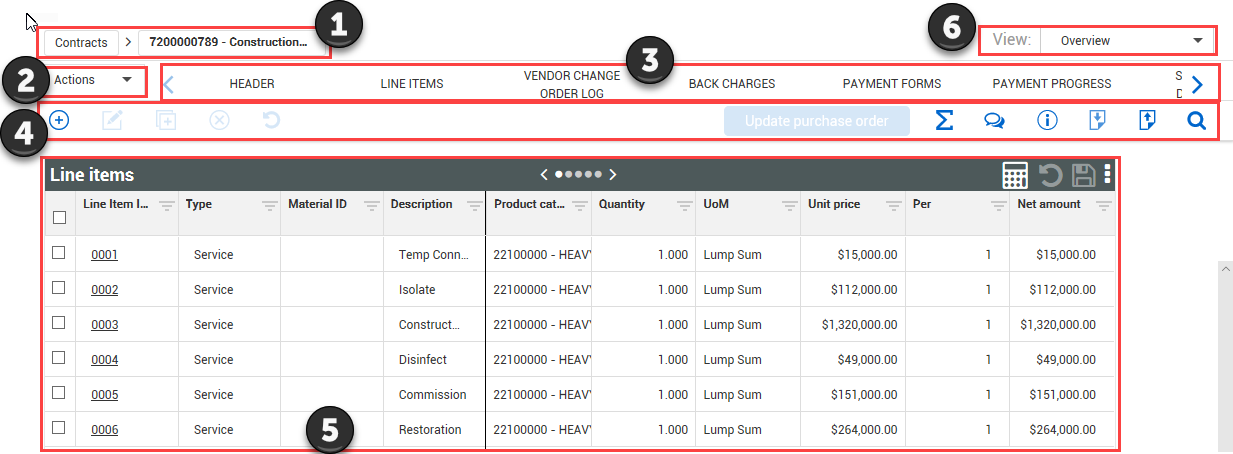
Contract Record Page
From the Bid Package and Contracts register pages, you can drill in on a specific item to open its record and consume more information.
| |
Icon |
Function |
|
1
|
Breadcrumbs
|
References the record you are on and the path to get there. You can click on the breadcrumbs to go back to the register page.
|
|
2
|
Actions Menu
|
Contains key functions you can perform, specific to the page you are on (e.g., view import history or run a report).
|
|
3
|
Tabs
|
Depending on the page, you will have tabs you can click on to access pertinent information.
|
|
4
|
Toolbar
|
Contains functions for the page you are currently viewing, with specific editing options on the left (e.g., add, edit, delete, copy), and options that involve the entire page on the right (e.g., search, import and export options, contract info).
|
|
5
|
Record Information
|
Detailed information pertaining to the record tab you are on. This may be in organized into a register or individual fields organized into sections.
|
|
6
|
View Menu
|
Filter what appears on your display by selecting default viewsets from the drop-down list, or by creating your own viewsets.
|