Schedule of values register
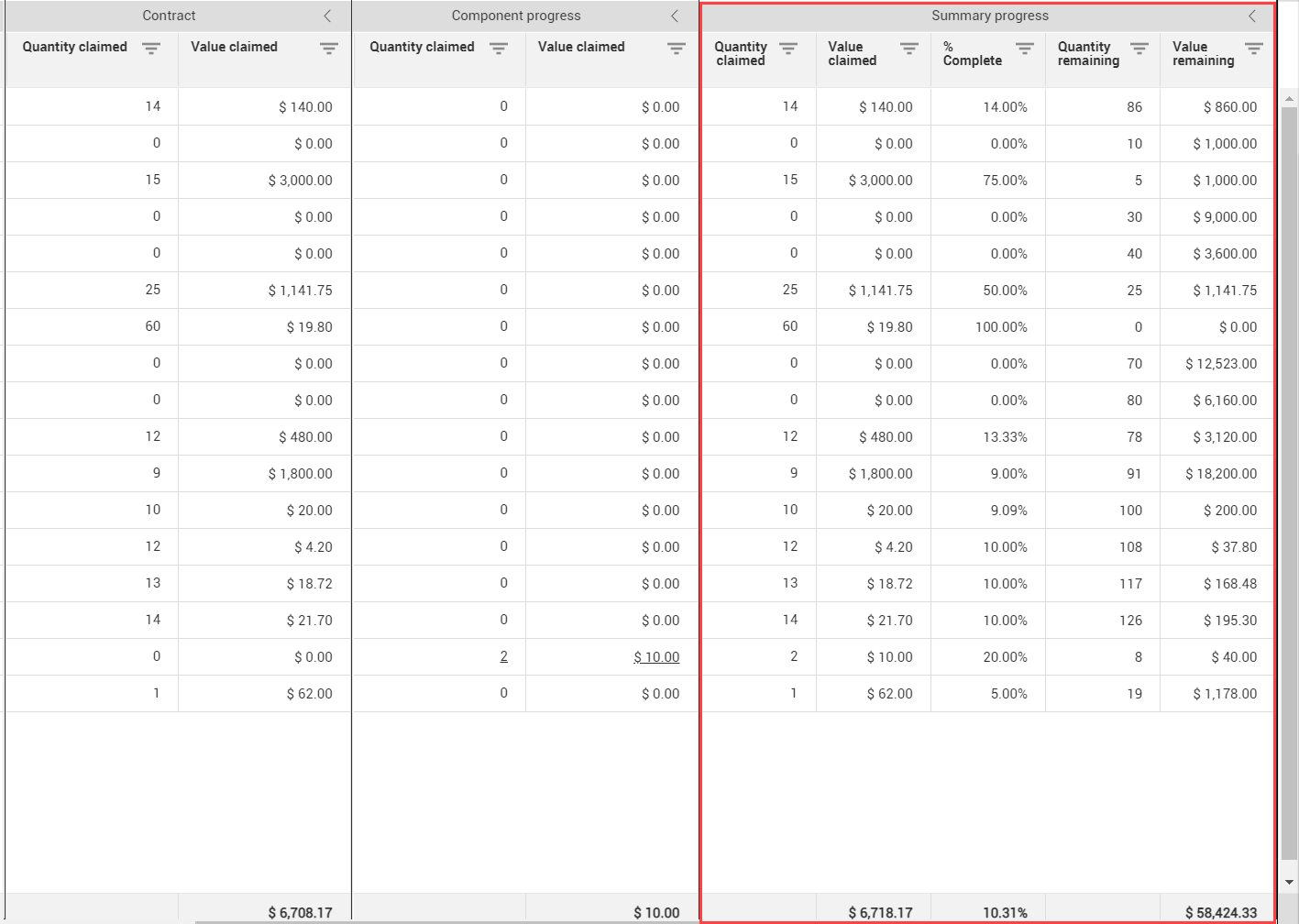
After you add a schedule of values item, Contract adds a schedule item ID and adds it to the Schedule of value items register. The register lists all schedule items for the contract. The schedule of values grid has sections for schedule of values details, contract claims, component progress, and summary progress. Arrows in the column headers let you collapse or expand the section. Multiple sections can be collapsed. The first section, which includes the Schedule line item ID, Contract line item ID, and Description cannot be collapsed. You can click the double arrow in the first section to collapse the rest of the sections.
The bottom of the grid shows the total number of items and the total number of selected items. To see only the selected items, click View selected. Click Clear selection to deselect all items. The Go to Schedule ID link helps you quickly find Schedule items that are not visible on the page.
Schedule of values details
The Schedule of value items section shows the following:
Prior to publishing the contract, the Original schedule value column shows the current value. Publishing captures the current values as the original value. If you add a new schedule item after the contract is published, the new item will have the Original value column set to 0, and the Manual adjustment column set to the amount of the new schedule item.
If the schedule values for a line item exceed the net price of the line item, all schedule items for that line item are marked with a warning icon in the Schedule values column. To keep totals in sync, you must change the number in the line item or the schedule items. If a schedule item has been claimed in Plan or Progress, you cannot delete the schedule of values item. You can update the item, and then the update goes to Plan or Progress.
If a schedule item is not hidden in Plan and Progress, the Component quantity column shows the Component quantity from Plan. If the value is modified in Plan by splitting the contract component, a blue dot shows next to the quantity to indicate the component quantity does not match the schedule quantity.
If there is no quantity claimed, you can delete a schedule of values item that is not hidden from Plan and Progress.
The total schedule value amount shows at the bottom of the section.
Contract claims
The Contract grid section shows the quantity and value claimed in Contract. The total amount claimed in Contract shows at the bottom of the section. If the current date is not between the valid from and valid through dates of the associated line item, an error icon shows in the Contract line item ID column of the register, and no claims can be made from associated schedule items.
See Claim schedule items from Contract for information about claiming in Contract.
Component progress
The Component progress grid section shows claims that were made in Plan and Progress. Click on a link in the Quantity claimed or Value claimed column to go to quantity tracking in Plan.
The total amount claimed in Contract shows at the bottom of the section.
Summary progress
The Summary progress grid section shows the total of claims made in Contract and in Plan and Progress.
| Field |
Function |
| Quantity claimed |
The total number of items claimed. |
| Value claimed |
The total amount (that is, the quantity multiplied by the unit price) claimed. |
| % Complete |
The percent of the schedule value that has been claimed. |
| Quantity remaining |
The number of items that remain to be claimed (that is, the schedule quantity minus the quantity claimed). |
| Value remaining |
The value that remains to be claimed (that is the schedule value minus the value claimed). |
Date fields in the toolbar let you narrow the dates that components were claimed.
The total value claimed, percent complete, and value remaining show at the bottom of the section.
Payment claims
The Payment claims grid section shows the quantities and values used in payment claims. For information about Payment claims, see Payment claims.
| Field |
Function |
| Vendor quantity |
The quantity of the claim for a vendor. |
| Vendor value |
The value of the claim for a vendor. |
| Certified quantity |
The quantity of claims that have been certified. |
| Certified value |
The value of claims that have been certified. |
| Certified delta |
The difference between the vendor value and the certified value. |
| Pending quantity |
The quantity of claims that are pending certification. |
| Pending value |
The value of claims that are pending certification. |
| Pending delta |
The difference between the vendor value and the pending value. |
Payment forms
The Payment forms grid section shows information about the quantities and values of payment forms associated to the schedule line item. For information about payment forms, see Payment Forms.
Changes
The Changes grid section shows vendor change orders associated with the schedule item.
| Field |
Function |
| Executed quantity |
The number of items that were executed in the vendor change order. |
| Executed net amount |
The net amount executed in the vendor change order. |
| Vendor change order ID |
The vendor change order ID. |
| Manual adjustments |
The total of all value changes made without a vendor change order after the contract is published. |