Associated change items
Often there will be issues or pricing items captured by the foreman or superintendent in the field that you want to tie to your vendor change order. These issues and pricing items reside in InEight Change, but you associate them to vendor change orders on your contracts. You can also add a new issue to associate to your change order. The following Step by steps describe how to associate an issue or vendor pricing items from a PCO or CCO to your VCO in Contract.
Issues are any potential concern that you want to track and monitor on a project, that may or may not become change orders. Issues are further defined in the training materials for the InEight Change application.
Step by Step — Add a new associated change item
-
From the contract header page, click the Vendor Change Order Log tab.
-
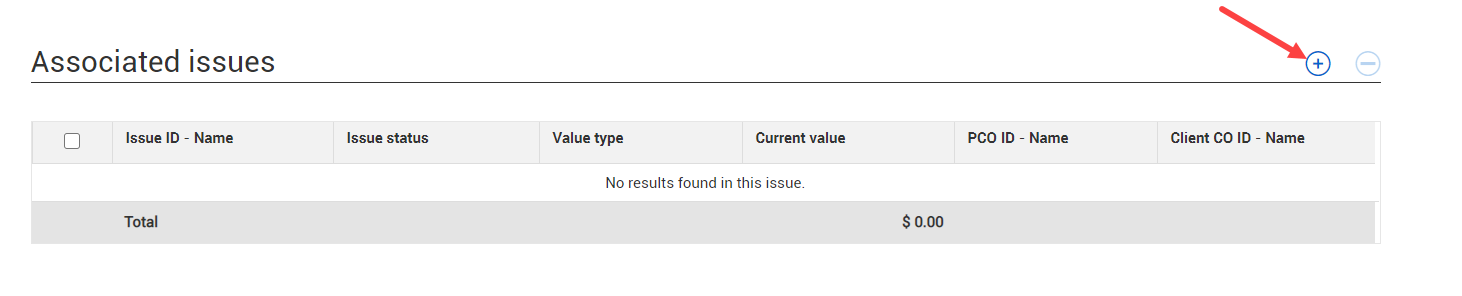
At the Associated issues section, click the Add Icon to add an issue.
-
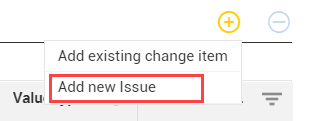
Select Add new issue.
-
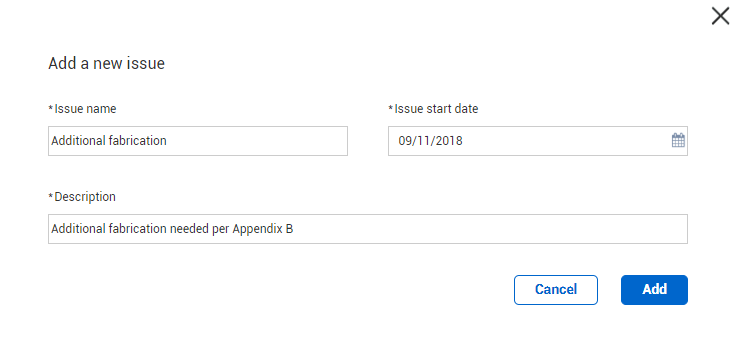
On the Add a new issue window, fill in the fields, and then click Add.
The issue is now added to the register under Associated change items.
-
Click Save. The issue is now in Change on the Pending issues page if you are not an issue approver or the Issue log if you are an approver.
Step by Step — Add an existing change item
-
From the Associated change items section of the Vendor change order details, click the Add issue icon, and then select Add existing change item. The Add Change item dialog box opens.
-
Select a pricing item. Items in the issue column have pricing that was added at the issue level. If the Issue column is blank, and there is a value in the PCO or CCO column, the pricing items were added at the PCO or CCO level.
Adding the issue does not automatically add the PCO and CCO pricing items added at the PCO and CCO levels. If you want to add the pricing items added at the PCO and CCO levels, you must select them.
-
Click Add. The pricing items are added to the Associated change items register. If you delete a PCO later, all rows associated with the PCO are removed.
After pricing items are added, you can click the Add notes icon in the Description column to add a description. After a description is added and saved, the column shows a View icon that you can click to see the description of the pricing item.
VCOs created in Change
VCOs can also be created by InEight Change users. VCOs created in Change come in with a Draft status and are automatically associated with the issue, PCO, or CCO where it was created. The Created by field is set to the name Service Account for VCOs created in Change.