Add invoices
You can add an invoice directly from the Vendor contract summary page. After the invoice is submitted, it is automatically sent to the contractor. The Add invoice interface lets you upload or link to invoice documentation from your organization, so you do not have to send it by some other means.
Add an invoice
Summary: Add an invoice directly into the contractor's InEight system.
Considerations: You must be set up as a vendor user by your contractor.
-
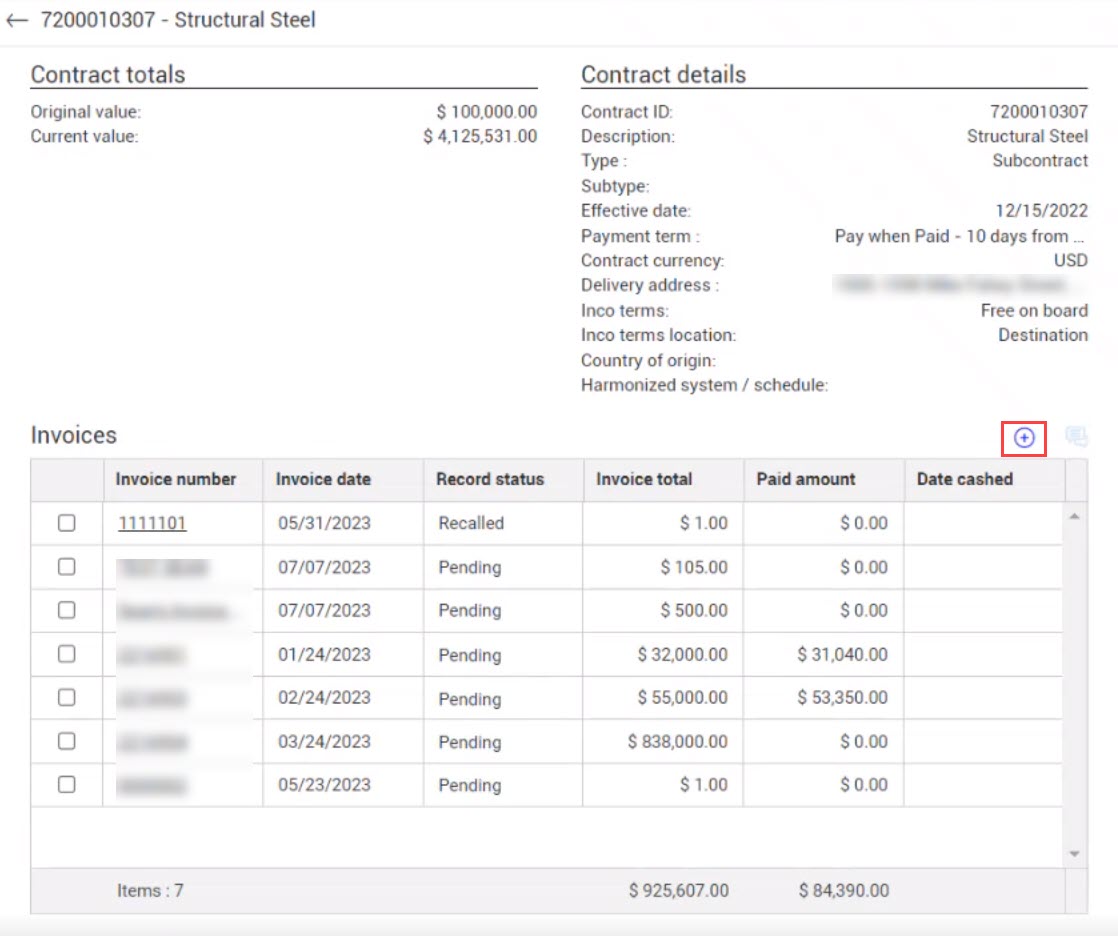
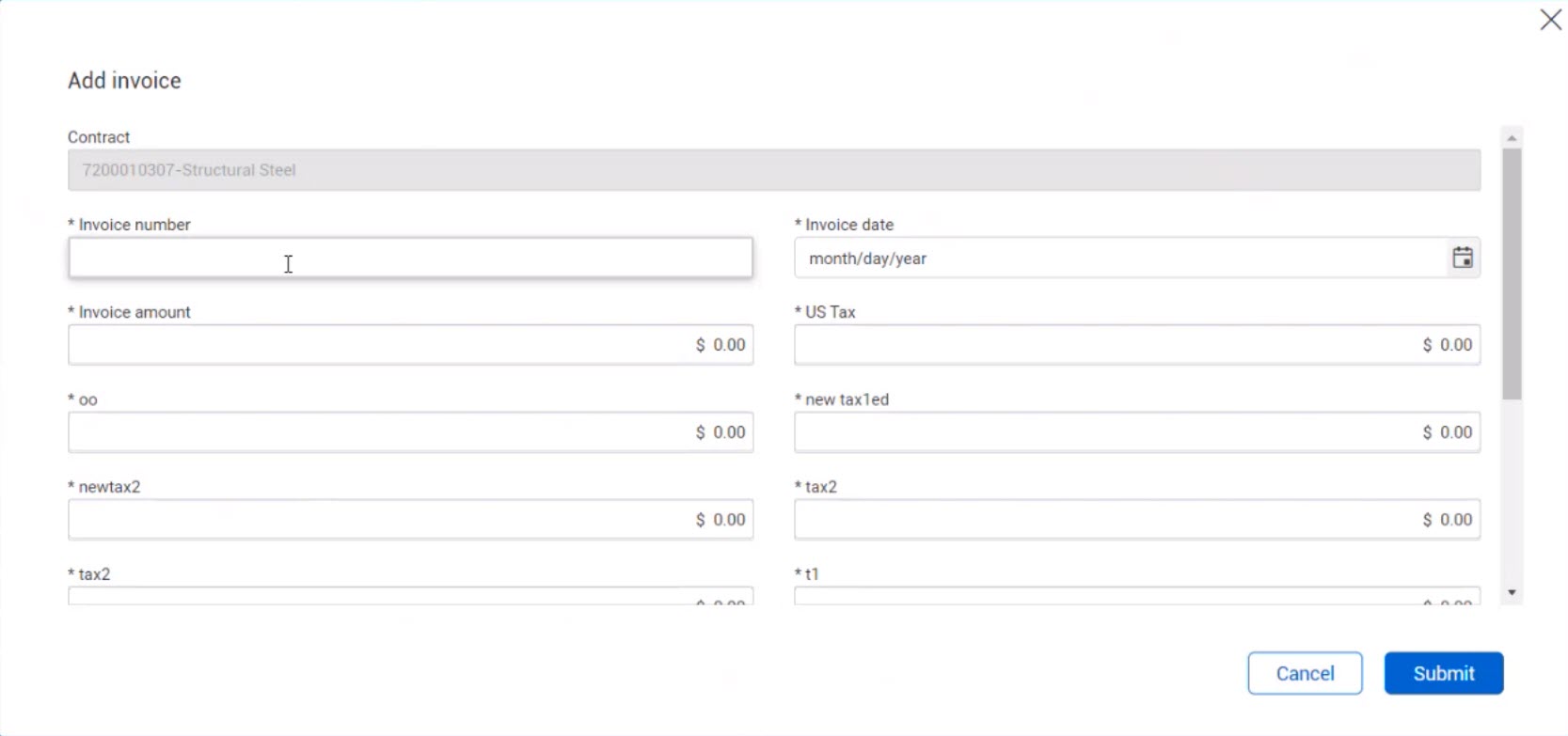
From the Vendor contract summary page, click the Add icon at the top right of the grid. The Add invoice dialog box opens.
-
Enter the invoice number, invoice date, invoice amount, and tax information.
-
In the File/Link field, enter a URL for an online invoice, or click the Select file button to add an invoice file from your computer.
-
Enter comments regarding the invoice if needed.
-
Click the Submit button. The invoice is sent to the contractor added to the grid with a status of Pending, and the item total and the Invoice total at the bottom of the grid are updated. You can no longer edit the invoice unless it is recalled by the contractor first.
What's next: The contractor either receives or declines the invoice. When the Record status is Received, the contractor has agreed to it and will enter it into their payment for system. When the Record status is Declined, you can recall it and resubmit it to the contractor.