Invoices
You can add invoices to support the payment claim to help the contractor ensure the payment process goes more efficiently.
If you attach the invoice prior to submitting thhe payment claim, the invoice is submitted with the claim.
Add a new invoice
Summary: Add a new invoice that is associated to the payment claim. Invoices added to
this page are automatically added to the Invoices list.
Considerations: These steps add the invoice to the payment claim. You must also submit the invoice to add it to the contractor's InEight system. See the step by step Submit an invoice from the Invoices register.
-
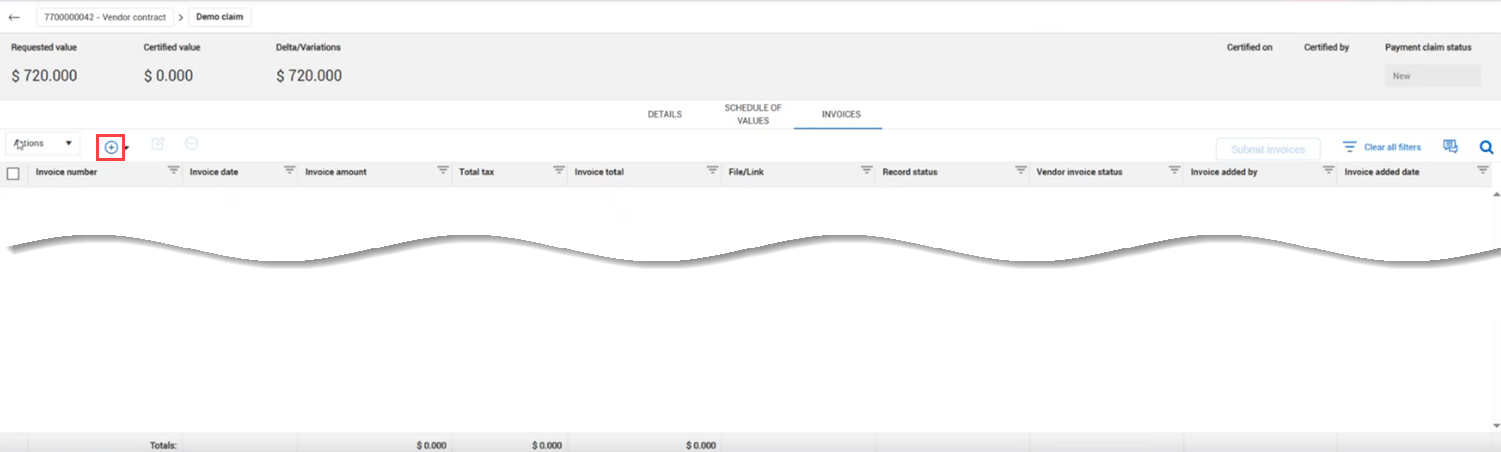
From a payment claim, click the Invoices tab. The Invoices register opens.
-
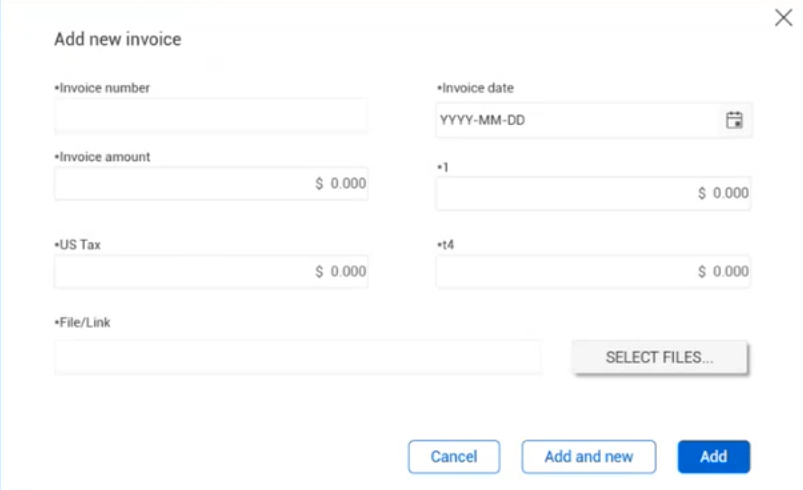
Click the Add icon, and then select Add new invoice. The Add new invoice dialog box opens.
-
Enter the invoice number, invoice date, invoice amount, and tax information.
-
In the File/Link field, enter a URL for an online invoice, or click the Select files button to upload an invoice file from your computer.
-
Click Add to add the invoice or Add and new to add the invoice and open a new dialog box to add another invoice.
What's next: You can submit the invoice to the contractor's InEight system.
Add an invoice from the invoices list
Summary: Add an invoice from the invoice list to a payment claim.
Considerations: These steps associate an invoice that has already been added but have not been submitted.
-
From a payment claim, click the Invoices tab. The Invoices register opens.
-
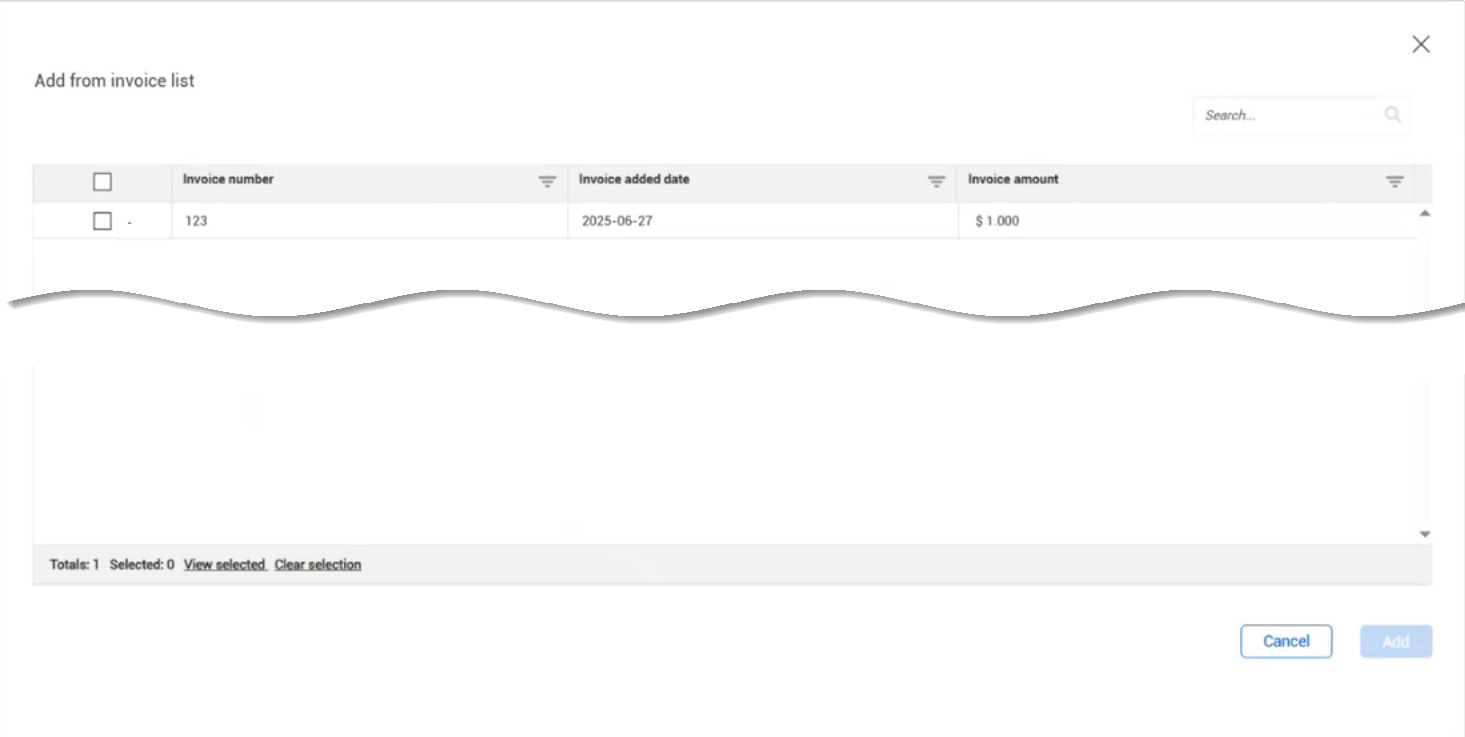
Click the Add icon, and then select Add new invoice. The Add from invoice list opens. The list shows all invoices that are not already associated to another payment claim or do not have a status of Removed or Recalled.
-
Select one or more invoices, and then click Add. The invoices are added to the payment claim and cannot be added to another claim.
What's next: You can submit the invoice to the contractor's InEight system. You can submit invoices from the Invoices register or when you submit the payment claim.
Submit an invoice from the Invoices register
Summary: Submit an invoice to add it to the contractor's invoices.
-
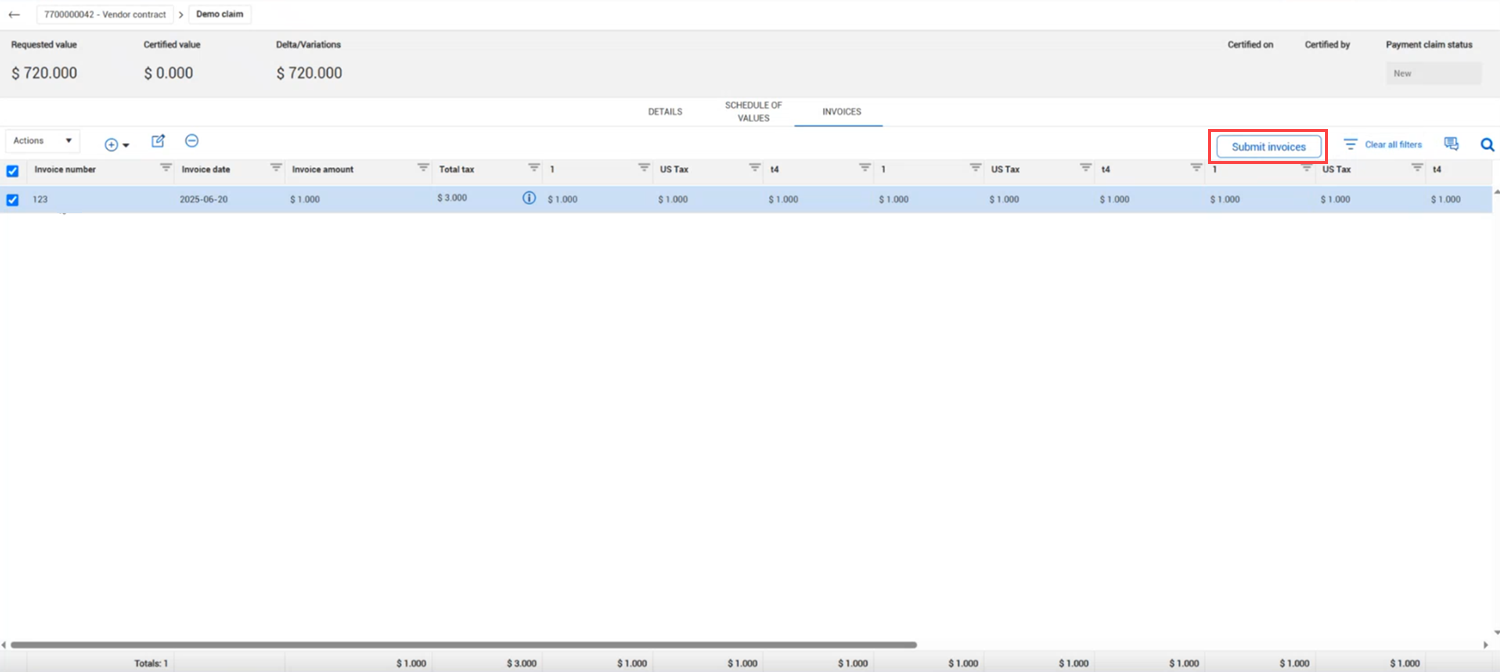
In the Invoices register, select one or more invoices, and then click the Submit invoices button.
The Submit invoices dialog box opens.
-
Add submission notes, and then click Submit. The invoice is submitted and the invoice status in the Invoices register is updated to Pending.
See Add invoices for more information about vendor-submitted invoices.