Vendor supporting documents
As a vendor, you can add supporting documents to Contract from the Vendor contract summary page. After you add supporting documents, they can be submitted to Contract. The contractor can then accept or decline the document.
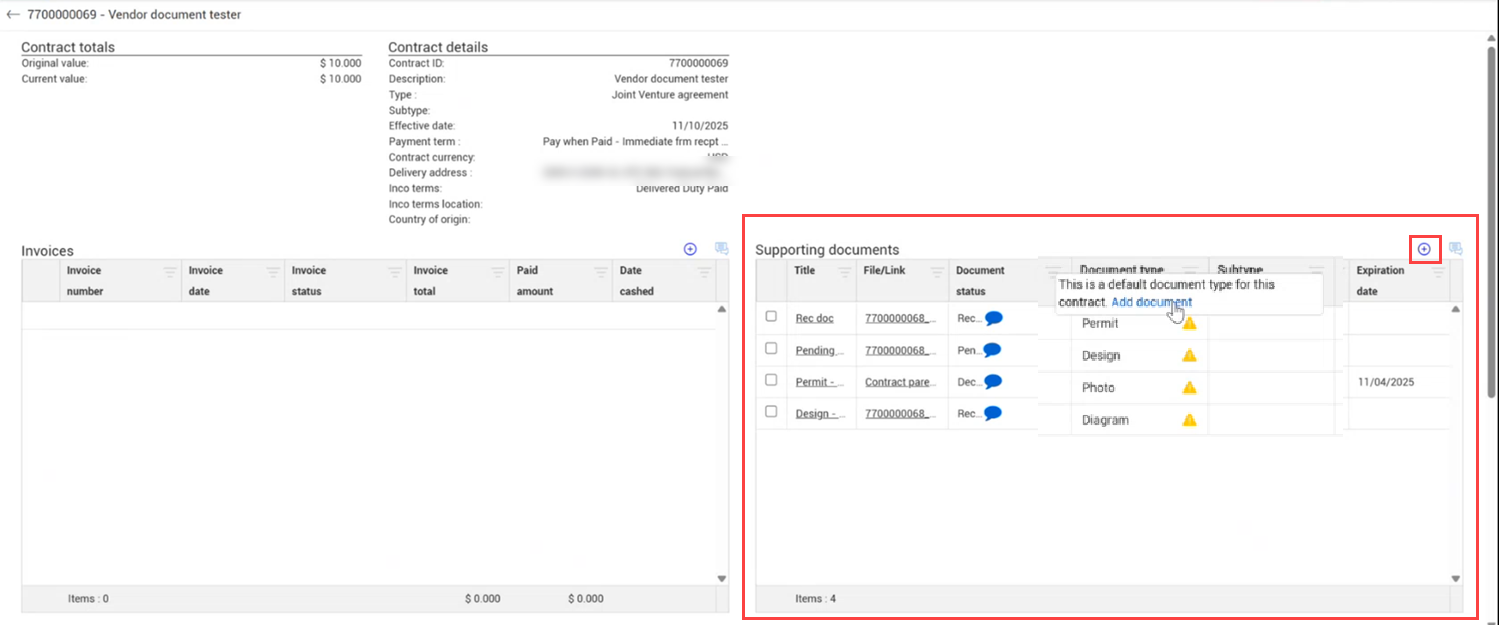
The Supporting documents section is in the Vendor contract summary page. To add a supporting document, click the Add icon.
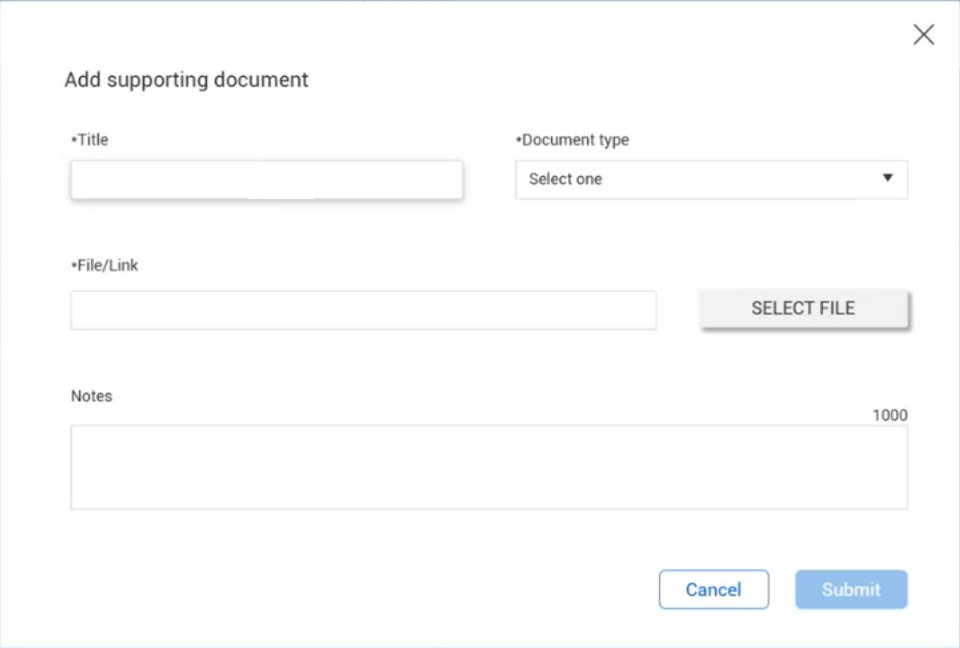
The Add supporting document dialog box opens, and you can add the document information and the document or link, and then click the Submit button.
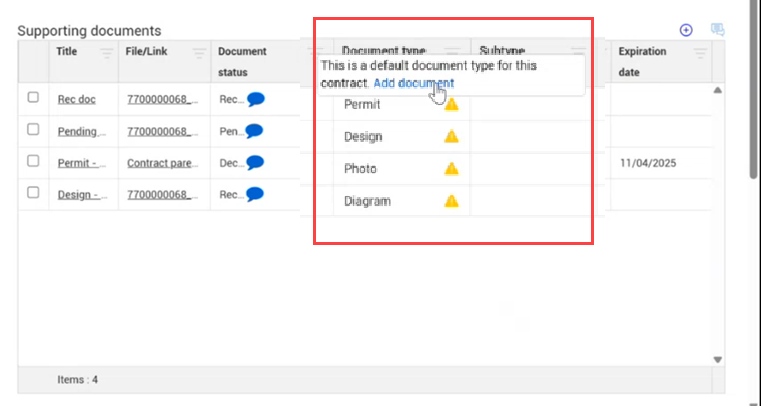
Sometimes the contractor configures a placeholder for a document type. When a placeholder shows on the Vendor contract summary page, you can hover over the yellow caution icon and click the Add document link to add the document for the document type. See Document placeholders for more information about adding a document to a placeholder.
After you submit the documents to Contract, any document added to a line with a placeholder fills the placeholder in Contract.
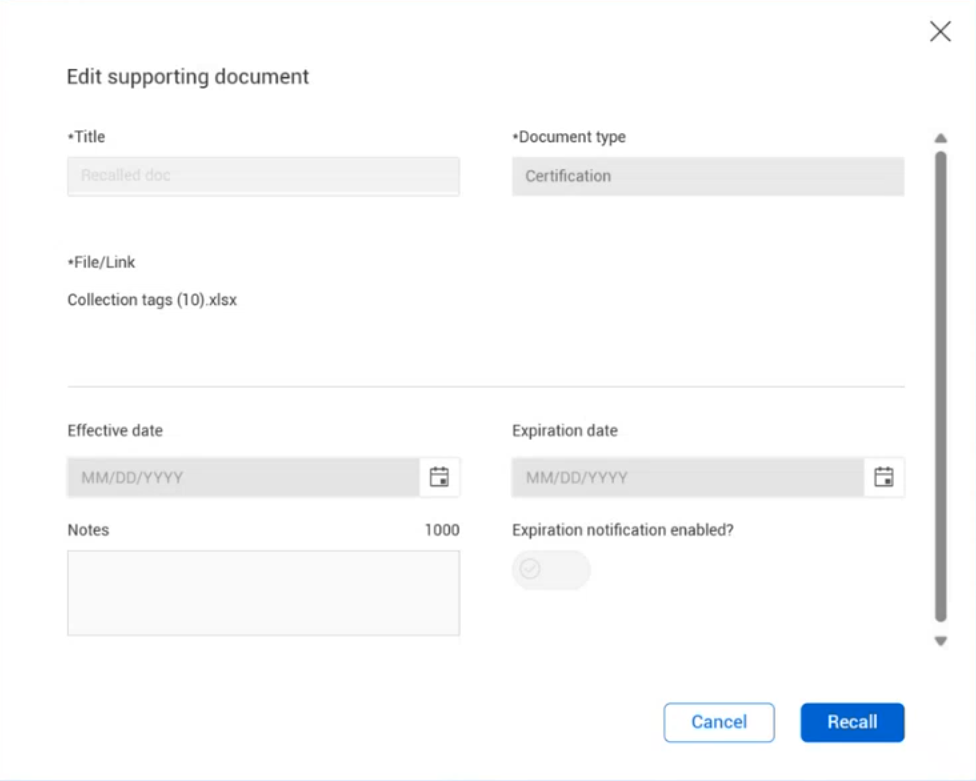
The Document status column on the Vendor contract summary page lets you view the status of the document in Contract. If the document has not yet been received in Contract, you can recall it by clicking the document to open the Edit supporting document dialog box and then clicking the Recall button.