Manage claiming schemes
Claiming schemes can be added on the Configure claiming schemes page manually, by copying an existing claiming scheme, or in bulk by importing them using the claiming scheme template. Before you create scope items, you must create claiming schemes to assigned to scope items.
Add a claiming scheme manually
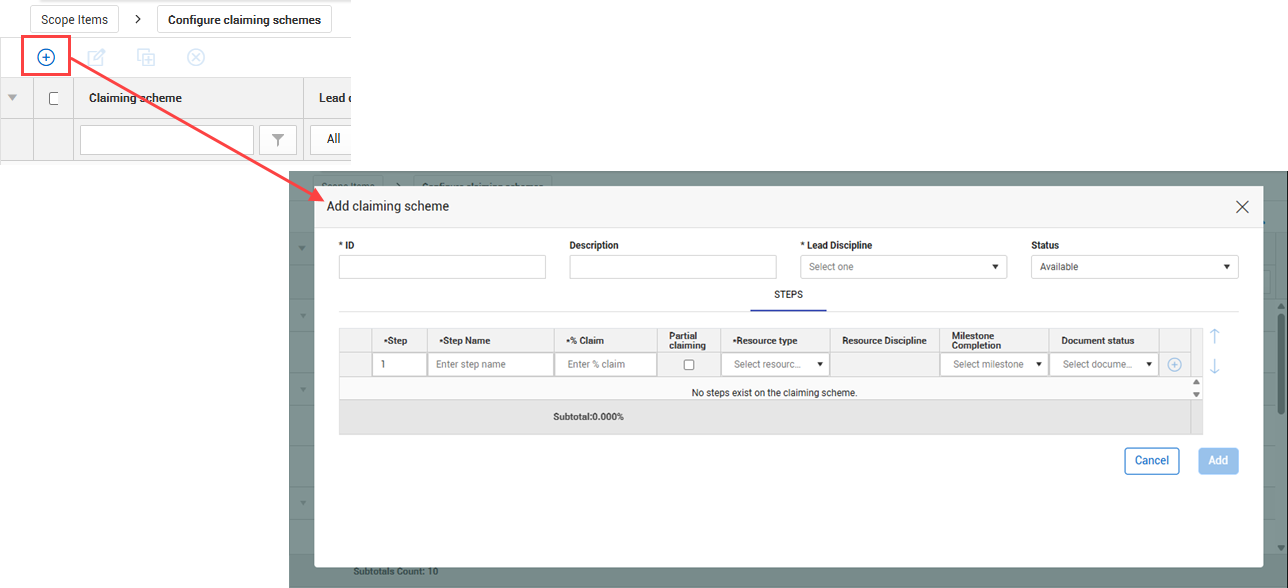
Claiming schemes can be manually added individually using the Add button on the Configure claiming schemes page. When you add a claiming scheme, you must also set up at least one step in the claiming scheme.
A system-generated milestone named Scope Complete is automatically assigned to a claiming scheme’s last step if the last step is a null value when configured.
Claiming schemes can also be added individually using the Copy button and in bulk using the Import claiming scheme button.
Considerations
-
You must have resource types and disciplines added to the organization and project to be able to add claiming schemes. See Disciplines for more information.
-
The Resource discipline field of a claiming scheme step is automatically populated based on the selected resource type.
-
You must assign a Lead Discipline to each claiming scheme. This discipline is separate from the resource disciplines assigned to each individual steps, which do not need to match the lead discipline. This is useful when a claiming scheme generally falls under one discipline even if individual steps’ assigned resource types fall under different disciplines.
-
You can optionally set up a step for partial claiming, which lets you claim only partial completion for that individual step.
-
You can optionally assign a single project milestone to a step. You must have milestones set up and assigned to the project.
-
The sum of % Claim across all steps must equal 100% to save a claiming scheme.
-
You must have the permission Add claiming schemes.
Adding a claiming scheme manually
-
To add a claiming scheme manually, click the Add claiming scheme button. The Add claiming scheme dialog box opens.
-
Complete the required fields:
-
Fill out the required fields for the first step:
-
Optionally, select the Partial claiming check box if you want to be able to claim only partial completion of this step.
-
Optionally, select a milestone under Milestone Completion for the step.
-
To add additional steps, click the Add icon on the right, and then repeat steps 3-5.
To delete a step at any time, click the Delete claiming scheme step icon on the right.
-
Click Add.
Copy a claiming scheme
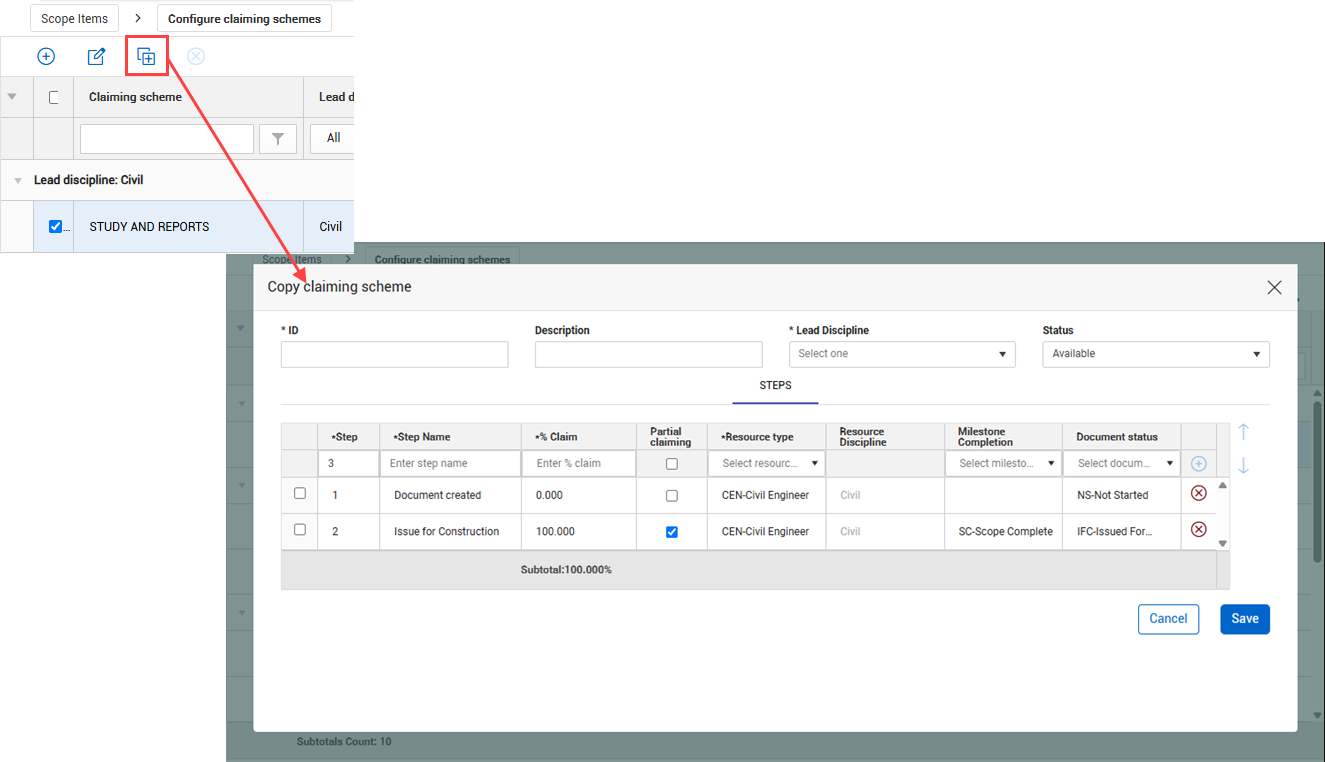
You can copy an existing claiming scheme and its steps from the Configure claiming schemes page. You also have an opportunity to modify details of the claiming scheme and its steps before saving. You must have the permission Add claiming schemes.
Copying an existing claiming scheme is useful when you want to create multiple claiming schemes whose steps are similar to each other and that only require minor modifications instead of creating each claiming scheme from scratch. You can only copy one claiming scheme at a time.
Copying an existing claiming scheme
-
Open the Configure claiming schemes page, and then select one claiming scheme in the grid. The Copy claiming scheme button is enabled in the upper left.
-
Click the Copy claiming scheme button. The Copy claiming scheme dialog box opens.
-
Enter a unique ID, and then select a Lead Discipline.
-
Modify or delete existing steps, or add new steps, as necessary.
-
Click Save.
Import claiming schemes
Importing lets you add claiming schemes in bulk using a Microsoft Excel spreadsheet. Each row in the spreadsheet represents one step in a claiming scheme.
All imported claiming schemes that pass validations are added to the Configure claiming schemes page. The imported claiming schemes that fail validations are added to the Error resolution page. All imports are shown in Audit log > Import history. To import claiming schemes, you must have the permission Import claiming schemes.
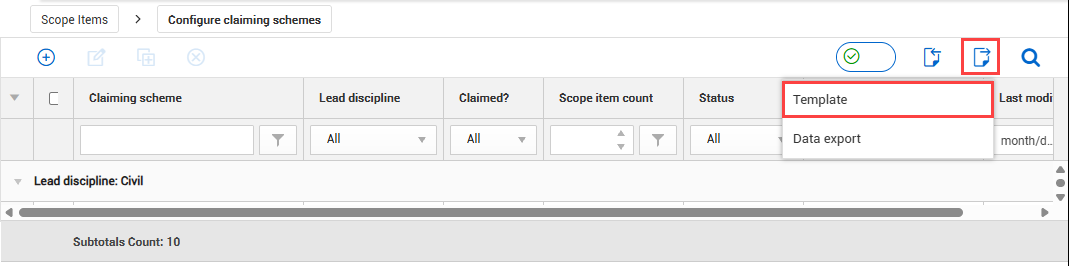
To import claiming schemes, export a claiming scheme template. When you click Export, there are two export options:
-
Template — This option exports a blank Excel template that you fill out to add new claiming schemes.
-
Data export — This option exports an Excel file of all selected claiming schemes. To select all claiming schemes, select the check box in the upper left of the Configure claiming schemes page before the data export.
You can only import new claiming schemes, not edit existing ones. To edit an existing claiming scheme on the Configure claiming schemes page, select a claiming scheme, and then click the Edit claiming scheme icon.
A system-generated milestone named Scope Complete is automatically assigned to a claiming scheme’s last step if the last step is a null value when configured.
Import claiming schemes using the Excel template
-
In the Configure claiming schemes page, click the Export claiming scheme icon, and then select Template from the drop-down menu. The Export Claiming Scheme Template.xlsx spreadsheet is downloaded.
-
Open the template in Excel.
-
Fill out the required fields for each claiming scheme and step. Each row represents one step. The ID column is the name of the claiming scheme.
-
Save the Excel file.
-
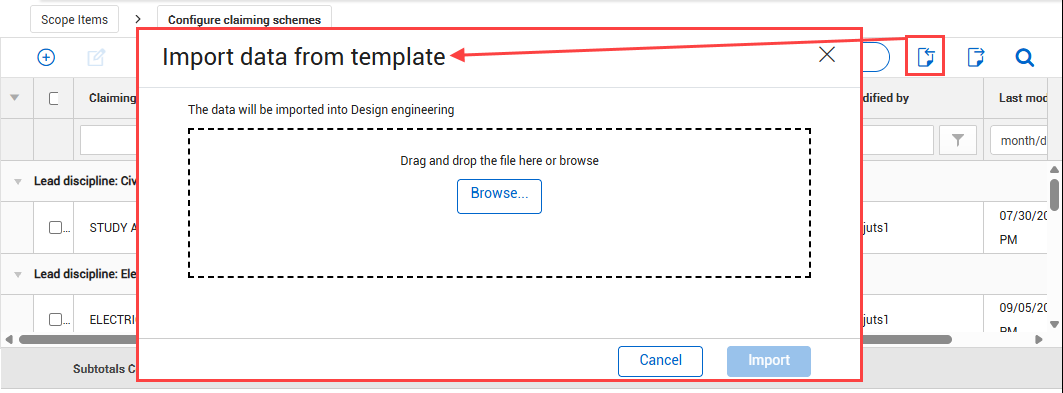
In the Configure claiming schemes page, click the Import icon.
-
In the Import data from template dialog box, click Browse, and then select the Excel file. Click Import. The Import history page opens with the status of the import.
-
If there are issues, click Completed with issues in the Status column to open Claiming scheme error resolution, and then click the claiming scheme ID to view and resolve issues before saving.