Manage claiming
In InEight Document, statuses can be configured for a document. On claiming schemes in Design, these statuses are correlated with the progress of claiming steps associated with that status. When the set of claiming steps associated with the status are completed, the scope item automatically progresses to the mapped step configured in Document. You must have the Document claiming permission in Engineering to claim a document or reverse a document claim.
Claim items
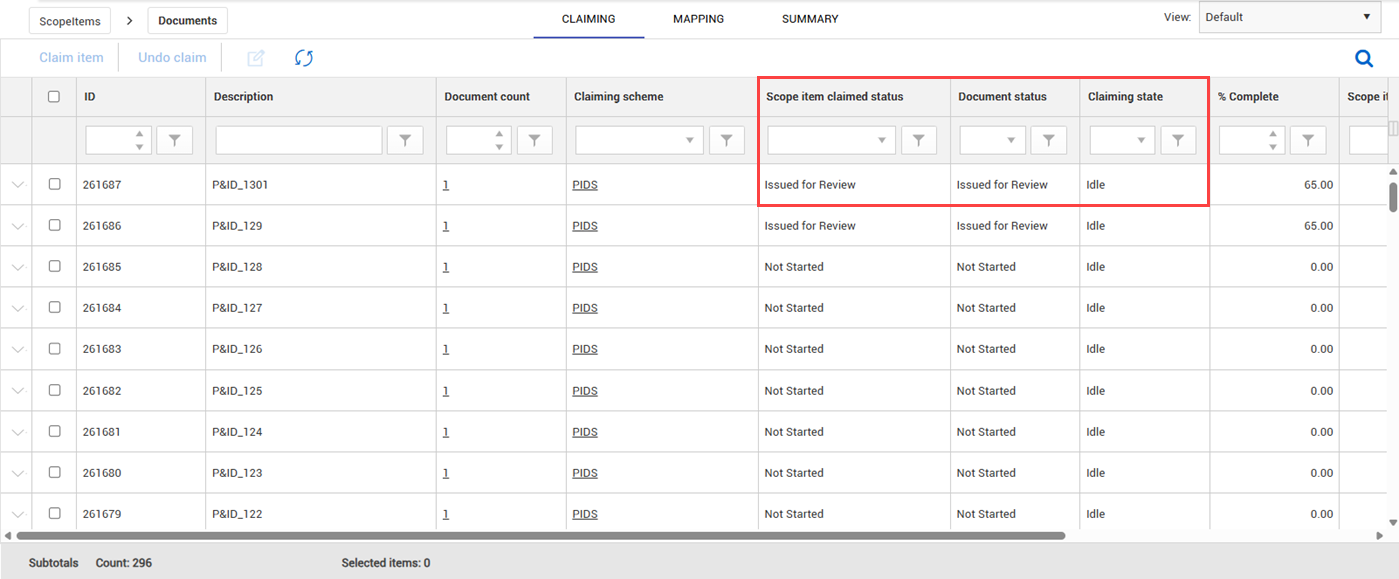
On the Claiming tab, you can claim items by selecting scope items that have a claiming state of Pending review.
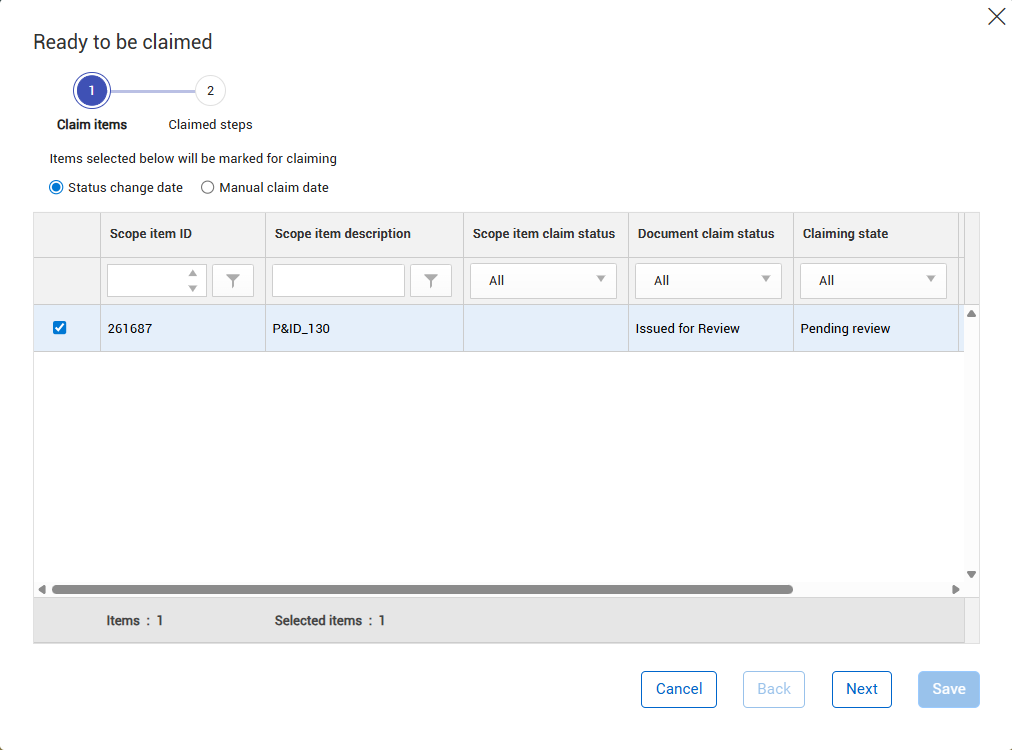
Click Claim item to open the Ready to be claimed wizard to begin the claiming process for the scope item claiming steps.
In step 1 (Claim items) of the Ready to be claimed dialog box, you can view the selected scope items for claiming.
After confirming the scope item selection, click Next to go to step 2 (Claiming steps).
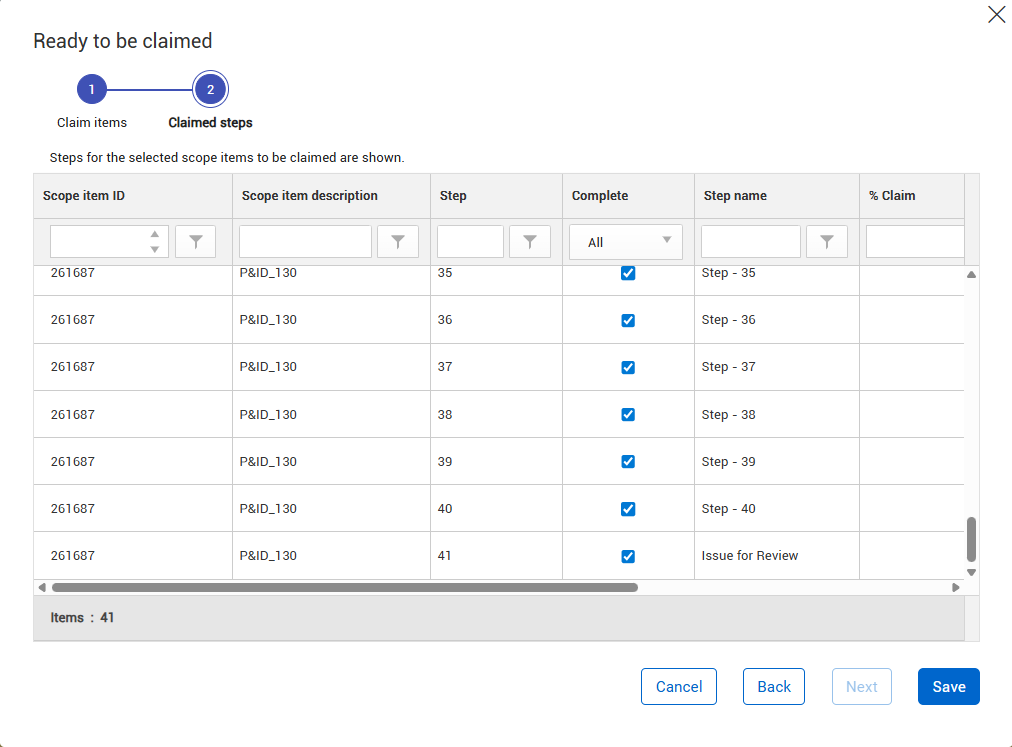
In step 2 (Claiming steps), you can view the steps for the scope item to be claimed. Click Save to complete claiming.
After claiming, the scope item claimed status progresses to the status set in Document and the Claiming state now shows Idle.
Sync to document
You can use the Sync to document option to sync data with Document.
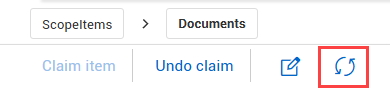
To update or refresh Design and Document data, simply click the Sync to document icon to sync data with Document. After the sync completes, a Document sync completed message shows at the top of the page.
You must refresh the Design page for any updates to show.
Undo claiming
After you perform claiming, claiming is synced with Document, and the statuses are updated in both Design and Document. To undo claiming, you must initiate it in Document.
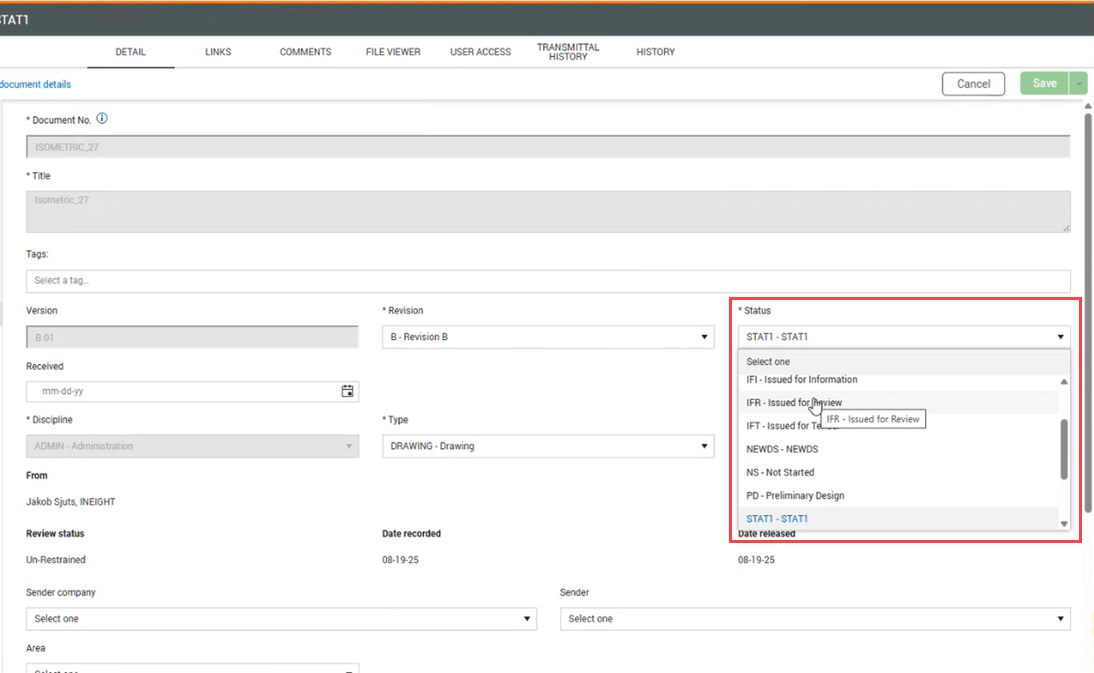
In Document, open the document, and then reverse the status to the previous one.
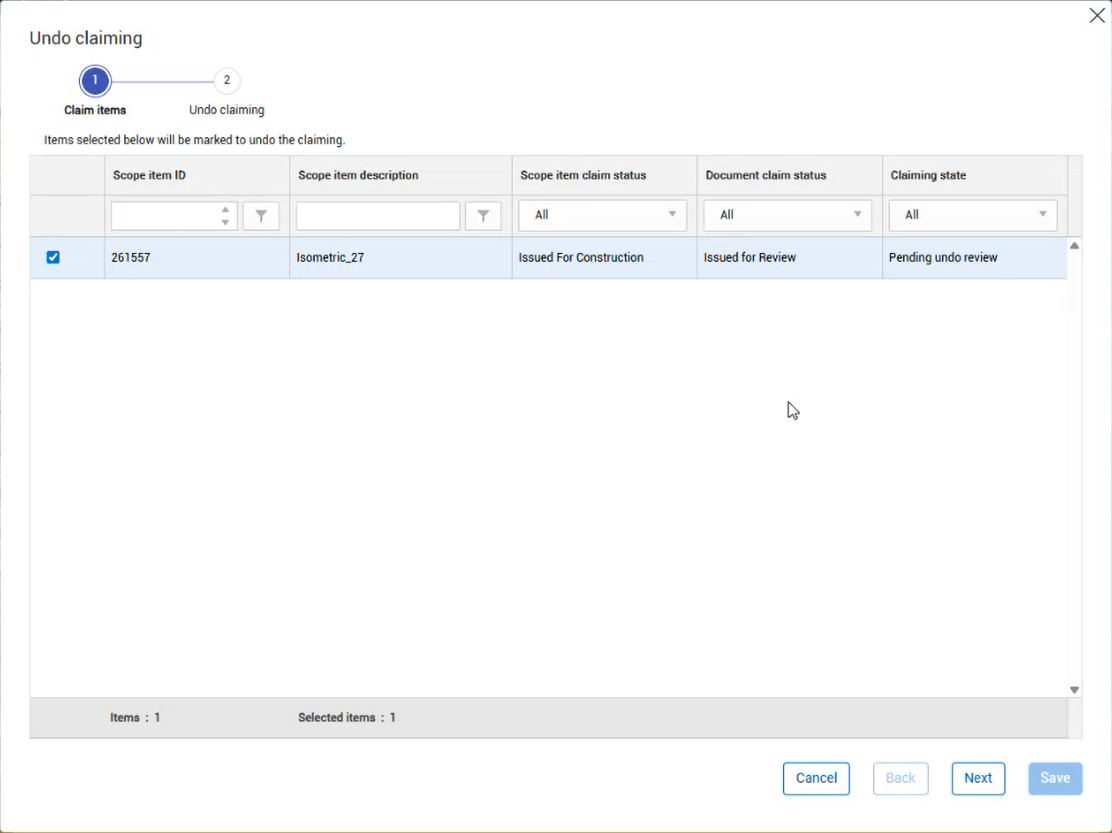
In Design, the Claiming state for the scope item changes to Pending undo review. Select the scope item, and then click the Undo claim button. The Undo claiming wizard opens.
In Claim items (step 1), the scope items are automatically selected. You can deselect scope items to exclude them from the process. Click Next to confirm selections.
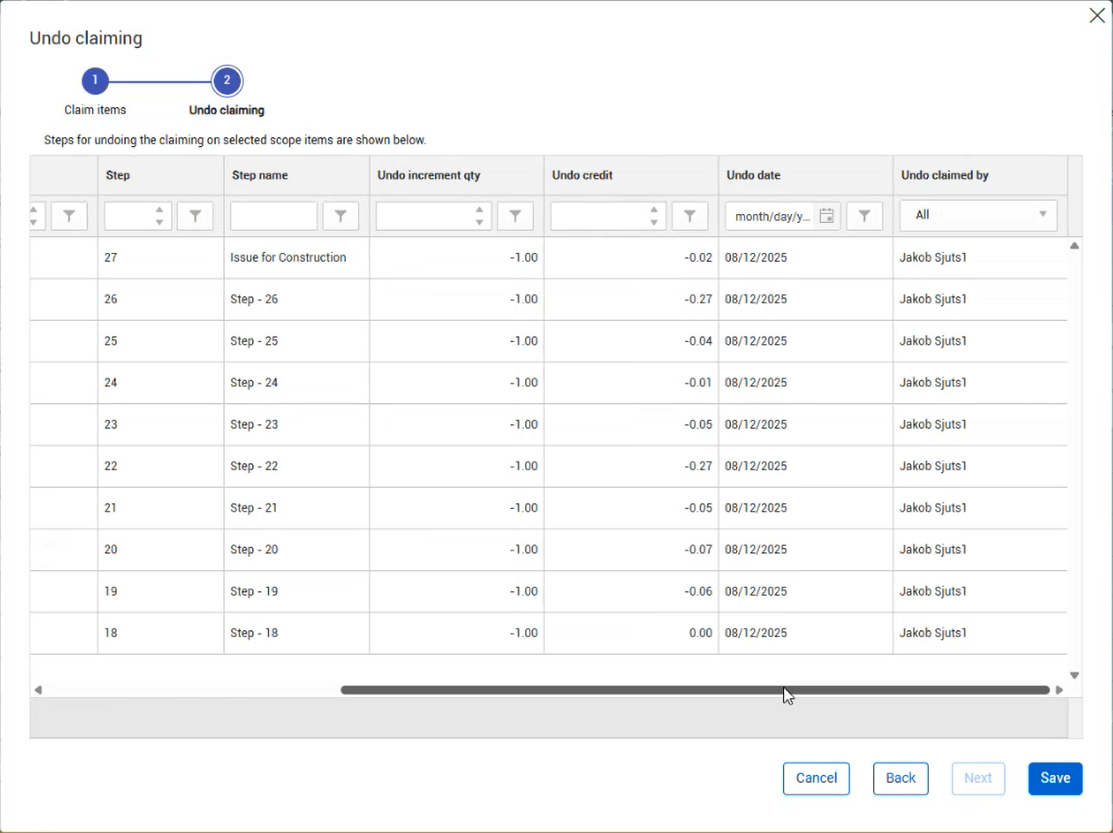
In Undo claiming (step 2), the list of steps are shown for your review. Click Save to complete the process.
Navigate to claiming schemes
On the Claiming scheme column of the Documents > Claiming tab, click the claiming scheme link to open the claiming scheme dialog box in the Scope items > Configure claiming schemes page, in a new tab.
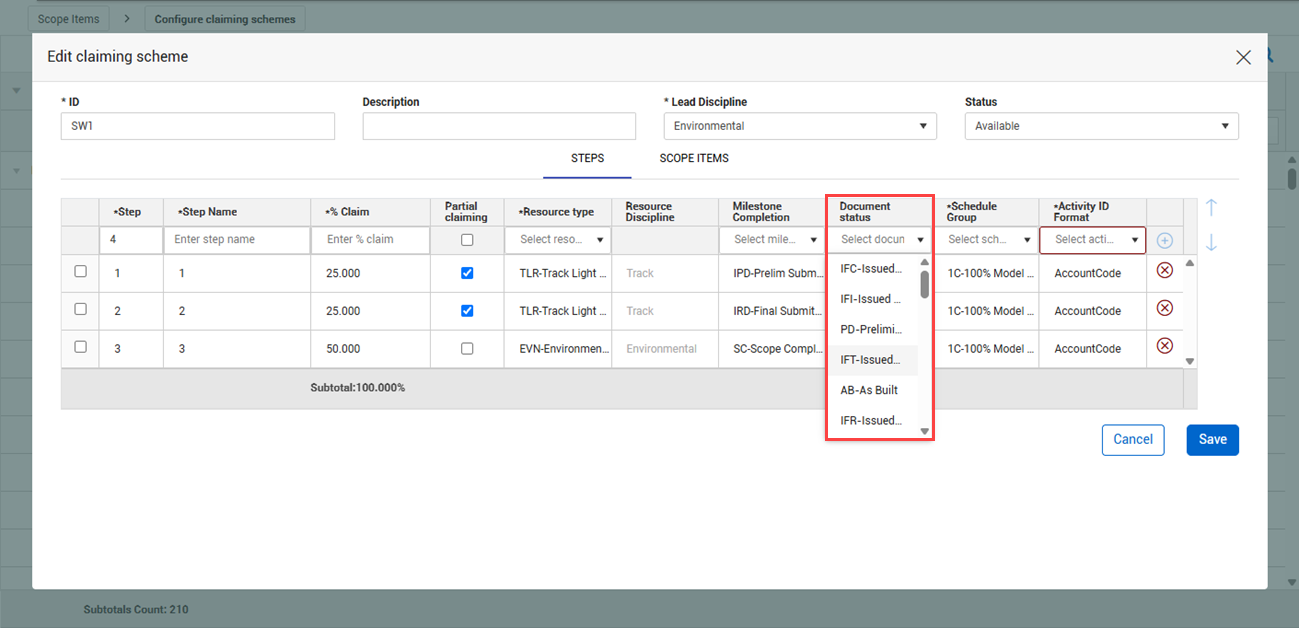
On the Edit claiming scheme dialog box, you can view the synced status and click in the Document status field to select from a drop-down list of available statuses synced from the mapped project in Document.