Schedule integration
Scope items can integrate with Schedule to sync schedule activities aligned with scope. When the Enable schedule integration is set to ON in project settings, you can map schedules to scope and choose to map your baseline and current schedule activities to scope items. The schedules on a project are automatically synced to Design. For more information, see the project settings Schedule topic.
After you map schedules, you can then associate schedule activities to scope items in the Scope Items dialog box.
Map schedules
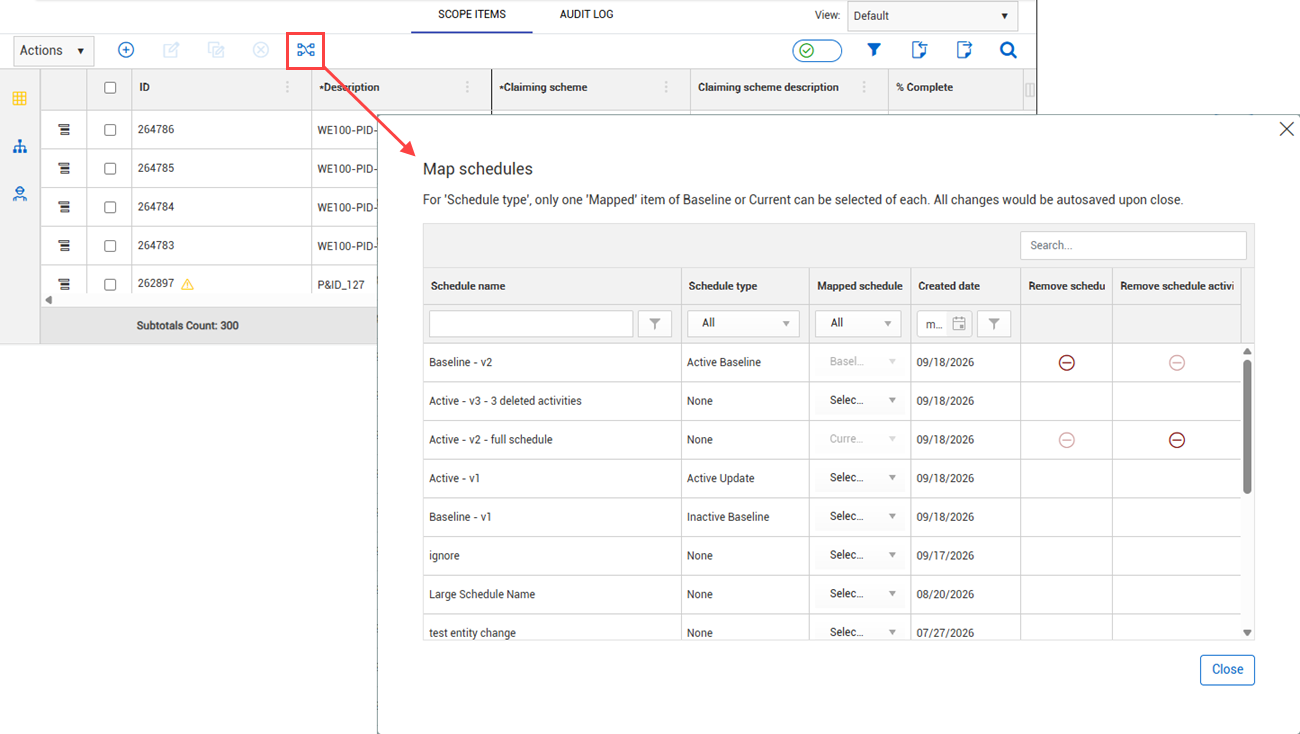
Design requires a current or baseline (if the Enable baseline schedule mapping setting is enabled) schedule to be mapped so the applicable set of schedule activities are made available for association to the scope item. Click the Map schedules icon on the Scope Items page to map scheduels to your project. In the Map schedules dialog box, click the Mapped schedule drop-down list for a list of schedules.
When a schedule is mapped, any changes to the Schedule activity data are automatically synced to Design. Automatically syncing Schedule activities reduces the need for manual entry, preventing duplicate date updates on scope items.
In the Map schedules dialog box, you can map a schedule for Baseline and Current schedule in the Mapped schedule column.
-
Mapping a schedule is required to map schedule activities on a scope item.
-
Only one Baseline and Current schedule can be mapped at a time. When you change your mapped schedule, Design attempts to remap schedule activities where Schedule activity IDs match between the old and new schedules. A summary dialog box shows scope items that lost their mapping due to the change. You can export the list to review.
-
You can remove schedule and schedule activities. In the Remove schedule activities column, click the Remove schedule activities icon to remove all the scope item association to activities. After the schedule activities are removed, in the Remove schedule column, click the Remove schedule icon to remove the mapping to that schedule.
Scope item Schedule section
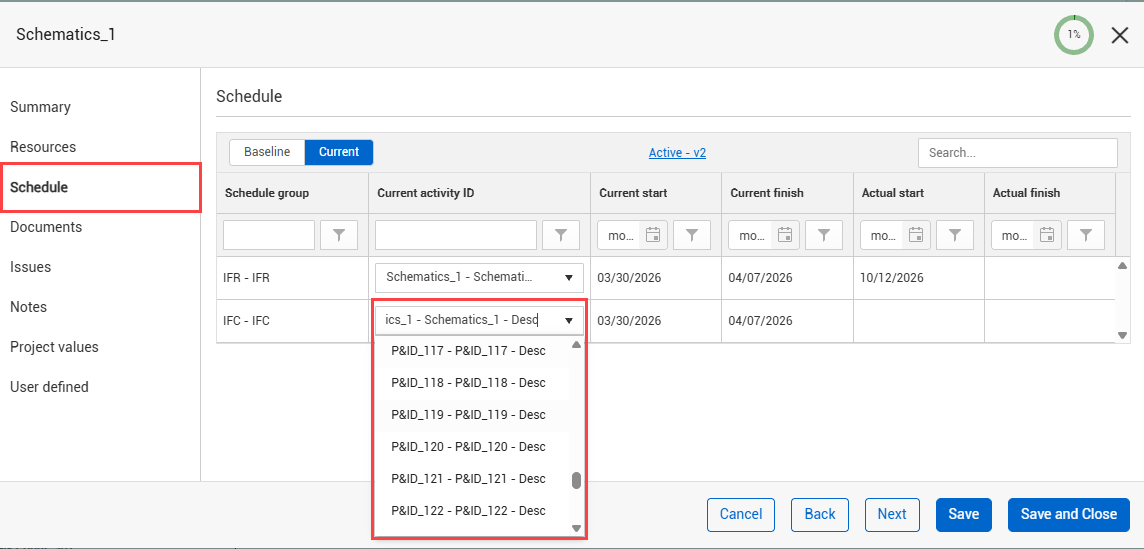
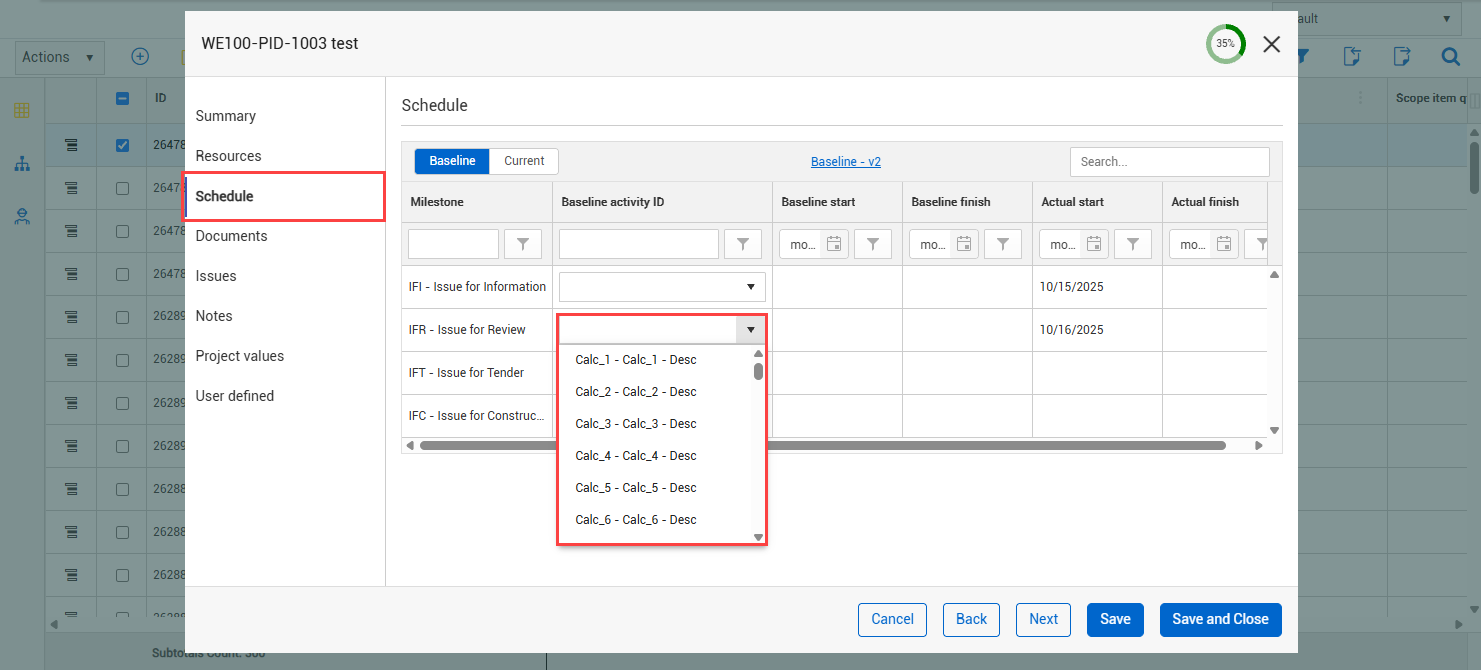
After schedules are mapped to your project, you can associate schedule activities with the scope item in the scope item’s Schedule section. You can select from the following:
-
Baseline — Associate baseline activities in the Baseline activity ID column. This option is available when the baseline project setting is enabled.
-
Current — Associate current activities in the Current activity ID column.
The schedule activity start and end dates are populated automatically. You can also import activity associations from the scope item import template.
The Schedule data can be viewed in dates and activity columns of the Scope Items page so you can validate that project information is consistent across the Engineering module. You can view the Schedule data in the following areas:
-
Scope Items page
-
WBS page
-
Work packages page
-
Documents page
If you have multiple activities associated to the above entities, a min/max set of dates shows.