Scope item claiming
Summary
You can claim earned quantity against a scope item directly on the Scope items page. Claiming is done in the Claiming tab of the dialog box that shows for each scope item in the grid.
Considerations
-
To claim, you must have the permission Edit claiming.
-
To claim against a scope item, a WBS phase code must be assigned to all resource types associated with the scope item.
-
If any compliance issues exist on a scope item, you cannot claim against it.
-
For partial claiming using the Claim qty field, you can enter any quantity less than or equal to the scope item quantity. If Claim qty equals Scope item qty, the Complete check box is automatically selected.
-
If you enter a partial quantity, and then later claim additional quantity in the same step, you must enter the total amount up to that point, not an incremental amount. For example, if a step is partially claimed for 10, and you want the current claimed quantity to be 100, you must enter 100, not 90.
-
You can enter a value in the Claim qty % column if partial claiming is enabled. After you enter the percentage value, the Claim qty field is automatically filled with the corresponding quantity value.
-
Claiming history can be seen in the History tab of the scope item slide-out panel and in the Claiming history tab of the Audit log.
Claim on a scope item
You can claim earned quantity against scope items directly from the Scope items page.
Claim a step on a scope item
-
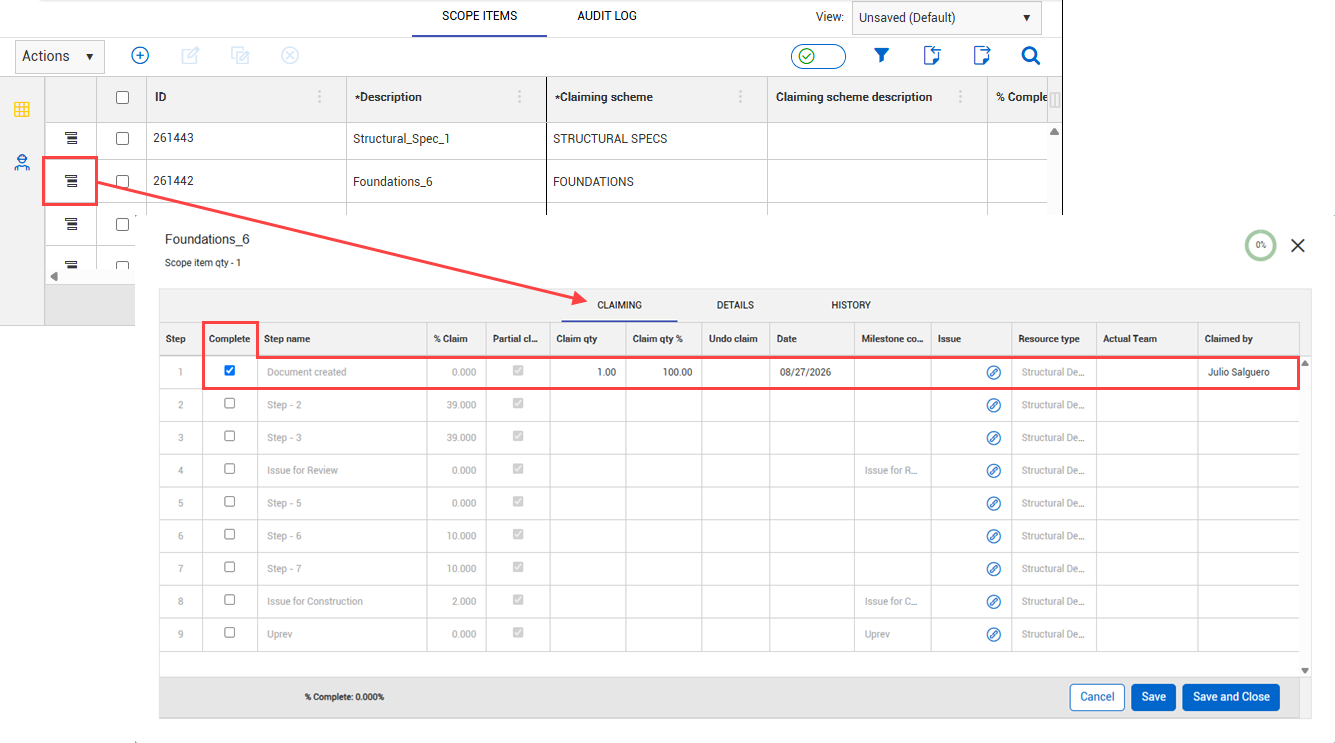
On the Scope items page, click the Claiming icon to the left of the scope item. A dialog box opens to the Claiming tab.
-
Select the check box in the Complete column for the step.
-
You can edit the Date and Claimed by fields. By default, these fields are automatically populated with today’s date and the user who selected the check box.
You cannot select a future date.
-
You can enter a partial quantity in the Claim qty column.
Partial claiming must be enabled for the associated claiming scheme step to use this feature.
-
Click Save or Save and Close. The claim is locked and the Date, Actual team, and Claimed by fields cannot be edited.
To make changes to a claim, the step must be unclaimed, and then reclaimed.
Import claiming in bulk
Importing lets you claim against scope items in bulk. All imported claiming that passes validations is added to the Scope items page. The imported claims that fail validations are added to the Error resolution page. All imports are shown in Audit log > Import history. You must have the permission Import claiming. You can import all claiming based on either quantity or percentage. See the procedure below for more information.
Importing claiming
-
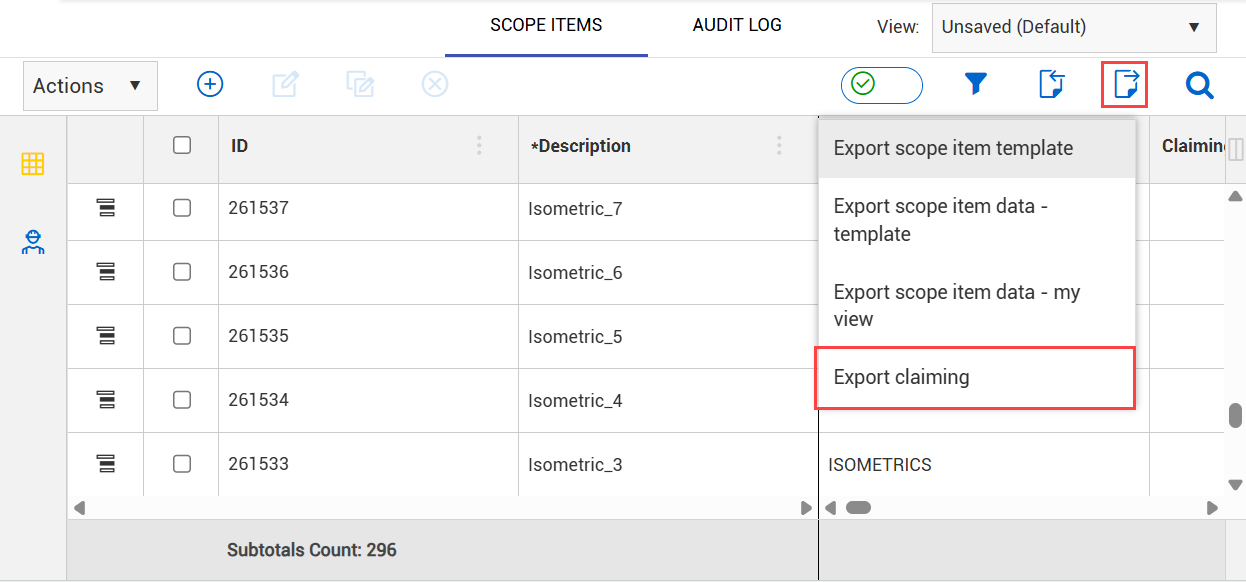
To import claiming, on the Scope items page, click the Export icon, and then select Export claiming. A Microsoft Excel spreadsheet is downloaded.
-
Fill in values in either the Claim qty % or Claim qty columns in the spreadsheet, and then save it.
-
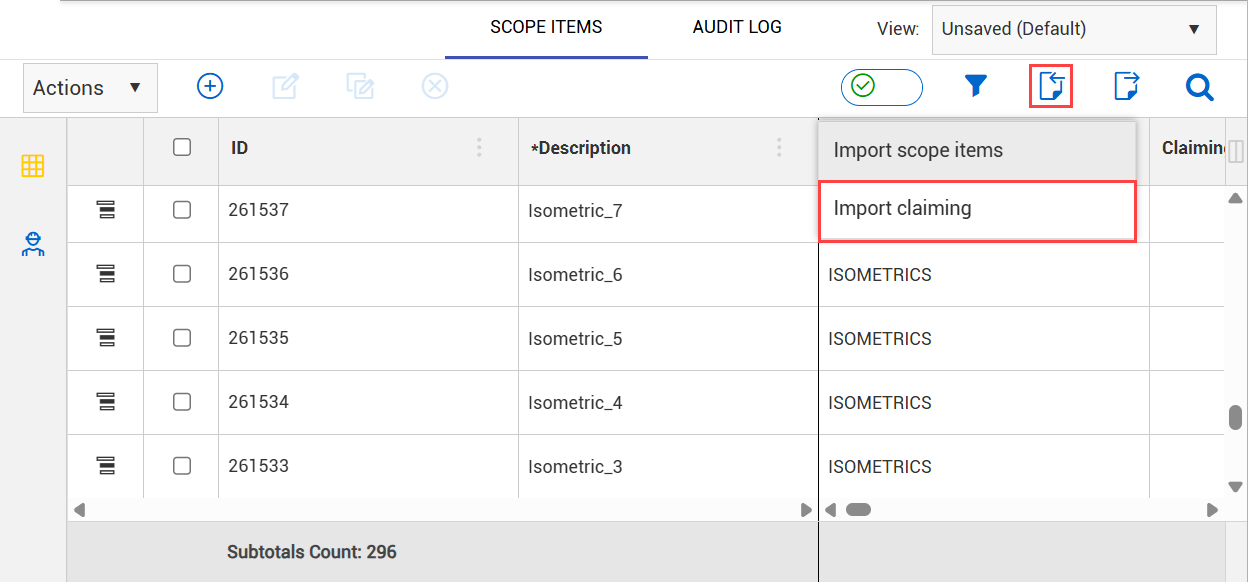
On the Scope items page, click the Import icon, and then select Import claiming.
-
Click Browse, and then select the saved spreadsheet.
-
Select either Claim by quantity to import only values in the Claim qty column or Claim by percentage to import only values in the Claim qty % column.
-
Click Import. The import status is shown, and then the Import history page opens. If there are any errors, they are shown in the table.
-
If there are issues, click Completed with issues in the Status column to open Claiming error resolution, and then resolve issues before saving.
Undo claiming
Undo claim wizard lets you undo claims for a step or scope item, which reduces the claiming back to 0% complete. This reverses all claims for the specific step or scope item to the day the original claim occurred. You must have the permission Edit claiming.
You can undo claiming for a step or an entire scope item. When a step or scope item has not been claimed and is at 0%, the undo claiming icons do not show. All original claims and claim reversal are captured for audit purposes.
Undo claim for a step
-
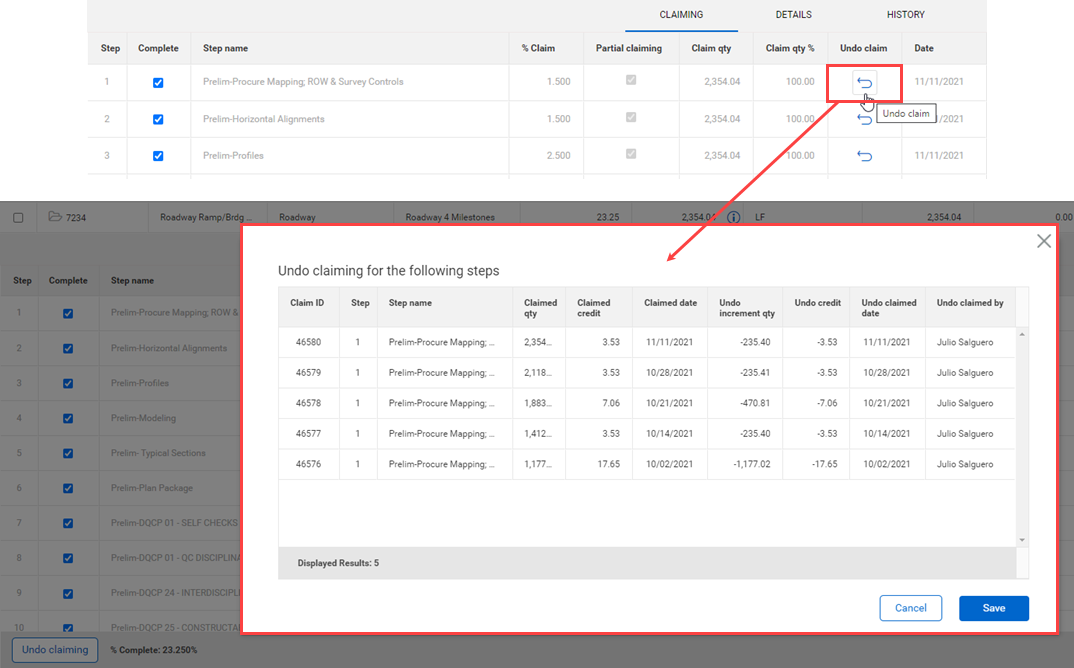
On the Scope items page, click the Undo claim icon.
A dialog box shows all claims for the step.
-
Click Save to undo claiming for the steps shown.
Undo claim for a scope item
-
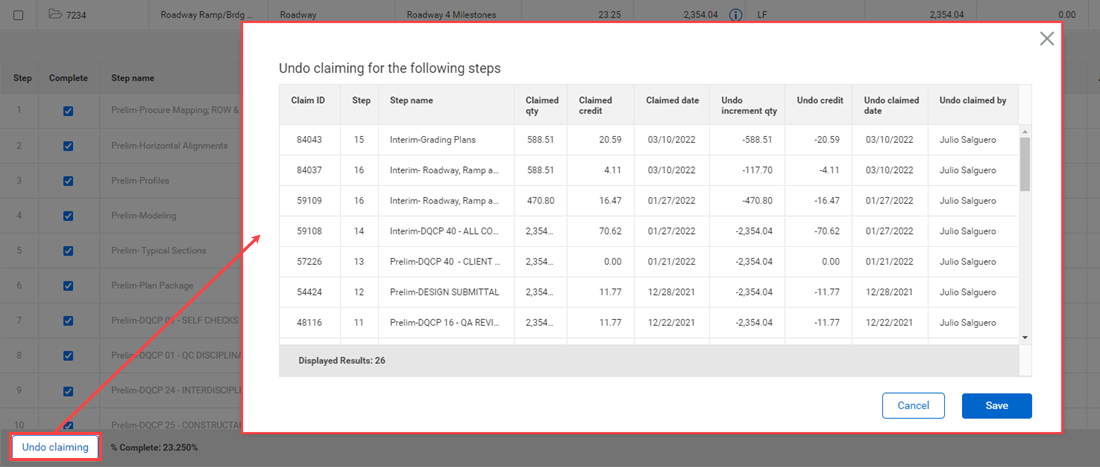
On the Claiming tab, click the Undo claiming button at the bottom left.
A dialog box shows claims for all the steps in the scope item.
-
Click Save to undo claiming for the all the steps in the scope item.
When InEight Control integration is enabled, the undo claims are sent to the assigned WBS in Control.