Linking to the InEight Estimate job workbook
In every Estimate job there is an embedded workbook for doing side calculations and take-offs. You can link calculations in the job’s workbook to fields in your Estimate job to automatically update your estimate. When you create a new job from scratch, the Library master workbook is copied to create a new embedded workbook for the job.
Estimate workbook elements
The workbook, which is a spreadsheet document, is where you can create a new document, load an existing file, or retrieve data from other data sources (for example, lists or data tables). You can also export your document to PDF and HTML supported formats. The workbook includes the following basic elements:
| Element |
Description |
| Worksheet |
A single page within a workbook. You can create, rename, move, copy, hide, or delete worksheets. |
| Rows and columns |
Insert, copy, hide, freeze, resize, or remove rows and columns. |
| Cells and cell ranges |
All worksheet data is stored in cells. Cells can contain different values: numbers, dates, text, logical values, and formulas. |
| Defined names |
Define names for cells and formulas to make them easier to understand and maintain. A Name Box and Name Manager are included to allow you to create, view, edit and delete names. |
| Shapes and pictures |
Add shapes and pictures to worksheets. All shape types are supported, from simple lines and rectangles to 3D shapes with advanced effects. |
| Charts |
Create charts to visualize data in your spreadsheets. You can choose from a wide range of chart options, from commonly used column and line charts to more sophisticated charts such as waterfall, histogram, sunburst, and funnel. |
| Tables |
Convert a cell range into a table. You can then sort and filter the table data, use table names in formulas, create a calculated column, and display the table’s total row. |
| Pivot tables |
Create pivot tables to summarize and analyze large amounts of data in your document. |
| Threaded comments |
Use comments to attach additional information to worksheet cells. |
| Hyperlinks |
Insert hyperlinks into worksheet cells to navigate to a web page or a specific location within the workbook. |
Data management
Within each spreadsheet of the workbook, you can sort, filter, and group rows and columns, and calculate subtotals for related rows.
You can also protect the workbook or worksheets in the workbook to prevent unauthorized access.
Formulas
The workbook has a Formula Bar that allows you to create, view, and edit formulas of any complexity. The spreadsheet includes more than 400 built-in functions designed to address a broad range of use cases, from basic mathematical functions to complex statistics, engineering, and financial formulas. The workbook also supports user-defined (custom) formulas.
Opening the workbook
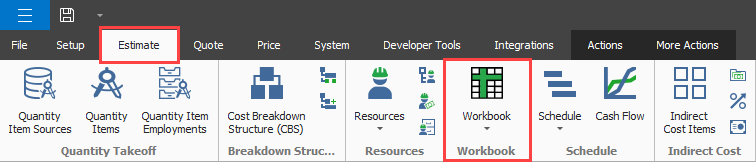
To open your job’s workbook, select the Estimate tab, and then click the Workbook icon in the Workbook section.
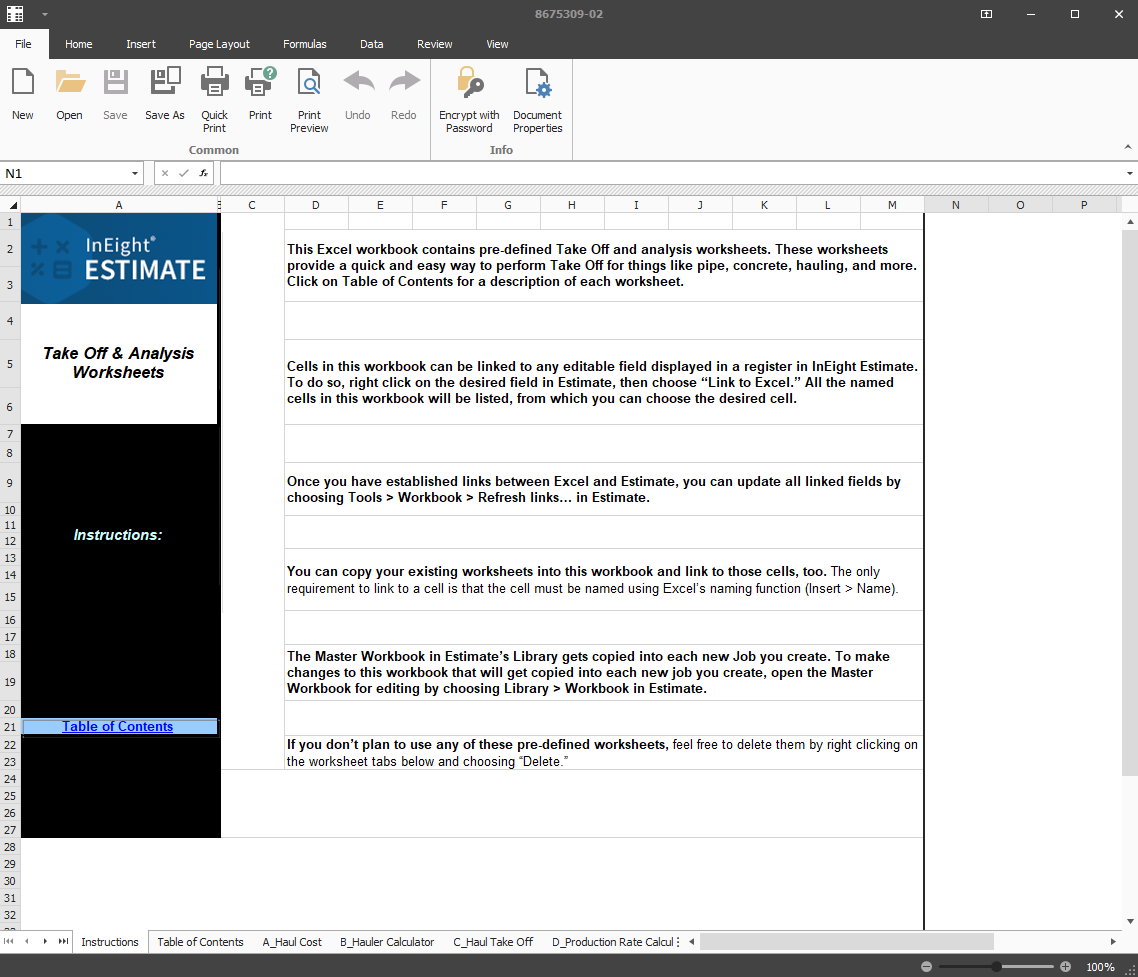
The embedded job workbook opens.
The job workbook has pre-defined take-off and analysis worksheets. You can also create your own pre-defined take-off and analysis worksheets. Open the applicable job worksheet, plug in your values, and the worksheet calculates your results.
Linking to and from the workbook
Estimate's linking capabilities with the job workbook is done in one of two ways: a field in Estimate can be populated with a value from the job workbook, or a cell in the worksheet can be populated with the data from an Estimate field. This two-way linking functionality lets you quickly perform workbook-based take-off or formula-driven analysis.
The following example describes how to link a calculation into InEight Estimate from the job workbook.
Link Estimate to the job's workbook
-
Open the register you want to link to. For example, if you want to link a take-off calculation, open the CBS Register.
-
Create a new item at the bottom of the register. Continuing the example from the previous step, you would create a new cost item in the blank row at the bottom of the CBS register and name it Concrete Foundation.

-
Click the Workbook icon in the Estimate tab to open the job’s workbook.
-
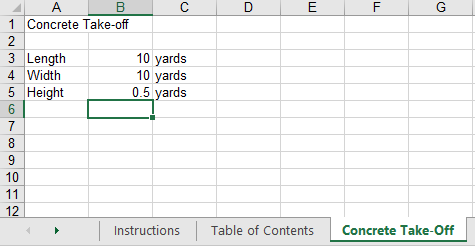
In the job's embedded workbook, create a new worksheet, and then enter basic data. The image below shows a worksheet named Concrete Take-off and the applicable information:
-
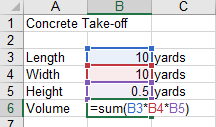
Create a new row for calculations (for example, to calculate the total cubic yards by factoring the length, width, and height quantities).
-
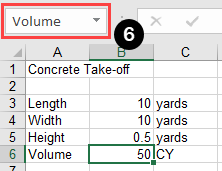
Estimate only links to named fields in the worksheet. Click in the field you want to name , as shown in the image below, and then click in the Field Name field and enter the name.
-
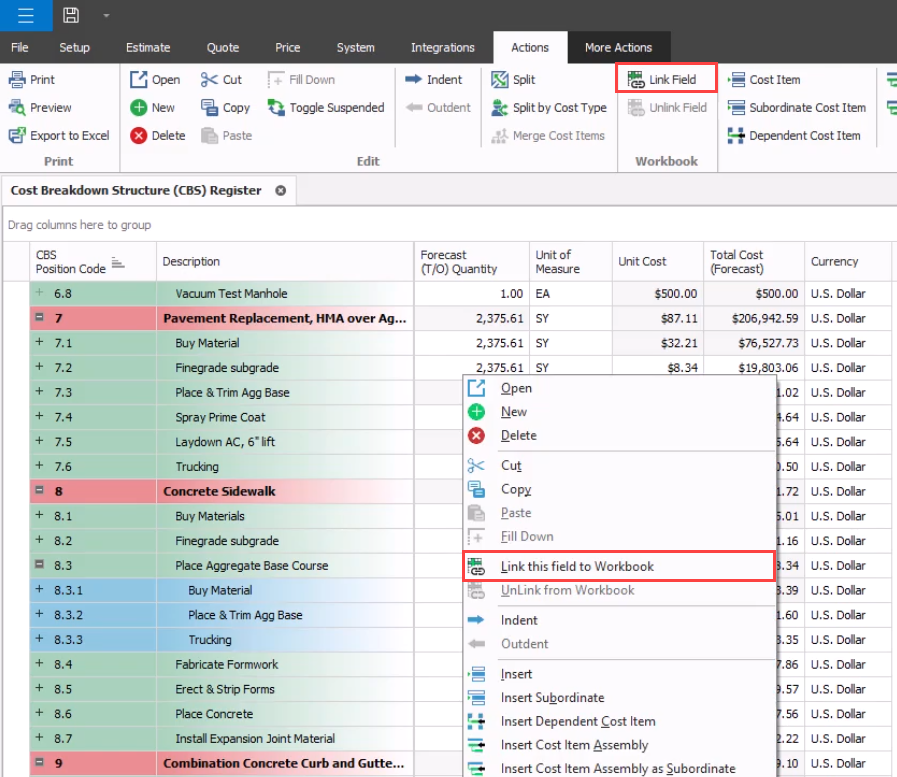
Go back to the register, and then right-click the field you want to link to. For this example, right-click the Concrete Foundation cost item Forecast (T/O) Quantity field, and then select Link this field to Workbook.
You can also link the field by selecting the field and then selecting Link Field from the Actions tab.
-
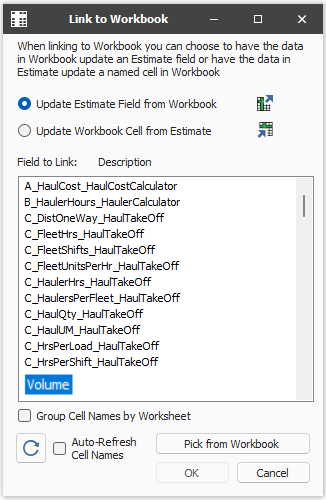
In the Link to Workbook dialog box, select the Update Estimate Field from Workbook button.
-
In the Field to link window, select the new field. (you might need to click the Refresh button for the field name to show).
-
Click OK. The Forecast Quantity field for Concrete now is linked to the Volume field in the worksheet and populates with the take-off quantity (50)
Update links
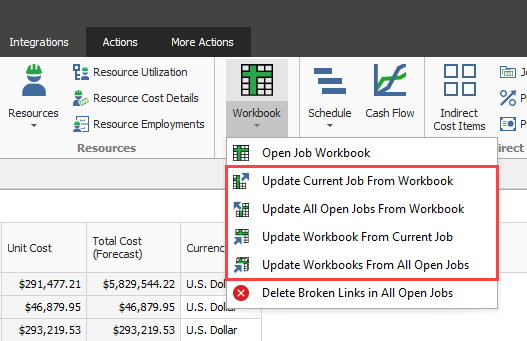
When data in Estimate or the job workbook changes, you can quickly update all links, in just the currently active job or in all open jobs. Expand the Workbook drop-down list on the Estimate tab, and then select one of the options.