Bluebeam integration
The Bluebeam integration lets you import the takeoff data from Bluebeam directly into your estimate easily and efficiently. You can also configure cost item filters in Estimate to quickly configure your estimate.
The imported takeoff data is saved and readily available as the source of the scope of work during the estimate process of the project.
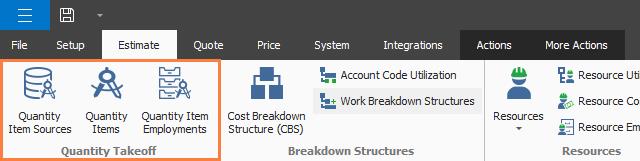
After quantifying scope items in Bluebeam, you can use the Quantity Item Sources, Quantity Item, and the Quantity Item Employments registers in the Estimate Quantity Takeoff group to manage the data.
-
Quantity Item Sources - Opens the Quantity Item Sources Register, where you can select Bluebeam as your source, and then select your Bluebeam source file to bring the takeoffs into the Quantity Item Register. You can save your mappings as a setting template to use for future imports.
-
Quantity Items - Opens the Quantity Items Register where you can view the list of quantity items imported from the Bluebeam source document. After the import is complete, you can apply quantity items to cost items in the Cost Item Record’s Quantity Items tab. For more information, see Quantity items.
-
Quantity Item Employment - Opens the Quantity Item Employment Register where you can view the list of quantity items employed on cost items, the CBS position code location of the quantity item’s employment, and several other columns that provide details from the Bluebeam takeoff data, which are similar to the Quantity Item Register columns.
To import quantity items from Bluebeam, select Quantity Item Sources. In the Quantity Item Sources Register, select Bluebeam as your source. You can then select a Bluebeam source file.
In the Quantity Item Sources Register, the Source System column shows the source used to import quantity items.
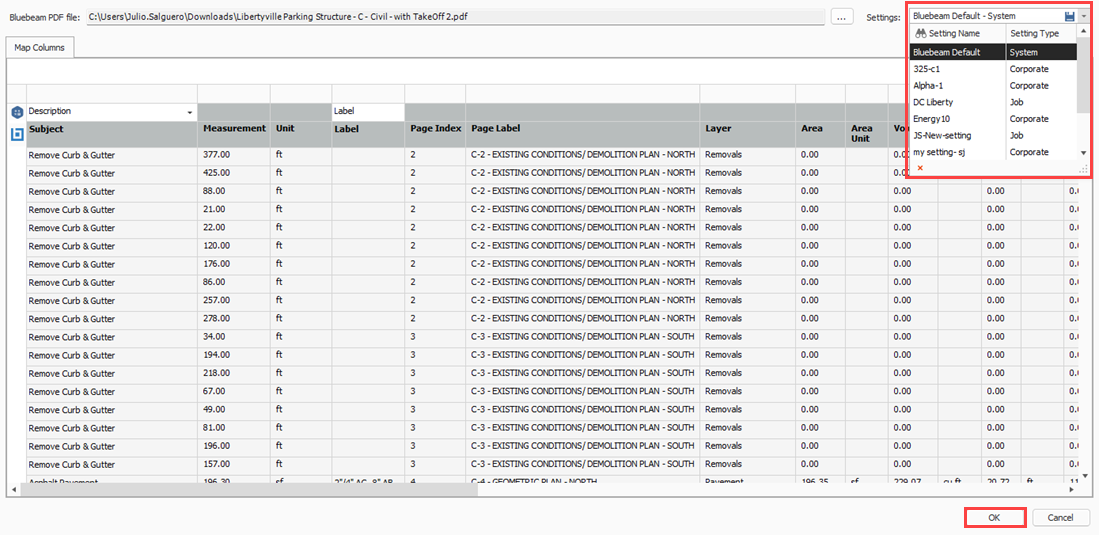
After you map Bluebeam fields with Estimate fields, you can save the mappings as a template in Settings to use for future imports. You can also save the template to your computer as a backup and share it with other users or use it in another Estimate environment. For more information, see Settings overview.
Import Bluebeam takeoff quantities
-
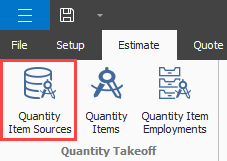
In the Estimate tab, click Quantity Item Sources. The Quantity Item Sources Register opens in the Actions tab.
-
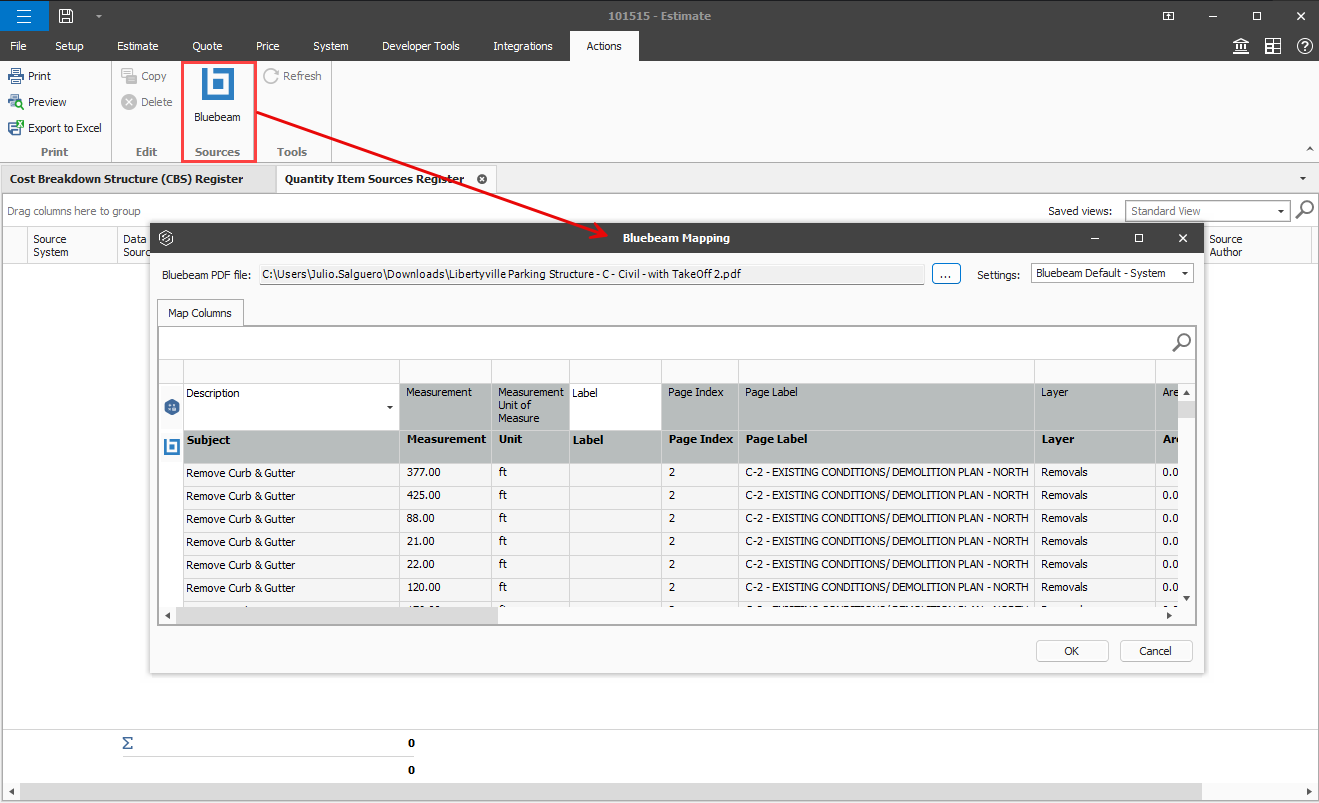
In the Sources section select Bluebeam. The Bluebeam Mapping dialog box shows.
-
In the Bluebeam Mapping dialog box, click the Open file button to the right of the Bluebeam PDF file field, and then select your Bluebeam file.
-
Click Open.
On the Map Columns tab, select from your saved Settings templates, and then click OK to import the quantity takeoff data.
You can view the imported quantity items in the Quantity Items Register.