Setting templates
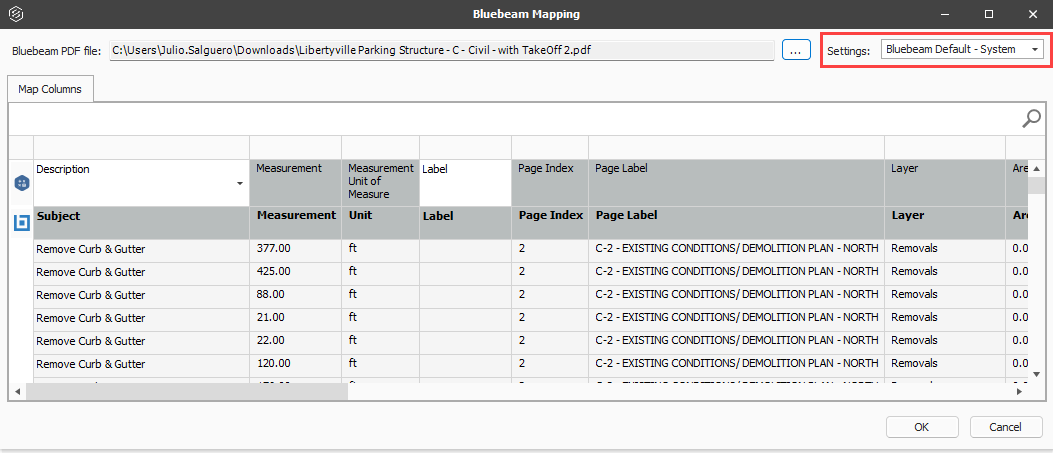
After selecting your source file, you can view the Settings list at the top right of the source file Mapping grid. The default Settings template is <source> Default – System.
You can use previously saved setting templates to quickly use the saved mappings and import quantity items.
You can create a new setting or update existing settings using the newly selected column mappings.
Create or update settings after selecting new mappings
-
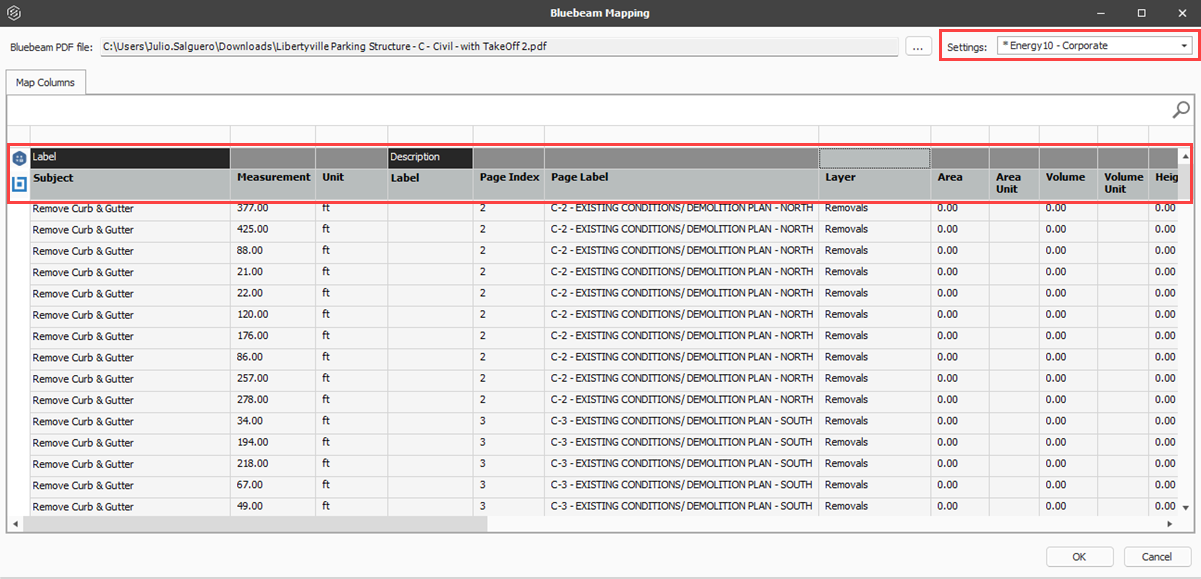
On the Map Columns tab, select from your saved Settings templates, and then update the mapped columns to align Bluebeam with Estimate to import takeoff data.
The Settings file name shows an asterisk next to it indicating that changes have been made to the current setting. You might need to click within the Bluebeam Mapping window to update the changes.
-
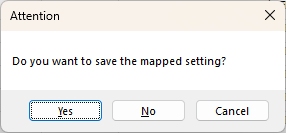
Click OK. The Attention dialog box shows.
-
Select No if you do not want to save the setting with updated mappings. The setting shows with an asterisk in the list of source files alerting you that there are unsaved changes.
-
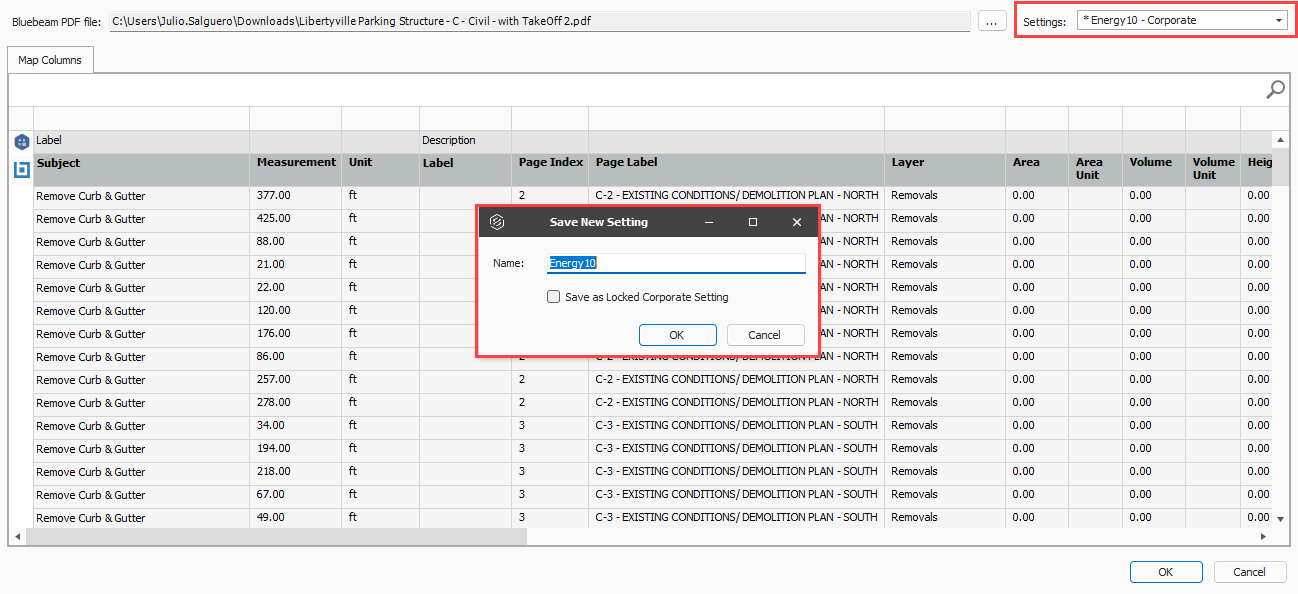
Select Yes to save the setting with updated mapping. The Save New Setting dialog box opens. You can save the new setting with the same name or create a new setting.
-
Click OK to save the updated mappings with the existing setting. To save under a new setting name, enter a new name, and then click OK. You can optionally select Save as Locked Corporate Setting to save as a corporate setting.
After importing, you can view the imported quantity items in the Quantity Items Register.
Delete a setting
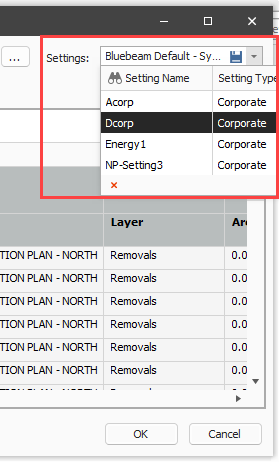
To delete a setting from the list, select your setting, and then click the drop-down list again. Click the Delete icon.
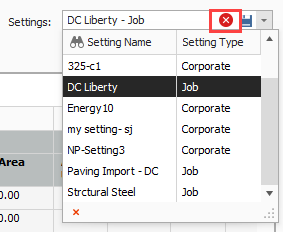
When you delete a setting that has been applied to an import, it shows in the Quantity Item Sources Register in red text.