Sort and filter columns
You can sort and filter your columns to drill down to specific information.
Sort columns
You can sort on any column by clicking once on the column header.
-
In the CBS Register, click on the Total Cost (Forecast) column to sort the column in ascending order (e.g., 1 to 10, A to Z).
-
Click the Total Cost (Forecast) column a second time to sort in descending order (e.g.,10 to 1, Z to A).
Use Ctrl-click to unsort a column and reset it to its original state.
Filter columns
-
In the CBS, hover over the Unit of Measure column header for the filter icon to show.
-
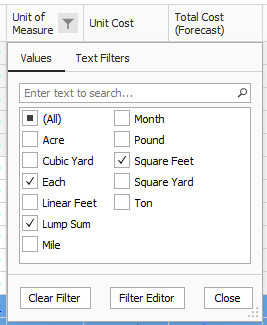
Click on the filter icon in the Unit of Measure column to select a filter value.
-
From the filter list, you can select any of the values defined for that column or you can use one of the predefined values (Custom, Blanks, Non blanks).
-
Make your selection, then click Close.
-
To clear the filter, click on the red X at the bottom of the form or click the filter icon on the header of the column you filtered and select (All), then click OK.
Filter editor overview
Column filters can be managed on individual columns or for the entire register using the Filter Editor. The Filter Editor tool lets you work with all the column filters for a register view in one place as well as creating more complex filters through the use of grouping and applying And/Or statements.
When you add a new Group, a new Condition is automatically added to that Group.
With each additional Condition statement, select an operator and a value in order for your customized filter to take effect on your chosen column. Comparison operators are shown below:
Creating complex filters using the Filter Editor
You can define filters across any of the columns available in the CBS register. You can also open the Filter Editor using the button in the column filter drop-down, but regardless of how you access it, the Filter Editor dialog permits defining a filter for the entire register and not just the selected column.
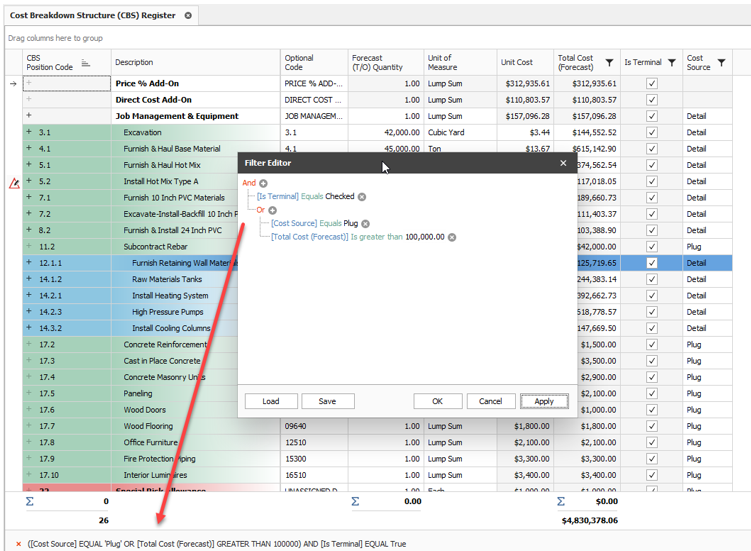
Because all the register fields are available, more complex filters can be created by using Grouping and Or operators. In the following example, a filter has been defined to return all Terminal Cost Items that either have a cost source of Plug, or exceed $100,000 of Total Cost (Forecast).
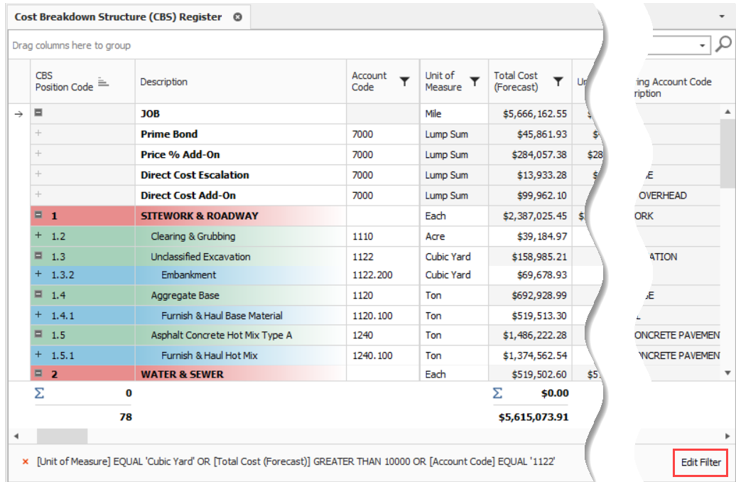
When modifying a filter, the Filter Editor can be invoked by clicking the Edit Filter button located on the bottom right of the CBS page.
Filter editor
-
In the CBS, hover over the Unit of Measure column header for the filter icon to show.
-
Click the Filter icon in the Unit of Measure column to select a filter value, and then select a UoM.
-
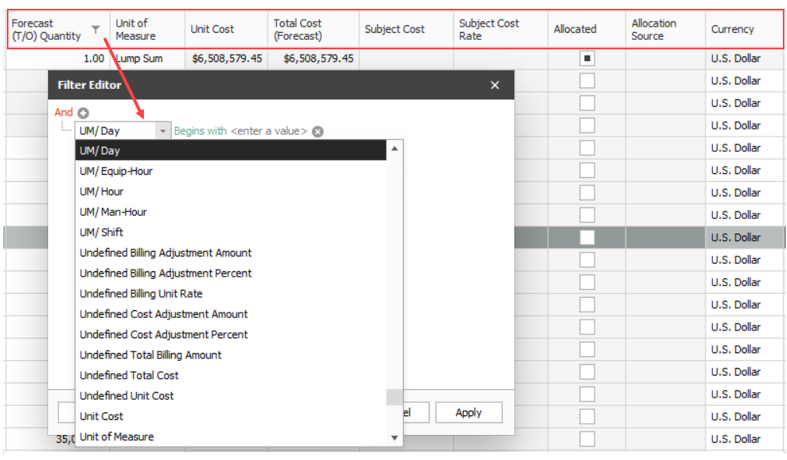
Select the Filter Editor button. The Filter Editor data box shows.
- By default, an And statement is created with a Begins with operator and a blank value.
-
Select an operator, and then enter in a value.
-
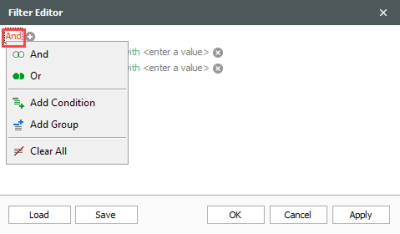
To add additional And/Or statements, select the word And in the top left corner. A drop-down shows.
- Choose which And/Or statement to add and then select the Preferred Operator.
- Enter in your Preferred Value to complete your additional statement.
-
Click OK.
- Select the X to delete a single statement.
- Select the And statement in the top left corner to begin clearing all And/Or statements.
- From the drop-down, select the option Clear All.
- When finished, select Apply, and then click OK.
Include subordinates filter
When applying filters in the CBS, you can select the Include subordinates option to show subordinate items of superior items that are filtered. When selected, subordinate items under the filtered superior items are shown even if they do not match the filtered text. This option is useful when estimating large CBS structures where similar work shows across multiple areas, so you do not have to scroll to find and update superior related items.
For example, when you apply a text filter using the Contains option for concrete without selecting the Include Subordinates option, the following superior items are shown without their subordinates:
When you use the same filter criteria and select the Include Subordinates option, the results include the concrete superior items with their subordinates, allowing you to see everything related to the superior items without using complex sorting and filtering.